Add EPC
To add a new EPC:
-
From the Portfolio page, select the asset in the Asset Register.
-
Select View Asset.
-
The Asset Details page is shown, select the Energy tab.
-
Select Add EPC.
-
The Add New Energy Performance (EPC) page appears.
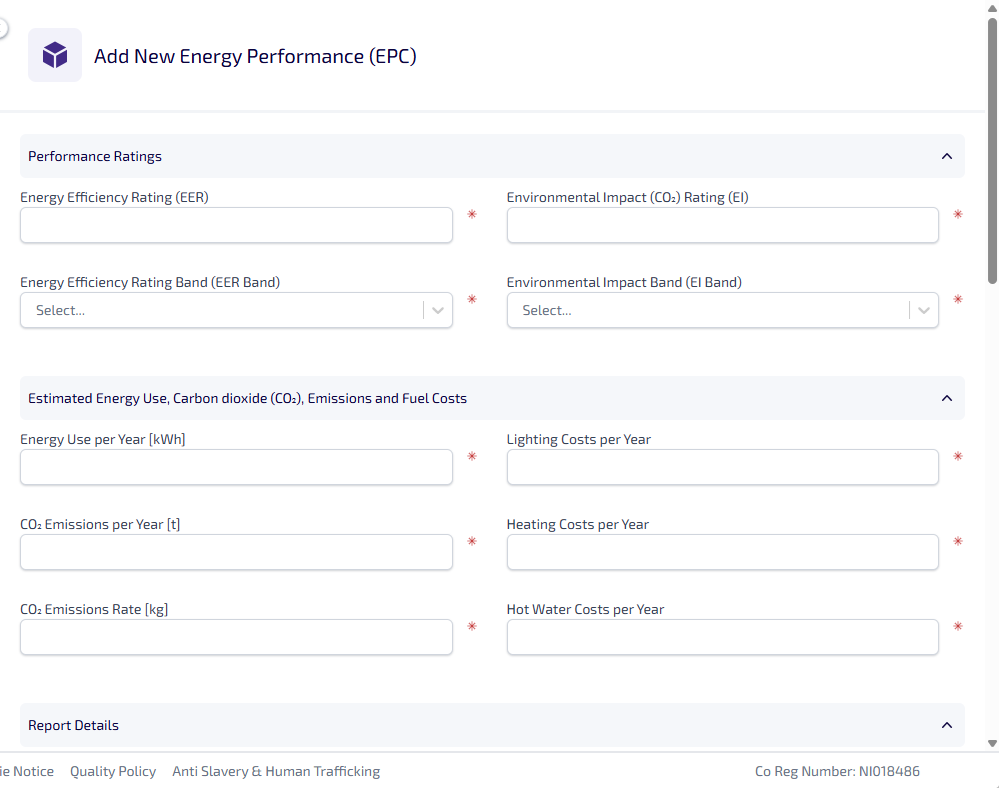
The Add New Energy Performance (EPC) page has sections which are expanded by default, selecting the section heading minimises it.
-
In the Performance Ratings section:
-
Enter the Energy Efficiency Rating (EER)*.
-
Select the Energy Efficiency Rating Band (EER Band)* dropdown, then select the applicable EER band from A - G.
-
Enter the Environmental Impact (CO2) Rating (EI)*.
-
Select the Environmental Impact Band (EI Band)* dropdown, then select the applicable EI band from A - G.
-
-
In the Estimated Energy Use, Carbon Dioxide (CO2), Emissions and Fuel Costs section:
-
Enter the Energy Use Per Year [kWh]*.
-
Enter the CO2 Emissions Per Year [t]*.
-
Enter the CO2 Emissions Rate [kg]*.
-
Enter the Lighting Costs Per Year*.
-
Enter the Heating Costs Per Year*.
-
Enter the Hot Water Costs Per Year*.
-
-
In the Report Details section:
-
Select the Assessment Type* dropdown, then select either RdSAP or SAP.
-
Enter the EPC Reference Number*. This must be unique.
-
Select the Date of the EPC Assessment (Issue Date)* field, then select the date from the calendar.
-
Select the Expiration Date* field, then select the date from the calendar.
-
Select the Date of Certificate* field, then select the date from the calendar.
-
Enter the Primary Energy Use [kWh]*.
-
Enter the Total Floor Area [m²]*.
-
Enter the Total Fuel Cost [£]*.
-
Enter the Form Factor.
-
Enter the Heat Loss Coefficient [W/K].
-
Enter the Space Heating Demand [kWh].
-
Enter the Assessor’s Name*.
-
Enter the Assessor’s Contact Email.
-
Enter the Assessor’s Contact Phone.
-
Enter the Assessor’s ID*.
-
-
In the Potential EPC Data section:
-
Enter the Potential Energy Efficiency Rating (Potential EER).
-
Select the Potential Energy Efficiency Rating Band (Potential EER Band) dropdown, then select the applicable potential EER band from A - G.
-
Enter the Potential Environment Impact Rating (Potential EI).
-
Select the Potential Environment Impact Rating Band (Potential EI Band) dropdown, then select the applicable potential EI band from A - G.
-
Enter the Current Energy Use per Year [kWh].
-
Enter the Potential Energy Use per Year [kWh].
-
Enter the Potential CO2 Emissions [kg].
-
Enter the Potential Lighting Cost [£].
-
Enter the Potential Heating Cost [£].
-
Enter the Potential Hot Water Cost [£].
-
-
Select Save Changes.
*These are required fields.