Asset Compliance - Compliance
The Asset Details > Asset Compliance tab > Compliance sub-tab shows you the assets compliance details and is where you add and update the compliance information for the asset.
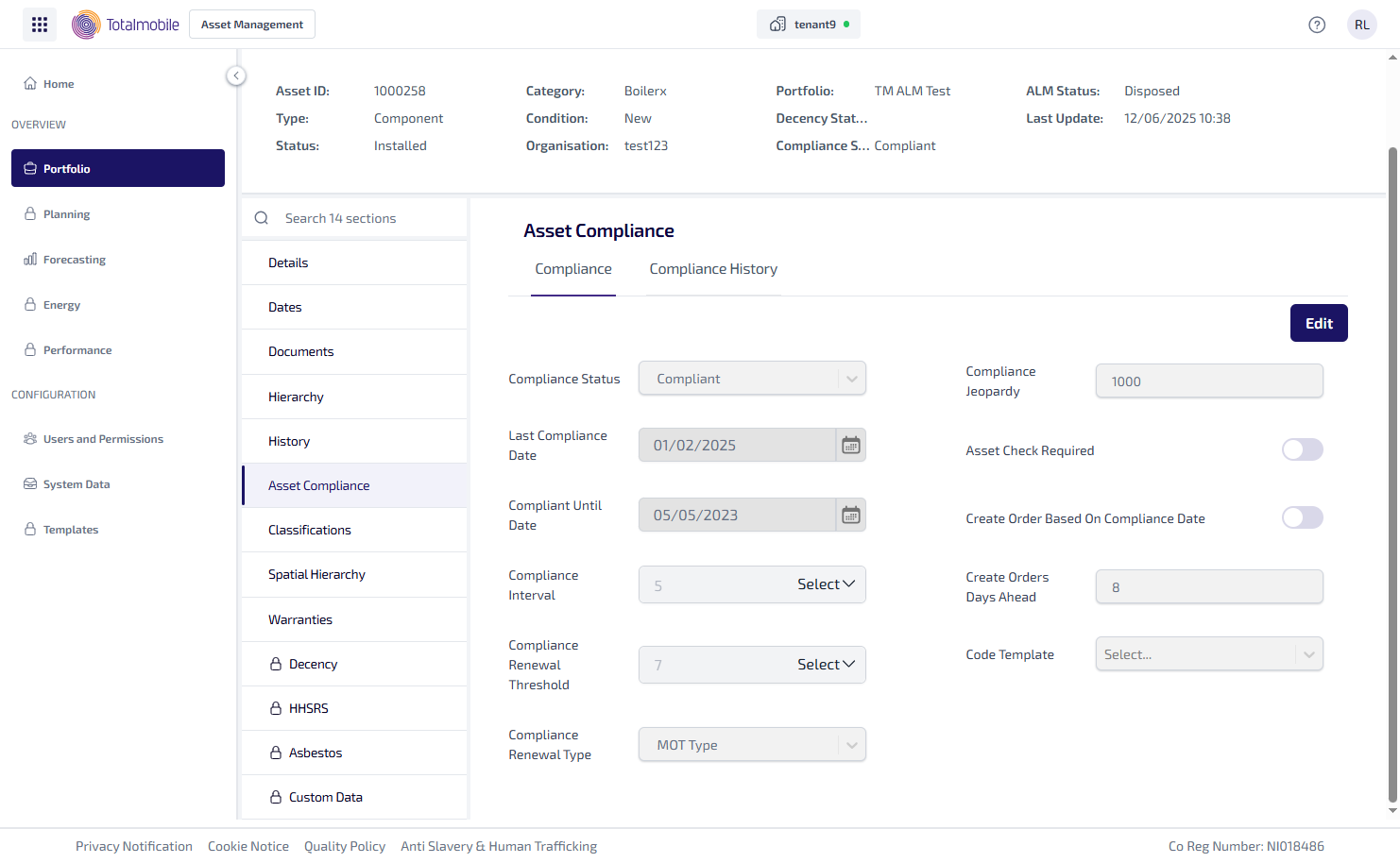
The Compliance sub-tab shows the following information:
-
Compliance Status - whether the asset is compliant or not, it shows the asset is either Compliant, Non-Compliant, or Requires Action.
-
Last Compliance Date - the date the asset last had a compliance check.
-
Compliant Until Date - the date the asset is compliant until.
-
Compliance Interval - the compliance check interval, in months or days.
-
Compliance Renewal Threshold - the renewal threshold, in months or days.
-
Compliance Renewal Type - the type of compliance renewal required, which is either MOT Type, From Date of Work, or From Previous Compliance Date.
-
Compliance Jeopardy - the number of days until the asset is in jeopardy of being out of compliance in Connect.
-
Asset Check Required - whether or not the asset needs checking.
-
Create Order Based On Compliance Date - this decides whether or not an order is created when the asset passes its compliance date.
-
Create Orders Days Ahead - the number of days ahead of the compliance date the order is created for the asset.
-
Code Template - the name of the code template to be applied to the asset.
To edit the Compliance information:
-
From the Portfolio page, select the asset in the Asset Register.
-
Select View Asset.
-
The Asset Details page is shown, select the Asset Compliance tab.
-
In the Compliance sub-tab select Edit.
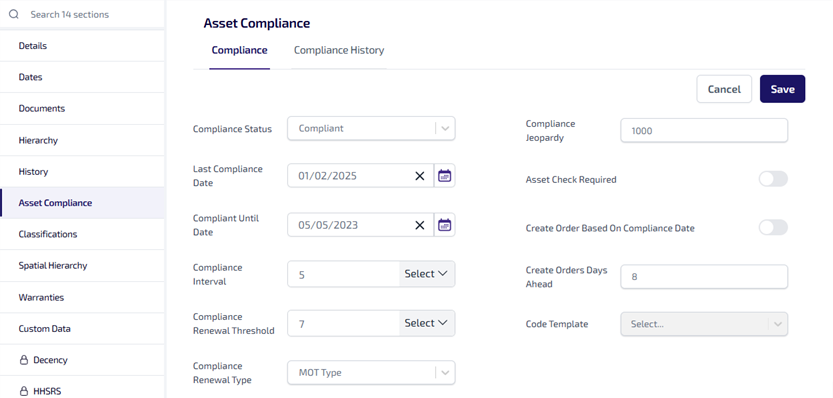
Make the necessary changes.
-
Select Save.
-
When prompted select Confirm to save the changes.