Asset Custom Fields
The System Data > Asset Custom Data tab > Asset Custom Fields sub-tab lists all of the existing asset custom fields. These are reusable fields which can be added to one or more Asset Custom Data Tab.
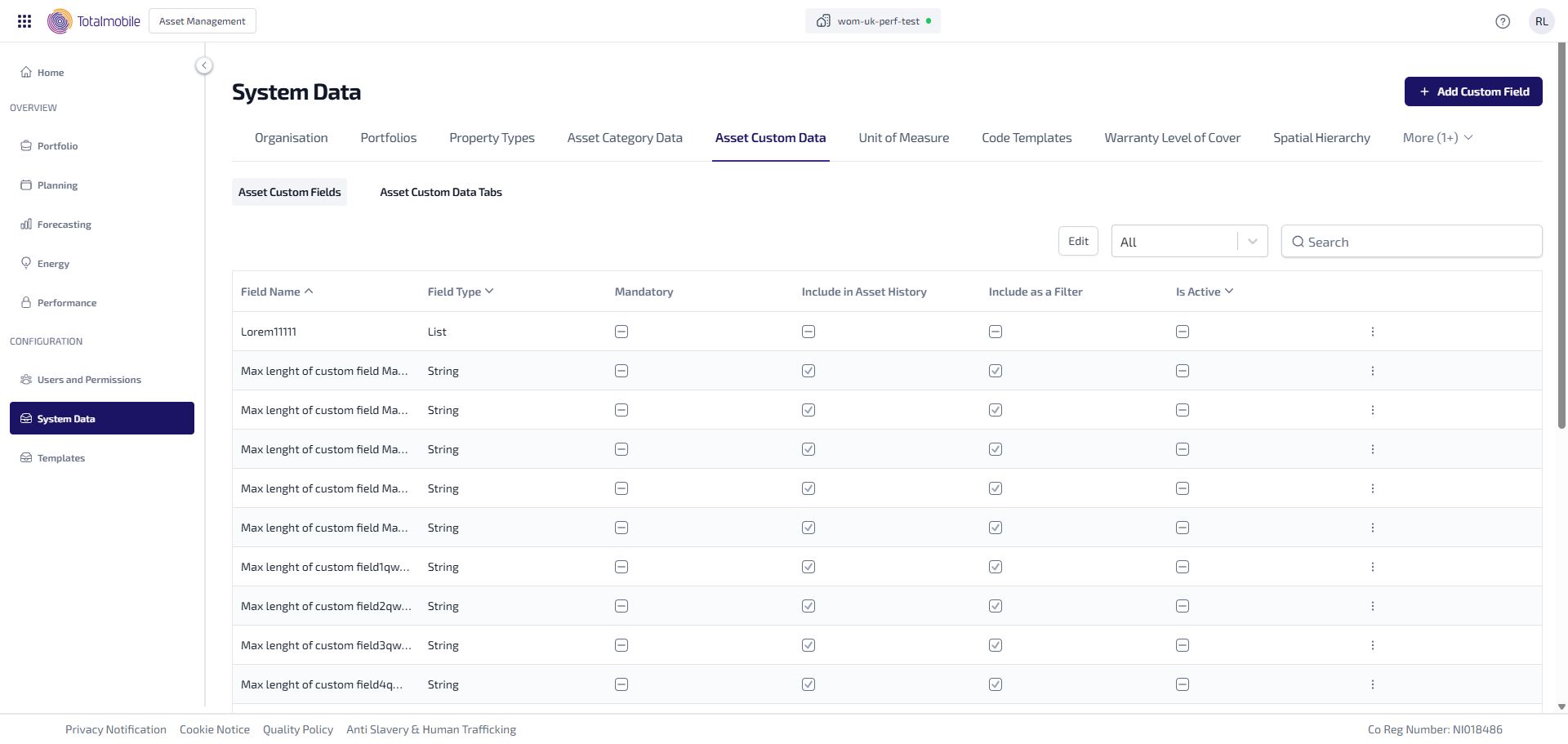
The following information is shown:
-
Field Name - the unique name of the asset custom field.
-
Field Type - the type of data the field holds for example strings, dates, lists or numbers.
-
Mandatory - indicates whether the field is required when editing asset data.
-
Include in Asset History – indicates whether changes to the asset custom field should be tracked in the Asset History.
-
 - changes to the asset custom field are tracked.
 -
 - changes to the asset custom field are not tracked.
-
-
Include as a Filter – indicates whether the field is available as a filter in the Asset Register.
-
- the asset custom field is available as a filter.
-
- the asset custom field is not available as a filter.
-
-
Is Active – indicates whether the asset custom field is available to be assigned to assets custom data tabs.
-
- the asset custom field is available to be assigned to an asset custom data tab.
-
- the asset custom field is not available, and hidden from asset custom data tabs.
-
-
 More options - select for the following options:
Edit - select to edit the asset custom field.
Delete - select to delete the asset custom field.
Asset custom fields can only be deleted if they are not assigned to an asset custom data tab or used for an asset. If the asset custom field is in use, delete will be disabled.
You can also do the following in Asset Custom Fields:
-
Add Custom Field - add a new asset custom field.
-
Edit Custom Field - edit an existing asset custom field.
-
Edit - select to edit any of the asset custom field checkboxes in the Asset Custom Fields table, make any necessary changes and select Save.
-
Dropdown Filter - select the dropdown list and select a Field Type to display all matching results in Asset Custom Fields.
-
Search - enter a full, or partial, Field Name or Field Type into the Search field and press Enter on the keyboard to display all matching results in Asset Custom Fields.
The Search field is a ‘begins with’ search, therefore ensure the criteria entered is always the beginning of what you are searching for.
Add Custom Field
To add a new asset custom field:
-
In the Navigation menu, in the Configuration section, select System Data.
-
Select the Asset Custom Data tab.
-
In the Asset Custom Fields sub-tab select Add Custom Field.
-
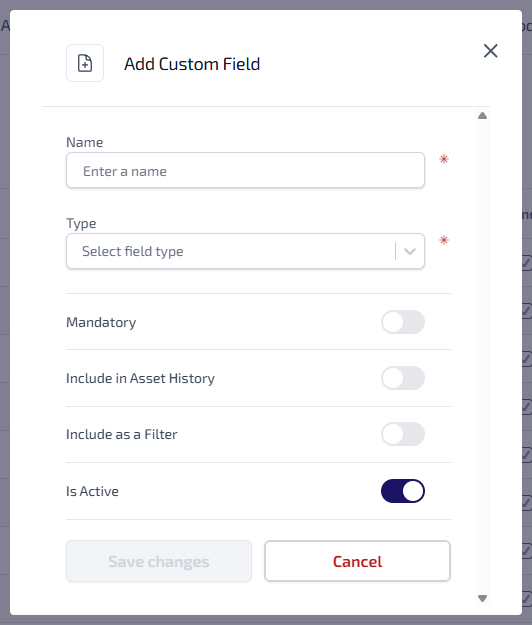
The Add Custom Field dialog appears.
-
Enter the following information:
-
Name* - the name entered must be unique, can be alphanumeric, contain symbols and have a maximum 64 character limit.
-
Type* - select the dropdown list and select one of the following options:
-
String
-
Date
-
Date & Time
-
Numeric
-
List - select to define the list used. Enter a Code and Description. Select Add Item to add additional items to the list.
Once saved the Field Type cannot up updated. -
-
Select the toggle to indicate whether the asset custom field is Mandatory for Asset Details.
-
Select the toggle to indicate whether to Include in Asset History when the asset custom field is updated.
-
Select the toggle to indicate whether to Include as a Filter in the filter on the Asset Register.
-
Select the toggle to indicate whether the asset custom field Is Active.
*These are required fields.
-
-
Select Save.
Edit Custom Field
To edit an existing asset custom field:
-
In the Navigation menu, in the Configuration section, select System Data.
-
Select the Asset Custom Data tab.
-
In the Asset Custom Field sub-tab, for the asset custom field you want to edit, select More options
 .
. -
From More Options select Edit.
-
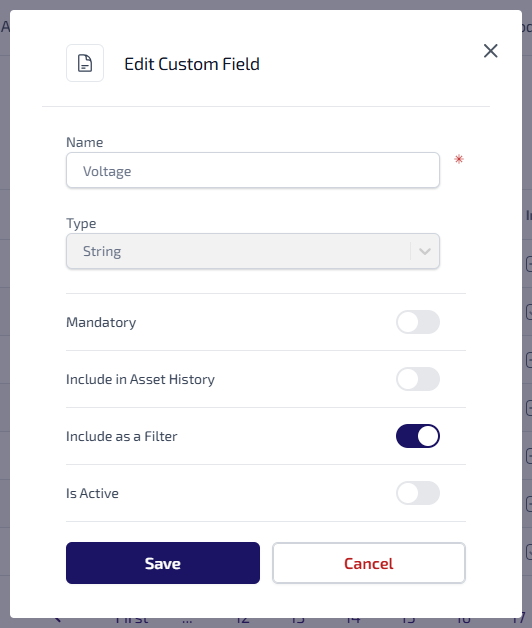
The Edit Custom Field dialog appears.
-
Update the following details as required:
-
Name
-
Mandatory - indicates whether the field is required when editing asset data.
-
Include in Asset History - indicates whether changes to the asset custom field should be tracked in the Asset History.
-
Include as a Filter - indicates whether the field is available as a filter in the Asset Register.
-
Is Active - indicates whether the asset custom field is available to be assigned to assets custom data tabs.
-
-
Select Save Changes.