Asset Info - Documents
The Portfolio > Asset Register tab > select Asset >Documents tab in Asset Info shows you the documents associated with the selected asset.
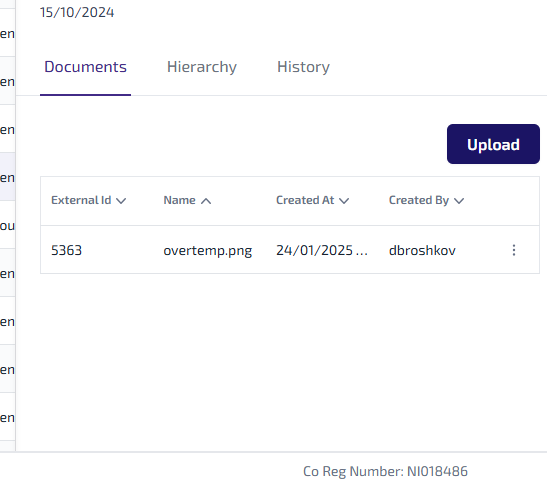
For each document you are shown the following information:
-
External ID - the unique identifier created by Asset Management when the document is uploaded.
-
Name - the name of the document uploaded.
-
Created At - the date and time the document was uploaded.
-
Created By - the name of the user who uploaded the document.
-
 - select this for the following options:
-
More Information - select to show the document information and meta data stored against the document in the Document Vault.
-
Download - select to download the document.
-
To attach a new document to the asset, select Upload:
There is an upload limit of 50 documents at a time.
-
In the Asset Register select an asset.
-
The Asset Info panel appears, select Upload.
-
The Upload Document dialog appears.
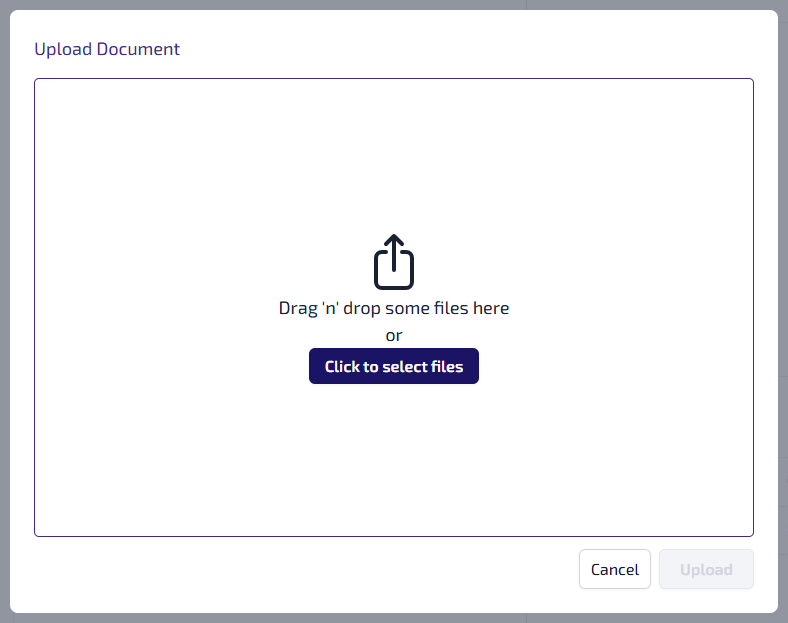
You can either:
-
Drag and drop the file into the dialog.
-
Select Click to select files, browse and select the required file or files, select Open.
-
-
The file appears in the Upload Document dialog.
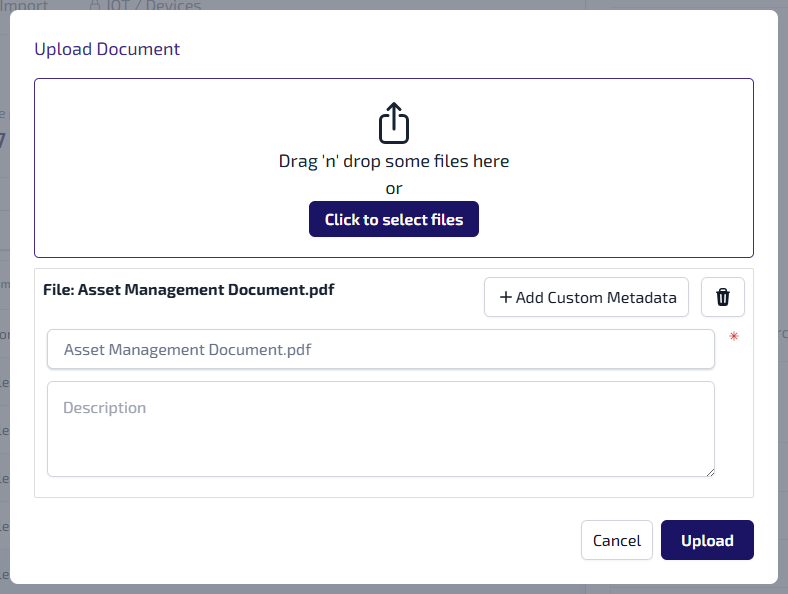
You can:
-
+Add Custom Metadata - select to add additional fields against the file when it’s stored in the Document Vault. Select the Select an option field and pick a custom field from the dropdown list, which is populated with the custom field available in the Document Vault. Then enter the relevant text into the Enter text field.

-
 - select to delete the file from the Upload Document dialog.
 -
Document Name - change the name of the file, if required.
-
Description - enter a description of the file, optional.
-
-
Select Upload.
-
The file, or files, are uploaded to the Document Vault and are added to the Documents tab.