Compliance
The Compliance tab shows an overview of assets based on their compliance data, and provides you an easy way to see such things as which asset may be in need of compliance checks.
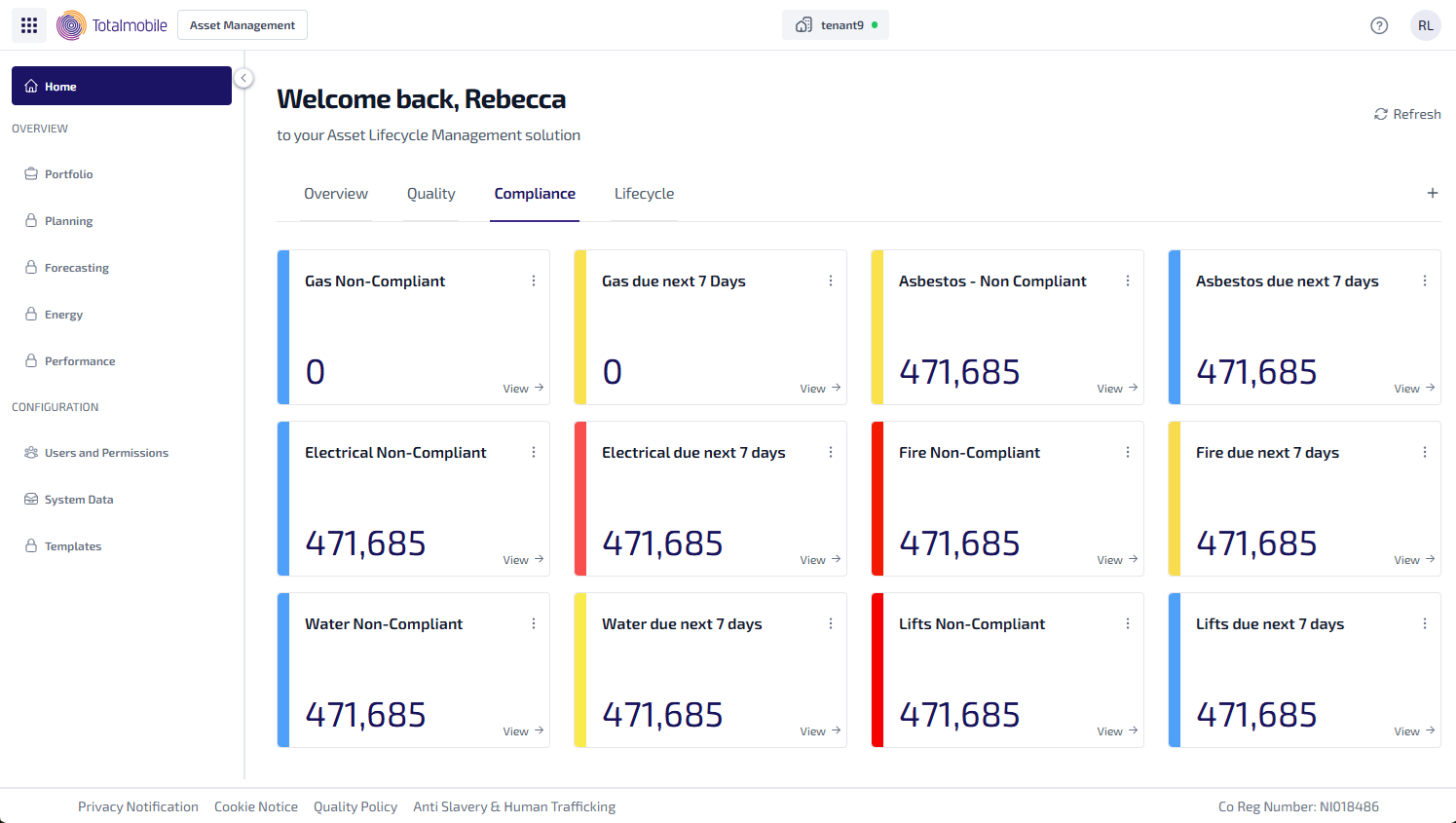
Here is an example of the types of widgets which could be used on the Compliance tab:
-
Gas Non-Compliant - the number of gas assets which are non-compliant.
-
Gas Due Next 7 Days - the number of gas assets which are due a compliance check in the next 7 days.
-
Asbestos - Non-Compliant - the number of asbestos assets which are non-compliant.
-
Asbestos Due Next 7 Days - the number of asbestos assets which are due a compliance check in the next 7 days.
-
Electrical Non-Compliant - the number of electrical assets which are non-compliant.
-
Electrical Due Next 7 Days - the number of electrical assets which are due a compliance check in the next 7 days.
-
Fire Non-Compliant - the number of fire assets which are non-compliant.
-
Fire Due Next 7 Days - the number of fire assets which are due a compliance check in the next 7 days.
-
Water Non-Compliant - the number of water assets which are non-compliant.
-
Water Due Next 7 Days - the number of water assets which are due a compliance check in the next 7 days.
-
Lifts Non-Compliant - the number of lifts which are non-compliant.
-
Lifts Due Next 7 Days - the number of lifts which are due a compliance check in the next 7 days.
To see the assets related to each widget, select View. The Asset Register is shown, with the filters used to configure the widget applied, and listing all the matching results for the widget.