Custom Data
The Asset Details > Custom Data tab lets you view and edit the custom data associated with the asset.
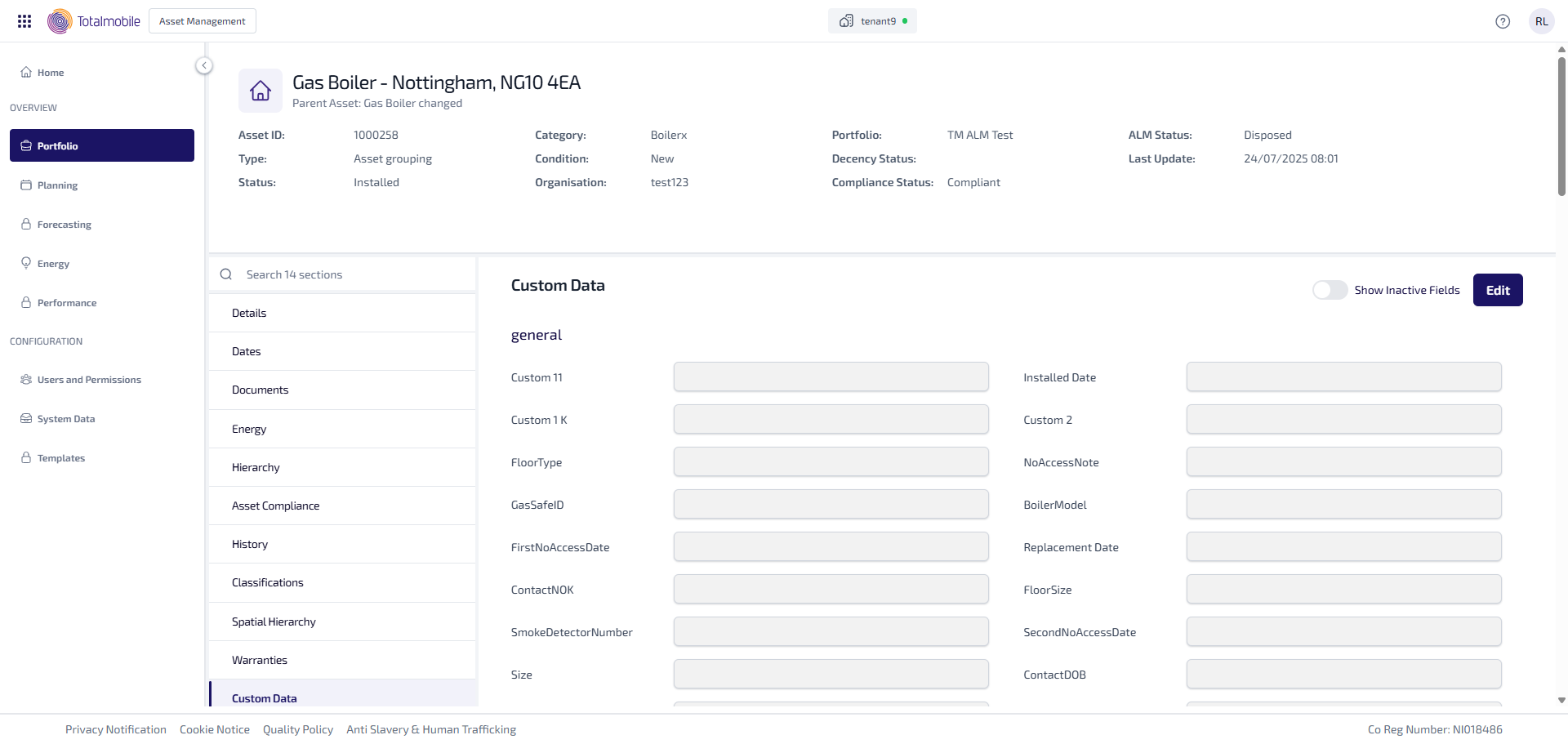
The custom data fields are listed, showing any information entered.
To edit the custom data shown:
-
From the Portfolio page, select the asset in the Asset Register.
-
Select View Asset.
-
The Asset Details page appears, select the Custom Data tab.
-
Select Edit.
-
Make all necessary changes.
-
Select Save.
If any Asset Custom Data Fields, which have been used previously, are marked as inactive you can use the Show Inactive Fields toggle to make them visible in read-only mode.
The inactive fields:
-
Display any existing values.
-
Cannot be edited.
-
Are greyed out to clearly show them as inactive.
If the Asset Custom Data Fields have Include in Asset History active, any updates made in the Custom Data tab are tracked in Asset History.