User Management
The User and Permissions > User Management tab is shown by default when you select the User and Permissions page. Here you can manage your existing users, and create new ones.
Users can be managed through Field First and added to Asset Management through an Application Programming Interface (API). These users login to Asset Management with their Single Sign-On (SSO) credentials. For more information see Field First Setup.
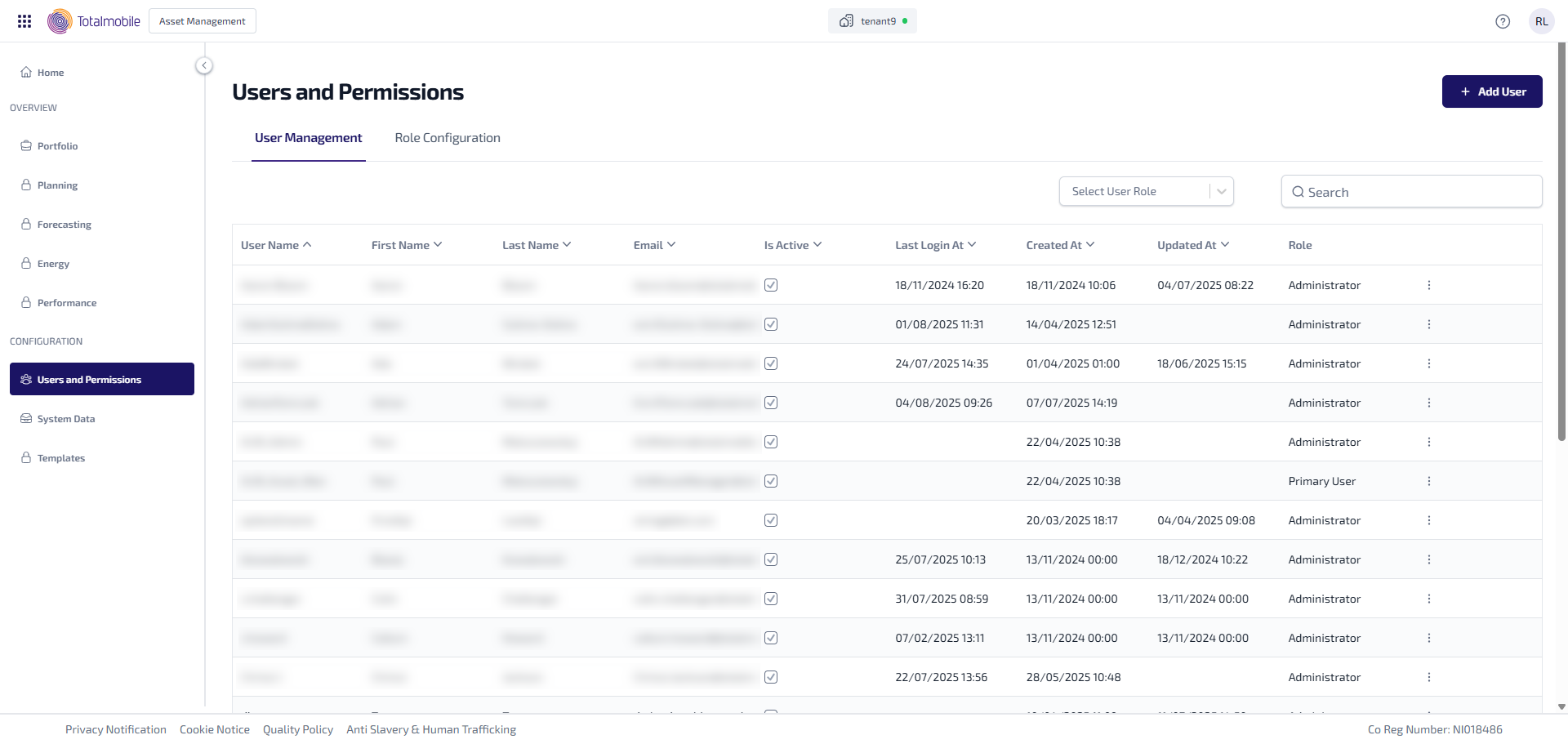
The following information is shown for each user:
-
User Name* - the name used by the user to login.
-
First Name* - the user's first name.
-
Last Name* - the user's last time.
-
Email* - the user email address.
-
Is Active* - this indicates whether the user is active or not.
-
 - this shows the user is active.
 -
 - this shows the user is not active.
-
-
Last Login At* - the date and time the user last logged in.
-
Created At* - the date and time the user was created.
-
Updated At* - the date and time the user was last updated.
-
Role - the role assigned to the user. The user can only have 1 role assigned to them at a time.
-
 - select for the following options:
-
Edit - select to edit the users details.
-
Deactivate/Activate - select to either deactivate, or activate, the user.
-
*These columns can be sorted in ascending or descending order by selecting the column heading. The arrow to the right of the heading shows whether the column is sorted in ascending order (arrow pointing up), or descending order (arrow pointing down).
You can also do the following in User Management:
-
Add User - add a new user.
-
Edit User - edit an existing user.
-
Select User Role - filter the users by the role assigned to them.
-
Search* - enter the full, or partial, User Name, First Name, Last Name, or Email into the Search field and press Enter on the keyboard to display all matching results in User Management.
*The Search field is a ‘begins with’ search, therefore ensure the text entered is always the beginning word/s of what you are searching for.
Add User
To add a new user:
-
In the Navigation menu, in the Configuration section, select Users and Permissions.
-
On the User Management tab, select Add User.
-
The Add New User dialog appears.
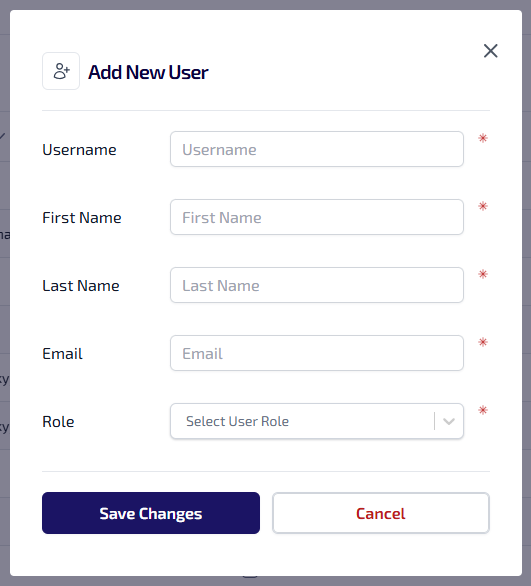
Enter the following information:
-
Username* - the username entered must be unique, can be alphanumeric, contain symbols and have a maximum 64 character limit.
-
First Name*
-
Last Name*
-
Email*
-
Role* - select the role to be assigned to the user from the dropdown:
-
Administrator - has access to all features and privileges.
-
Primary User - has read/write access to all features and privileges, excluding Configuration.
-
Read Only User - has read access to all features and privileges, excluding Configuration.
-
Limited User - has no access by default.
-
-
*These are required fields.
-
Select Save Changes.
Users created manually will receive an email prompting them to create a password.
Edit User
To edit a user:
-
In the Navigation menu, in the Configuration section, select Users and Permissions.
-
In the User Management tab, for the user you want to edit, select the
to open the context menu find the user to be edited. -
From the context menu select Edit.
-
The User Details dialog appears.
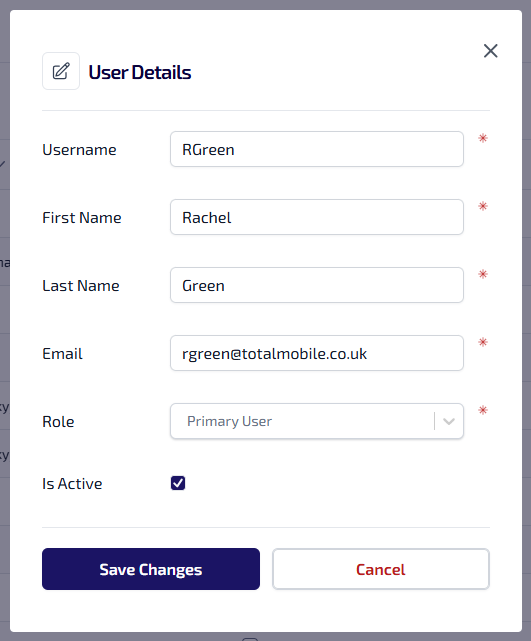
Update the following details as required:
-
Username
-
First Name
-
Last Name
-
Email
-
Role
-
Is Active
-
-
Select Save Changes.
Select User Role
The User Management tab can be filtered by selecting the role assigned to the users.
To filter the users by role:
-
In the Navigation menu, in the Configuration section, select Users and Permissions.
-
In the User Management tab, select the Select User Role dropdown, then select the role from the following options:
-
Administrator - has access to all features and privileges.
-
Primary User - has read/write access to all features and privileges, excluding Configuration.
-
Read Only User - has read access to all features and privileges, excluding Configuration.
-
Limited User - has no access by default.
-
-
The table in the User Management tab updates to show only those users with the selected role.
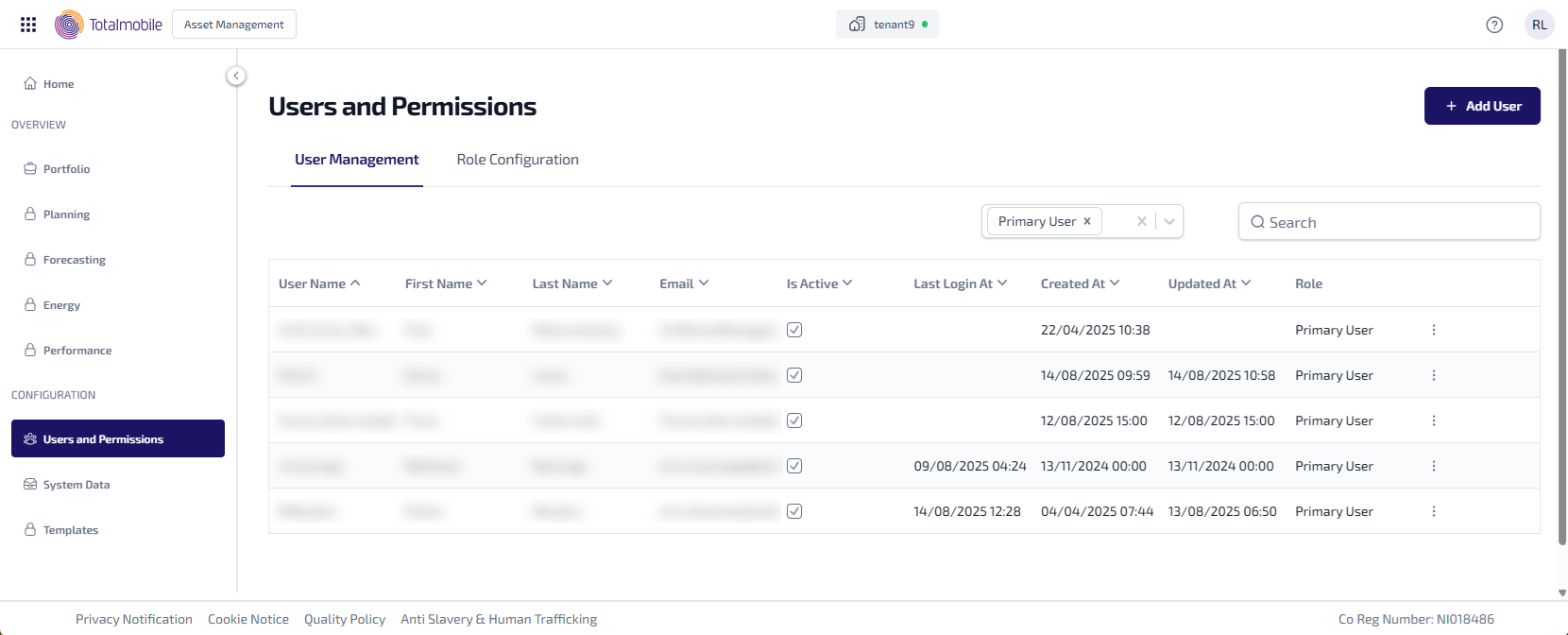
-
If required, follow step 2 again to add additional user roles.