Assign Multiple Permissions to a User
You can assign multiple permissions within user profiles instead of adding users to each permission individually. This saves time when you create a new user.
After the initial Dynamic Scheduling installation, only administrators can set permissions for other users.
-
In WebAdmin, select Users.
-
Select a User.
Use the Search field to filter the list of users.
The Profile window appears.
-
In the Permissions section, select Edit.
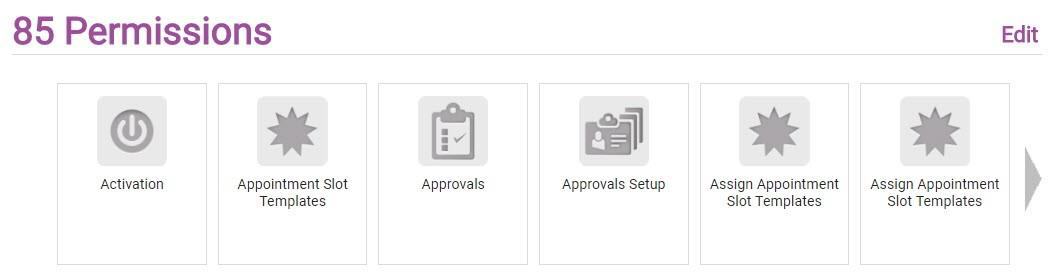
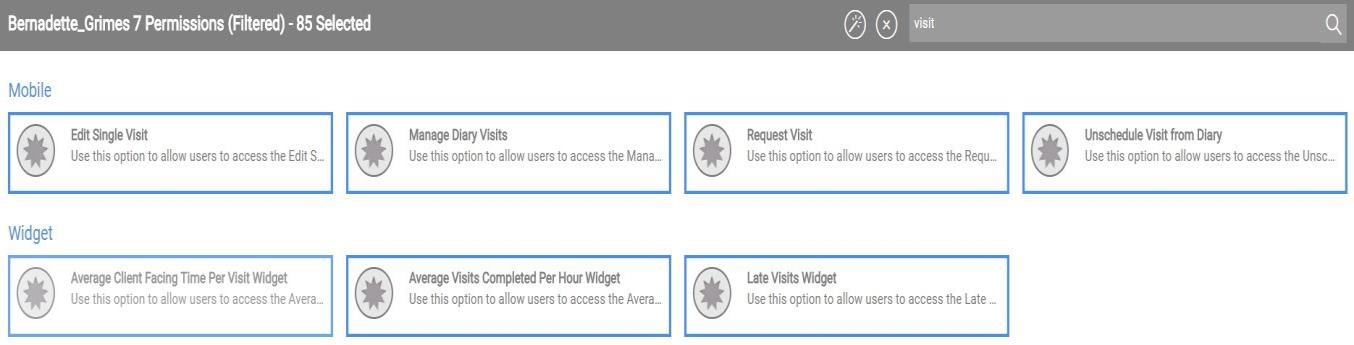
The User Permissions window appears. Selected permissions are displayed with a blue border.
-
Select one or more permissions to assign to the user.
Use the Search field to filter the list of permissions.
-
To assign all permissions, select Select All
 .
. -
To clear the currently-selected permissions, select Clear Selection
 .
. If the permissions are filtered, Select All and Clear Selection only apply to the permissions that are displayed .
-
-
Click Save.