Assign Roster
You can only assign Rosters to Resources in one World, which means Resources cannot exist or be scheduled Jobs in multiple Worlds.
Refer to the Rosters section for more information.
-
In WebAdmin click Optimise Admin.

-
The Optimise Admin window appears. Select a World.

-
The World Settings and Permissions window appears. Navigate to the Settings section and select Assign Roster.
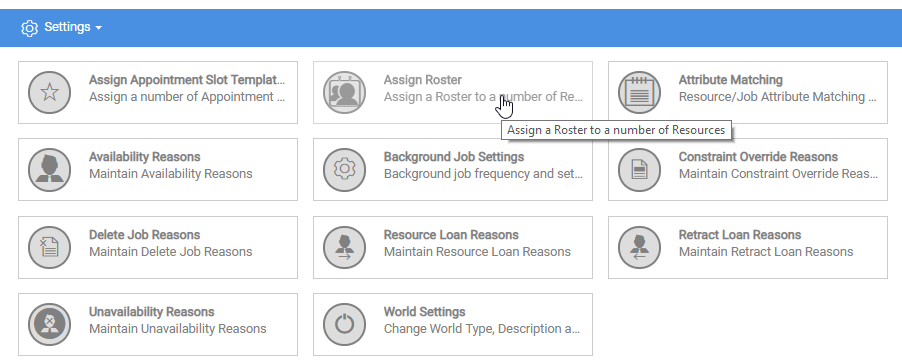
-
The Assign Roster window appears on the Rosters tab. Select a Roster.
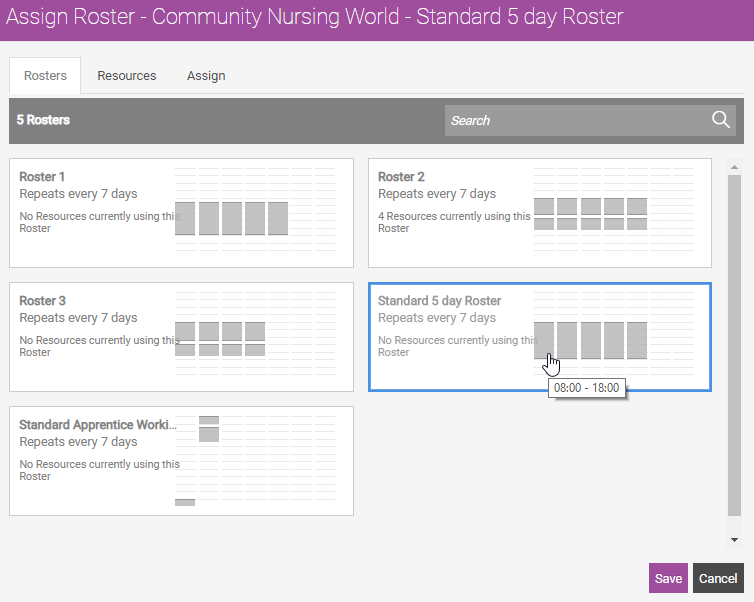
-
Select the Resources tab.
-
The Resources tab appears.
-
Select in the search bar and type a Resource name.
-
Select Resources to assign to the Roster, or select the Select All
 icon.
icon.
-
-
Select the Assign tab.
-
The Assign tab appears. Select in the Start Date field.
-
The calendar appears. Select a start date for the Roster. You can also select in the main calendar.
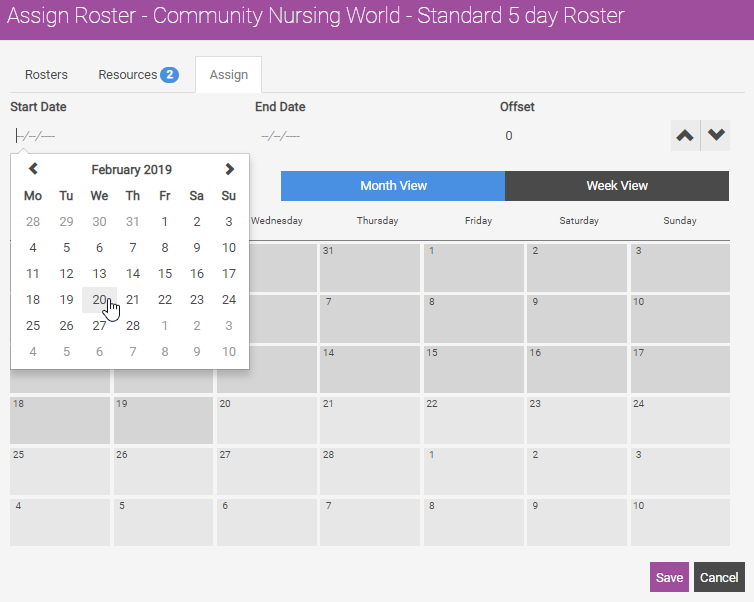
Do not enter an End Date if you want a constant pattern. Furthermore, if you assign Resources to more than one Roster, the Start Dates and End Dates determine which Roster is used. Where there are two or more Rosters and one has no End Date, the order of the Start Dates determines which Roster applies.
-
Select in the End Date field.
-
The calendar appears. Select an end date for the Roster. You can also select in the main calendar. If you do not select an End Date the Roster is continuous.
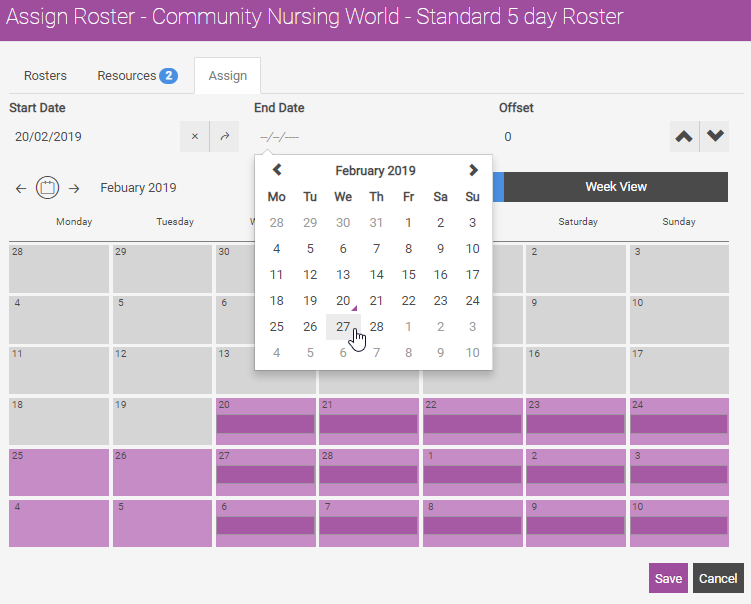
-
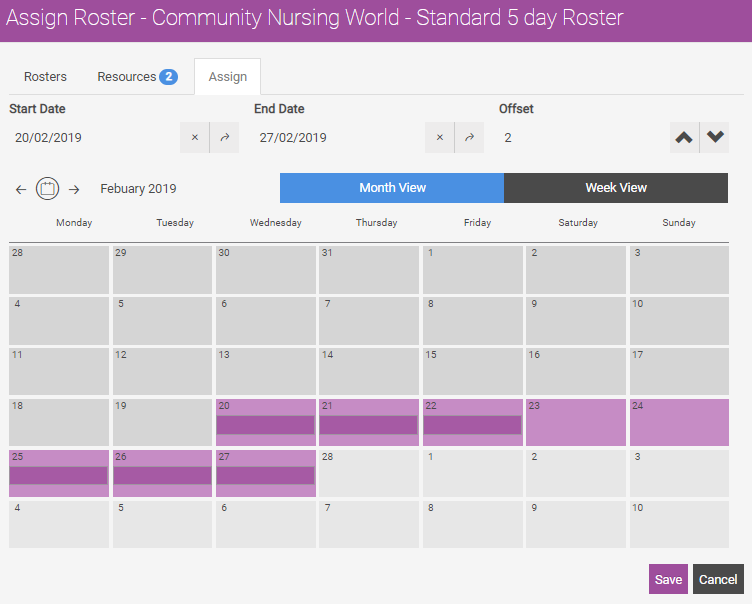
Enter an Offset value (days). The Offset enables you to define which day of a Roster applies to the Roster Start Date. For example, you select a Roster of Monday to Friday with weekends off and the current day is Tuesday. You set the Roster to start on the current day and the Offset to 2, which means the current day is the second day of the Roster (Tuesday of a Monday to Friday week). You can also select the arrows to increase and decrease the Offset. A visual representation of the Roster displays within the calendar.
-
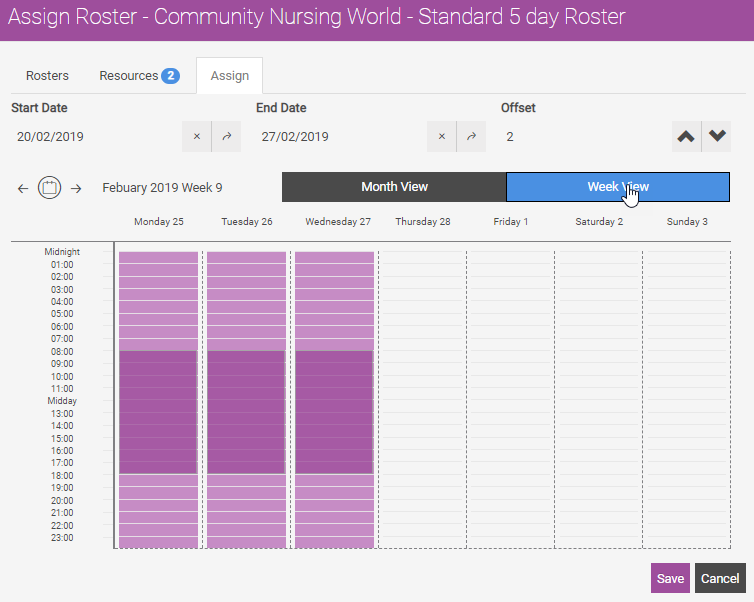
Select Week View to view the Roster in relation to the calendar in a week format.
-
Select Save.
-
The Confirm window appears. Select Save.

The Resources assign to the Roster in the World.