Assign Rosters to Resources
You can assign rosters to resources in different Worlds, which means your staff can work for different teams, in different geographic regions or multiple Worlds as best suits your requirements.
For example, you manage a South Belfast World and a North Belfast World. A resource's employment contract changes and now they have to work in the South Belfast area during the morning and the North Belfast area in the afternoon. You assign the morning roster for the South Belfast World and also the afternoon roster for the North Belfast World to the resource. The resource availability is displayed within each Optimise Schedule World, and you or Mendel schedule jobs to the resource for the appropriate times and Worlds.
Ensure periods of availability for rosters in different Worlds do not overlap. Dynamic Scheduling does not warn you if availability periods in two Worlds overlap, and this can lead to the scheduling of clashing jobs.
-
In WebAdmin select Optimise Admin.
The Universal Settings and Worlds page appears.
-
In the Universal Settings section, select Resources.
The Resources page appears.
-
Select the resource you want to edit.
To filter the resources list, select the Search field and start typing a resource name.
The Resource page appears.
-
Select the Roster tab.
-
Select Edit Resource Details
 .
. -
Select Assign New Roster
 .
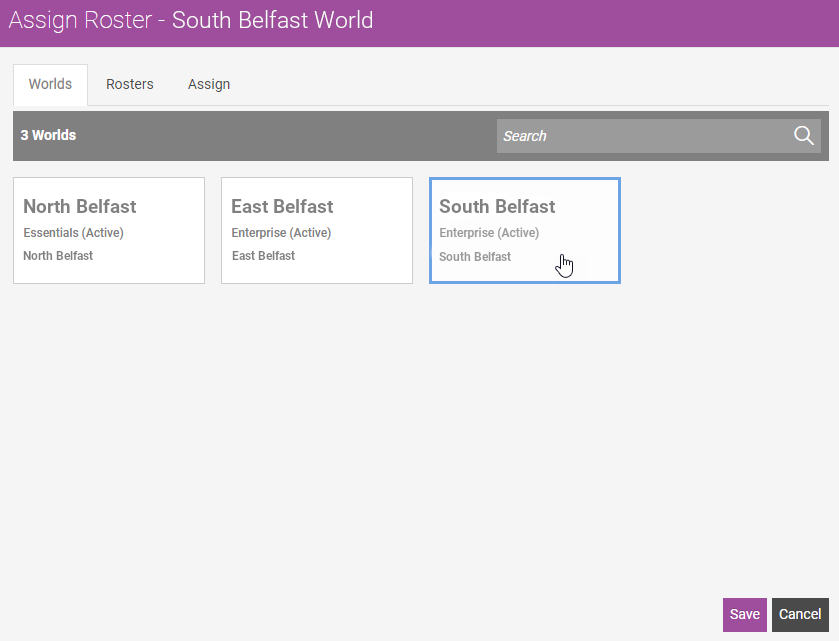
.The Assign Roster dialog appears with the Worlds tab displayed by default.
-
Select a World.
-
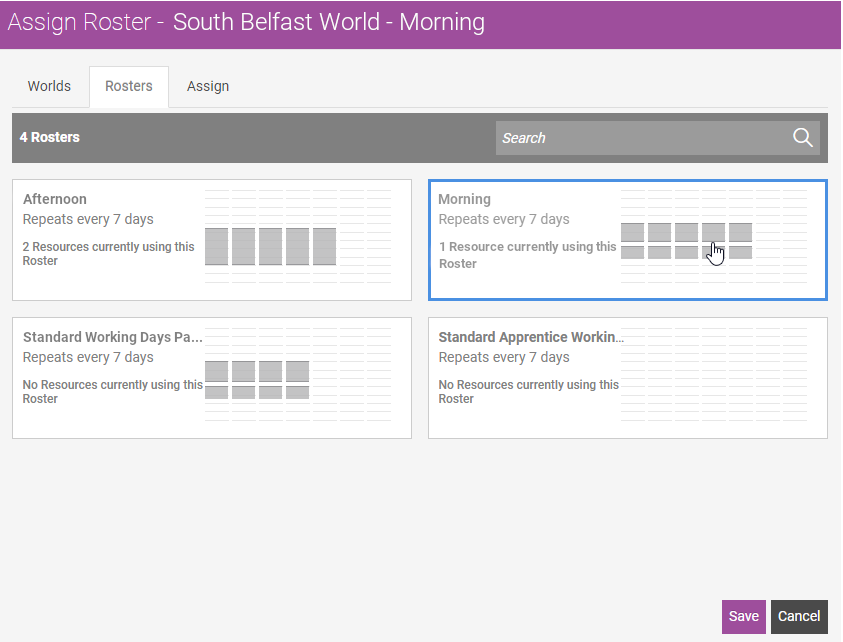
Select the Rosters tab.
-
Select the roster you want to assign to the resource.
-
Select the Assign tab.
-
Select the Start Date field, then select a date from the calendar.
-
Select the End Date field, then select a date from the calendar. If you do not select an end date the roster is continuous.
Do not enter an end date if you want a constant pattern. If you assign more than one roster to a resource, the start dates and end dates determine which roster is used on a per World basis. When you assign two or more rosters to a resource and a roster has no end date, the order of the start dates determines which roster applies on a per World basis.
-
Select the Offset field, and enter a value in days. The Offset enables you to define which day of a roster applies to the Roster Start Date. For example, you select a roster of Monday to Friday with weekends off and the current day is Wednesday. You set the roster to start on the current day and the offset to 2, which means the current day is the third day of the roster (Wednesday of a Monday to Friday week). You can also use the arrows to increase and decrease the offset.
-
Select Save.
-
In the Confirm dialog, select Save. The Confirm dialog also informs you if the resource has rosters assigned for other Worlds.
-
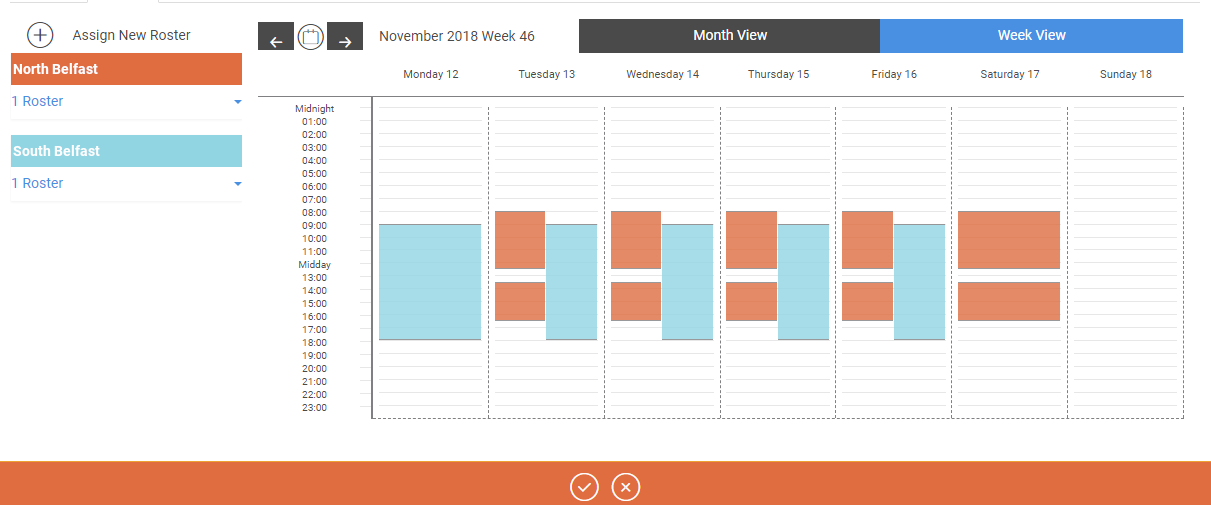
To assign other rosters for different Worlds, repeat steps 5-14. The assigned rosters display in different colours in the Roster tab:
To check that availability slots of rosters in different Worlds do not overlap, select Week View.
-
Select Save
 .
.