Delete a Job
You can delete jobs from the Job List in Optimise Schedule, for example when a job has been cancelled. When you delete a job you select a Job Deletion reason code. The job is then removed from Optimise Schedule and if applicable, the associated appointment is removed from Triage.
Prerequisites for Deleting Jobs
-
Set up at least one Job Deletion Reason Code if you want to record reasons for job deletion.
-
Go to the \Database\Scripts\ folder of the build, open the rm-allow-deletefrom-pile script, and locate the SET_VALUE = 'False' setting. Change it to 'True'.
Save the rm-allow-delete-from-pile script and then run it against the Totalmobile database.
Deleting Jobs from the Job List
If a job has been scheduled it is automatically recalled before it is deleted.
-
In WebAdmin, select Optimise Schedule.
The Worlds window appears.
-
Select a World.
The Optimise Schedule window appears.
-
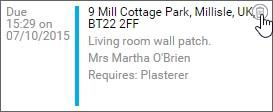
Hover your cursor over a job in the Job List and select the Delete icon.
-
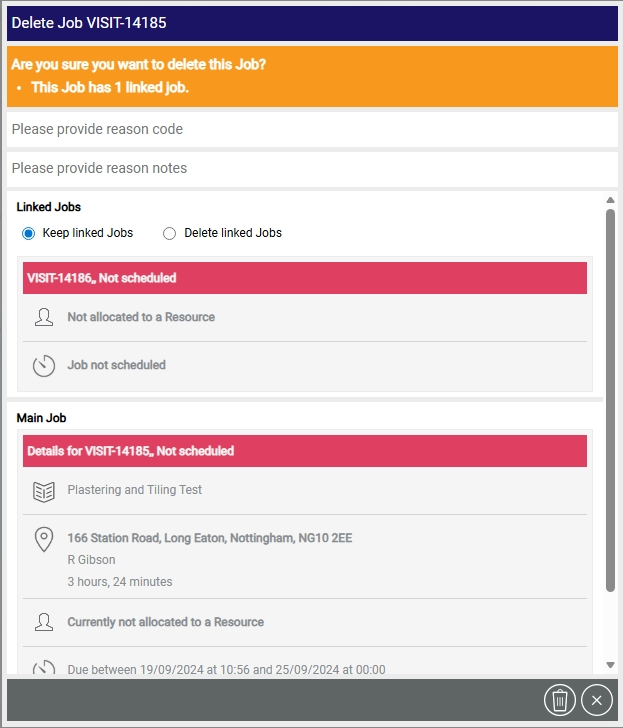
In the Delete Job dialog:
-
Select the Please provide reason code field, then select a job deletion reason code from the dropdown.
-
Select the Please provide reason notes field, and enter additional notes if required.
-
If the job has other jobs linked to it, select either Keep linked Jobs or Delete linked Jobs. The default is to keep the linked jobs.
-
Select the Delete icon.
-
-
In the Please Confirm dialog, select Delete.