Installing the Mendel Service
The final stage of the Mendel install is to setup the processing engine to use the web-services on the web-server.
Prior to TM 6.2, there can currently only be 1 instance of the Mendel engine per server.
-
On the Mendel processing server and using a command prompt, navigate to the folder setup in section Install Optimise Enterprise Mendel Engine and Generate Optimise Credentials.
-
Run the install.cmd with the appropriate URL to setup the web-services. Note the command syntax changes depending on the TM build being installed:
Install.cmd <Protocol>://<url>/<instance>/Mendel/api/ key secret
-
Protocol: HTTPs typically but can be HTTP if internal only
-
Key: The Key generated in step 7 in section Install Optimise Enterprise Mendel Engine and Generate Optimise Credentials
-
Secret: The Secret generated in step 7 in section Install Optimise Enterprise Mendel Engine and Generate Optimise Credentials
-
URL: The main URL of the site, from settings.xml
-
Instance: The instance of the site, from settings.xml

You need the trailing ‘/’ on the URL.
-
-
Press enter once you’re sure the syntax is correct and run the script.
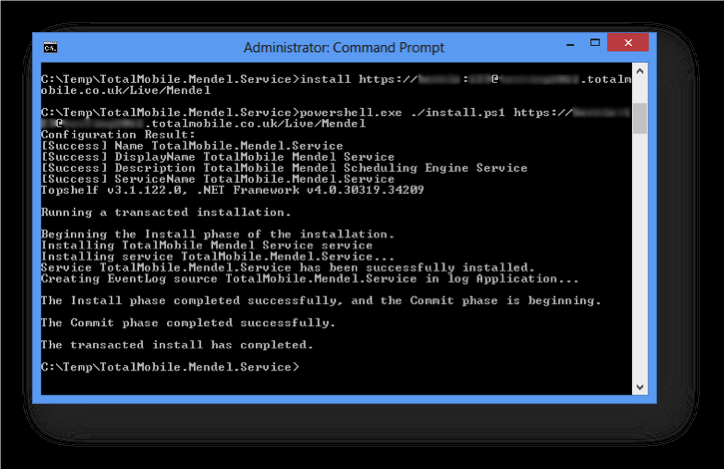
The output should all be similar to the above, however if there are any errors then you’ll need to confirm all the details are correct.
-
Finally, there should be a service in Services called TotalMobile Mendel Service. Start the service. Once started, check the event log and there should be two entries stating start the service is starting & that it started. Any other warnings/errors should be investigated.
Perflib and SQL.lite errors can be ignored.