Transfer Jobs Between Resources
In the Diary view, you can change the resource allocated to a job by dragging the job from the original resource to the new one. You can also transfer a resource's whole daily route if required, for example if a worker is ill and you need to reschedule all of their jobs to an alternative resource.
You must have the Schedule Jobs in Optimise permission in the current World for this procedure.
Transfer a Single Job to Another Resource
-
In WebAdmin, select Optimise Schedule.
The Worlds window appears.
-
Select a World.
The Optimise Schedule window appears.
-
To move a scheduled job:
-
Locate the job in the Diary.
-
Drag the job from its current resource and drop it in the required time slot for the new resource
A warning appears on the job if you attempt to drop it in a location that has conflicting constraints, or where the new resource does not have the required skills for the job.
-
Transfer a Route from One Resource to Another
-
In WebAdmin, select Optimise Schedule.
The Worlds window appears.
-
Select a World.
The Optimise Schedule window appears.
-
Select the diary date for the route you want to transfer. For more details, refer to Changing the Diary Date.
-
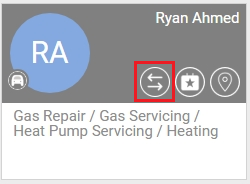
In the resource header, select the Transfer Resource Jobs icon.
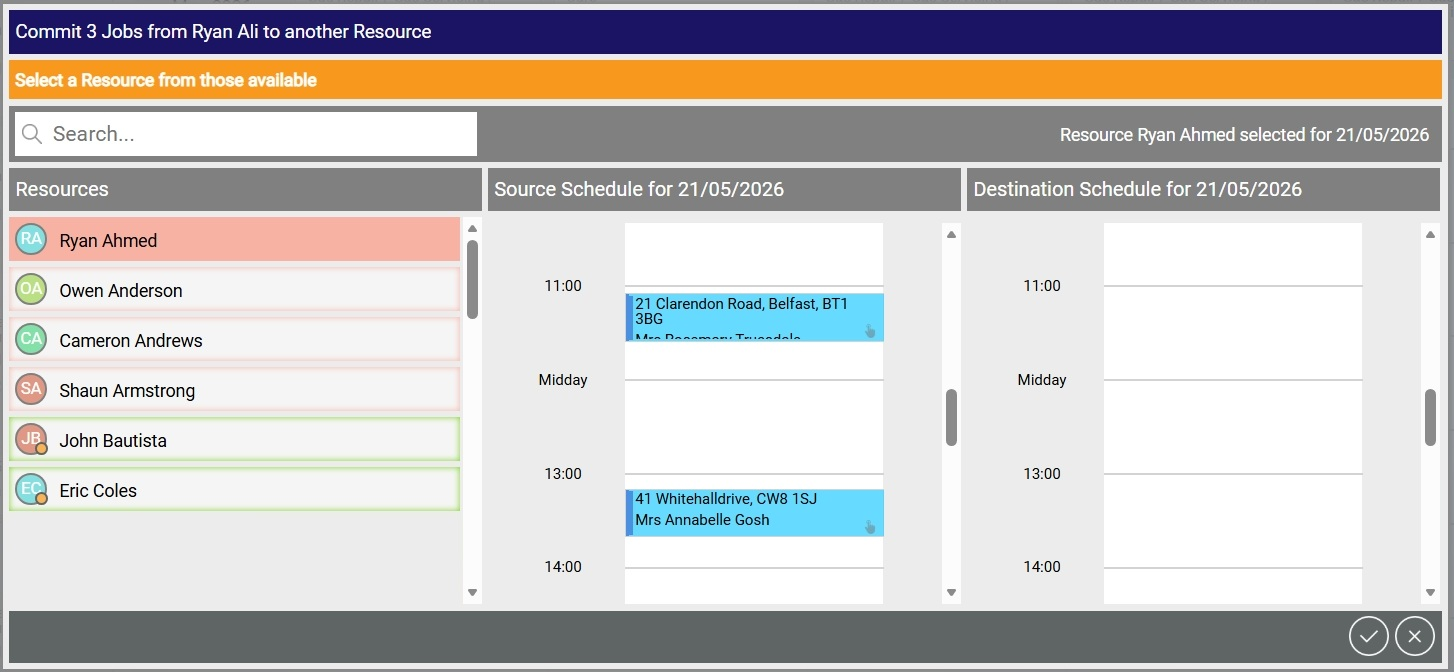
A dialog appears showing the alternative resources available. The dialog also displays the source schedule, and the destination schedule for the currently selected resource.
-
In the Resources list, select a resource.
-
Resources with a green border have matching skills and attributes for the scheduled jobs.
-
Resources with an amber border have at least one configured optional constraint. If you select this resource, you may need to override the constraint(s) with a reason code.
-
Resources with a red border have a mandatory constraint. You can hover over the resource to see the constraint details.
-
-
Select Confirm
 .
. -
If you have selected a resource with constraints, check the confirmation dialog and select a reason code if required, then select Commit
 .
.