Change Password
Passwords can only be changed for a user created in Field First, and not for a user managed via an external identity provider.
The password created is temporary, users will be prompted to change it when they next sign in.
To change a user's password:
-
In the Navigation menu, in the Configuration section, select Users.
-
On the Your Users page select Edit against the user whose password is to be changed.
-
The user details page appears.
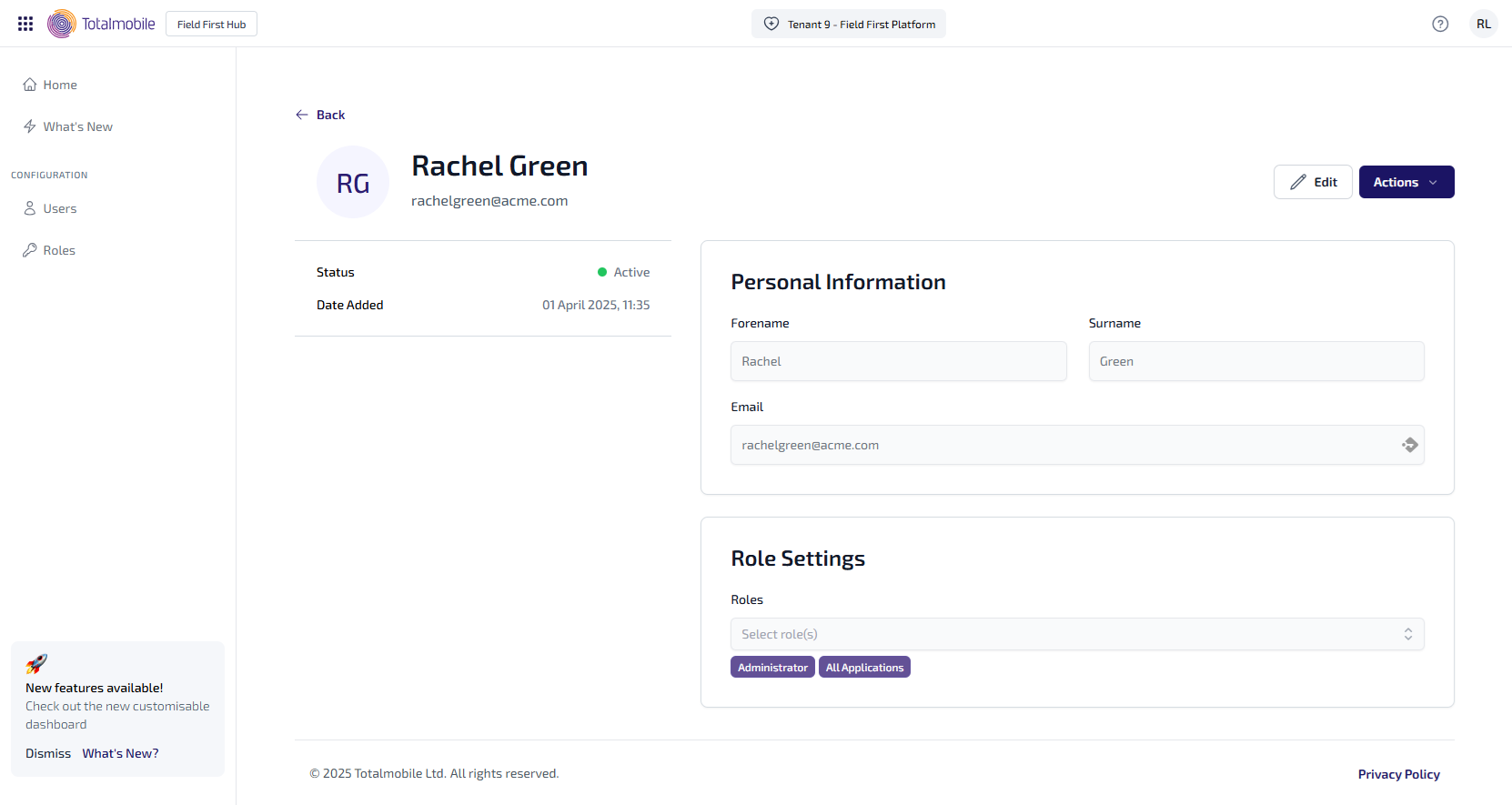
Select Actions, then select Change Password from the context menu.
-
The Change Password dialog appears.
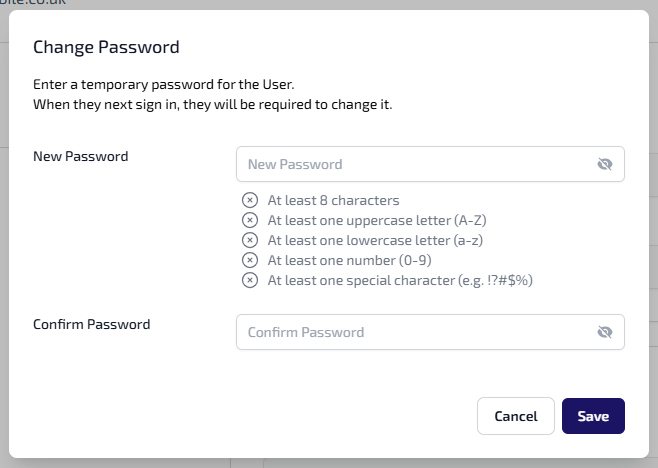
Enter the following:
-
New Password - when creating the password make sure you meet the requirements. Once each requirement is met a green tick
 appears next it and the text goes green.
 -
Confirm Password - re-enter the password which was entered into New Password.
-
-
Select Save.
-
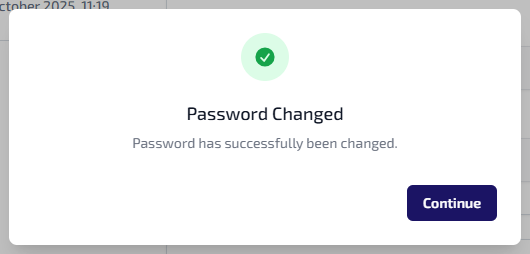
A confirmation message displays confirming the users password was successfully changed.
-
Select Continue to return to the User Details page.