Configure Your SCIM - Azure Entra ID
The steps to configure your SCIM Azure Entra ID are as follows:
Create an Azure Entra Enterprise Application
To create an Azure Entra Enterprise Application:
-
In the Azure Portal, navigate to Azure Entra.
-
Select New Application.

-
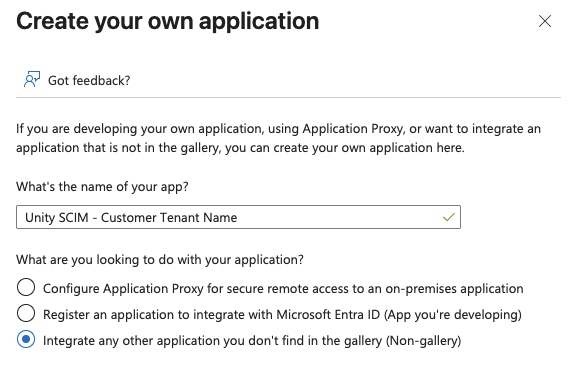
Select Create your own application.

-
Enter a name for the application and select Integrate any other application you don’t find in the gallery (Non-gallery).
-
Select Create to create the application.
Configure Provisioning
To configure the provisioning:
-
Select the Provisioning menu in your Enterprise Application.
-
Select New configuration.
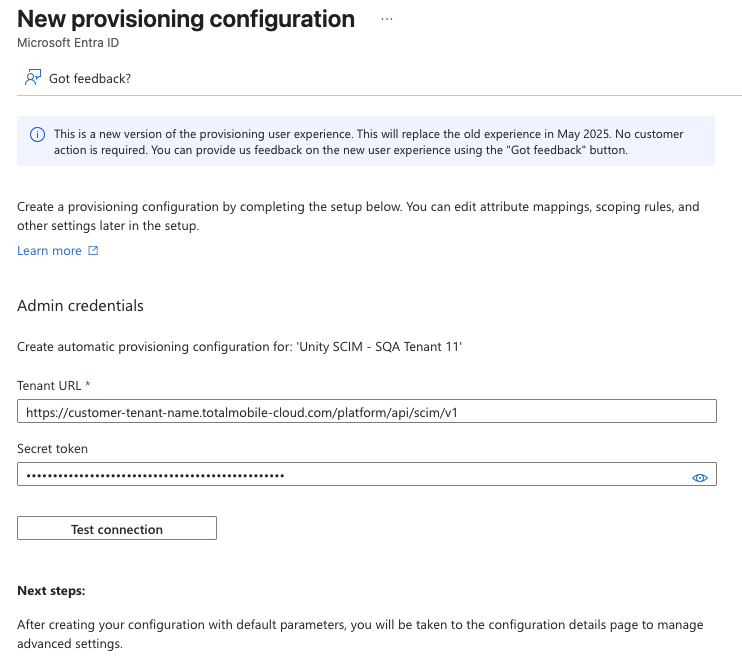
The Tenant URL within the Provisioning section of your Enterprise Application refers to the target SCIM endpoint.
In Totalmobile, the SCIM endpoint follows a predictable pattern, using the Customer Tenant’s Hostname, for example:
Customer Name: TestCustomer
https://testcustomer.totalmobile-cloud.com/platform/api/scim/v1
-
Enter the Tenant URL and Secret Token.
The Secret Token will be the Personal Access Token for your SCIM Service User and is provided by Totalmobile.
-
Select Test connection to verify Azure Entra is able to communicate successfully with the provided URL and token.
-
Ensure the connection test is successful.
-
Within Mappings ensure Provision Microsoft Entra ID Groups is Disabled (i.e. its Enabled value is set to No) as Group Sync is not supported.
-
Select the Save icon at the top of the page.
Configure Mapping
To configure the mapping:
-
Select the Attribute mapping menu.
-
Select Provision Microsoft Entra ID Users.
-
Update the Attribute Mappings – as a minimum they must include the subset and must be mapped as follows:
Attribute (Target Attribute)
Microsoft Entra ID Attribute (Source Attribute)
userName
originalUserPrincipalName
active
Switch([IsSoftDeleted], , “False”, “True”, “True”, “False”)
displayName
displayName
emails[type eq “work”].value
mail
name.givenName
givenName
name.familyName
surname
name.formatted
Join(“ ”, [givenName], [surname])
externalId
objectId
-
The userName attribute must be mapped to originalUserPrincipalName (not userPrincipalName which may be a default).
-
If it has not already defaulted to it, the externalId attribute needs to be updated to map to the objectId.
-
Any associated Guest Access Package must be configured to collect these attributes e.g. a Guest account must capture ‘givenName’ and ‘surname’ at registration to ensure Guest Access functions as expected.
-
-
Select Save.
Provision Users
To provision your users:
-
In your Azure Entra ID Enterprise Application, select the Users and groups menu.
-
Select the which Users are to be provisioned by the integration.
-
Navigate back to the Overview menu.
-
Select Start provisioning.
-
The provisioning starts and runs in the background.