Purchase Order KPIs
Navigation
The Navigation widget type allows the user to navigate to an existing grid i.e. the button lets the user go to another part of the system based on a drop down list of allowable options (dependent upon security access)
Navigate to Dashboards > KPIs
Add a Purchase Order KPI click in 'edit' mode
Select the Widget Type - Navigation
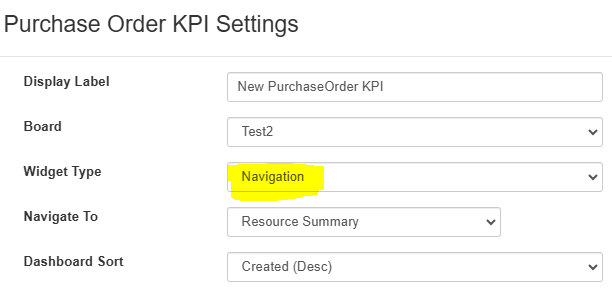
The 'Navigate To' drop down list has the following available options
-
Resource Summary
-
Stock Movement Summary
-
Collection Point Summary
-
Material Group Summary
-
Merchant Account Summary
-
Operative Summary
-
Resource Category Summary
-
Transaction Source Summary
-
Cycle Count Summary
On selection of the Arrow, the user is taken to relevant dashboard screen

Pressing on the back arrow, the user is returned to the KPI Board
Purchase Order KPI Dashboard
To access the Purchase Order KPI Dashboard, navigate to Materials Management > Purchase Order KPIs
The screen will display a number of button selections:

On selection of a button, the user is taken into the Dashboard, example is the Collection Point Summary

Each of the KPIs has a Filter button, Financial Year drop down list, Name and period for each of the financial periods through the year.
The cost related to each name/period is based on the Sum of the Cost.