View the Adapter Library
-
In WebAdmin select Integration.
-
Under Integration Instances, select an instance.
Use the Search field to filter the list of instances.
The Integration Instance Configuration page appears, with the current subscriber queues displayed by default. If you want to view the current publisher queues, select
 .
. -
Select the Show Adapters Library icon.

The Adapters Library panel appears.
-
Use the Search field to filter the adapter library by name or category.
-
Select the information icon on an adapter.
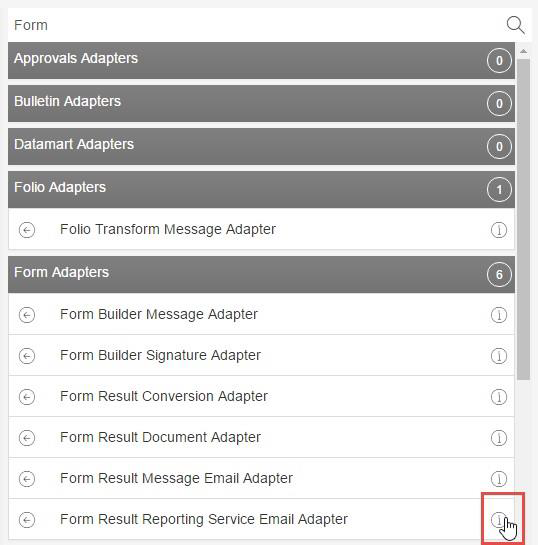
The Adapter information dialog appears and displays the adapter Name, Type Name, Description, Details and Origin.
-
Select List of Settings.
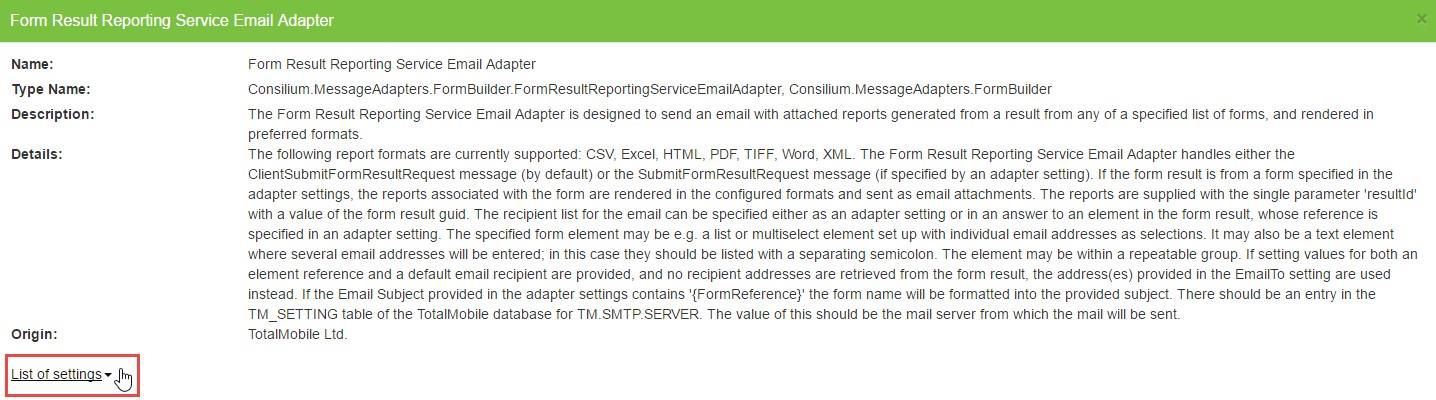
-
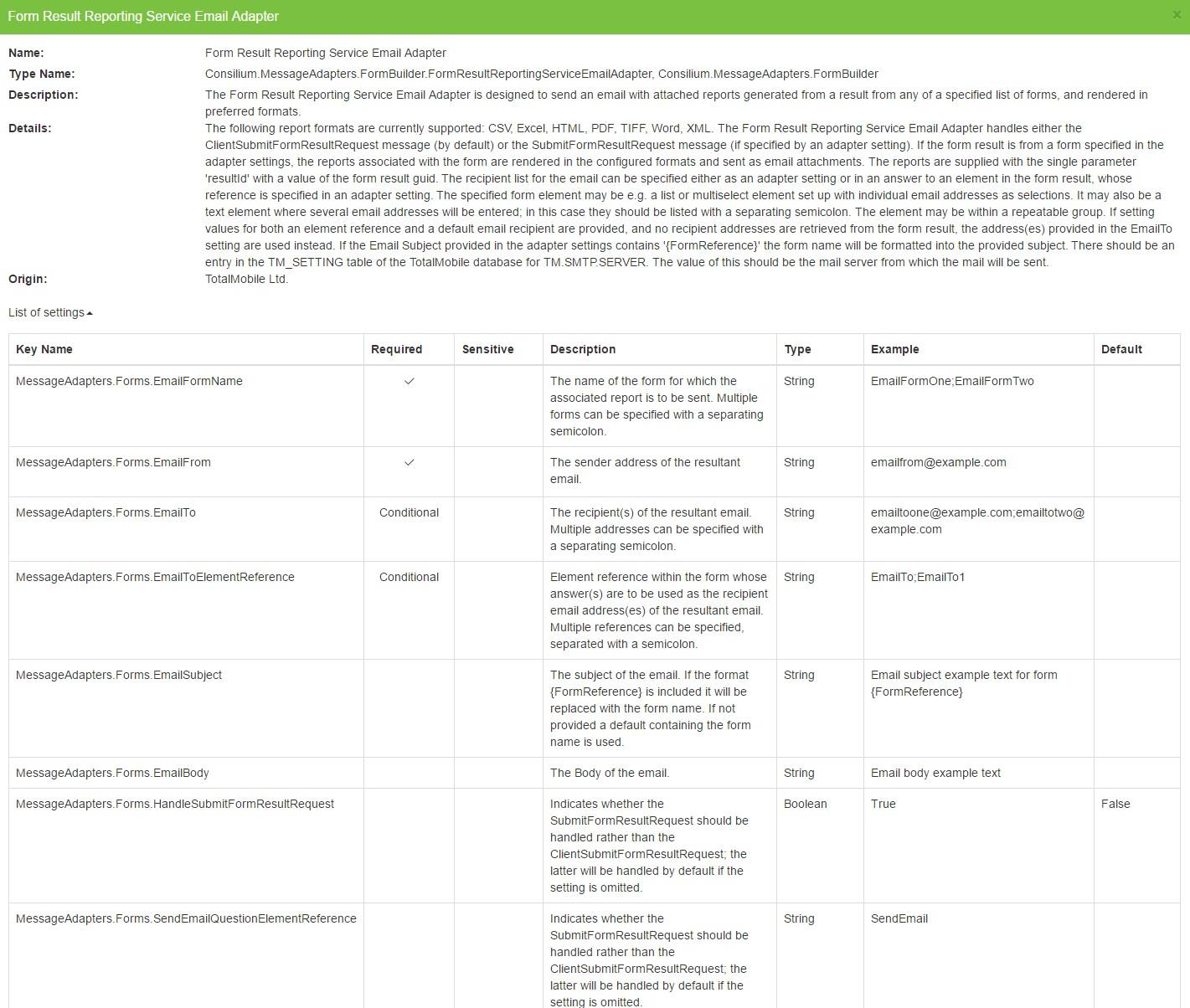
The Adapter information dialog extends and displays:
-
Key Name - adapter setting name.
-
Required - indicates whether the adapter setting is mandatory.
-
Sensitive - indicates whether the value is sensitive, for example a password.
-
Description - describes the function of the adapter setting.
-
Type - indicates the adapter setting value type, for example string, numeric or Boolean.
-
Example - example adapter setting value.
-
Default - the default value of the setting if you do not provide one.
-