Add an Image
-
In WebAdmin select Image Library.
The Image Library page appears.
-
Select Add New Image
 .
The Image Upload dialog appears.
-
Select the Add Category field.
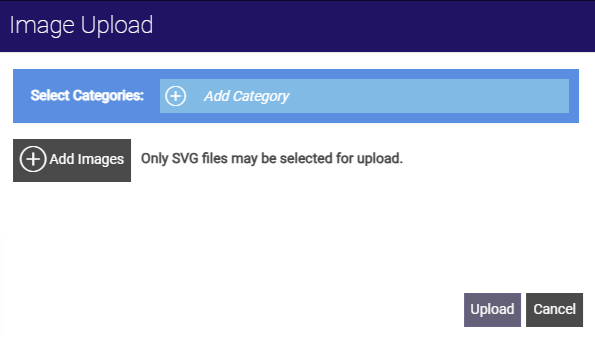
If you have existing categories, a dropdown appears.
-
Do one of the following:
-
To use an existing category, select it from the dropdown.
-
To create a new category, enter the category name and select Add Category.
-
-
Select Add Images.
You can only upload SVG image files and you cannot upload the same image file twice.
-
In the file browser, locate and select an image, then select Open.
-
Repeat steps 5-6 to add multiple images for upload.
-
Select Upload.