Add a Layout
-
Click the Add Layout button on the Layouts screen.
-
The new layout opens showing the tablet and mobile screens, with default layout displayed on both. The layout is made up of Snippets, which are used to show specific types of information.
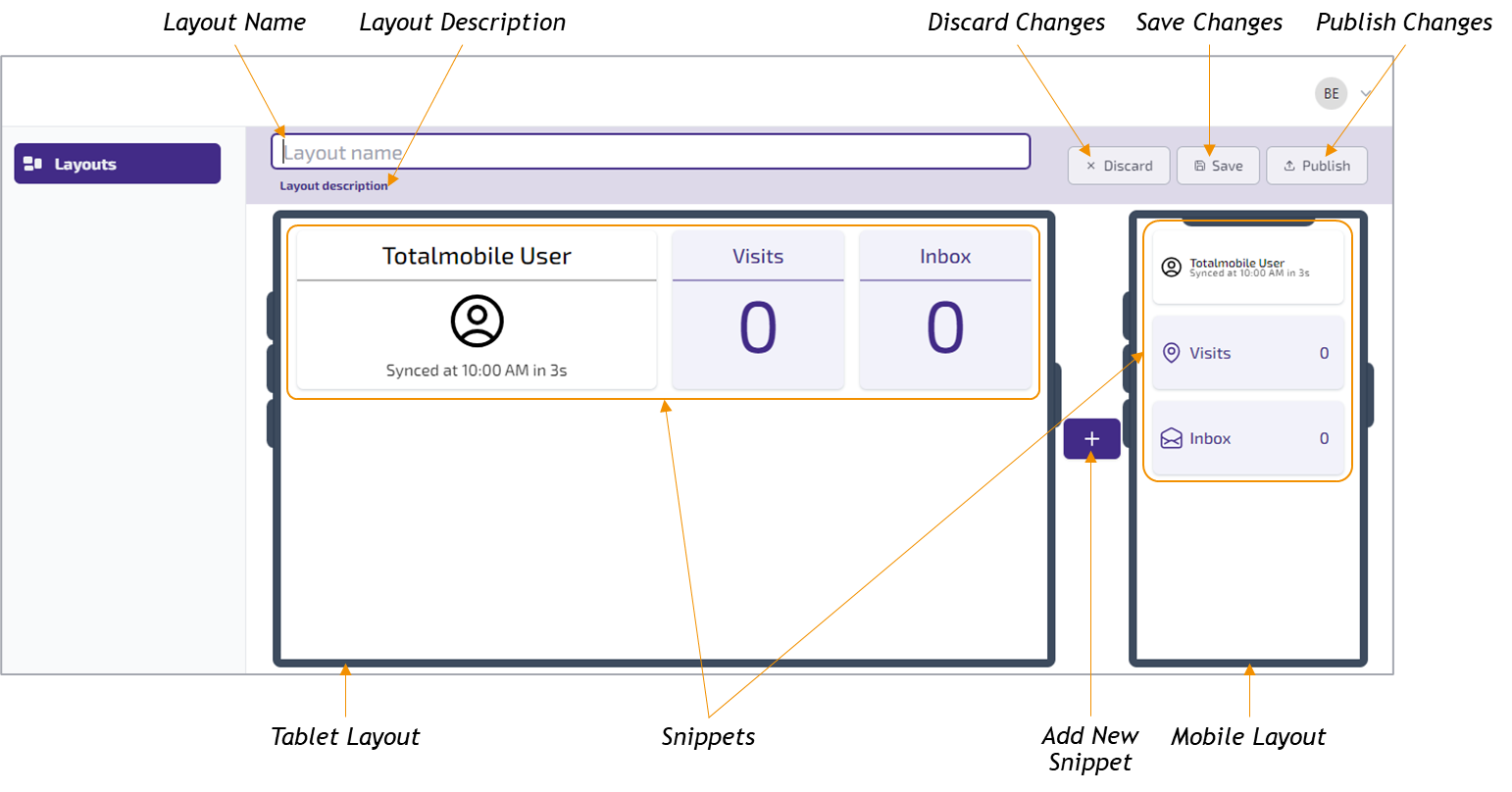
When a snippet is added or edited, the changes are made to both the tablet and the mobile layouts.
-
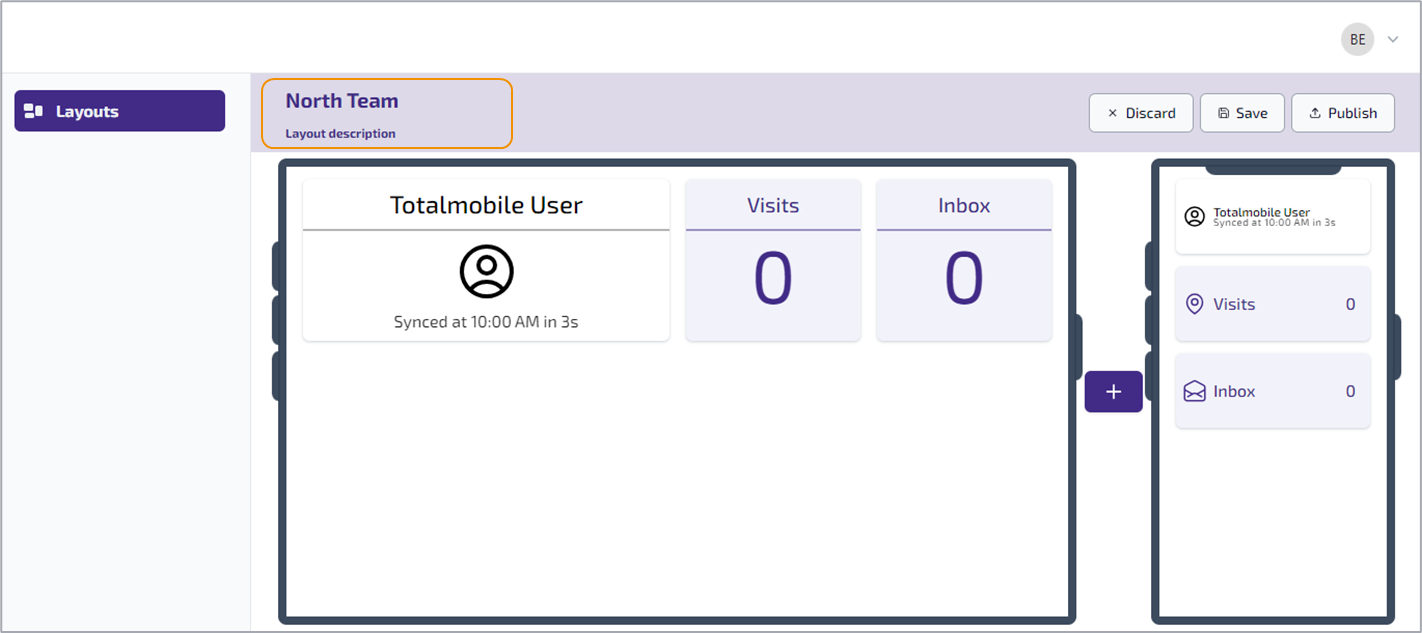
Enter a name for the layout into the Layout name field. Optionally, a description can also be added into the Layout description field, if left blank the field is populated with the date and time the layout was saved.
Update Snippets
By default the layout displays the following 3 snippets:
-
Totalmobile User - a Sync snippet, which shows the current sync status and user information, including the users profile picture. This snippet is always displayed on the layout and cannot be configured.
-
Visits - a Visit snippet, which shows new and outstanding visits.
-
Inbox - a Bulletin snippet, which shows unread messages.
To update existing snippets:
-
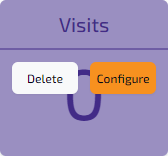
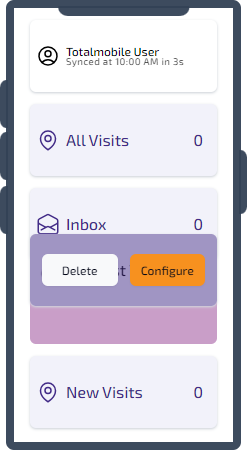
Hover the mouse over the snippet.
-
The snippet has 2 options:
-
Delete - removes the snippet from the layout.
-
Configure - opens the edit view for the snippet.
-
-
Click on the Configure button to update the snippet.
-
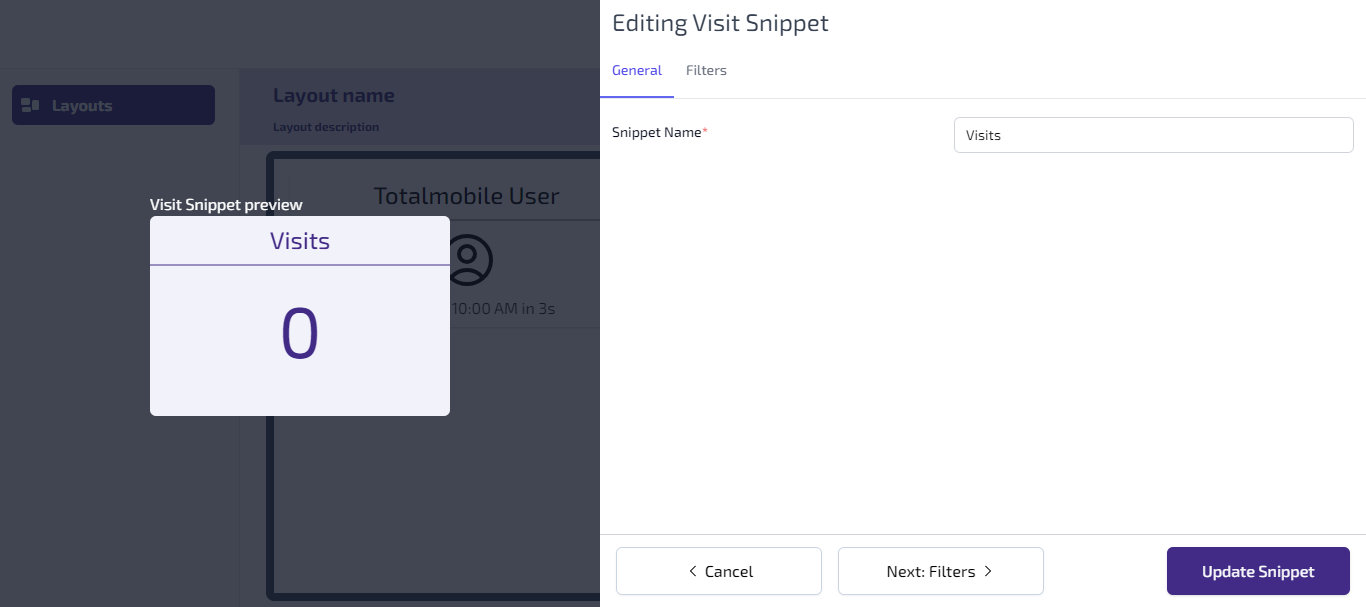
In the Editing Snippet window you can update the Snippet Name in the General tab. Either click the Filters tab or Next: Filters button, to update the snippet filters.
-
Click the Update Snippet button to save the changes.
For more information on the filter options available, along with example of filters to create, please see Visit & Bulletin Filters.
Add New Snippets
Snippet types can be added to a layout multiple times, each with different filtering and configuration, so for example the user can have one Snippet for New Visits and another with visits for a specific customer.
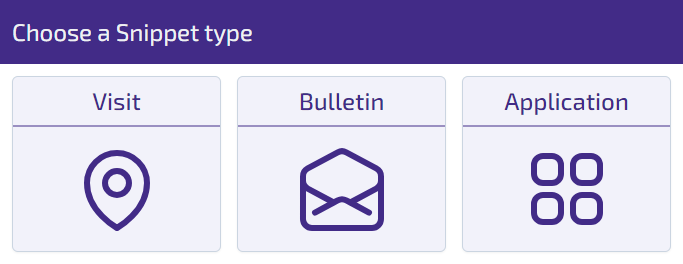
There are 3 types of snippet which can be added to a layout:
-
Visit - is used to group and highlight visits.
-
Bulletin - can be used to filter bulletins.
-
Application - can be used to display highlight applications.
-
Click the
 to add a new Snippet.
 -
Select the Snippet Type to be added.
-
The Creating Snippet window opens.
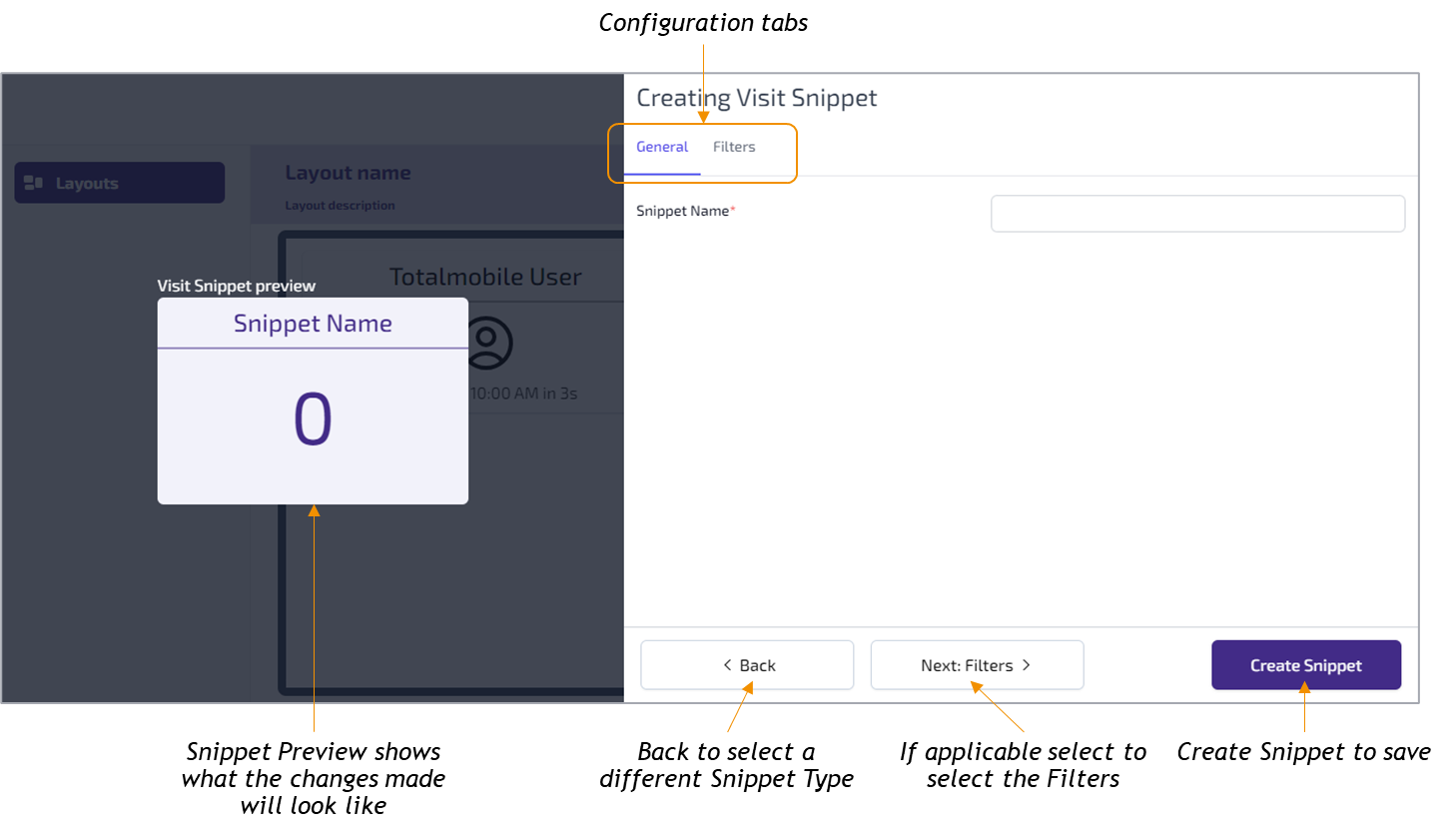
Adding a Visit or Bulletin Snippet
-
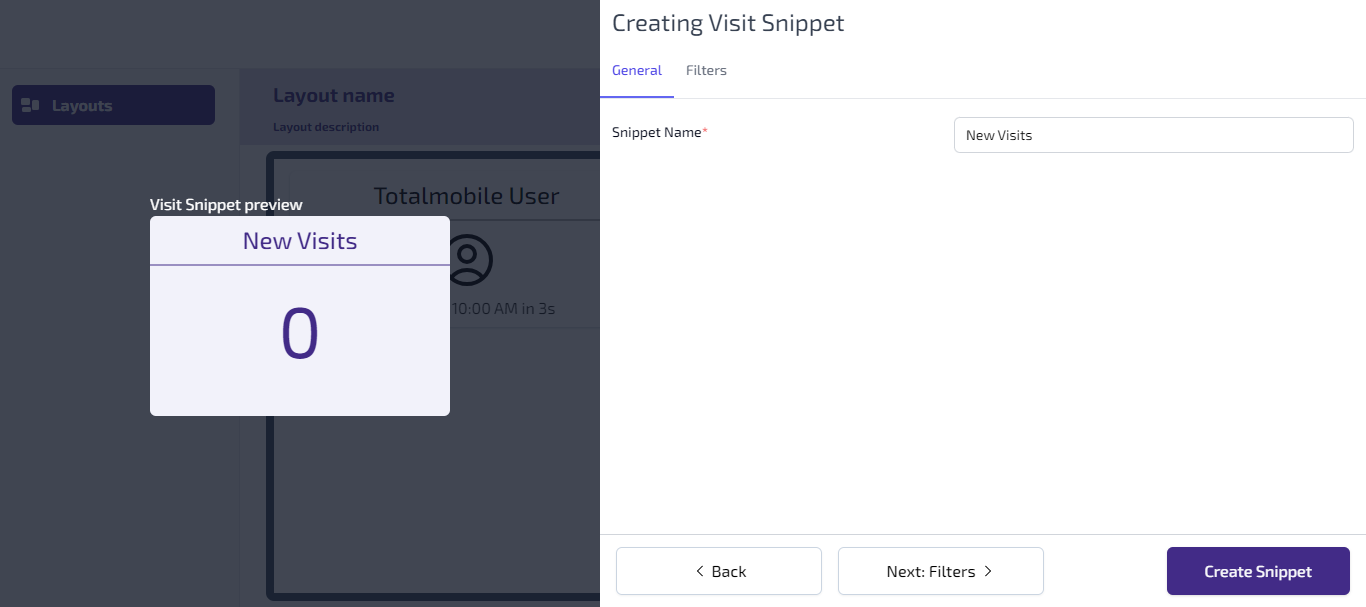
In the Creating Snippet window enter a name for the snippet into the Snippet Name field.
-
Click the Filters tab, or the Next: Filters button.
-
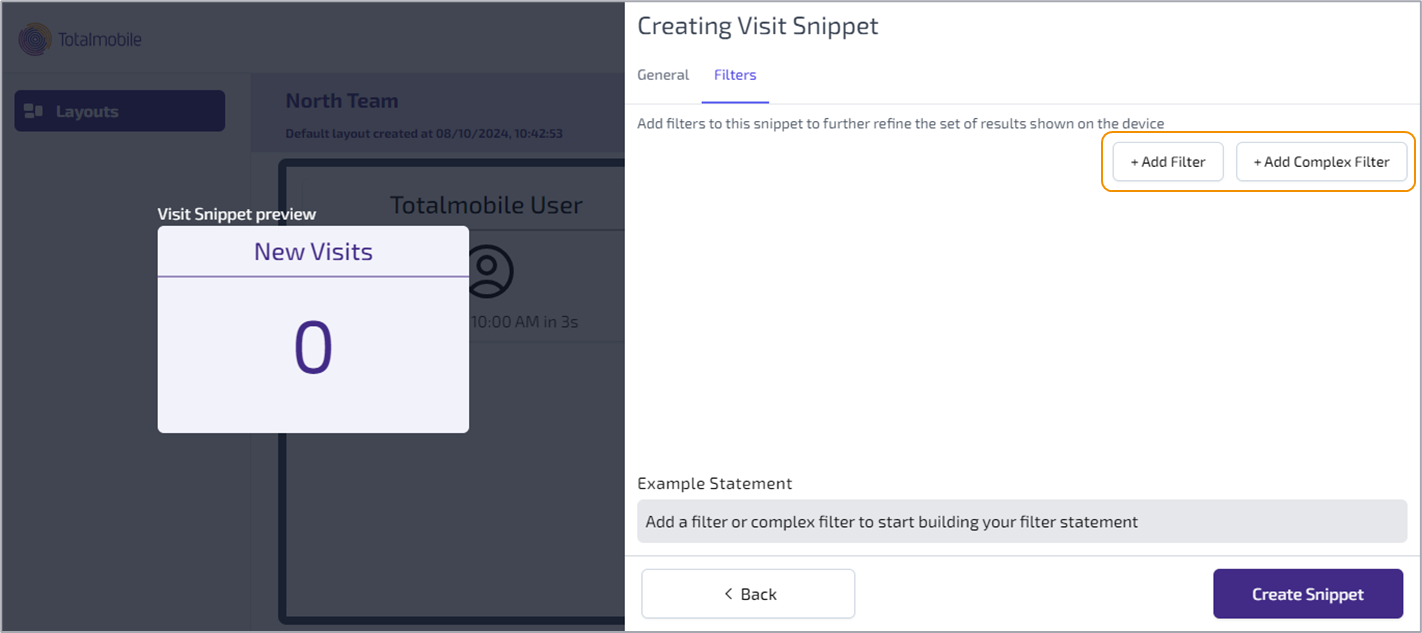
There are two options when adding filters to a visit snippet:
-
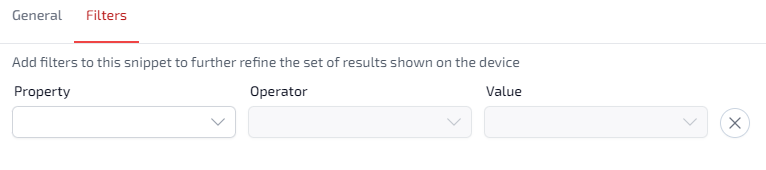
Add Filter - this lets you create a basic filter by selecting the Property, Operator and entering the Value.
-
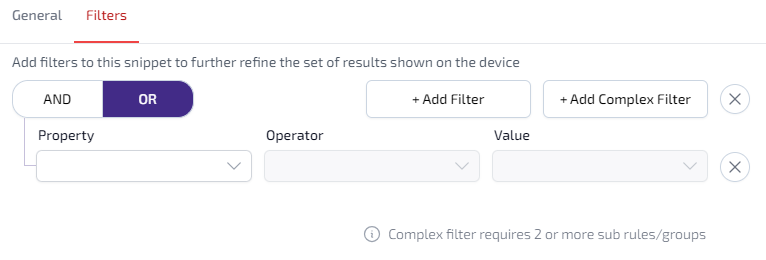
Add Complex Filter - after clicking Add Complex Filter click Add Filter to start creating the complex filter. Select either AND or OR, and then select the the Property, Operator and entering the Value. Continue to click Add Filter and complete the fields to build the complex filter.
-
-
Click Create Snippet to save and create the new visit snippet.
For more information on available Properties, Operators and Values which can be used, along with example of filters to create, see Visit & Bulletin Filters.
Adding an Application Snippet
The Application Snippet is used to display Highlight Applications. General application required by the user can be applied as normal via WebAdmin.
-
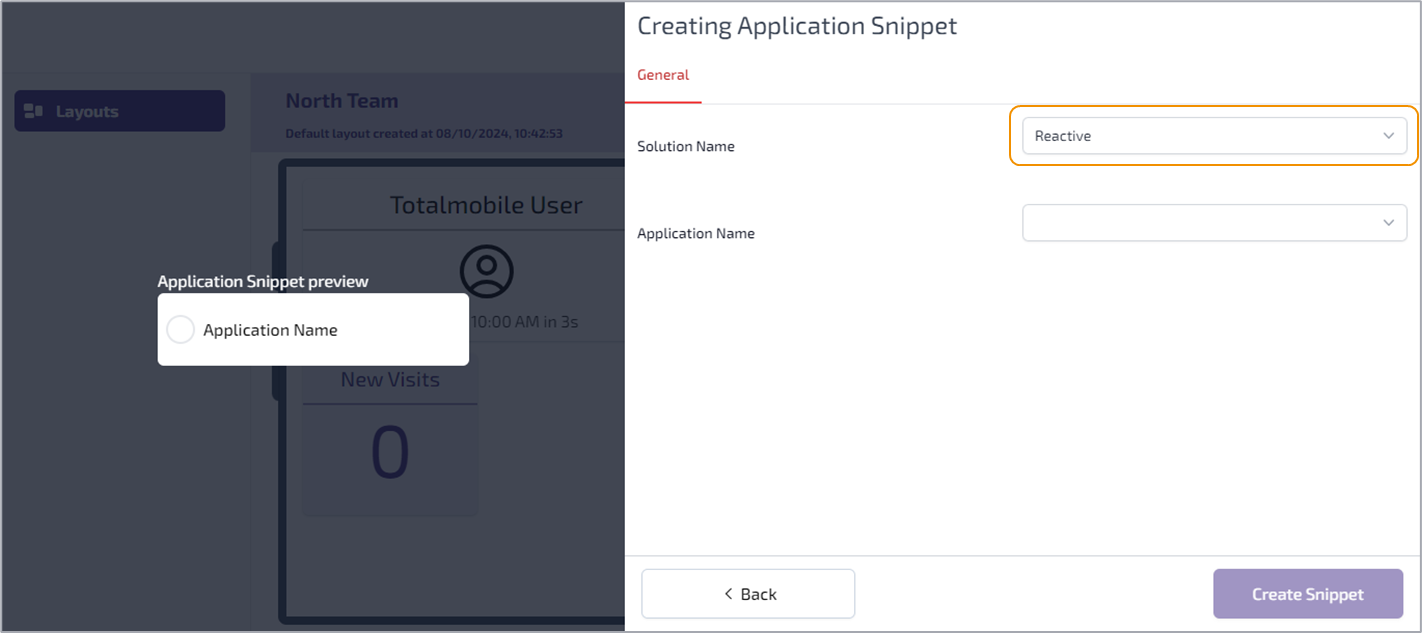
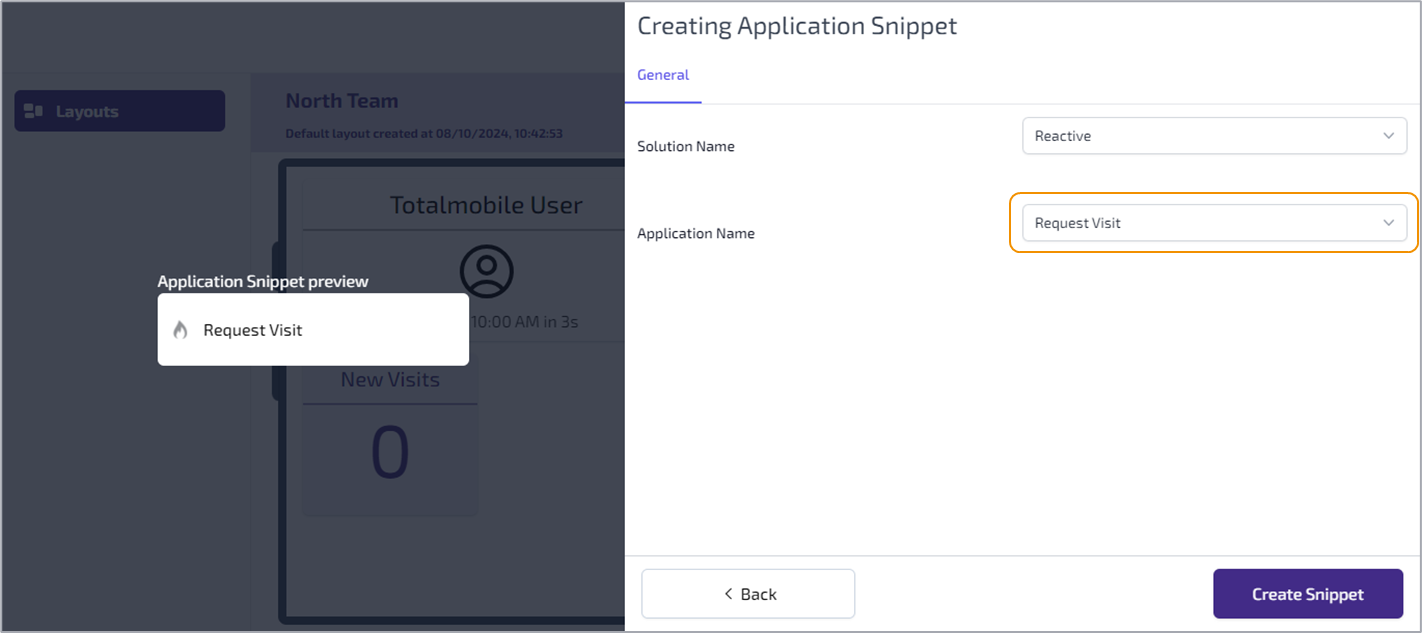
In the Creating Application Snippet window select the Solution Name from the dropdown list.
-
The dropdown list for the Application Name is determined by the solution selected. Select the required Application Name from the dropdown list.
-
Click Create Snippet to save and create the new application snippet.
Change Snippet Position
The snippets can be moved around the layout as needed, on both the tablet and mobile layouts.
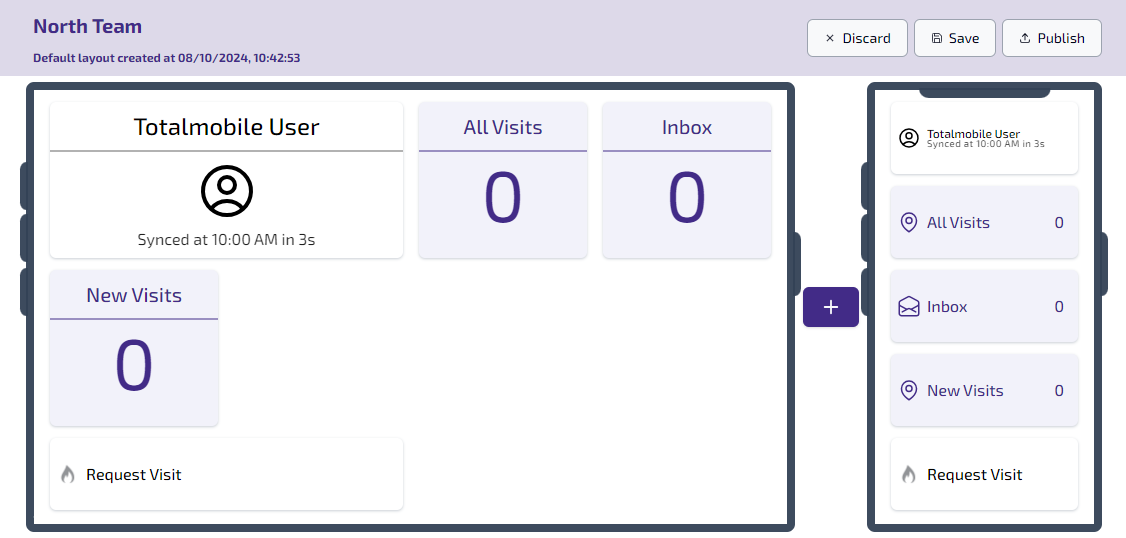
To move a snippet on the tablet view:
-
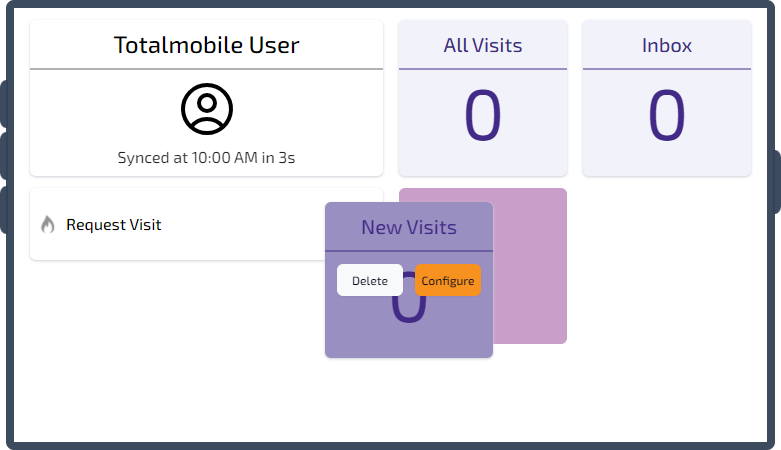
Click and hold the left mouse button on the snippet to be moved.
-
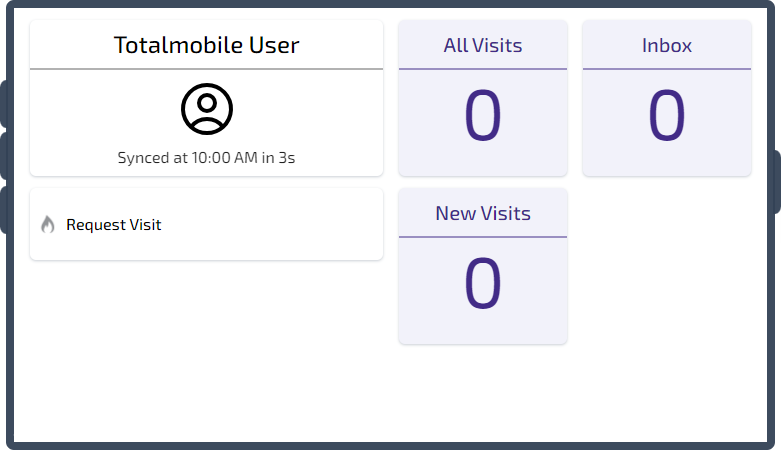
Drag the snippet to where you want it to be moved to and release the left mouse button. The snippet snaps to the new location on the layout. Any snippets below the one moved automatically move up.
To move a snippet on the mobile view:
-
Click and hold the left mouse button on the snippet to be moved.
-
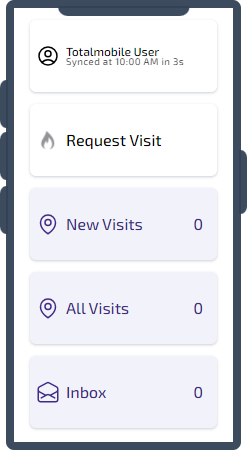
Drag the snippet to where you want it to be moved to and release the left mouse button. The snippet snaps to the new location on the layout. Any snippets below the one moved automatically move up.
Delete Snippets
If a snippet is no longer required, it can be deleted:
-
Hover your mouse over the snippet to be deleted.
-
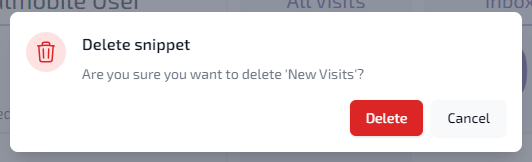
Click the Delete button. A pop-up appears asking you to confirm you want to delete the snippet, click Delete to continue.
-
The snippet is removed from the layout.