Applications
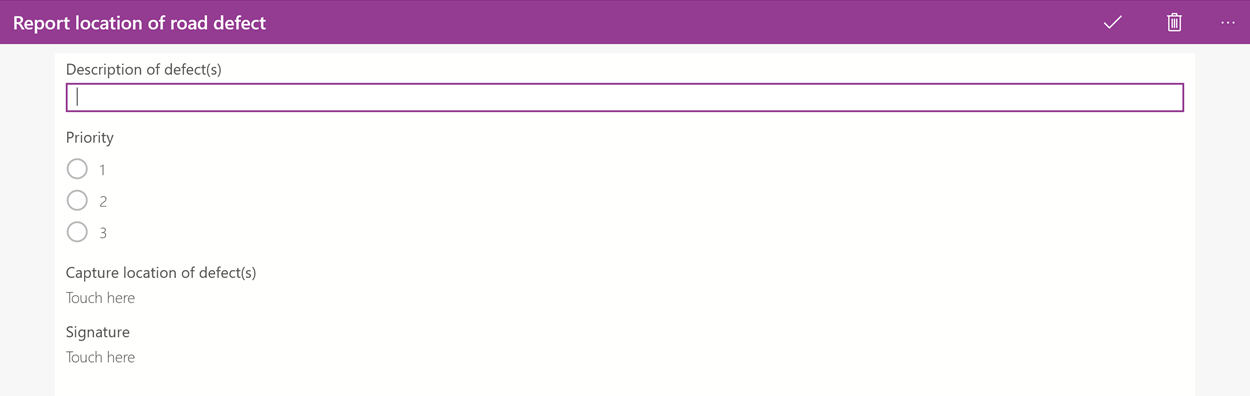
Applications within solutions provide a way of separating or grouping forms and interrelated content, including Folios and web applications which share the same work type. For example, you may want to divide clinical reference documents, progress notes and referral forms into separate applications which health care professionals can then access from the home screen of the Totalmobile app, or group together forms which record your location or the location of road defects.
Create an Application
-
In WebAdmin select Solutions.

-
Select a Solution.
-
In the Applications banner select Add an Application.
-
In the Add Application window:
-
Enter the application Name.
-
Enter the application Description.
-
Select Yes or No for the following options:
-
Display on Home Screen
-
Display within Visits.
-
Assets Application
-
Add Tasks to Visit
-
Add Tasks to Top Level of Visit
-
-
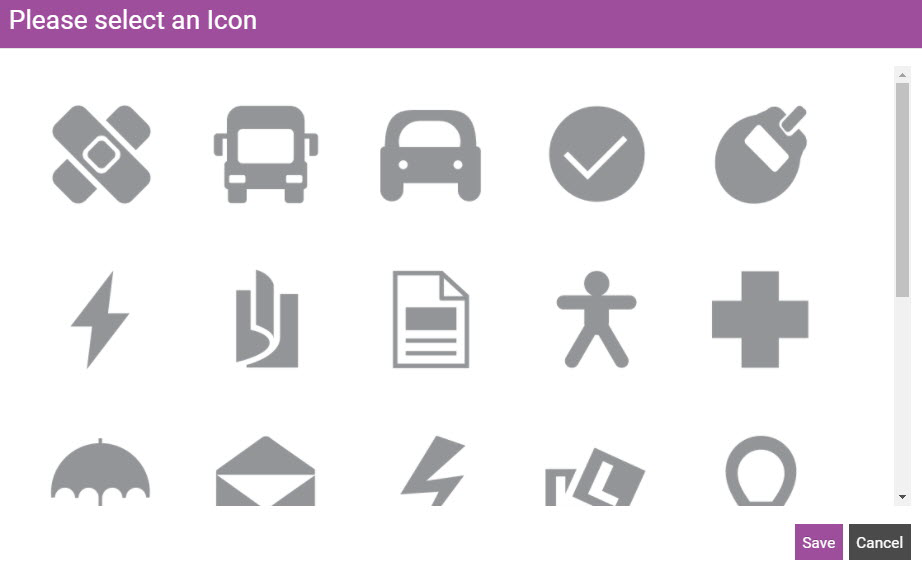
Select Choose Icon.
-
Select an image, then select Save.
-
-
Select Save.
The new application is listed under the blue Applications banner.
Add Forms and Web Apps to an Application
-
Select the newly created application.
-
Select Add New Form.
-
Select the Forms you want to add to the application.
-
Click Save.
The selected forms are listed under the Add New Form banner.
-
Select Add New Web App.
-
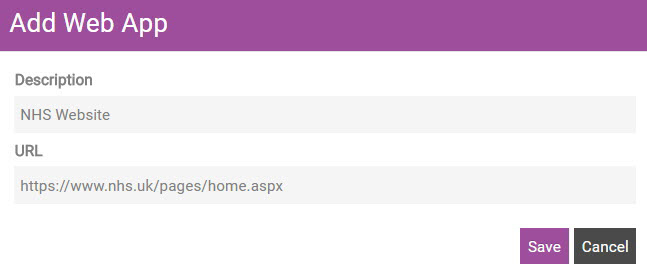
In the Add Web Application dialog:
-
Enter the website Description.
-
Enter the website URL.
-
Click Save.
-
Access Applications from the Home Screen
 On Android
-
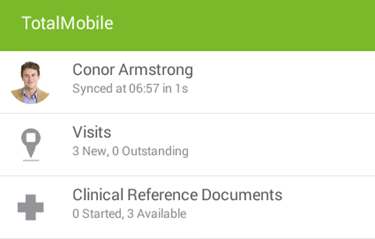
On the Home screen of the Totalmobile app, select an Application.
-
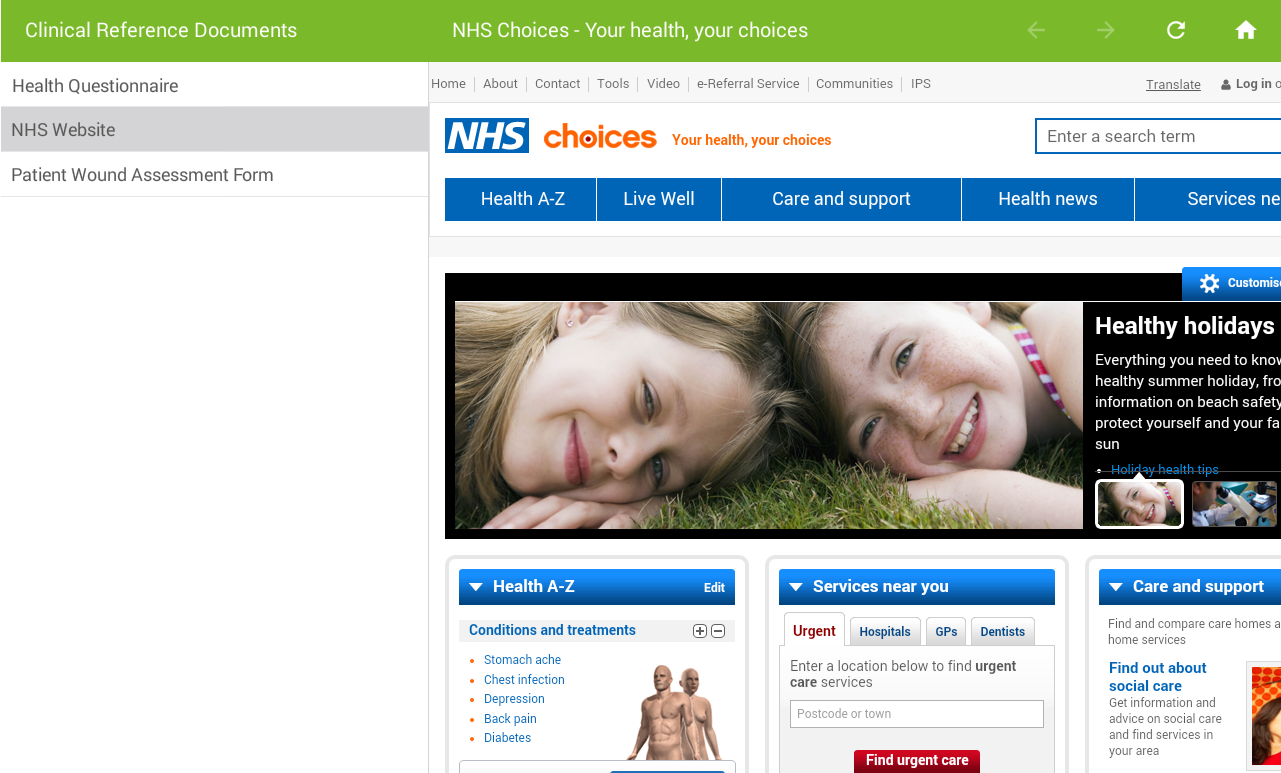
Tap to select a Form or Web Application.
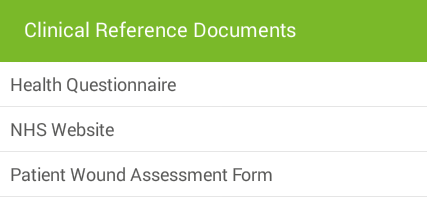
The Form or Web Application appears:
On iOS
-
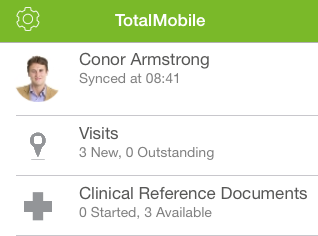
On the Home screen of the Totalmobile app, select an Application.
-
Tap to select a Form or Web Application.
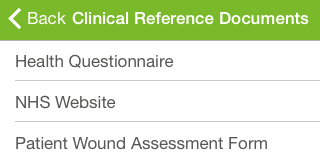
The Form or Web Application appears:
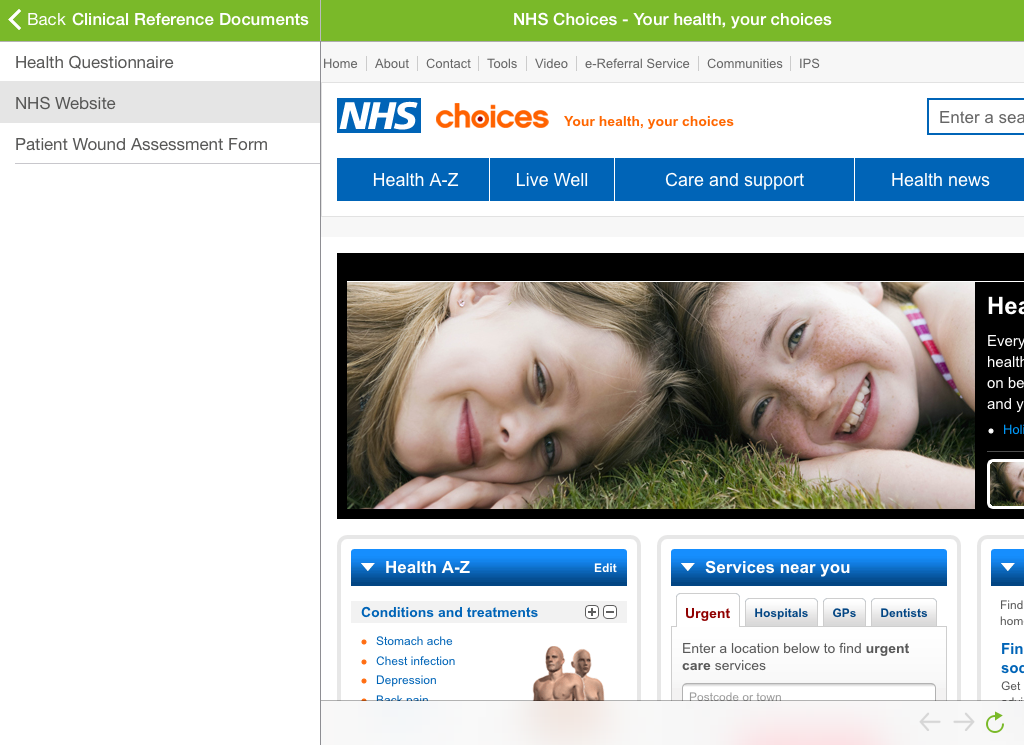
On Windows
-
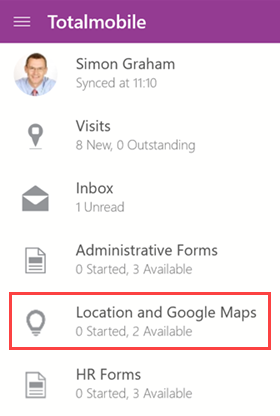
Navigate to the Home screen in Totalmobile.
-
Select an Application.
-
Select a Form or Web Application.
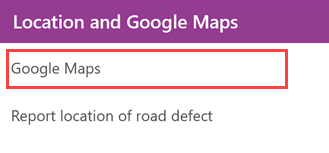
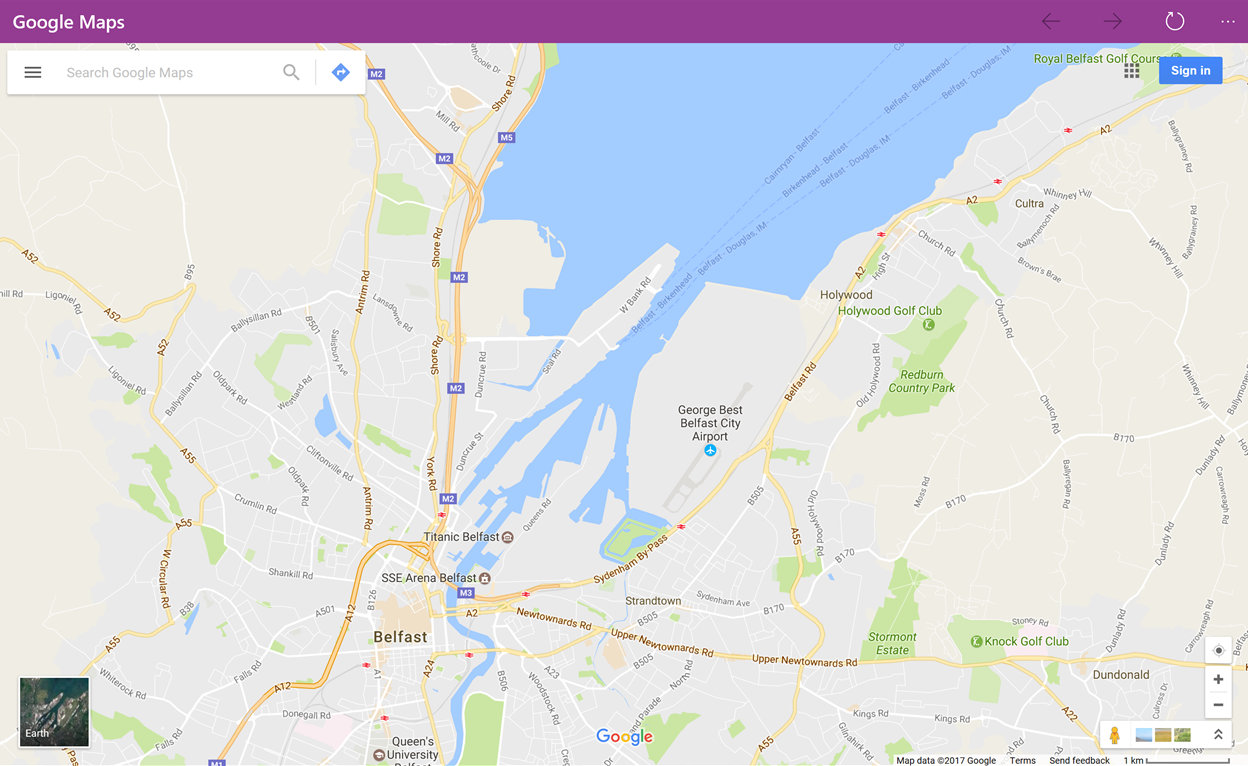
The Form or Web Application appears:
Accessing Forms from Visits
On Android
-
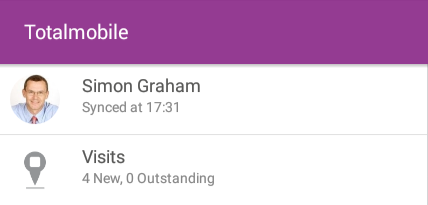
On the Home screen of the Totalmobile app, select Visits.
-
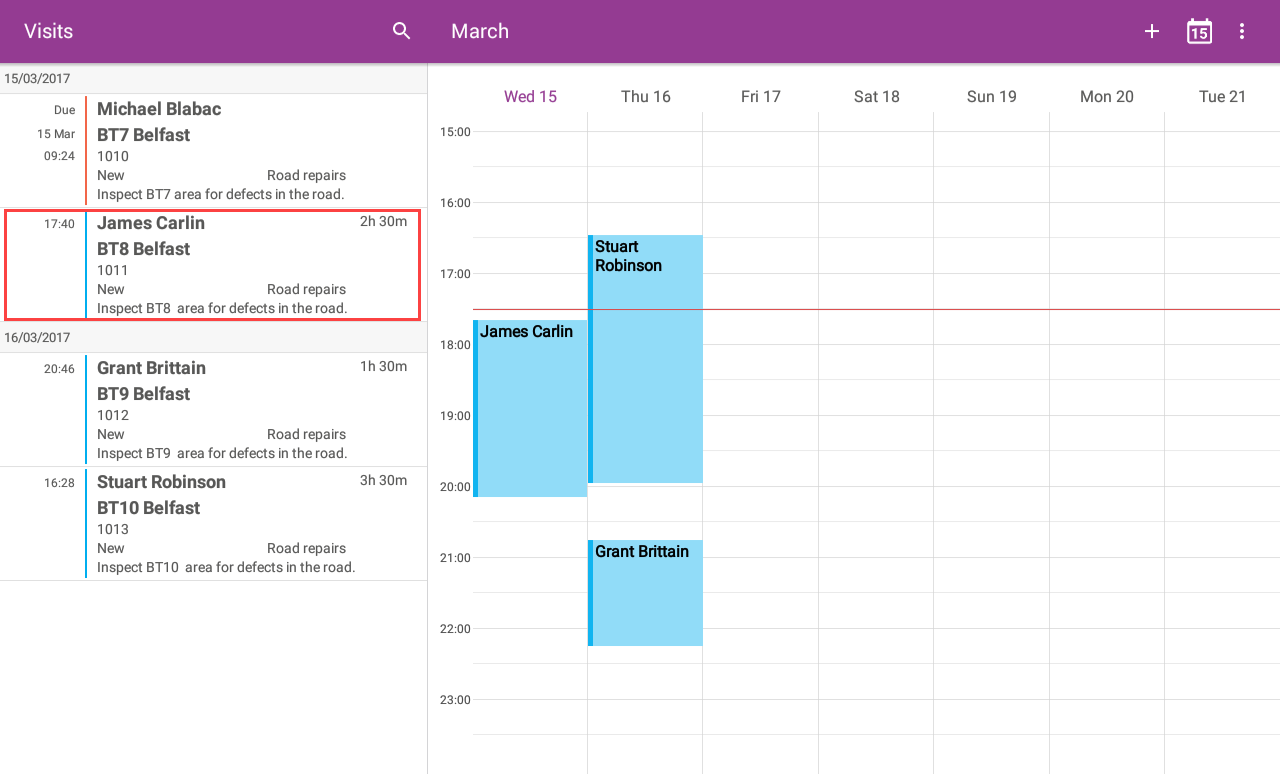
The Visit List and Diary appear. Select a Visit.
-
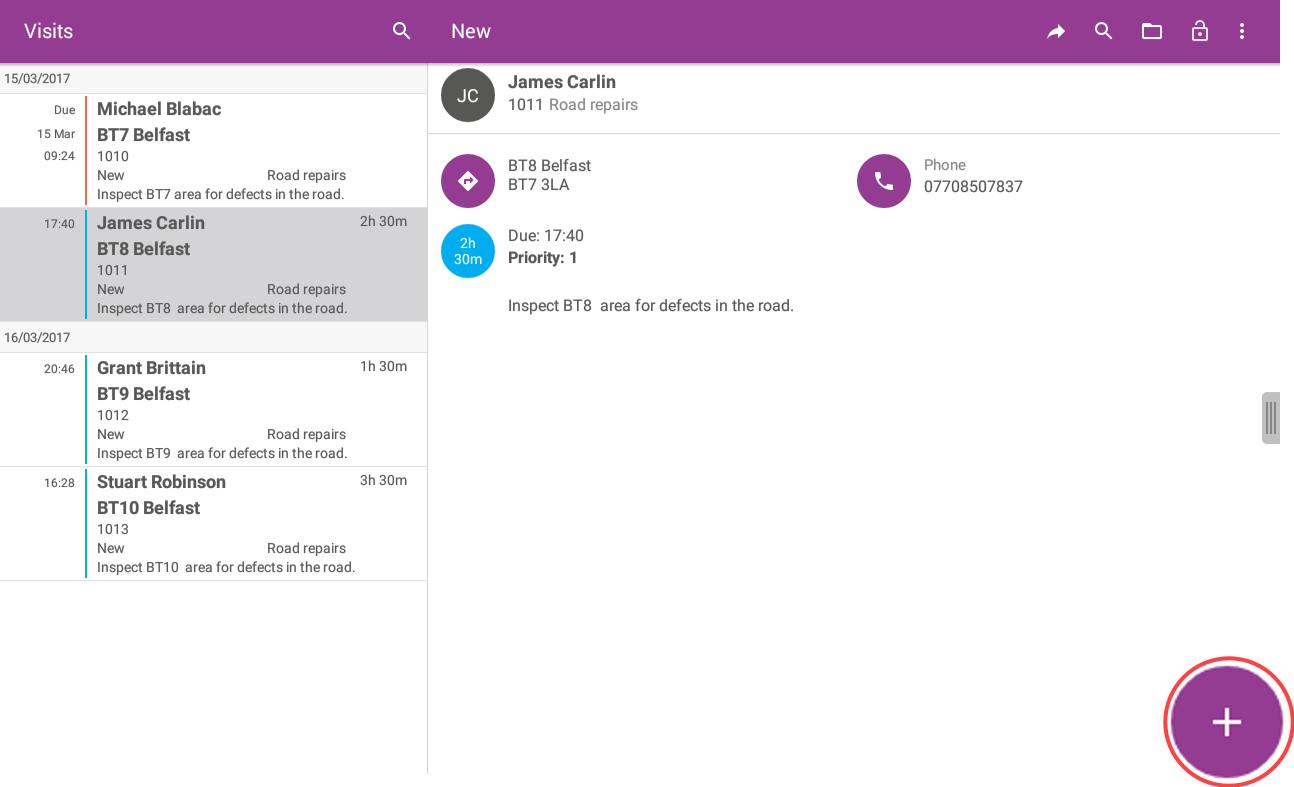
The Visit detail appears. Touch the add Task icon.
-
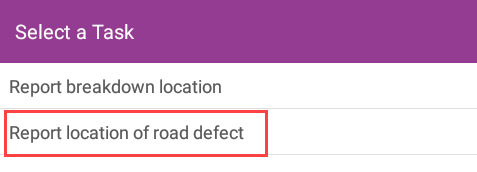
The Select a Task window appears. Touch to select an Application.
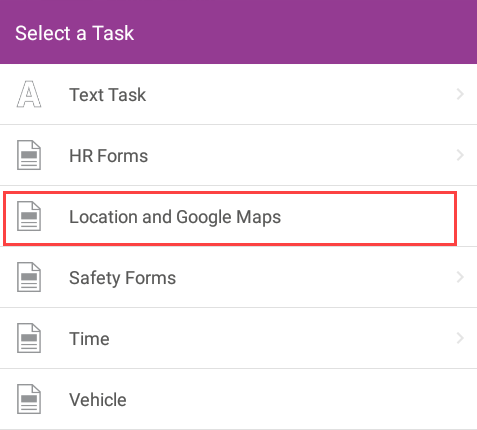
Web Applications are unavailable within Visits.
-
Touch to select a Form.
-
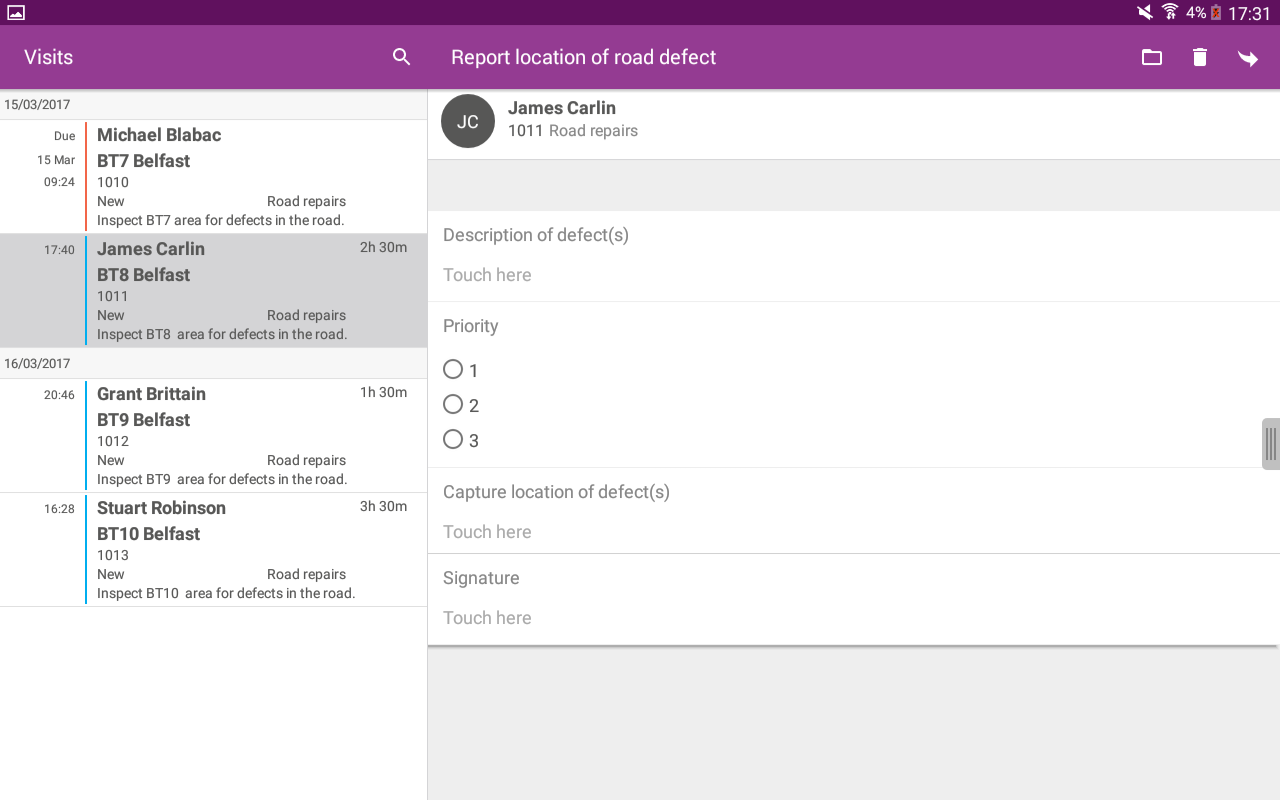
The Form appears:
On iOS
-
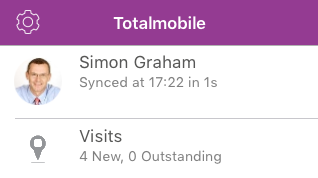
On the Home screen of the Totalmobile app touch Visits.
-
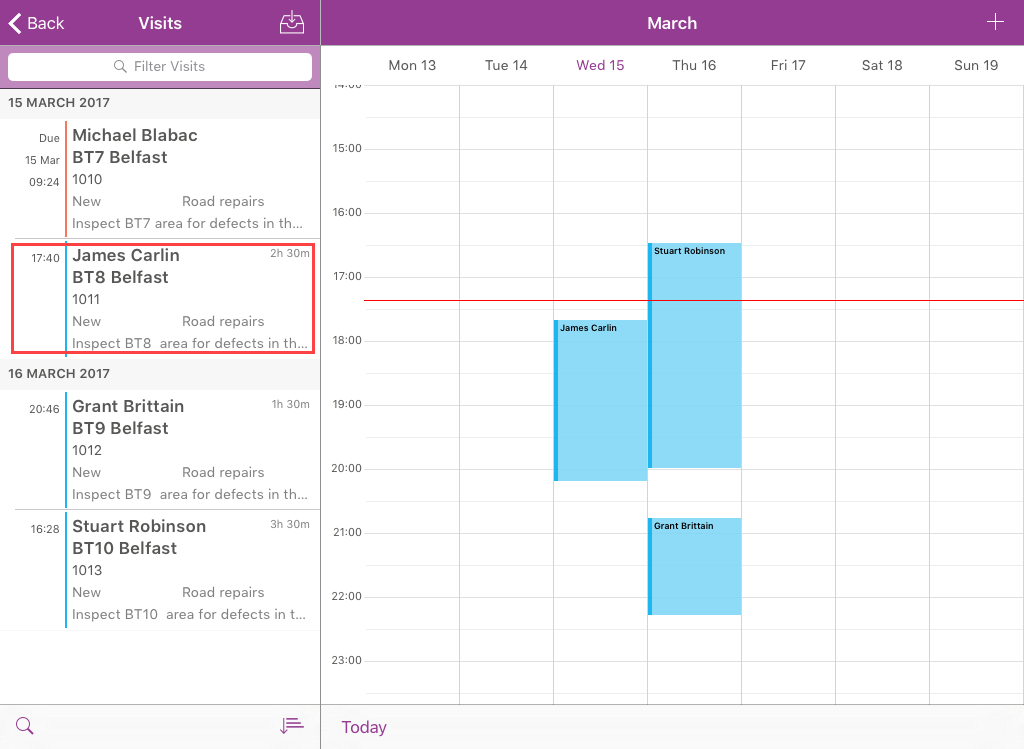
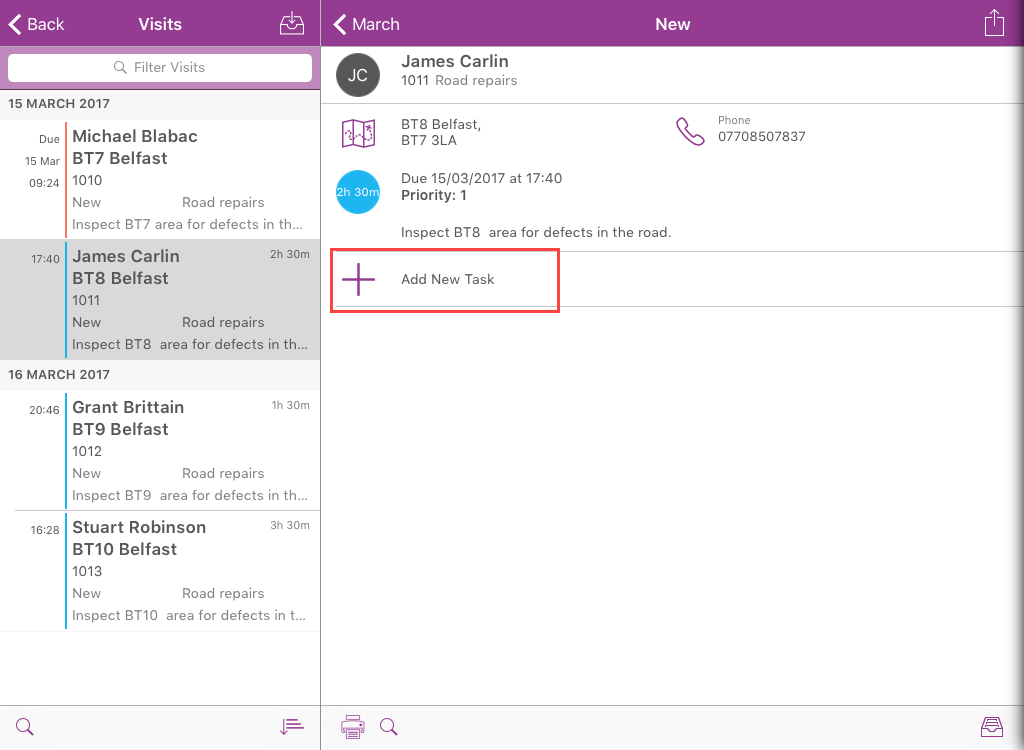
The Visit List and Diary appear. Touch a Visit.
-
The Visit detail appears. Touch Add New Task.
-
The Select a Task window appears. Touch to select an Application.
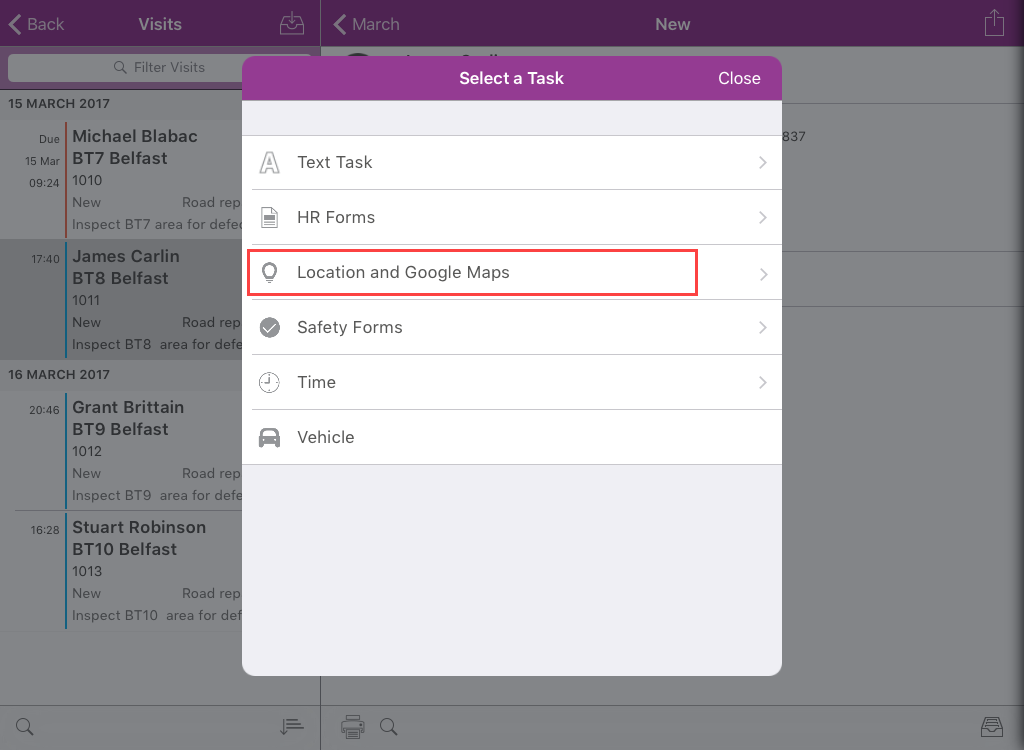
Web Applications are unavailable within Visits.
-
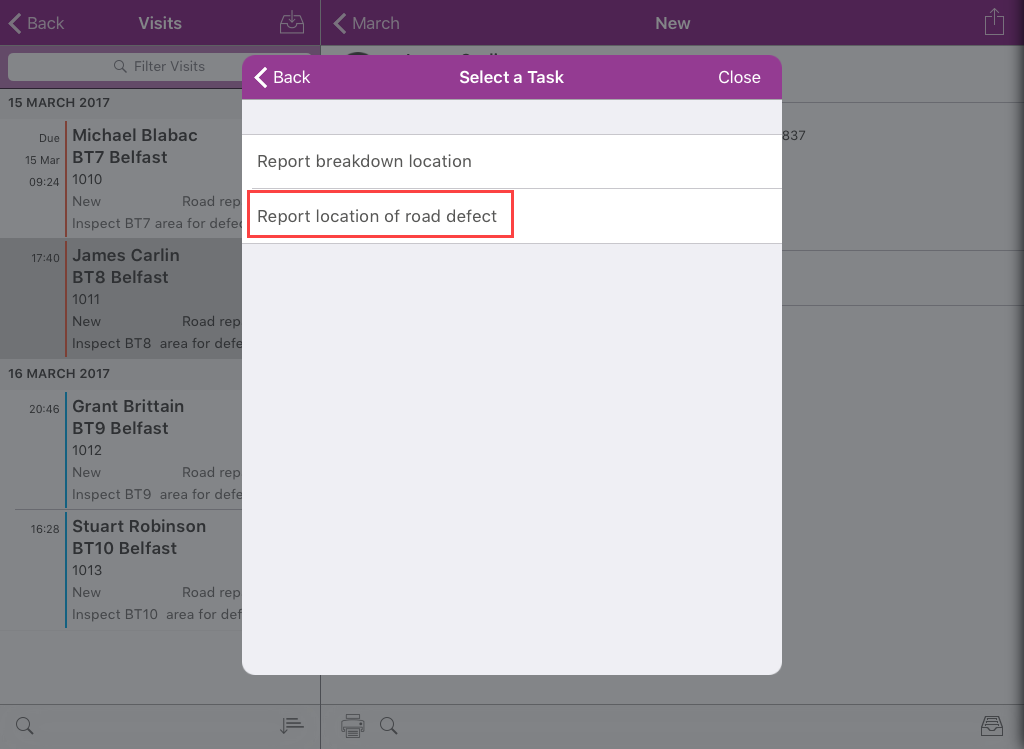
Touch to select a Form.
-
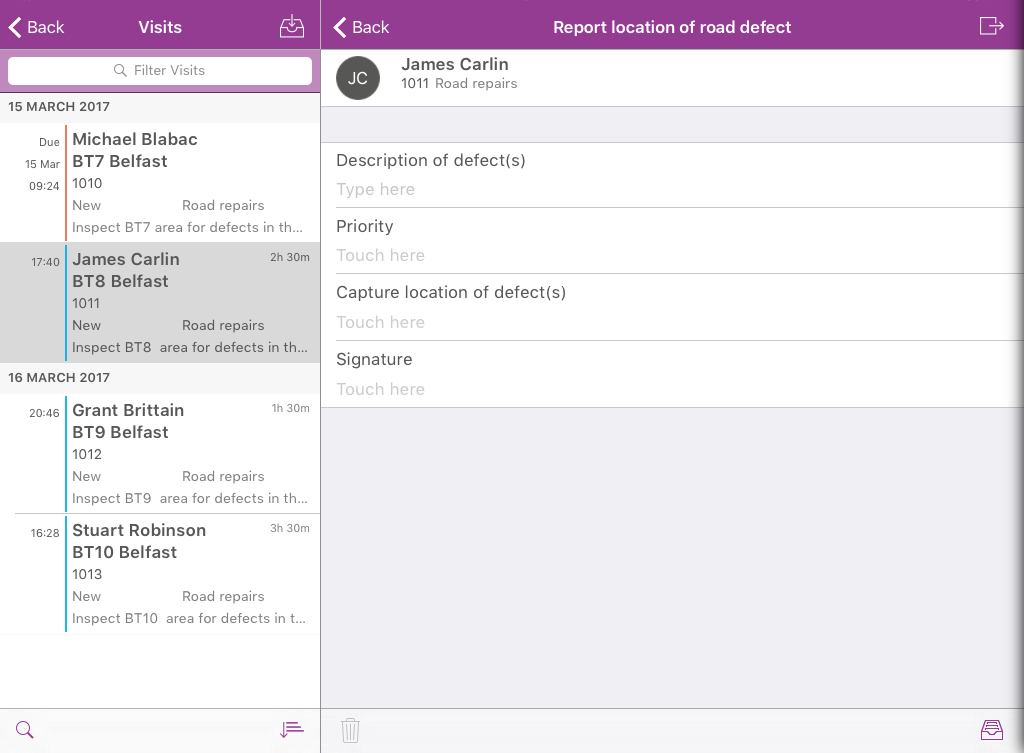
The Form appears:
On Windows
-
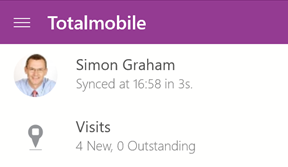
On the Home screen of the Totalmobile app touch or click Visits.
-
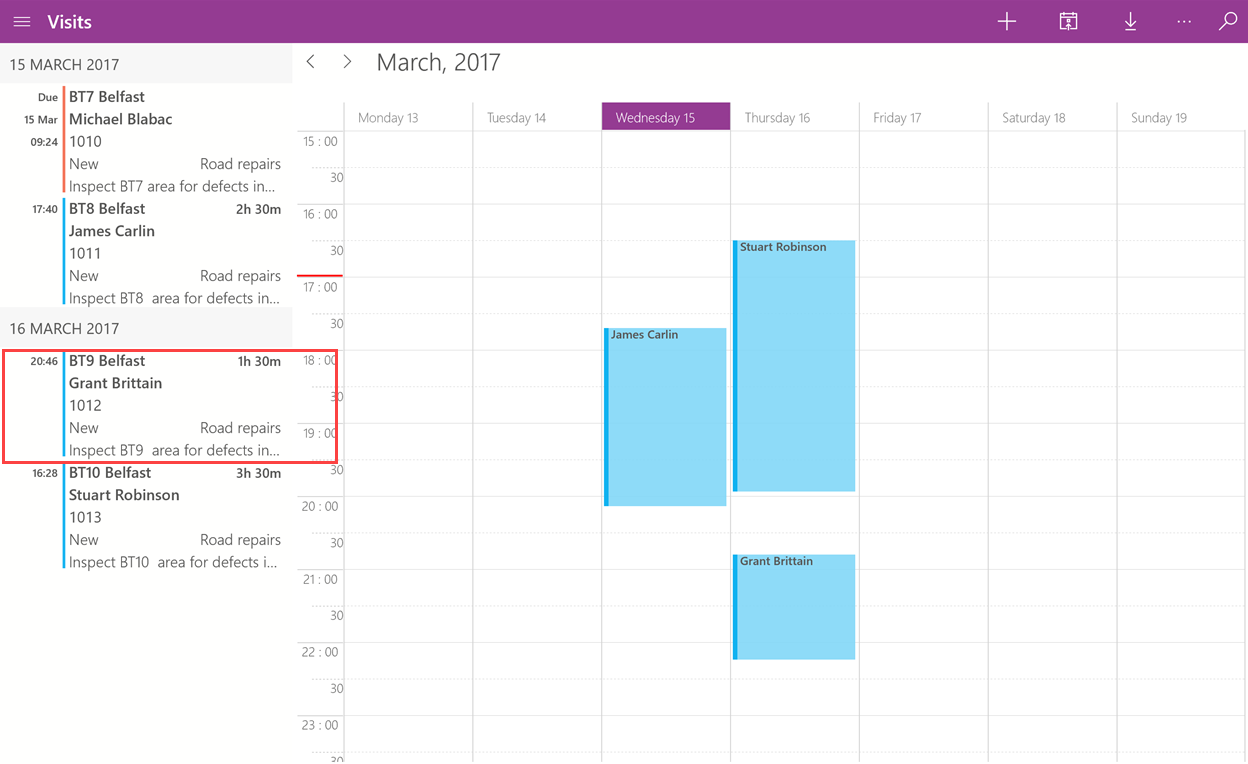
The Visit List and Diary appear. Touch or click a Visit.
-
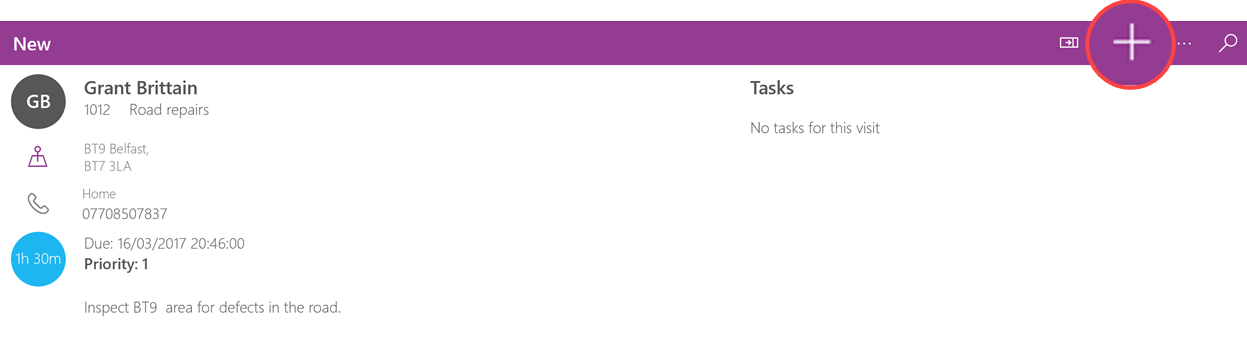
The Visit detail appears. Touch Add New Task.
-
The Select a Task window appears. Touch to select an Application.
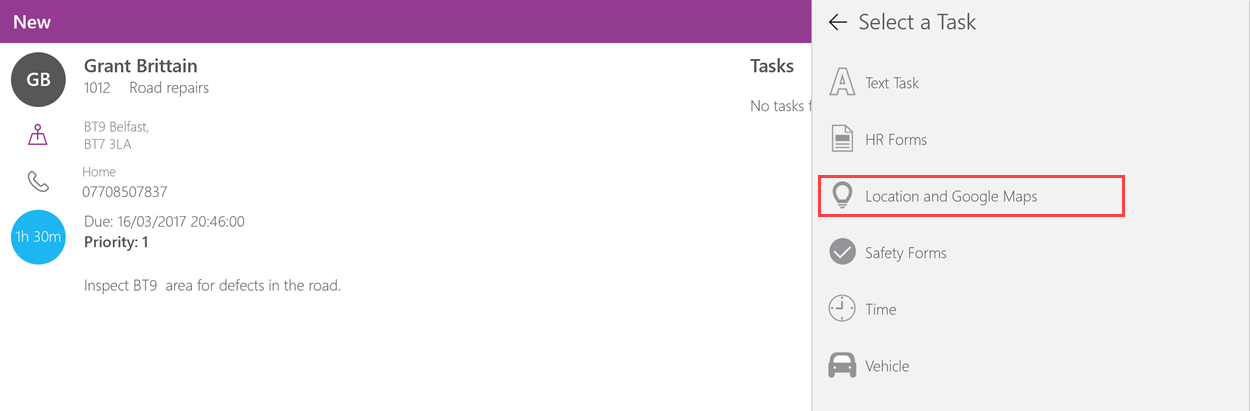
Web Applications are unavailable within Visits.
-
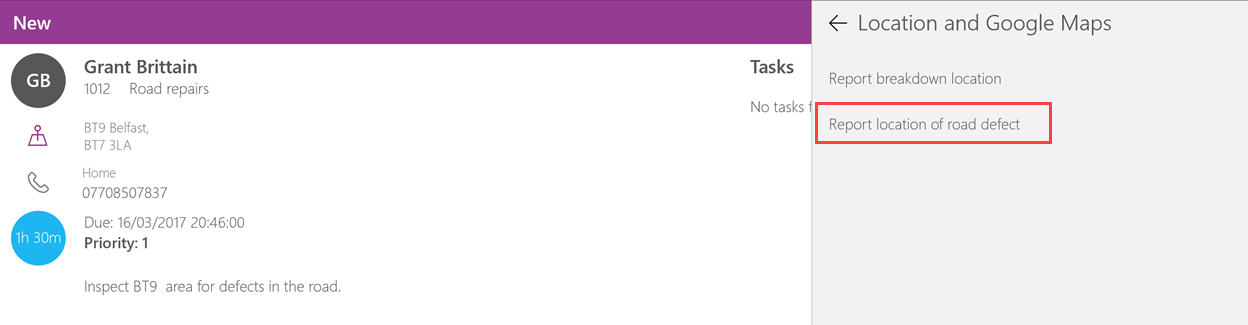
Touch to select a Form.
-
The Form appears: