Follow Up Appointment Form Actions
In order for the Follow Up Appointment to be available as part of the workflow, and to receive, display, and send the SOR information, the following Form Actions need to be configured:
Client Actions
The following Client Actions can be configured:
-
Add Follow-Up Task - this ensures the Follow Up Appointment can be used as part of the workflow.
-
Add Job Codes - this ensure the Follow Up Appointment shows the codes, descriptions, quantities, and calculates the durations, for any assigned SORs received with the visit.
Changes made to the Client Actions are not available to the user until the form has been published.
Add Follow-Up Task
To configure the Add Follow-Up Task:
-
On the Home page select Forms.
-
Find the required form and select it.
-
Select
 Maintain form actions to see the Actions and Properties screen.
 -
Select the
 against Client Actions and select Add Follow-Up Task from the menu.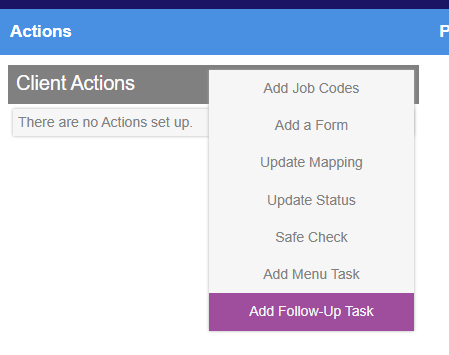
-
Add Follow-Up Task is added.
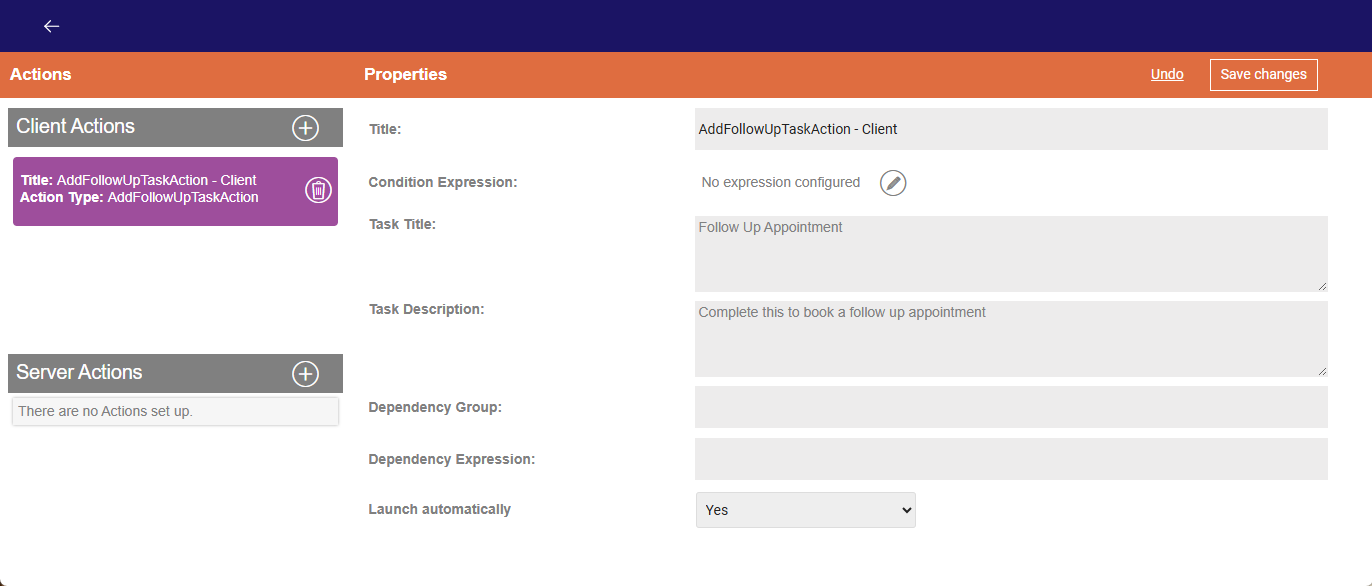
Complete the following Properties:
-
Enter the Task Title.
-
Enter the Task Description.
-
Select the Launch automatically dropdown, then select either:
-
Yes - the Follow Up Appointment is automatically opened on the users device.
-
No - the Follow Up Appointment appears in the list of Tasks for the current Visit on the users device.
-
-
-
Select Save Changes.
Add Job Codes
To configure the Add Job Codes:
-
On the Home page select Forms.
-
Find the required form and select it.
-
Select
Maintain form actions to see the Actions and Properties screen. -
Select the
against Client Actions and select Add Job Codes from the menu.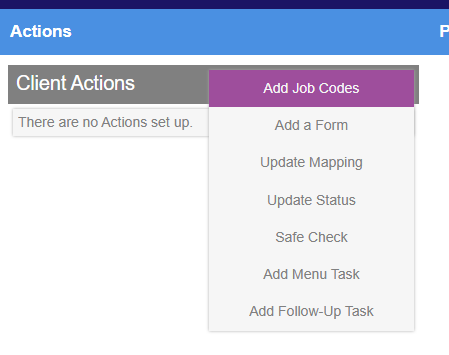
-
Add Job Codes is added.
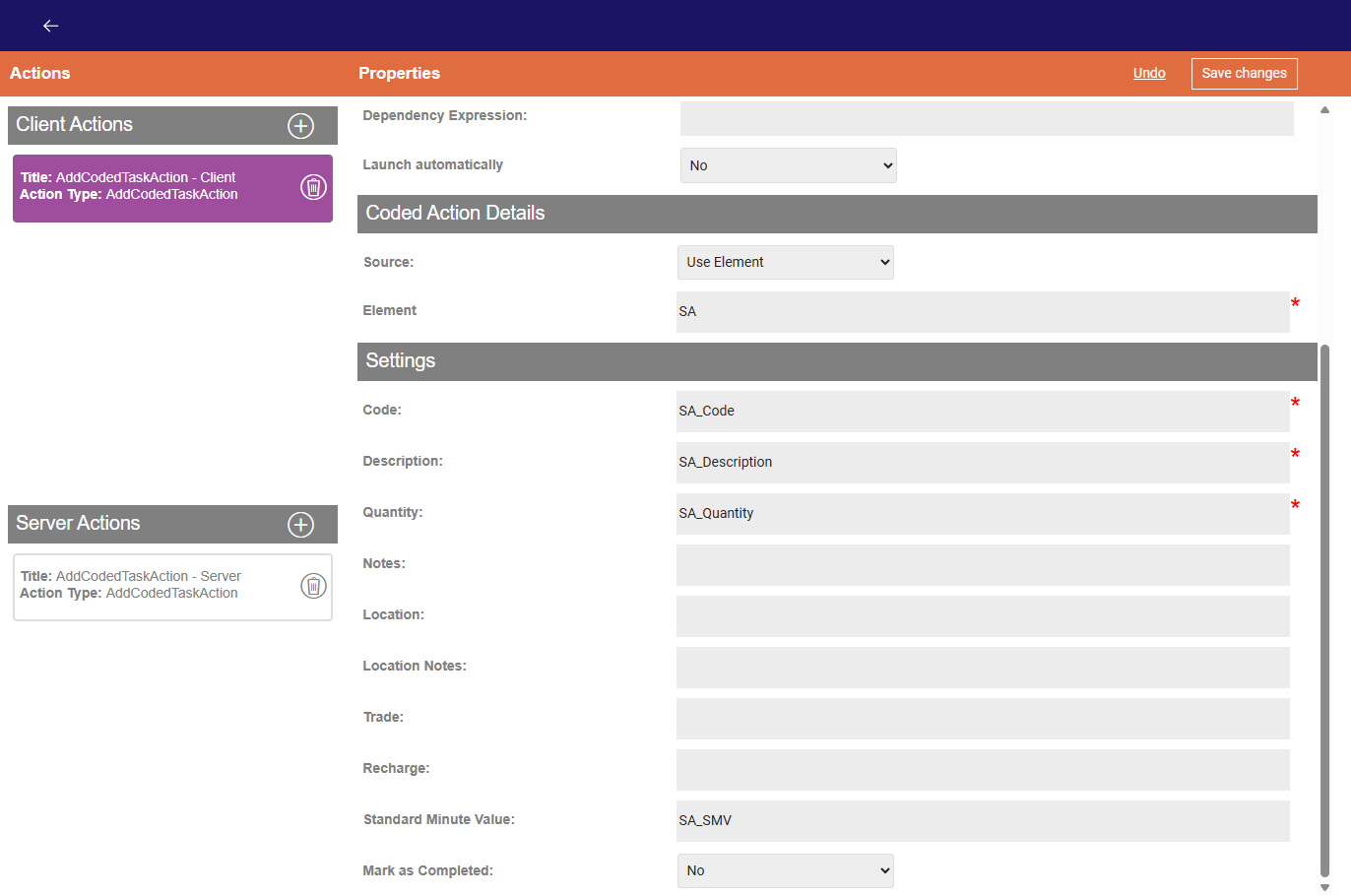
Complete the following Properties:
-
Under Coded Action Details:
-
Select the Source dropdown, then select Use Element.
-
Select the Element dropdown, select the reference relevant to the catalogue visit element on the current form. The list is populated with all Catalogue Visits configured against the Form. Once selected the Code, Description,and Quantity fields in the Settings section are automatically populated.
-
Under Setting:
-
Code is automatically populated once the Element is selected.
-
Description is automatically populated once the Element is selected.
-
Quantity is automatically populated once the Element is selected.
-
-
Select the Standard Minute Value field and select the SMV from the list. This must be selected in order for the SORs standard minutes value to be correctly displayed on the users device, and so the duration is correctly calculated for the Follow Up Appointment.
-
Select the Mark as Completed dropdown, then select No. This means any SORs added to a Visit, while the it is being progressed, can be included as an item needing to be included in the Follow Up Appointment i.e. not already completed.
-
-
Select Save Changes.
-
Server Actions
The server action Add Job Codes to Connect must be configured to ensure the updated and added SORs are returned to Connect.
Changes made to the Server Actions are not available to the user until the form has been published.
To configure the Add Job Codes to Connect:
-
On the Home page select Forms.
-
Find the required form and select it.
-
Select
Maintain form actions to see the Actions and Properties screen. -
Select the
against Server Actions and select Add Job Codes to Connect from the menu.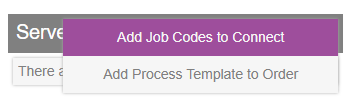
-
Add Job Codes to Connect is added.
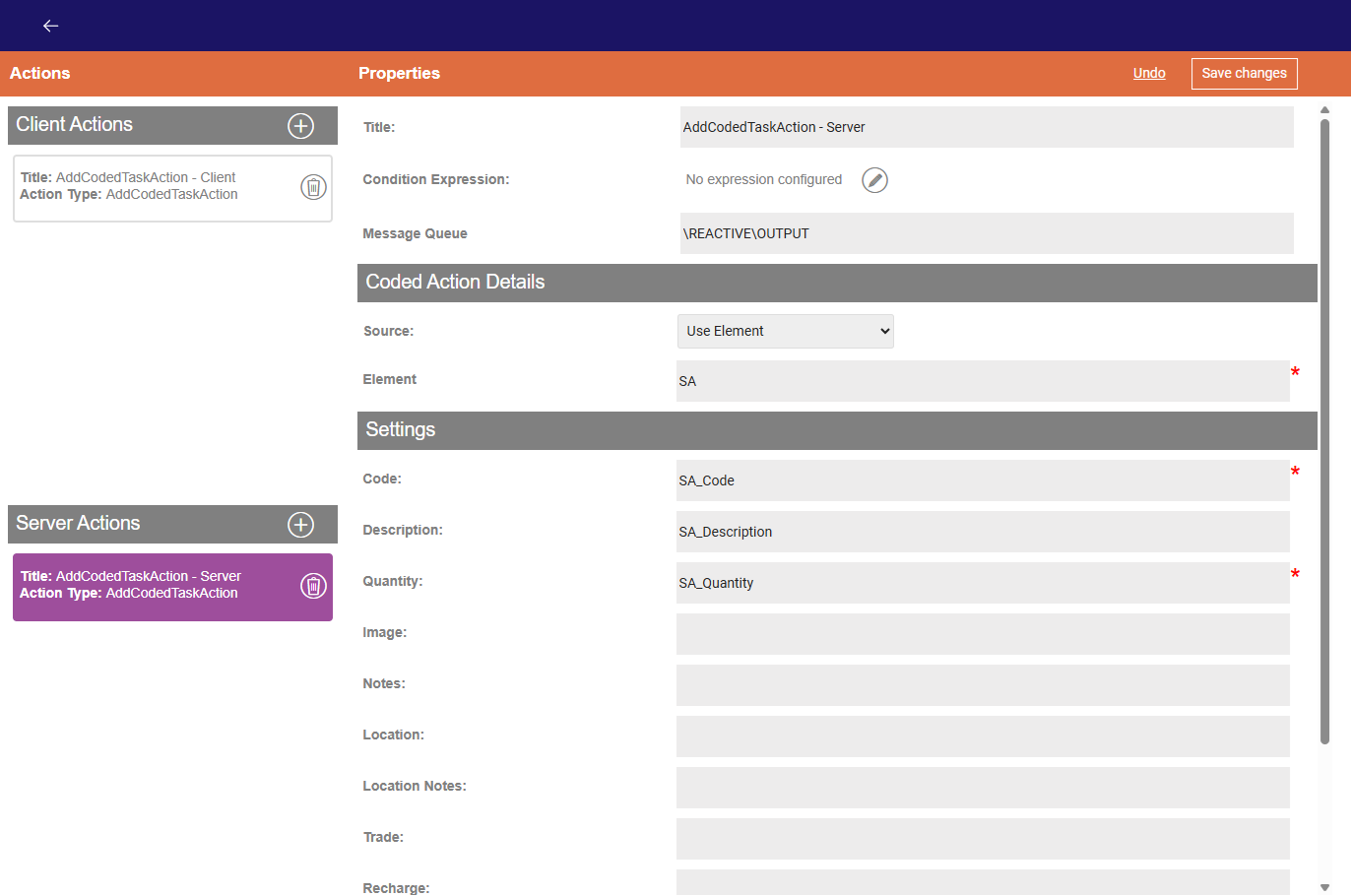
Complete the following Properties:
-
Enter the relevant Work Type Message Queue specific to the Solution into the Message Queue.
-
Under Coded Action Details:
-
Select the Source dropdown, then select Use Element.
-
Select the Element dropdown, select the reference relative to the catalogue visit from the list. The list is populated with all Catalogue Visits configured against the Form. Once selected the Code, Description, and Quantity fields in the Settings section are automatically populated.
-
Under Setting:
-
Code is automatically populated once the Element is selected.
-
Description is automatically populated once the Element is selected.
-
Quantity is automatically populated once the Element is selected.
-
-
-
Select Save Changes.
-