Themes
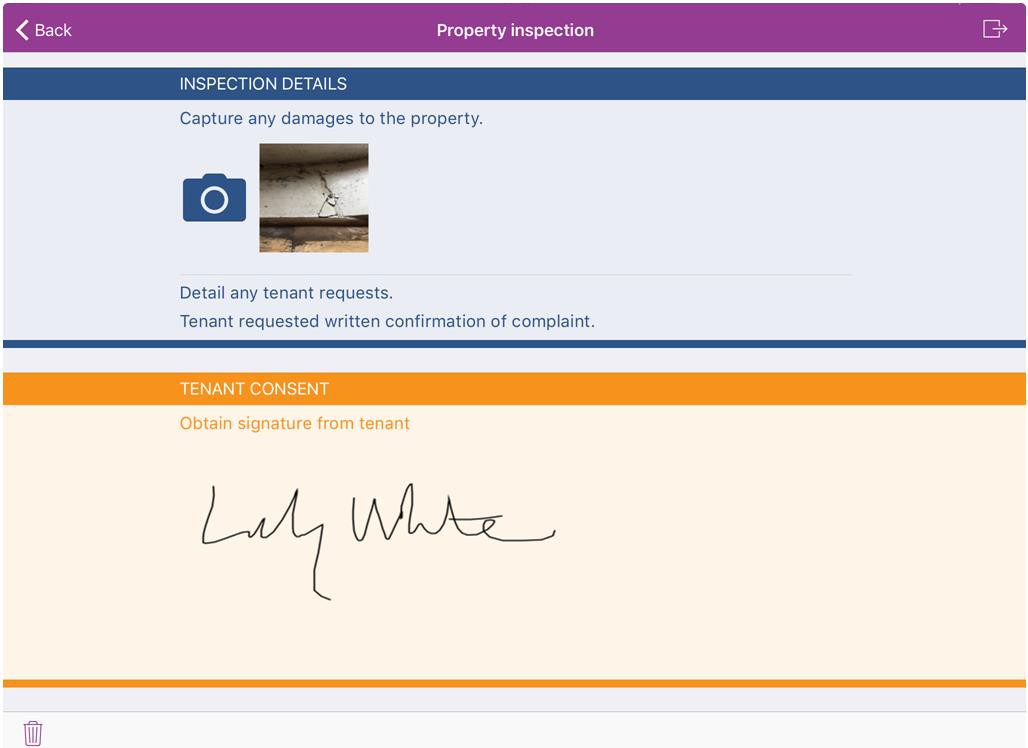
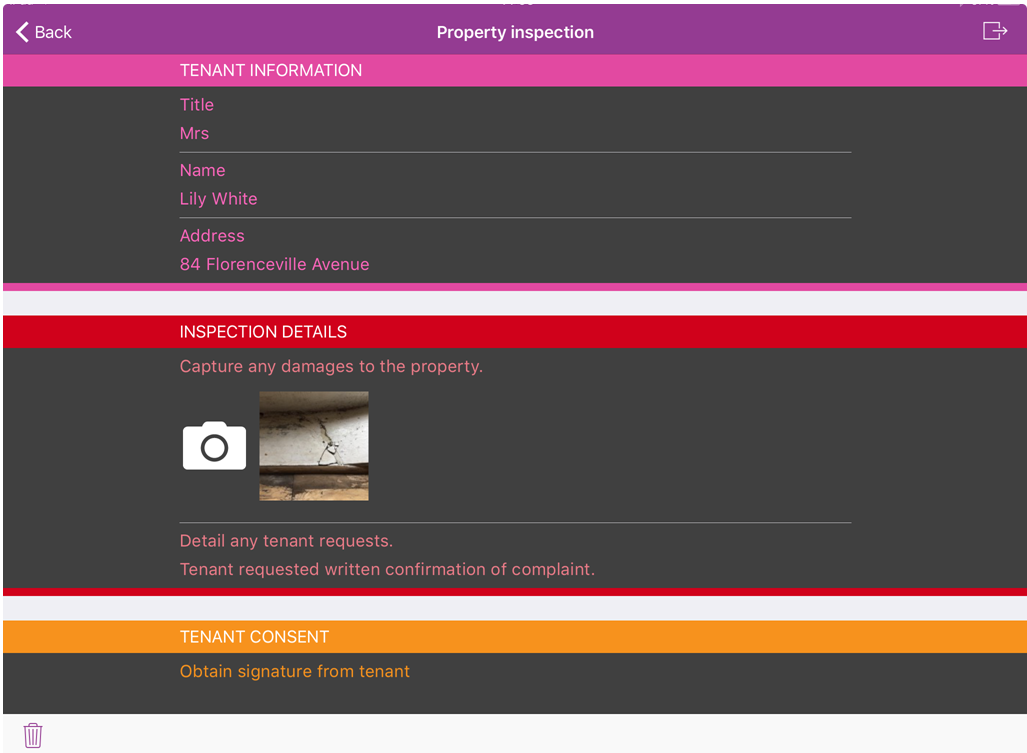
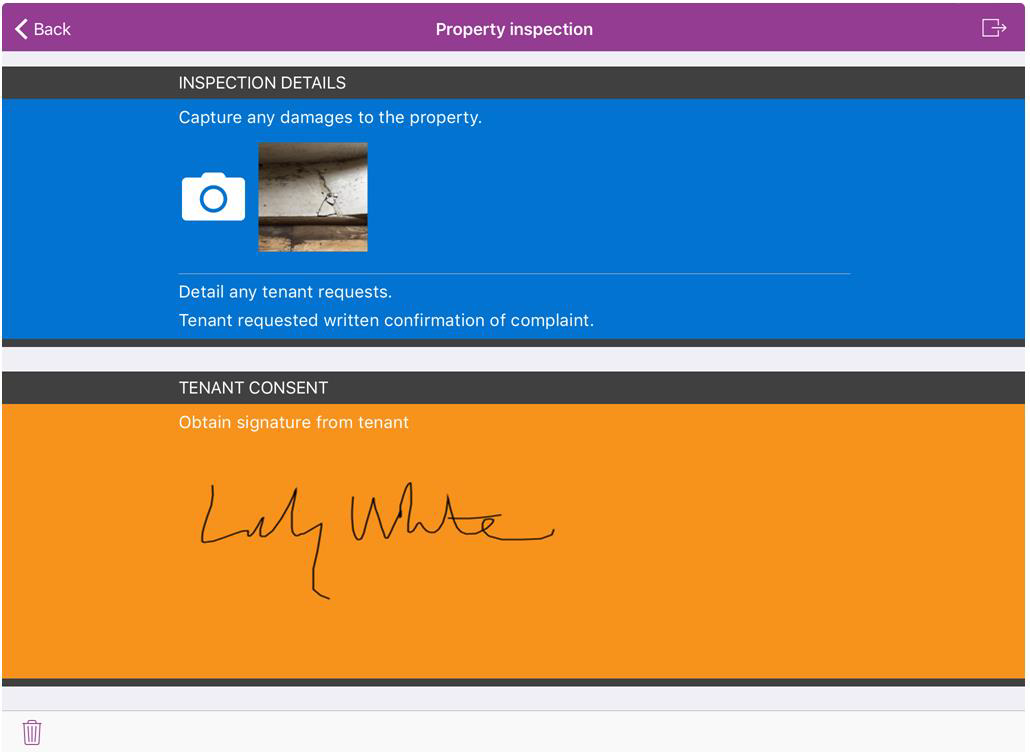
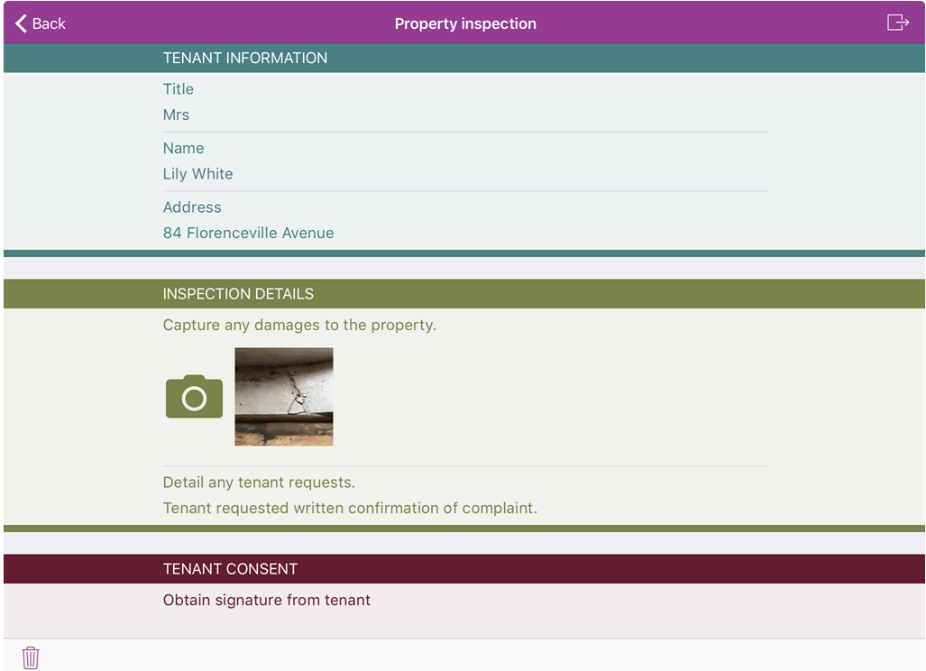
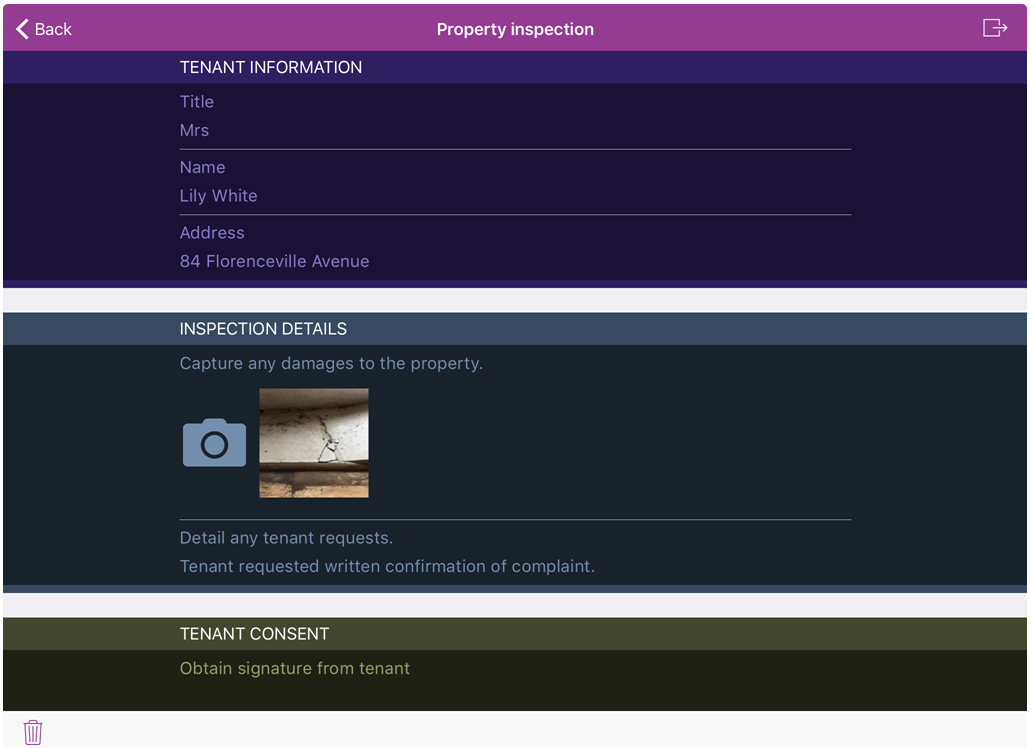
You can configure all types of form sections with a variety of different colours and themes. Form themes provide increased design options, more visually appealing forms and an improved user experience. By associating sets of sections with sets of colours, users can easily identify their place in a form.
If you have colour blindness or other vision challenges you can use colour filters on iOS, colour correction on Android or colour filters on Windows 10 and later to help you differentiate between colours.
Configure a Form Theme
-
In WebAdmin select Forms.
-
Select a form.
-
Do one of the following:
-
Navigate to a section within your form.
-
Select Insert a new Element and enter an element name.
-
-
Select Maintain Element Settings
 .
-
In the Update Element Details dialog:
-
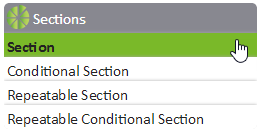
If you are creating a new element, select a control from the Sections list.
-
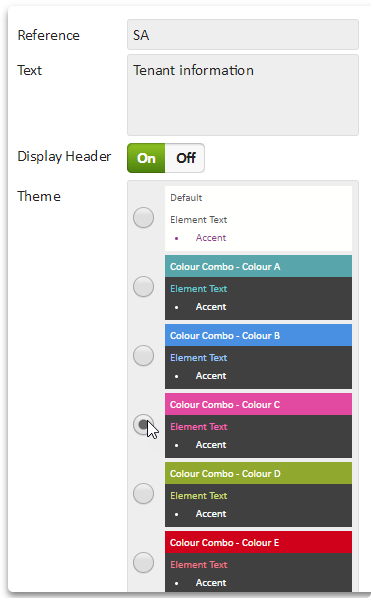
Select a Theme.
-
Select Save.
-
Save
 and Publish
 the form.
-
Assign the form to an application or visit task within a solution.
 Viewing Form Themes on Android
In the Totalmobile app, navigate to a form in an application or visit task. Select the images below to view the different sets of form section themes.
Colour combination themes:
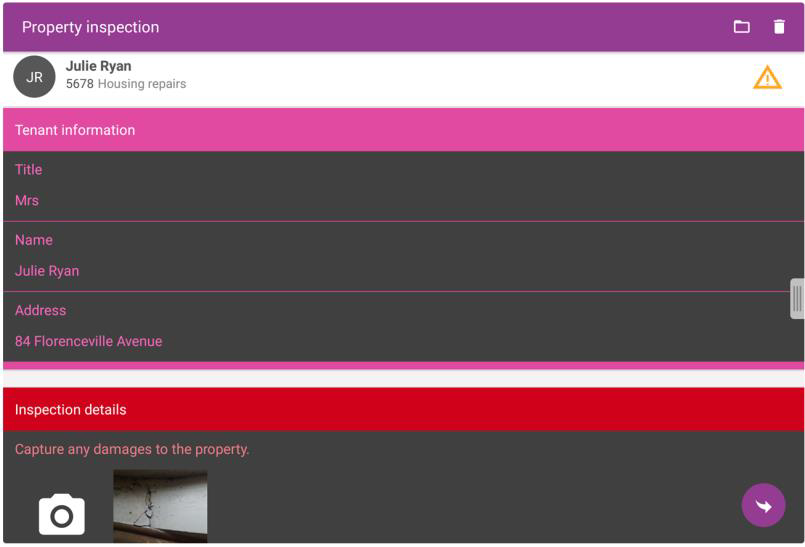
Colour combination inverted themes:
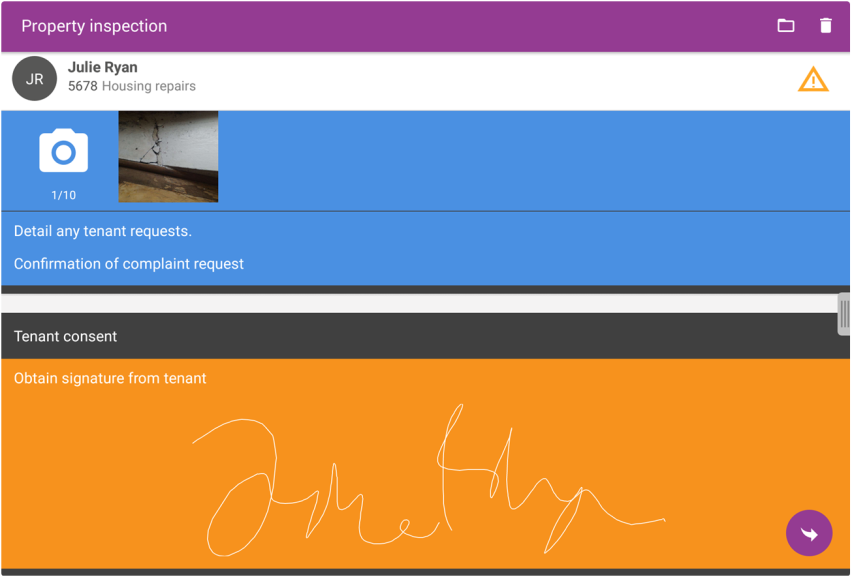
Muted themes:
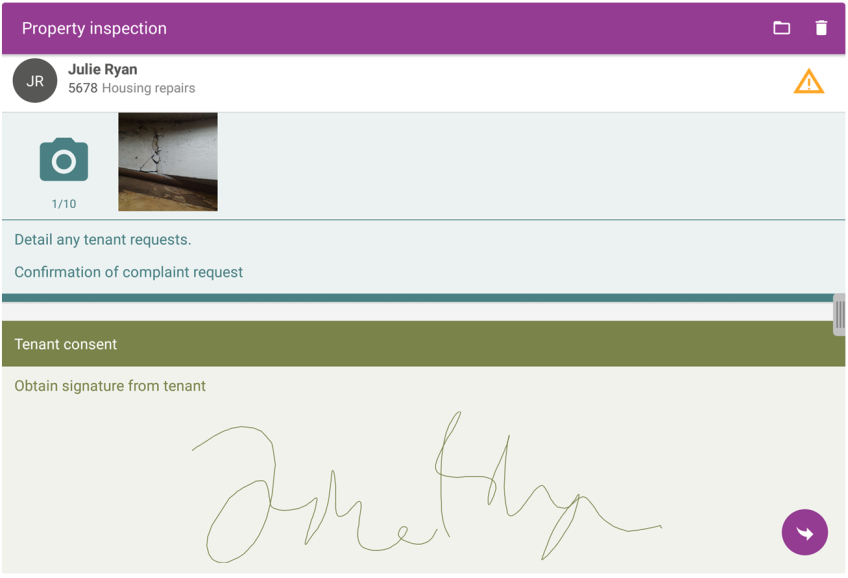
Night mode themes:
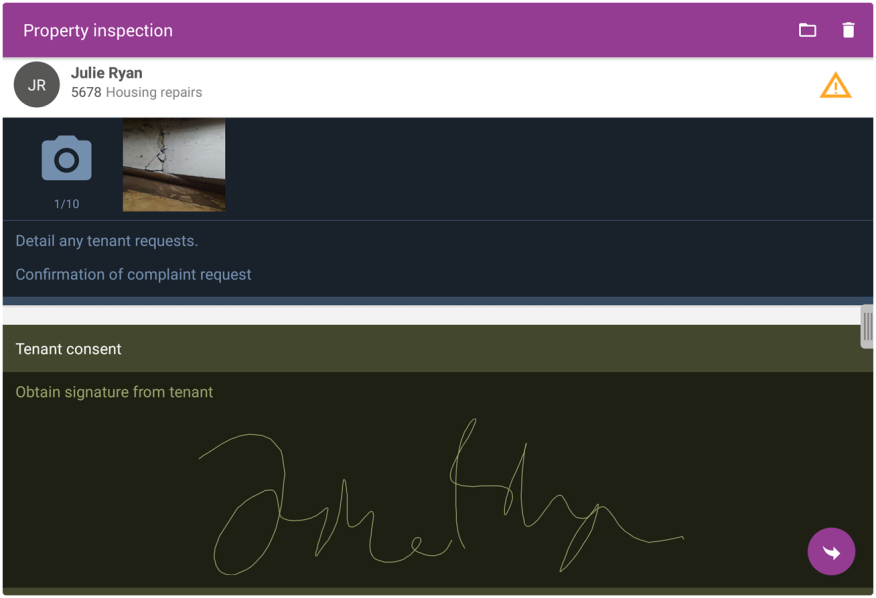
Standard set and Totalmobile themes:
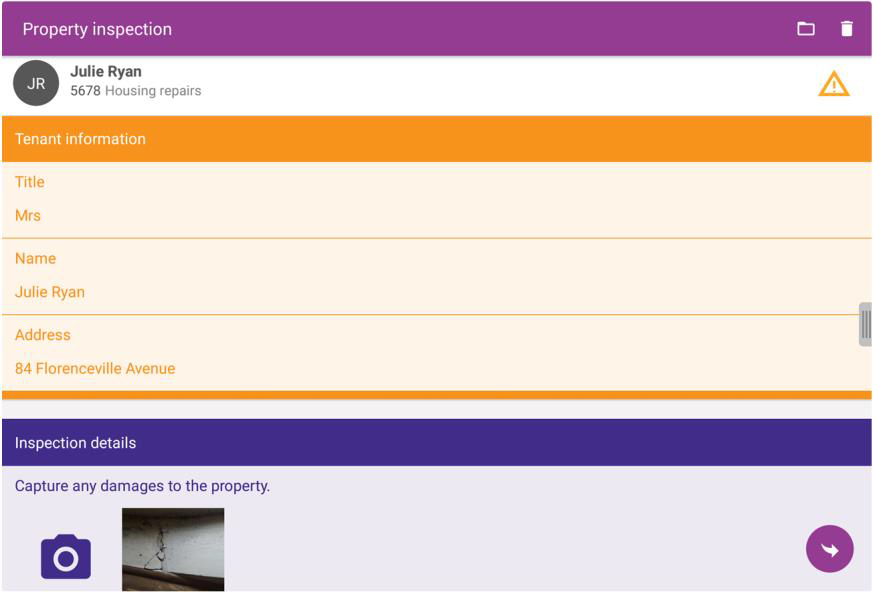
Viewing Form Themes on iOS
In the Totalmobile app, navigate to a form in an application or visit task. Select the images below to view the different sets of form section themes.
Colour combination themes:
Colour combination inverted themes:
Muted themes:
Night mode themes:
Standard set and Totalmobile themes: