Outsource Care Schedules
To outsource a Care Schedule:
-
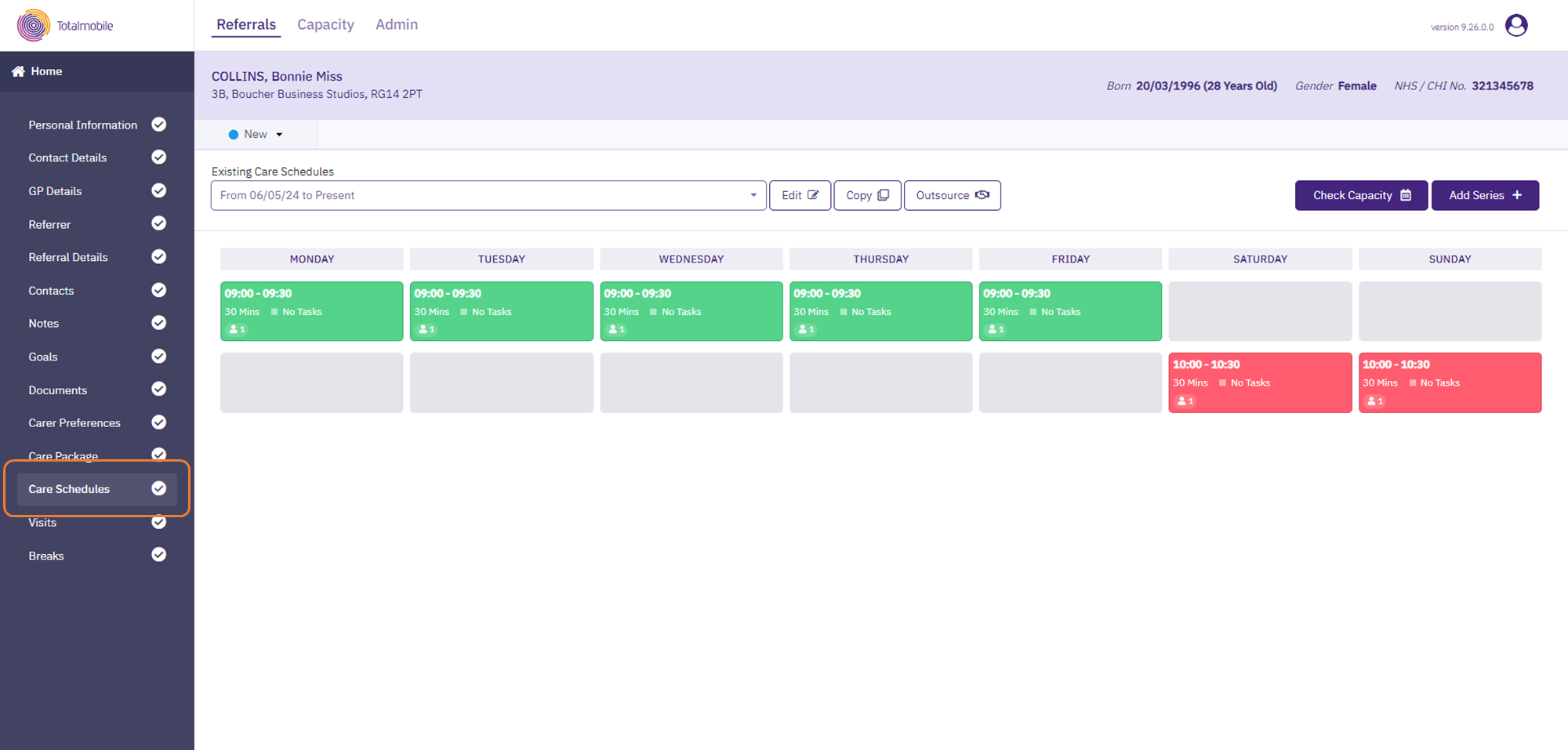
Click on Care Schedule from the menu bar to the left of the screen, within the Referral.
-
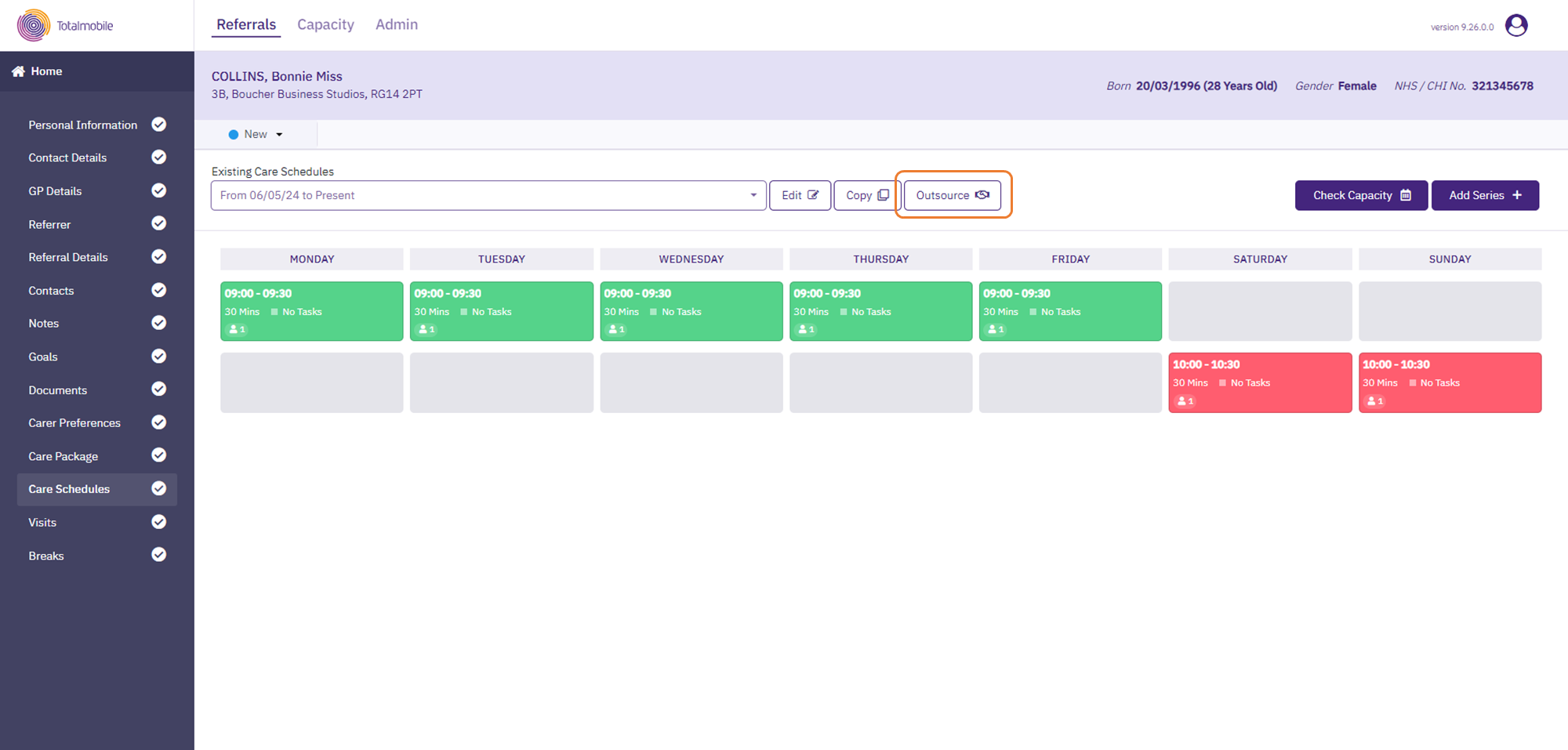
Click the Outsource button.
-
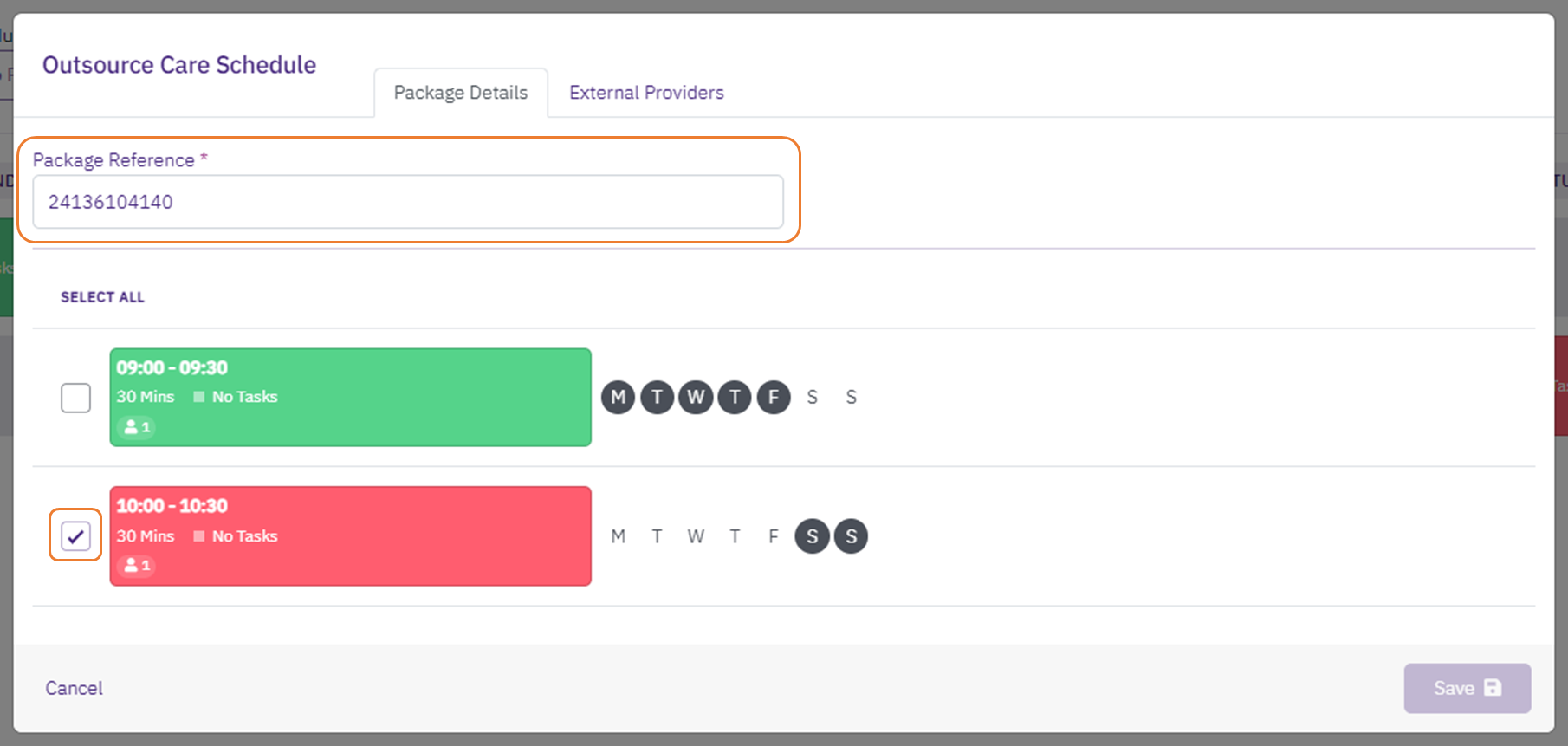
The Outsource Care Schedule window opens, which lets you select the visits to outsource and choose the providers to outsource them to. In the Package Details tab:
-
The Package Reference is automatically generated but can be manually updated if needed.
-
Tick the box for each visit to be outsourced.
-
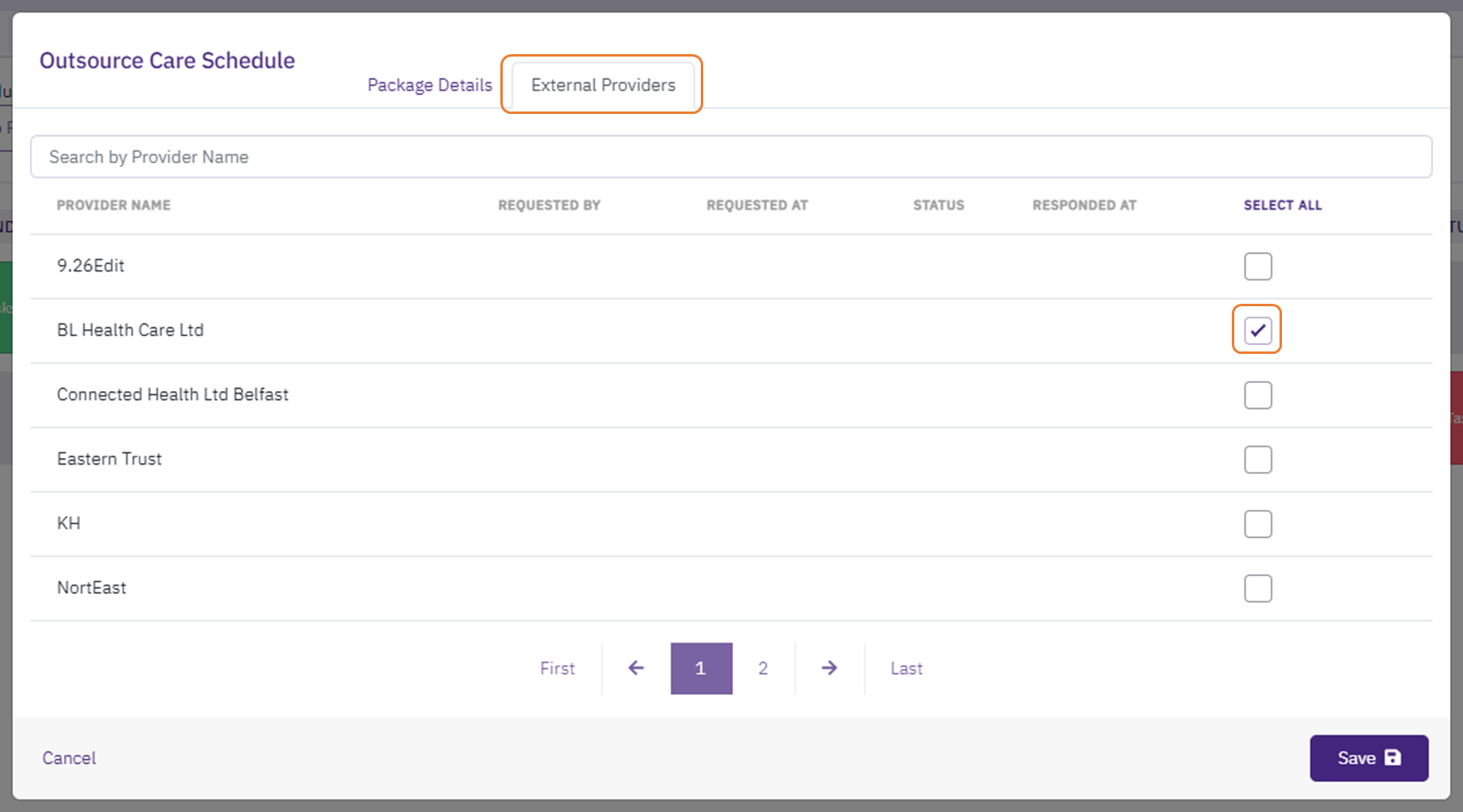
Click on the External Providers tab.
-
Tick the box for each External Provider who is to receive the Care Package. It is then whichever External Provider is first past the post in accepting the Care Schedule.
-
Click the Save button to confirm the changes.
-
-
The outsourced visits on the calendar in the week view of Care Schedules displays with a darker outline, and an Outsource Pending icon in the bottom right.
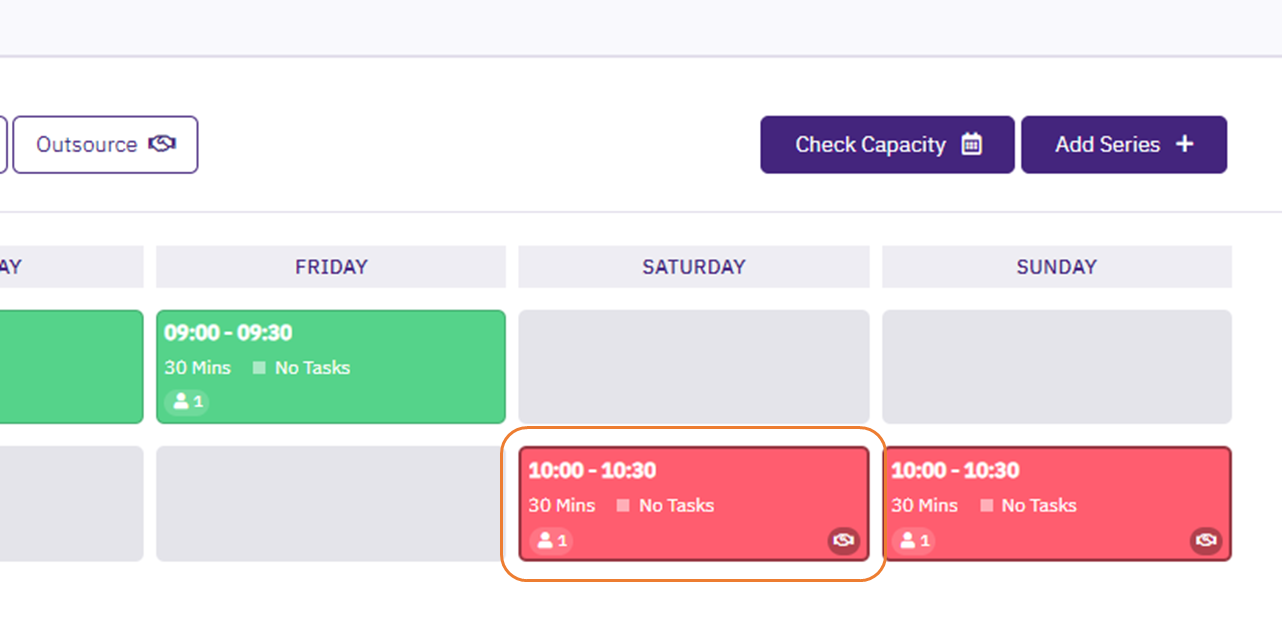
The care package is now displayed in the Pending Packages section of the External Provider’s Care Provider Portal, where they either accept or reject the care package.
Please note the following:
-
If a change is made to the duration of a visit after the care package is outsourced, the External Provider will not see the change in duration until after the care package has been accepted. Therefore, before editing the visit duration, recall the care package by deleting it, edit the visit duration, and then create and send the care package again.
-
Once a care package has been outsourced, new visits cannot be added to the outsourced selection, visits can only be selected when creating.
-
External Providers can be added or removed up until the care package is accepted.
 Check Outsource Care Package Status
To check the status of the outsourced care package:
-
Click the Outsource button.
-
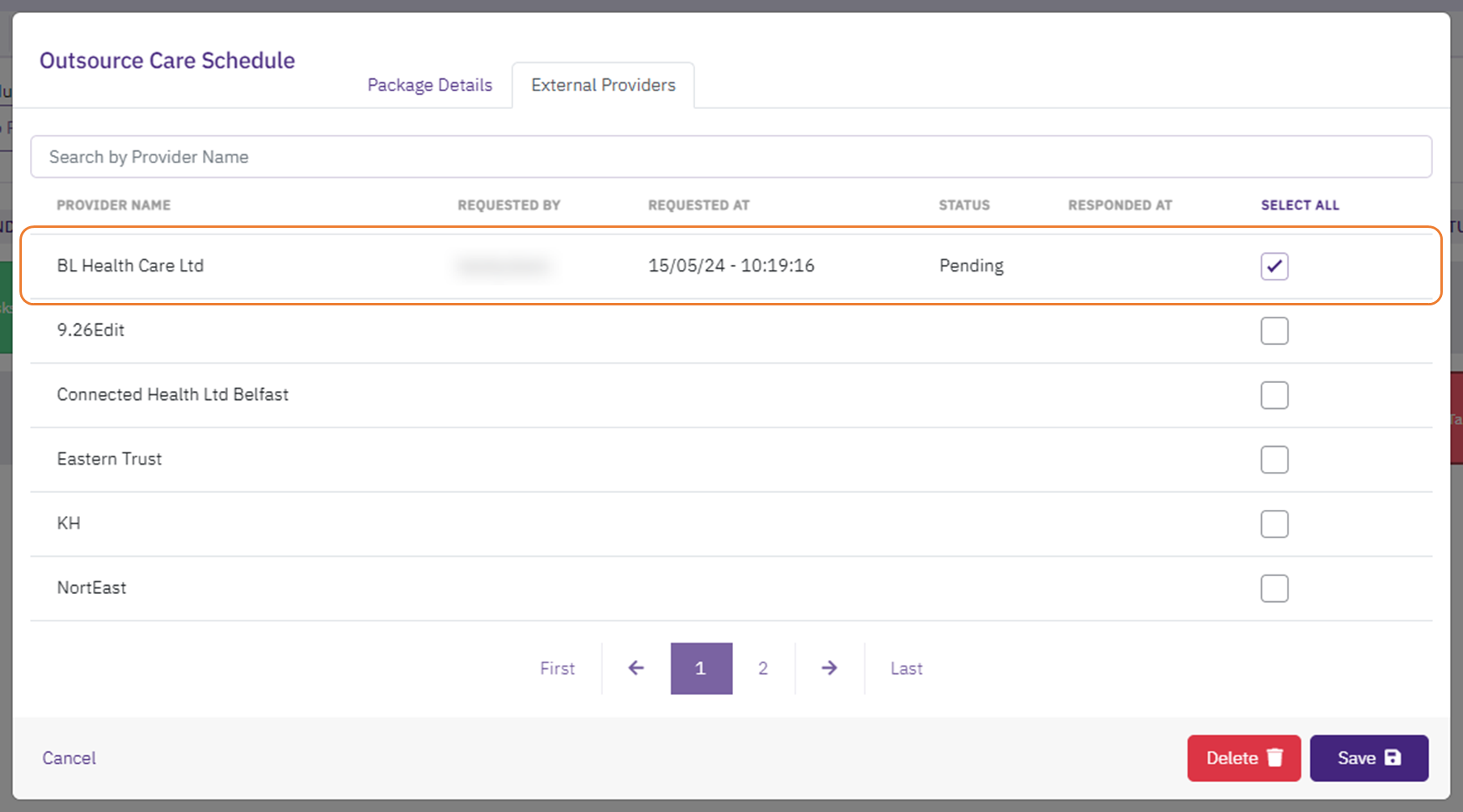
Click on the External Providers tab.
-
Check the details against the selected Provider, the following information is shown:
-
Requested By – who created the Outsource Care Schedule, or who last amended the Outsource Care Schedule such as adding another External Provider.
-
Requested At – the date and time the request was created.
-
Status – the status of the request, which could be Pending, Accepted or Rejected.
-
Responded At – the date and time the response was provided.
-
Remove Outsource Care Package
If a care package no longer needs to be outsourced, it can be removed in the following way:
-
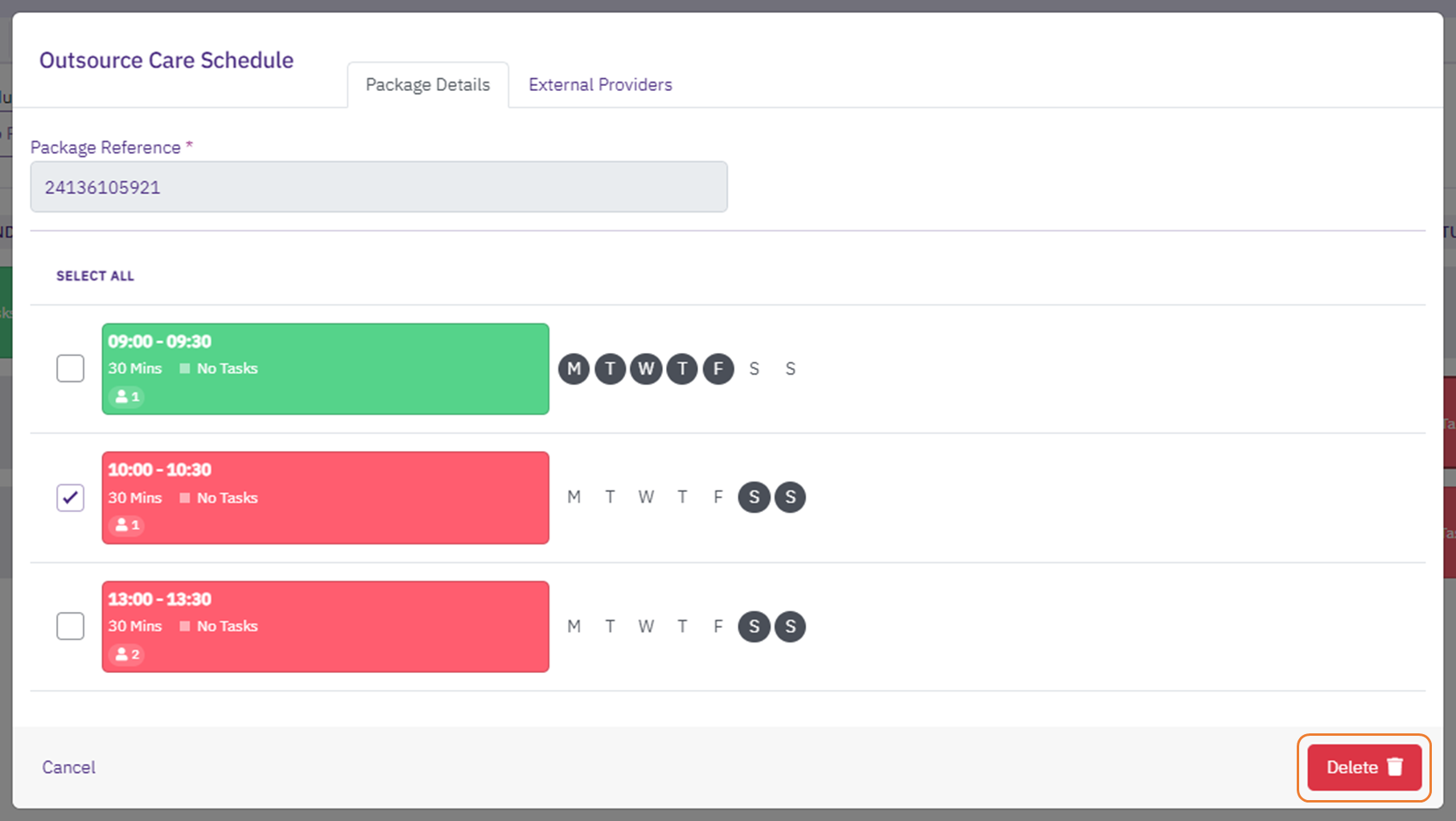
Click on the Outsource button.
-
Click the Delete button.
-
When asked Are you sure you want to delete this outsourced package? click Yes to continue.
-
The care package is no longer shown as outsourced, it is removed from the Care Provider Portal for the External Provider, and the Visit Calendar is updated to reflect the deleted Outsourced Package.
Accepted Outsource Care Package
When the External Provider accepts the package, it updates the status against the Outsource Care Schedule in Carelink:
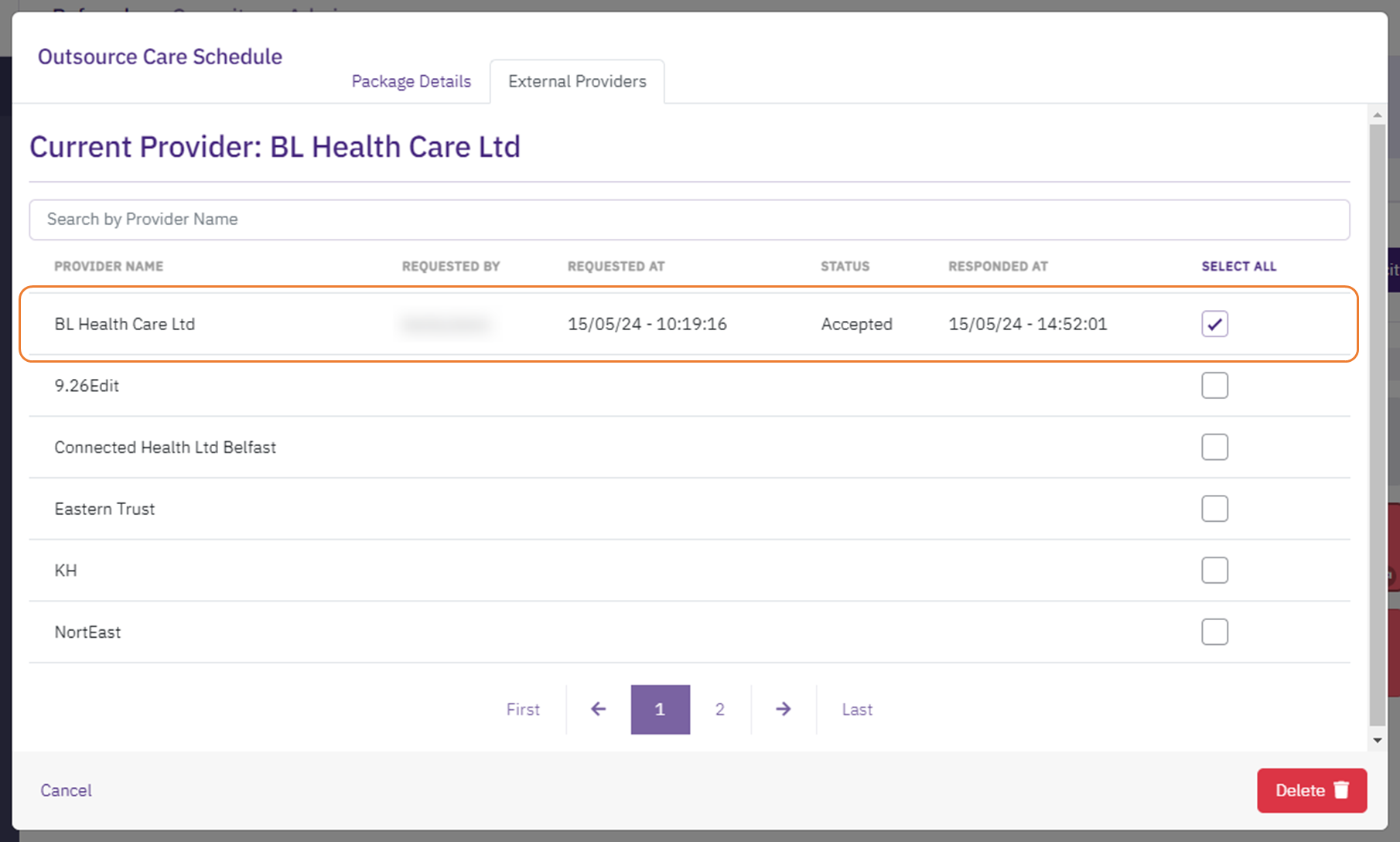
The Status updates to Accepted and the Responded At shows the date and time the External Provider accepted the package.
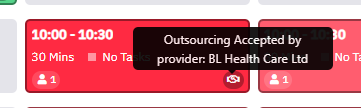
The Status update can also be seen when hovering the mouse over the Outsource icon on the Visit Calendar:
Rejected Outsource Care Package
When the External Provider rejects the package, it updates the status against the Outsource Care Schedule in Carelink:
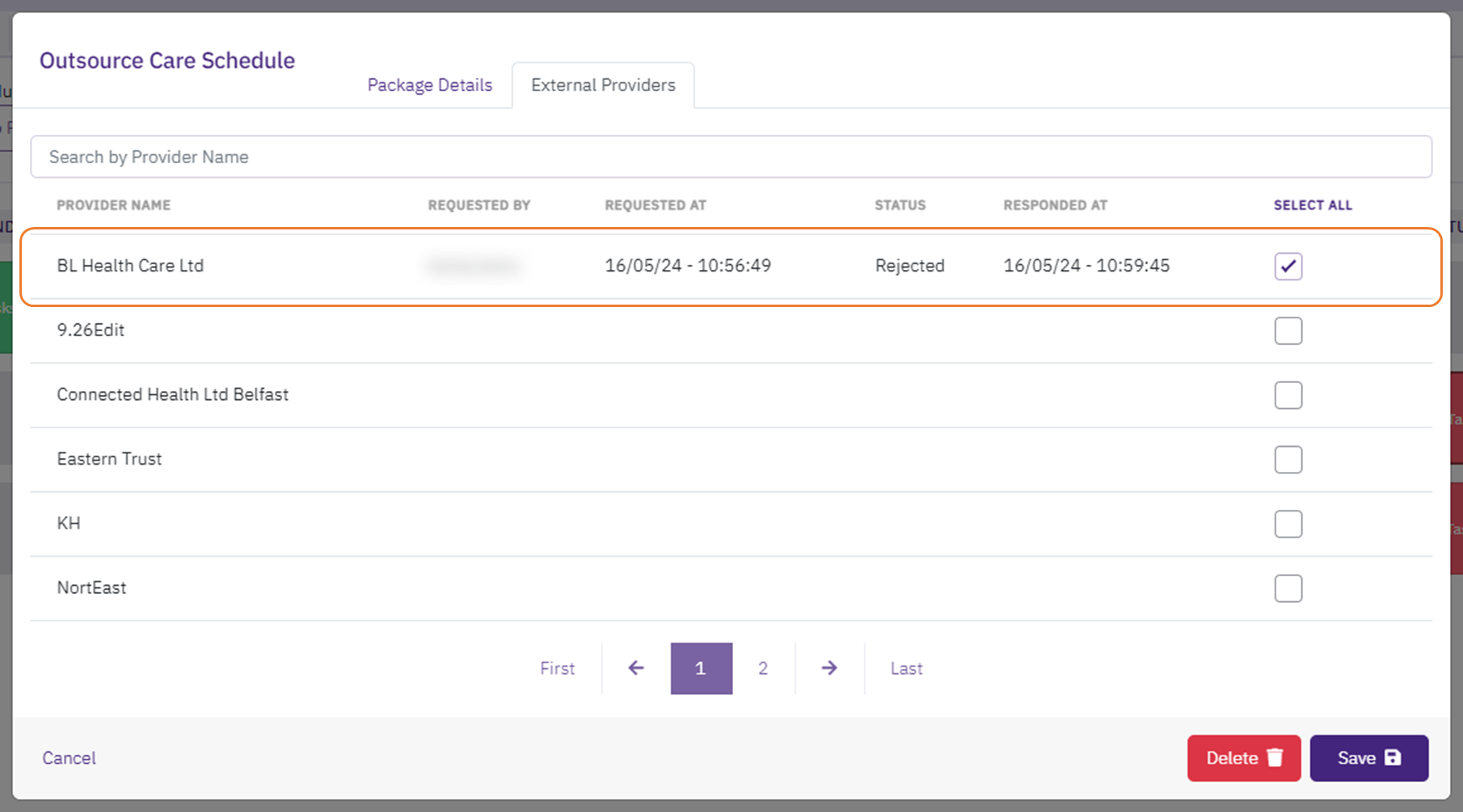
The Status updates to Rejected and the Responded At shows the date and time the External Provider rejected the package.
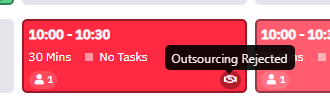
The Status update can also be seen when hovering the mouse over the Outsource icon on the Visit Calendar: