Request a Capacity Check
To request a check:
-
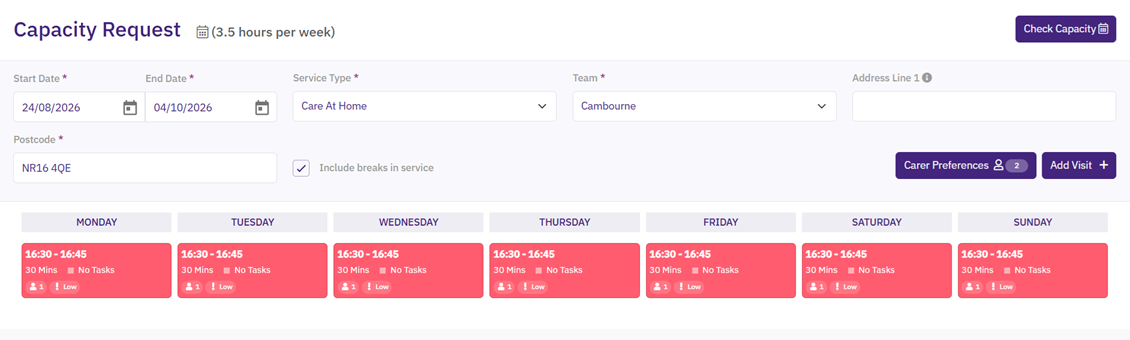
Select the Capacity tab.
The Capacity Request page appears.
-
Enter the following information for the request:
-
Start Date*
-
End Date* - by default, this is 6 weeks after the start date but can be changed.
-
Service Type*
-
Team* - that is going to deliver the care.
-
Address Line 1 - optional, can be used to refine the results.
-
Postcode*
-
Care Plan Visits
-
-
Select Include Breaks in Service to include any existing breaks as part of the check.
-
To add preferred carers:
-
Select Carer Preferences.
-
Select Select Carers.
The Carer Preferences dialog shows care workers who already exist in the system and are actively using Mobile Working (Mobilise).
-
To find a care worker, either scroll through the list or select the Search Workers field and enter a full or partial name. You can also filter the list by gender.
-
For each selected care worker, select the dropdown and assign a status of either Preferred or Prohibited.
- Preferred means that Dynamic Scheduling (Optimise) will be more likely to schedule the visit to the same care worker and provide continuity of care for the service user.
- Prohibited means that Dynamic Scheduling (Optimise) will not allocate the visit to the care worker and treat this as an absolute constraint.
-
Select OK.
-
By default, preferred carers are unranked. To rank carers in order of preference, drag and drop the carer names in the Preferred Carers list. These preferences are used as scheduling criteria in Dynamic Scheduling to allow continuity of care.
-
Select OK.
-
-
To define the visits that would be required as part of the care plan:
-
Select Add Visit.
-
Enter the following information:
- Start Visit Between - the time range agreed with the service user for the visit.
-
Team* - the team that is going to deliver the care. This is automatically populated from the selection in the capacity request.
-
Priority - select the priority from the dropdown.
-
Number of Workers - if the visit requires multiple workers, multiple visits will be dispatched to Dynamic Scheduling, and they will be allocated to different care workers.
-
Frequency - select the visit frequency from the dropdown.
-
Pattern - select the visit pattern from the dropdown.
-
Days - the days selected depend on the selection in the Pattern field. For example, if you select a Daily pattern, all days are selected. If you click a day to select or deselect it, the Pattern field changes to Custom.
-
Duration - the time allocated for each visit.
-
Type of Work* - the type of work that is going to be delivered. This defines any skills required for the care worker in order to deliver the care.
-
Gender - if required, this scheduling criteria will be considered to allocate the visits to the right gender of care worker.
-
Special Instructions – notes which can be added to the visit series.
-
Tasks - select Edit to define one or more tasks for the visit. The available tasks are defined on the Admin > Task Management page. The tasks will appear as part of the visit details in Mobile Working (Mobilise) where care workers can tick to mark them as completed.
-
Skills - select Edit to assign skills to the visit. These will be matched with the skills a resource has.
-
Select Save.
-
-
Select Check Capacity, then select Yes to confirm.
* Required field.
View Capacity Requests
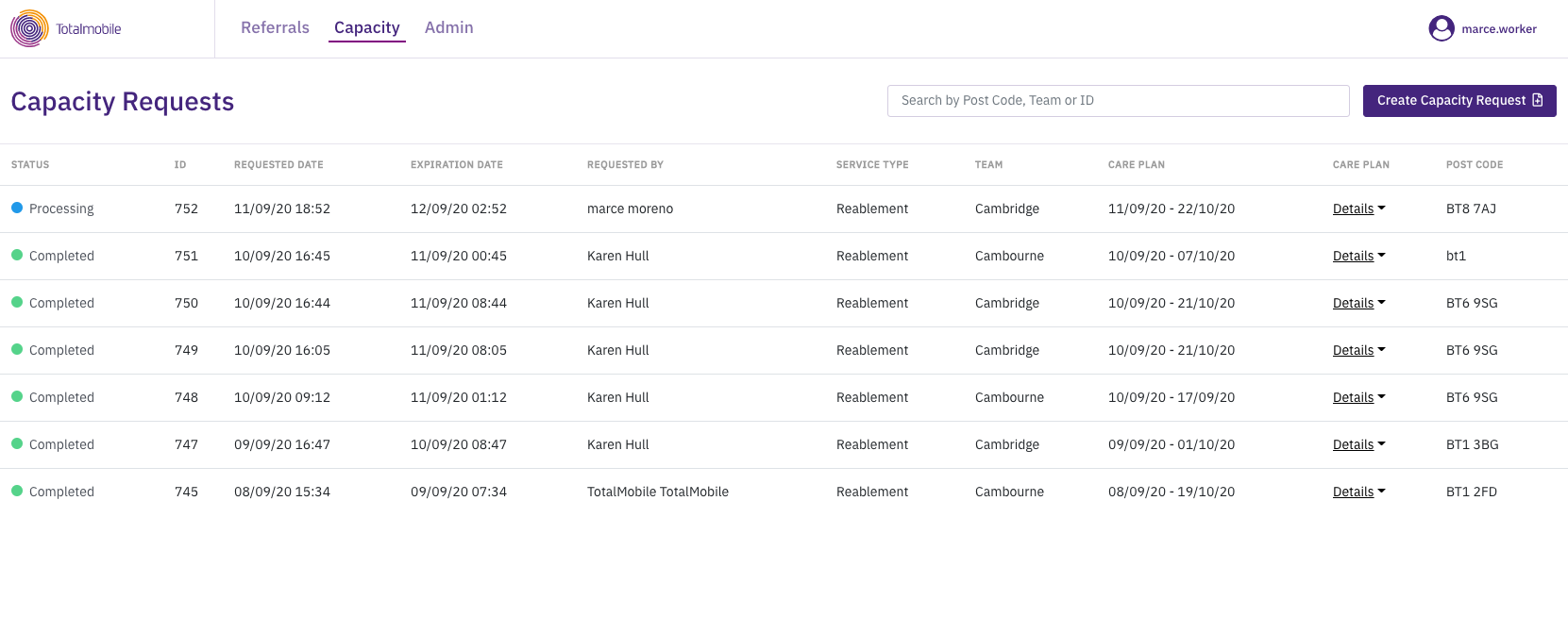
You can view all capacity checks ordered by requested date.
Purge Capacity Requests
Once a capacity check is requested an expiry date is defined against it. This date is generated based the creation date and a customer-configured setting.
Expired capacity requests are purged every day and they will be part of the historical data included in audit reports.