Emergency Services Rostering (GRS) - Release 7
Release Date: August 2025
We have been enhancing Emergency Services Rostering (GRS) since the last release, adding new features and addressing known issues to improve quality.
Some features may require additional setup by Totalmobile. If needed, reach out to your Account Manager for access details.
These Release Notes cover the following:
Any features which require additional explanation or steps to be performed, are detailed, separately on their own pages and are linked against the relevant features in the tables below.
What's New
SYP Migration
Would like the options to be able to view the Employee ID clearly when viewing a record
Two items have been added into the selection lists for Tools > System Options - Sort pick List By and Staff Management display name by:
-
Surname Firstname EmployeeID
-
Surname Initials EmployeeID
An overnight process will update the name display in GRS person pick lists when the option Sort pick List By is changed.
-
System Options: Yes
-
Security Ranges Roles & Behaviours: No
-
Special Permissions: No
-
Customer Specific or Cloud: Customer Specific
SaaS - Demand Gap Planner Phase 2
-
SaaS - Demand Gap Planner - Automation of changing required flags (P2)
New Auto Required Flag button on Roster Planner > Demand Gap Planner (please contact Totalmobile to have this enabled; it is disabled by default). See ORG-8909 for details on how this works.
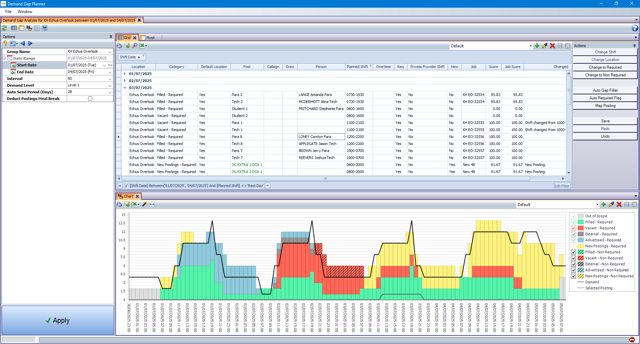
New button for Map Posting to show how the posting on the selected row contributes to meeting the Demand line across the chart. A line will show with values between zero and one, to indicate when and which parts of the shift count towards the Demand. Select a row and then click the button. Shifts that do not contribute towards meeting demand for the group will have a line at zero.
-
System Options: No
-
Security Ranges Roles & Behaviours: No
-
Special Permissions: No
-
Customer Specific or Cloud: Cloud
-
-
SCAS - Demand GAP Planner - Move gap filler report options to Group setup screen as defaults
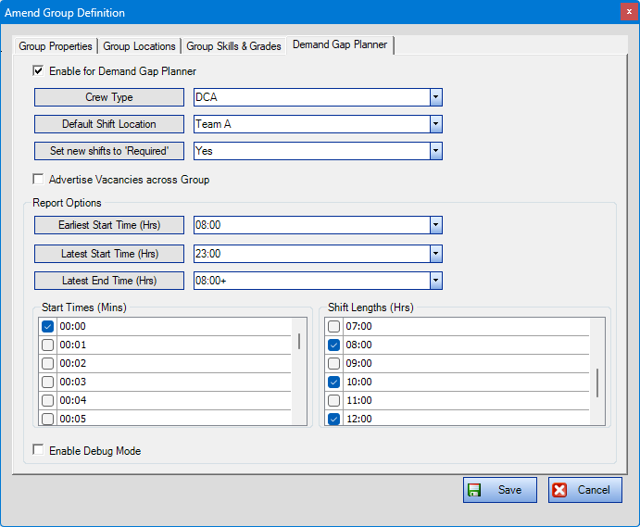
Work in preparation for allowing Group defaults to be used on the Demand Gap Planner. Default settings have been added to Analysis > Monitor > Staff Level Setup - Demand Gap Planner tab. When a crew is added to the Group definition on the first tab, this opens up the ability to enable the group for the Demand Gap Planner (as per previous functionality) and there are now additional fields in the lower part of the screen, pre-populated as follows:
-
Earliest Start Time: 0800
-
Latest Start Time: 2300
-
Latest End Time: 0800+
-
Start Times: 00:00 and 00:30 ticked
-
Shift Lengths: 08:00,10:00 and 12:00 ticked
-
Debug Mode Enabled: not ticked
There will be no change to the operation of the Demand Gap Planner until the associated work for that area is completed.
-
System Options: No
-
Security Ranges Roles & Behaviours: No
-
Special Permissions: No
-
Customer Specific or Cloud: Cloud
-
-
SCAS - Demand Gap Planner - Posting shift changes using shift selector for existing vacant postings
Roster Planners > Demand Gap Planner. Previously only available on New postings, it is now possible to use the Change Shift action on existing vacant postings. If there are multiple postings in a Job, then both must be vacant for the action button to be available.
-
System Options: No
-
Security Ranges Roles & Behaviours: No
-
Special Permissions: No
-
Customer Specific or Cloud: Cloud
-
-
GRS - Demand Gap Planner - Add Gap Filler Report Action
Removal of Auto Gap Filler settings from the Roster Planners > Demand Gap Planner report options panel, including removal of ability to run the Gap Filler on Apply.
Replacement of these options by a new button called Auto Gap Filler , which opens a screen to be able to choose options for running the demand gap planner. The screen is populated with the defaults for the group as set via Staff Level Setup (under Analysis > Monitor, see ORG-6573).
See ORG-8437 for use of this new button.
-
System Options: No
-
Security Ranges Roles & Behaviours: No
-
Special Permissions: No
-
Customer Specific or Cloud: Cloud
-
-
GRS - Demand Gap Planner - Auto Gap Filler Report Action to use Group Default settings
Change to bring in the Gap Filler defaults for the Staff Level group on the Demand Gap Planner action button and run the Gap Filler process using the Auto Gap Filler action.
It is now possible to run the Auto Gap Filler process more than once with differently selected parameters and subsequent runs of the Auto Gap Filler will add further new postings (i.e. without removing those that have been previously generated). Each time, the system will notify how many postings have been created via on-screen message. New postings will show in yellow on the chart. In the grid, the new postings rows will have ‘Yes’ in the ‘New’ column and ‘New Posting' in the 'Changed’ column.
Iterations of adding new postings by this Action button may result in duplicate Post column names showing in the report but, once saved, they will show on the Daily Posting Sheet with unique names. Job names will be unique to the crewed postings on every run; initially they will be e.g. 'New 1' but will save in the appropriate Job name format.
Use the Undo and Redo buttons to remove or add back in newly generated postings and other changes made in the Planner.
A new warning will advise when there are unsaved changes in the report (refreshing, re-applying or closing the Demand Gap Planner) and the user will be offered the choice to continue or cancel the loss of changes.
‘Debug mode’ has been removed from the report options.
-
System Options: No
-
Security Ranges Roles & Behaviours: No
-
Special Permissions: No
-
Customer Specific or Cloud: Cloud
-
-
GRS - Demand Gap Planner - Graph Presentation
Updates to the chart colours based on category type, where the colours are the same between Required and Non Required types and hatching indicates the required status.
Addition of out of scope category for postings on dates relevant to but outside of the planning date range.
Ability to turn categories on and off on the chart using the tick boxes in the legend.
-
System Options: No
-
Security Ranges Roles & Behaviours: No
-
Special Permissions: No
-
Customer Specific or Cloud: Cloud
-
-
GRS - Demand Gap Planner - Overall hours vs shift hours
Report data changes, in part to allow for the automation of posting ‘required’ status flags, plus other improvements including:
-
convert New column to Yes/No from tick-box style
-
Introduce Job Score column (average of the scores for the individual postings within the job)
-
better information in Changed column, such as ‘Required flag changed’, ‘New posting’, 'Shift changed from # to #'
-
removal of 'Int' column (previously on Column Chooser)
-
addition of Private Provider
Default report layout changes:
-
show as grouped by Shift Date rather than Category (this stabilises the view when making required flag changes)
-
automatically hiding the supporting ('Out of Scope') data outside of the date range selected, using filtering on Shift Date column
-
re-ordering of some columns
Ability to automatically convert Required status shifts to non-required, using the new Action button 'Auto Required Flag' (contact Totalmobile to have this button enabled). This will automatically change the required status of postings (or crewed postings) by finding all the demand intervals for the loaded date range (as 15, 30 or 60 minute intervals depending on set up) where the posting count is above the demand level, then ordering those intervals by start time ascending. Then, for each interval:
-
Get postings that overlap interval that have required Flag set to Yes, that are in report Scope and are not externally advertised.
-
Order the postings by the percentage that the job postings are filled by people (ascending). If there are postings which have the same percent, then the system will order by Demand Score (ascending). This means it will take vacant postings first, then the lowest scoring postings.
-
The system will test that if the posting required flag is set to No that no interval that overlaps the posting would go below zero (or further below zero).
-
If this test succeeds then the posting will be added to the list of postings that can have the required flag turned off.
-
If the posting count is still above demand level within interval then the system moves to the next preferred posting, if not, it moves to the next interval.
A message will show on screen, stating how many changes were made. The chart will be updated to show the changes using the series colours (hatching generally represents ‘not required’). The grid will be updated with an entry in the Changed column for the changed records and the Req set to No. Where there are crewed Jobs, the system will not change, for example, one half of the Job to non-required if the other half would cause a demand shortfall. This means all postings with the same Job number will receive the same Required setting change.
-
System Options: No
-
Security Ranges Roles & Behaviours: No
-
Special Permissions: No
-
Customer Specific or Cloud: Cloud
-
SaaS - Call Centre - Daily Activity Planning
-
SaaS - Staff Level Monitor - Main client 15 min intervals
Change to the Main Client 'Staff Level Monitor' report under Analysis > Monitor, to be able to show 15 minute interval groups on the Chart view (by selection from the Interval drop-down). When a group is first selected, and the focus taken off the cell (or click Apply) the Interval option will automatically update to match the group’s default interval setting (set via Staff Level Setup). The Interval can still be be manually changed; set the interval drop down on the report to 15, 30 or 60 mins to change the display of data for the group.
The x-axis has also been adjusted (for readability) to remove the year from the datetime when Number of Days selected is greater than 1 and to remove the date from the datetimewhen Number of Days is equal to 1.
-
System Options: No
-
Security Ranges Roles & Behaviours: No
-
Special Permissions: No
-
Customer Specific or Cloud: Cloud
-
-
SaaS - Staff Level Monitor - new GRS Web screen
New screen under GRS Web > Reports > Analysis called ‘Staff Level Monitor Report'. Renaming of the original monitor web screen as 'Staff Level Monitor Dashboard’ (the permission for this has also been renamed).
The new report mirrors the display behaviour of the main client report Staff Level Monitor chart view, but is limited to showing max two days. The report can be run for 60, 30, 15 minute Groups.
-
System Options: No
-
Security Ranges Roles & Behaviours: Yes
-
Special Permissions: No
-
Customer Specific or Cloud: Cloud
-
-
SaaS - Staff Level Setup screen - Labels
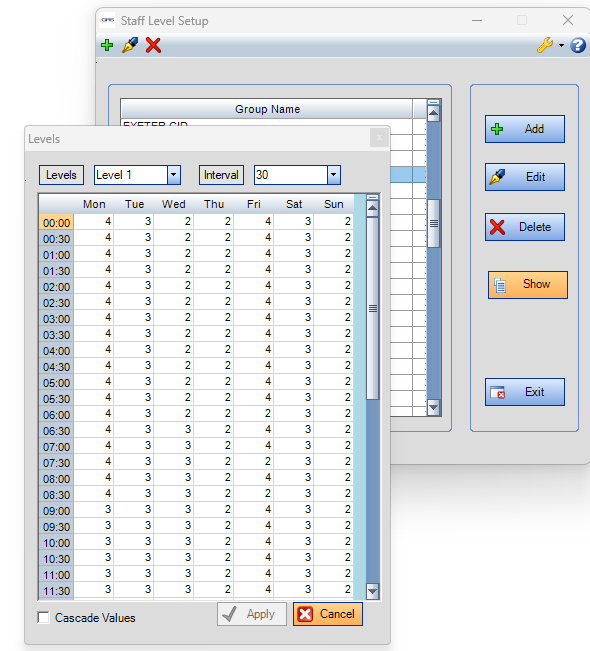
Improvement to the grid display on two screens:
-
Staff Level Setup > Show button
-
Staff Level Daily Levels > add levels window
The first column now shows times instead of row numbers, based on the interval selected (60, 30 or 15 minutes) . E.g. 00:00, 00:15, 00:30, 00:45…
-
System Options: No
-
Security Ranges Roles & Behaviours: No
-
Special Permissions: No
-
Customer Specific or Cloud: Cloud
-
Performance Improvements
-
GRS - Daily Posting Sheets - Progress Indicator
Addition of a wait cursor on the Daily Posting Sheets which may show when adding location tabs and changing the date.
-
System Options: No
-
Security Ranges Roles & Behaviours: No
-
Special Permissions: No
-
Customer Specific or Cloud: Cloud
-
-
GRS - Time Sheets - Time Sheet Authorisation Report - Loading Time Performance
Change to the way this screen loads data to use a procedure instead of a table function. No functional change.
-
System Options: No
-
Security Ranges Roles & Behaviours: No
-
Special Permissions: No
-
Customer Specific or Cloud: Cloud
-
-
SaaS - AL rules - New %WTE Weekly Rule - Annual Leave Rule Definition Screen
It is now possible to define a %WTE Rule using ‘per Week’ as the Count Type on the Annual Leave Rules screen (Annual Leave Management menu). This is done in preparation for development to add a new %WTE weekly rule calculation.
-
System Options: No
-
Security Ranges Roles & Behaviours: No
-
Special Permissions: No
-
Customer Specific or Cloud: Cloud
-
-
SaaS - Time of Day - Definition Screen
This is a change to the way End Time is displayed on the Annual Leave Rule Time Periods definition screen. The Annual Leave %WTE Rules were originally developed to include Annual Leave that starts within the full Time Period, including the last minute of the period. This would mean that if where, for instance, the Time Period is 0600-1800 and a person's Annual Leave starts at 1800, it would still be included in the rule check. To avoid this, the End Time on the Time Period would need to be reduced by 1 minute (e.g. 0600-1759) but this display is not intuitive to work with.
The End Time and Duration will now display with 1 minute added to it. For example, if an existing Time Period has previously been entered as 0600-1759, it will now display as 0600-1800 in the definition screen. If a user saves a new Time Period by selecting Start Time of 0600 and End Time of 1800, it will be stored in the database as 0600-1759 but will display as 0600-1800 in the definition screen.
In the System Log Analysis screen, when a log is generated from a Time Period being added, edited or deleted, the End Time and Duration on the Log Remark will reflect the End Time and Duration as they are displayed in the definition screen (with 1 minute added to it).
-
System Options: No
-
Security Ranges Roles & Behaviours: No
-
Special Permissions: No
-
Customer Specific or Cloud: Cloud
-
-
SaaS - AL rules - New %WTE Weekly Rule - Rule Calculation
A new Annual Leave Rule for %WTE per Week has been added. The rule can be added in the Annual Leave Rules screen by setting the Logical Operator to ‘%WTE’ and Count Type to ‘Per Week’. The required percentage value (i.e. Units Allowed) must then be defined for each of the week columns for Total Units or Grades as usual. Setting the options for ‘Time of Day’ and ‘Inclusive Hours Based’ will determine which leave to include in the calculations in the same was as the %WTE per Day rules.
The rule will be checked when Annual Leave is being booked for a person and will trigger a warning when the Units Used % is greater than the Units Allowed % (i.e. the rule percentage) for that week. Where the Units Used % is the percentage of total booked hours for the week, against the sum of average weekly working hours of each person who is based at the rule location. A person's Average Weekly Working Hours is the sum of their Working Location Hours (on their Personnel Record) for each day of the week, divided by 7. A ‘week’ is defined according to the Rule definition’s Start Date, ideally this should be a Monday for the rule to be displayed accurately on the RAG Report.
-
System Options: No
-
Security Ranges Roles & Behaviours: No
-
Special Permissions: No
-
Customer Specific or Cloud: Cloud
-
-
SaaS - AL rules - New %WTE Weekly Rule - RAG Report to show new %WTE Weekly Rule
The status new Weekly variation of the %WTE Leave Rule is now viewable in the Annual Leave RAG Report in the main client and GRS Web.
For this rule type, the report will show the number of hours that have been booked as leave for in each day of the week cell, and the overall rule calculation result in the Weekly Total column.
The calculation for this rule is the same as used by the rule checking: total booked Annual Leave hours for the week, as a percentage of the sum of Average Weekly Working Hours of each person who is based at the rule location. Where a person'sAverage Weekly Working Hours is the sum of their Working Location Hours (on their Personnel Record) for each day of the week, divided by 7.
The format of the value in the Weekly Total cell is also controlled by the ‘Show WTE % in Hours’ option which is as a percentage by default (0.0000% / 0.0000%). When this option is ticked the report converts the calculation to show the rule by Hours (00:00 / 00:00). The whole weekly row will be colour coded based on the overall week amount, as displayed in the Weekly Total column. A ‘week’ under this rule is defined according to the Rule definition’s Start Date, ideally this should be a Monday for the rule to be displayed accurately on the RAG Report as the total result is given against Mon-Sun rows.
-
System Options: No
-
Security Ranges Roles & Behaviours: No
-
Special Permissions: No
-
Customer Specific or Cloud: Cloud
-
SJNZ: NEMS Integration
SJNZ - NEMS - Improve 500 Error Message
Change to the Unity Adaptor to provide better messaging when any of the GRS APIs respond with errors.
-
System Options: No
-
Security Ranges Roles & Behaviours: No
-
Special Permissions: No
-
Customer Specific or Cloud: Customer Specific
SYP Oracle - Integration
-
SYP Oracle - 1l. Line Manager File
This functionality introduces the capability to add or update multiple records of line managers for existing personnel in the GRS Client. The process involves sending a text file containing these records, validating the data, and ensuring proper logging of any issues encountered. Users should ensure that the text file is formatted correctly and contains all necessary information to avoid rejections.
-
System Options: No
-
Security Ranges Roles & Behaviours: No
-
Special Permissions: No
-
Customer Specific or Cloud: Customer Specific
-
-
SYP Oracle - Task Scheduler Integration
Code added as a framework for later work on the Task Scheduler for SYP Oracle integration.
-
System Options: No
-
Security Ranges Roles & Behaviours: No
-
Special Permissions: No
-
Customer Specific or Cloud: Customer Specific
-
SaaS - AL %WTE Weekly Rule
SaaS - RAG report - Employee View
A change has been made to the Annual Leave RAG Report in the main client and web in the display of group-allocated rules. For users who have Employee View access, (i.e. the don't have the special permission to the Manager View), the report will now include Group rules, as well as Location rules, that apply to the logged in user. A new Allocation Type column has also been added which will help users to identify the Group rules and Location rules. The columns have been grouped by Allocation Type, Location or Group, Rule Name ascending. For the Manager View, the feature is as previously developed and the report option controls the view of Groups or Locations.
-
System Options: No
-
Security Ranges Roles & Behaviours: No
-
Special Permissions: No
-
Customer Specific or Cloud: Cloud
GC - Unit 4 integration
API/GRS - Enhancements
Enhancements to the System Value text field validation in GRS - Personnel >Personnel Definitions > User Defined Fields. On add/edit a UDF, validation will prevent wholly numeric entries but will allow alphanumeric: [a-z], [A-Z], [0-9] and “-”, “_”.It will also allow a blank value.
API Endpoint for Location Creation Using (POST Request): Users can efficiently create and manage location entries via the API, with all specified values being accurately recorded and reflected in the system. Also the user can edit/update the values such as transfercodes, shortcode via API and the changes can be verified in main client.
-
System Options: No
-
Security Ranges Roles & Behaviours: No
-
Special Permissions: No
-
Customer Specific or Cloud: Customer Specific
General
-
GRS - Roster Reports - Roster Analysis - report re-write to improve usability (SJNZ LIVE )
Changes to the report to improve usability:
-
Added a Status and Location Name column (before Callsign)
-
Removed Unposted, Working Abs and RDOS from the bottom of report. On Load, the report is now grouped by Status (Un Posted, Non-Working Absences, Working Absences, Posted, RDOS).
-
Removed a customer-specific function for SAAS and add those requirements the general function, so that only one function is in use for all customers.
Other functionality is as before except that now Rest Days for a person also shows on the report under RDOS.
-
System Options: No
-
Security Ranges Roles & Behaviours: No
-
Special Permissions: No
-
Customer Specific or Cloud: Customer Specific
-
-
GRS - Control Room Sheet Name - YAS - Not Showing Preferred Name
Control Room Records - When System option ‘Use Preferred Name When Available’ is set to ‘Yes’ the Person column will show the personnel's Preferred name where one exists instead of the First Name . When no Preferred name has been set, the First Name will be displayed instead.
Control Room Records - When System option ‘Use Preferred Name When Available’ is set to ‘No’ the Person column will display the personnel's First Name.
If the Preferred Name is set for a future date in the Personnel record, the Person column on the Control Room Records will show First Name of the person as actual First name regardless of the 'Use Preferred Name When Available' system options setting.
-
System Options: No
-
Security Ranges Roles & Behaviours: No
-
Special Permissions: No
-
Customer Specific or Cloud: Customer Specific
-
-
Remove Dev Express from Licences files
Removal of Dev Express from GRS licence files. No functional change.
-
System Options: No
-
Security Ranges Roles & Behaviours: No
-
Special Permissions: No
-
Customer Specific or Cloud: Cloud
-
-
GRS - Performance - SAP Viewer and Emergency Roll Call
Change to the way that the clocked in status is calculated for both the Emergency Roll Call and the SAP viewer, to limit the number of times it needs to do the checks.
-
System Options: No
-
Security Ranges Roles & Behaviours: No
-
Special Permissions: No
-
Customer Specific or Cloud: Cloud
-
-
GRS - Performance - Leave Request Processing
A change has been made to the Annual Leave web requests are processed to limit the number of times it needs to do the checks.
-
System Options: No
-
Security Ranges Roles & Behaviours: No
-
Special Permissions: No
-
Customer Specific or Cloud: Cloud
-
Bug Fixes
|
Ref |
Description |
|---|---|
|
GRSPS-55 |
SWAST- R6 UAT- Distribution Analysis - Hours and WTE multiplied by Established Locations The query to return information for the distribution analysis has been updated so that the number of established locations above one will no longer affect the hours and WTE. The Pay Grade of all established locations have been concatenated and comma separated to display in one cell. System Options: No |
|
GRSPS-78 |
GRS - Time Owing - Add Adjustment window - TOIL adjustment box too small and unable to add hours (SYP) Fix in Overtime Management > Time Owing; when selecting a person and clicking Add Adjustment Record, the name box at the bottom of the screen was cut off. System Options: No |
|
GRSPS-103 |
GRS - Current Sickness - Error: String or Binary date would be truncated - when running the report (SWAST) This was caused by the report not handing Sickness Records with notes of more than 500 characters. The report has been changed to handle up to 1000 characters. System Options: No |
|
GRSPS-117 |
GRS - Sickness Contacts - Adding Contact Record to Sickness Record when type is empty Fix to prevent record being saved where the contact type has not been selected. The screen remains open and cannot be saved until the mandatory fields have been completed. System Options: No |
|
GRSPS-121 |
GRS Web - Editable Daily Posting Sheets - edit shift time box scaling (SYP) The Shifts picker box was not showing as the correct height in Editable Daily Posting Sheets on GRS Web, this has been fixed. System Options: No |
|
GRSPS-133 |
SWAST - Email address ESR is not pulling email addresses Amendment to SWAST ESR Interface to automatically populate email addresses on the Personnel Record. System Options: No |
|
GRSPS-135 |
GRS - Sickness Policy - Sickness triggers are not triggering correctly The sickness policy alert ‘A person has had more than 10 days sickness in the 12 months since review' is now triggering when a person is on a Sickness Policy Stage when a sickness which starts inside the review period, ends outside the review period and is more than 10 days. System Options: No |
|
GRSPS-207 |
GRS Web - Editable Daily Posting Sheet - Shift selection window UI (SYP) The Shift selection window on this screen has been changed to allow it to be re-positioned - previously this was restricted to being in the centre of the screen, which meant the lower part of it could not be seen on lower resolution screens. System Options: No |
|
GRSSUP-697 |
GRS - Annual Leave - Annual Leave Records - Leave is booking over both leave years Fix in the automatic leave granter via GRS Web - when a leave request spans two years the booking was being taken from both. The leave will be split between the 2 years based on the leave years the dates belong to. System Options: No |
|
GRSSUP-732 |
GRS - Rosters - Set Up Rosters - Roster Build Leading to Unallocated Sundays Fix for where there is a pattern change in Posting Sheet Layouts for a person who has a RAL shift on a Sunday replaced with a working shift in the new pattern. The new shift was not being allocated in this scenario. (same fix as GRSSUP -1167). System Options: No |
|
GRSSUP-754 |
Problem Tracker - System Log Analysis Error Report runs faster with no timeouts. Tested with a years data. System Options: No |
|
GRSSUP-767 |
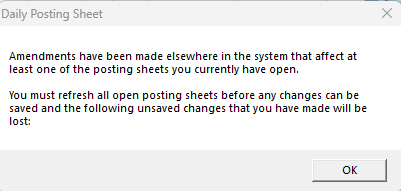
GRS - Daily Posting Sheet - Timeout saving Daily Posting Sheet When two instances of the same DPS for the same date are opened and changes are made, the first DPS that is saved will show the changes as saved, when the second DPS is saved a message will appear alerting the individual that changes have been made and to refresh the posting sheet prior to making any shift changes.
System Options: No |
|
GRSSUP-941 |
GRS - Daily Posting Sheet - Split Shift error when it affects overnight shift Split Postings on the Daily Posting Sheet. This is available by Right Clicking on a Shift time. If ‘Split Postings’ is not showing on the pop up menu then the system option is not turned on (Tools > System Options - Rosters - Enable shift split functionality on DPS) 3 issues have been fixed:
System Options: No |
|
GRSSUP-994 |
GRS - Web Applications - Part Grant Refuse - No refusal notes Fix for part grant/part refuse on a leave request in Annual Leave Web Applications; the refusal remarks dialog was not showing for SJNZ. This was due to regional time settings when the code tries to match the date to string format. System Options: No |
|
GRSSUP-1045 |
GRS - Time Owing Convert to Payment - Time out when running part of tree Time Owing Convert to Payment screen under Overtime > Overtime Management performance has been improved to bring back report data without timing out when running part of tree or at root level. Changes also remove leavers location when selected root location and only show leavers location data when specifically selected. System Options: No |
|
GRSSUP-1063 |
GRS- Personnel Management - Personnel Records - Missing personnel records when added for a date in the future When a Personnel Record is added for a date in the future the person can be found in the screens below, as long as the Location is part of the Current Location set on the main screen. Type the ID number in ‘Find Person’ field at the bottom of the People list.
This change does NOT cover ‘Find a Person’ on the main screen and Select a Unit ‘Find by Person’ tab on the planning sheet. This will be fixed as a separate issue. System Options: No |
|
GRSSUP-1101 |
GRS - Daily Posting Sheets - Location Picker - Performance Changes to the ZQUERY intended to improve performance in the Daily Posting Sheets > Location Picker. System Options: No |
|
GRSSUP-1105 |
GRS - Crew Post Matching - Performance Changes to the stored procedure intended to improve performance in this screen. System Options: No |
|
GRSSUP-1114 |
GRS - Daily Posting Sheet - Speed Loading Location Improvement to reduce the number of calls this screen needs to make when loading a location. System Options: No |
|
GRSSUP-1115 |
GRS- Set-up rosters- Posting sheet layout - Special Event locations - Missing dates in the Layout Periods When adding additional dates onto an Event Posting Sheet layout to a block of consecutive days if the layout matches exactly then the additional days will be added to the date range shown in the layout period column. When adding additional dates onto an Event Posting Sheet layout to a block of consecutive dates and the layouts are different then the new dates for the different layout will be added into the Layout period column as separate dates. System Options: No |
|
GRSSUP-1128 |
GRS - Layout Changes - Taking hours from Annual Leave on PHL Annual leave day is booked on a working shift on a public holiday and is showing as 00:00, When a person moves location the Annual Leave day is still showing as 00:00. This is now the same result if Annual leave is booked on a Public Holiday prior to and after a location move. System Options: No |
|
GRSSUP-1162 |
GRS - Annual Leave Records - General Public Holiday abstractions re-appearing day after removal WAST only. If a person who has the UDF GPH worker set to No on their Personnel Record and is sick on a Public Holiday when the overnight runs the person will not be abstracted for the Public Holiday. System Options: No |
|
GRSSUP-1163 |
GRS - Set Up Rosters - Crew Linking - Existing Patterns A date range has been added to the Existing Details on the link button (Rosters > Set Up Rosters . Posting Sheet Layout) The dates reflect the posting sheet layout dates. This will only show when there are details present. System Options: No |
|
GRSSUP-1167 |
GRS - Rostered posting change - Removing Sunday from Keep Shift Postings When a person had their rostered postings changed and there was a single day absence on a Sunday being replaced with a working shift in the new pattern, the new shift was not allocated when the absence was removed. The fix was to ensure the shift from the new pattern was restored when the absence was removed. (same fix as GRSSUP -732) System Options: No |
|
GRSSUP-1200 |
YAS - Absence Interface has not worked automatically Change to ESR Absence interface to allow a connection string to be passed into it which is used to get the data from the database instead of the data service. System Options: No |
|
GRSSUP-1227 |
Cloud - Old Training Module - error deleting or cancelling person off a course The screen Training Module > Training Management > Course Setup And Booking > Training Management will be able to save people to a course when people have been removed from the course. System Options: No |
|
GRSSUP-1237 |
GRS - Posting Sheet Layout - Link Button - issue with Ref breaks Set Up Rosters > Posting Sheet Layout. Linked Refreshment breaks. When a post has had a pattern changed in the future, the refreshment breaks are now removed from the planning sheet as expected. System Options: No |
|
GRSSUP-1321 |
GRS - Annual Leave Workflow - Index out of range Error shown when Annual Leave was recalculated under a workflow that had the 'Set Allocation for day to X' shape placed after the check for next date shape. Added logic to cope with using "Set Allocation for Day to X" before using the Check for next date object. System Options: No |
|
GRSSUP-1324 |
GRS - Final Balance - Invalid Date Formatting Final balance check under Annual Leave Record screen is working without error and the Report Generated Date is correct too. System Options: No |
|
GRSSUP-1331 |
GRS - Sickness Policy - Trigger firing incorrectly when person on Stage 0 and worked more than half shift on days trigger Sickness Policy. When a person has a period of sickness that is 10 days in length when the first day the person has worked more than half the shift a sickness policy stage trigger was been generated incorrectly when the overnight process was run. This has been resolved, in this scenario only a Return To work Interview will be generated when the person has booked fit. System Options: No |
|
GRSSUP-1332 |
GRS - Annual Leave Workflow - Base WTE for Total Allocation for Days Tested using WTE shape in a workflow. The allocation is showing correctly and not multiplying by 100. System Options: No |
|
GRSSUP-1403 |
GRS - Staff monitor Checks when booking absences - Performance Improvement Changes have been made to the procedure, now the way groups are identified is from postings up tree to find groups instead of going through all the groups. Resulting in faster return of information. Staff monitor breaches appear when Annual leave is booked. System Options: No |
|
ORG-7792 |
GRS - Staff Level Monitor - X Axis: labels need to improve for 30 minute interval X-Axis Label for Staff Level Monitor Report screen has been updated to now reflect the correct start times for 30min intervals.
System Options: No |
|
ORG-7810 |
GRS - Overtime Authorisers - Prevent Duplication of Overtime Authorisers Adding new Authoriser groups with the same name as active groups is now prevented. As per existing expected behaviour it is still possible to Edit an Advance Rule from a new future date and create a new date-tracked row with the same Name (for convenience in grouping tracked changes). Duplicates with case differences are not allowed but note that extra spaces in the entered text are not checked. System Options: No |
|
ORG-7912 |
GRS - WTR Dashboard - Scheduled task for generating/refreshing data is not running Improvement to Task Scheduler error logging when failure to connect to Language Service. Before this change the error logged indicated that a modal dialog was not able to be displayed. This did not highlight the underlying cause of the task failure. If the language service URL is not accessible a 403 exception is now thrown which if handled can be entered into the System Options: No |
|
ORG-7972 |
GRS - Annual Leave CFWD - Cannot Type higher than 99:59 A change has been implemented to the main client Annual Leave CFWD Authorisation screen. Previously, when entering the amount of balance to be carried forward to the following leave year, the Outstanding Balance field would not allow users to type positive hours greater than 99:59 and would also not allow negative hours to be typed over due to the field mask causing a conflict when displaying a negative symbol. To resolve this, two new radio buttons have been added above the Outstanding Balance field, labelled ‘+Balance’ and ‘- Balance’. Selecting the radio buttons will determine if the Outstanding Balance hours (i.e. hours to be carried forward) are either positive hours or negative hours. This then removes the use of a negative symbol in the Outstanding Balance field and will now allow for the hours to be typed over, regardless if they are positive or negative hours. Users can now also type up to a maximum of 999:59 in the Outstanding Balance field. If the persons current Available CFWD Hours are positive hours, both the ‘+ Balance’ and ‘- Balance’ radio buttons will be enabled. If ‘+ Balance’ is selected, users can only enter a positive carry forward hours between 00:00 and the Available CFWD Hours. If ‘- Balance’ is selected, users can enter a negative carry forward hours between 00:00 and -999:59. If the persons current Available CFWD Hours are negative hours, the ‘+ Balance’ radio button will be disabledand ‘- Balance’ radio button will be enabled and users can only enter a negative carry forward hours between the Available CFWD Hours and -999:59. System Options: No |
|
ORG-8288 |
GRS - All Reports - Vertical alignment for Shift Type and Hours columns are not centred Correction to the vertical alignment of Shift Type and Hours data in reports across the GRS Main Client. System Options: No |
|
ORG-8327 |
GRS - Workflow Designer - User Story feedback Change to the operation of this screen. Initially the screen loads with 'All Workflows' selected in the options and the Add button will be disabled with this view. To add a new Workflow, choose the type of workflow from the report options and re-load the report. The Add button will become available and clicking it will load the workflow shapes relevant to the workflow that was selected. System Options: No |
|
ORG-8388 |
GRS - Annual Leave RAG Report - Report is returning wrong rules when loading by Location or Branch Fix implemented to the Annual Leave RAG Report in GRS main client and web. Previously, for users who have the Manager View special permission enabled:
The above has now been corrected and the outcome is now as follows for users who have the Manager View special permission enabled:
System Options: No |
|
ORG-8395 |
GRS - Public Holiday Accounts - Carry Forward for Person - task scheduler entry missing year params Fix to add in missing parameters needed to process the carry fwd. System Options: No |
|
ORG-8416 |
GRS - Public Holiday Accounts - Task Scheduler - no RESULT_MESSAGE stored in OVN_SCHEDULE_TASK_EXECUTION_LOG Additional database logging for task scheduler processing of overnight bank holiday recalculation records. System Options: No |
|
ORG-8420 |
GRS - Annual Leave Planner Report - Error: Index was Outside the bounds Of the Array Fix for error shown when an included location has a start date greater than the date selected on the report options. System Options: No |
|
ORG-8429 |
GRS - Individual Duties- Show Unpaid absences as zero hours Lost set as No, still Hours Lost displayed as 00:00 Fix for Individual Duties where the Hours Lost for unpaid absences was showing as as zero when System Option 'Show unpaid absences as zero hours lost' was set to No. System Options: No |
|
ORG-8434 |
GRS - Public Holiday Accounts - Carry Forward for All - Error: Object Reference Fix to prevent an error showing when using Carry Forward for All on initial screen load when no person is selected. System Options: No |
|
ORG-8436 |
GRS - Time Sheet Summary (SWAST) - Leaver location time out Change for SWAST code only, to reduce the number of people returned when leavers location is selected for the Time Sheet Summary report. The report will only consider people in the leavers location where they have had time sheet authorisation activity in the last 3 months of the selected report period end date. The same filtering is applied to the fixing process when the the FIX button is pressed on the report, which will only include people with time sheet authorisation activity in the last 3 months of the selected report period end date. System Options: No |
|
ORG-8439 |
GRS - Public Holiday Accounts - Carry Forward Task Scheduler logs Improve the database logging for the carry forward process. System Options: No |
|
ORG-8442 |
GRS - Public Holiday Accounts - Carry Forward for Person - current/future year selection shows initiated message Fix to prevent the ‘Carry Forward initiated’ message showing in the wrong place. System Options: No |
|
ORG-8444 |
GRS - Workflows - Leave Allocation Carry Forward - Task Scheduler Overnight Task Scheduler for Leave Carry Forward works in conjunction with the Leave Carry Forward Workflow. System Options: No |
|
ORG-8466 |
GRS - Carry Forward Workflow Review Permission and Full Name Column The report has been developed to check the Carry Forward and Brought Forward Annual Leave balances from the previous leave year. The Task Scheduler will run every night and depending on the workflow set up will carry forward the balances. When the report is run any balances that have been carried forward will show in the report. The Leave Carry forward workflow should be set in the System Options prior to testing. There is also a Permission in System Security which needs to be ticked to Allow access to the report. Permissions > Roles > Annual Leave Reports > Annual Leave Carry Forward Workflow Review. System Options: No |
|
ORG-8473 |
GRS - Rostered Postings - Error: Conversion to type 'DBNull'... - on posting to new line System Options:
|
|
ORG-8487 |
GRS - SAP Viewer and Emergency Roll Call - Show Contract is mistakenly available Removal of the Show Contract option on these reports - it was inadvertently added to the report engine by other development and does not have full functionality in these screens. System Options: No |
|
ORG-8586 |
GRS - Annual Leave Audit Log Report - Report not showing rules that have not broken Fix implemented to Annual Leave Rules Audit Log report. Previously, when selecting the row of a Manual Booking or Web Request in the top grid, the Rules Checked grid at the bottom of the report would only display Annual Leave Rules that had been broken. Any Annual Leave Rules that had passed the rule checks would not display. This has now been corrected and the Rules Checked grid now displays all rules that were checked, including both rules that did and did not break. System Options: No |
|
ORG-8599 |
Demand Import Data Retention - Tidy and maintain demand import data Add data retention process to demand staging table to reduce database size and improve upgrade and interface speed. System Options: No |
|
ORG-8616 |
SJNZ - UAT NEMS - Branch CANTBY failed when event pushed through Added restriction to the API on location creation under work units and work units with Special Event Flag 'Y' to ensure the system correctly rejects invalid requests. System Options: No |
|
ORG-8640 |
GRS - Public Holiday Accounts - Carry Forward - Error: Object Reference - when looking for absence Fix to supply Class and Absence type information for the carry forward workflow, which was causing the error to show in the task scheduler/follow wrong path on workflow. System Options: No |
|
ORG-8643 |
GRS - Public Holiday Accounts - Entitlement check changes are in wrong place Part fix alongside ‘ORG-8649: GRS - Public Holiday Accounts - Entitlement checks for pot absence type Web Requests’ to ensure entitlement checks are done in the correct place in the code. System Options: No |
|
ORG-8645 |
GRS - Public Holiday Accounts - Carry Forward - seconds not hours carried forward for 'Carry Forward upto X' shape Fix for when the ‘Carry Forward upto X hours’ shape is in use on the workflow on Public Holiday Accounts; the amount of allowed hours was not being converted, so the capped amount carried over was in seconds e.g. 2 seconds not 2 hours as capped by the shape. System Options: No |
|
ORG-8649 |
GRS - Public Holiday Accounts - Entitlement checks for pot absence type Web Requests Original development was missing the ability to check for the Pot balance via Annual Leave Web Applications. The screen now shows the ‘inability to overbook’ message for absence account type requests (where the Public Holiday Pot balance cannot be exceeded, based on the system option to look at the retrospective balance (ORG-8014)). The system was also not updating the public holiday account as a result of booking this type of leave, so the dates were not shown in Public Holiday Booked Absences screen or as debits/audit logs on the account records. System Options: No |
|
ORG-8679 |
GRS - Multiple screens - number formatting changed on e.g. Audit Log, Annual Leave, GRS Web etc Fix for unintended formatting changes related to handling ORG -7972 - the original work has been revised to use its own function, preventing changes to values elsewhere. Functionality remains the same. System Options: No |
|
ORG-8721 |
GRS - Annual Leave RAG Report - Colour coding for %WTE per Week rule that doesn't break the limit Fix implemented for Annual Leave RAG Report for %WTE Weekly Rules. Previously, where the Weekly Units Used % were greater than 0%, the week row would be colour coded red , regardless if the Units Used % was below or above the Units Allowed %. This has now been corrected and the following outcome now occurs:
System Options: No |
|
ORG-8740 |
GRS - TimeSheet Authorisation - Mileage Overnight allowance doesn't display correct Total Sum Fix for the mileage overnight allowance claims total cell, on the Time Sheet Authorisation Report, where the value shown was the count of rows with claims and not the sum of the claims. This now matches the Time Sheet Records screen which correctly shows the sum of the number of claims. System Options: No |