Add a Goal
Use the Goals page in a referral to add goals against the service user. Each goal can optionally include one or more sub-goals, enabling you to break down larger goals into smaller, manageable steps.
You can associate tasks with both goals and sub-goals. When a task which is related or linked to a goal is added against a schedule of care, the goal is displayed on the care series screen and marked as In Progress.
To add a goal to a referral:
-
On the Referrals tab, select a referral for the required service user.
-
In the Referral Summary panel, select Edit.
-
On the referral's navigation menu, select Goals.
-
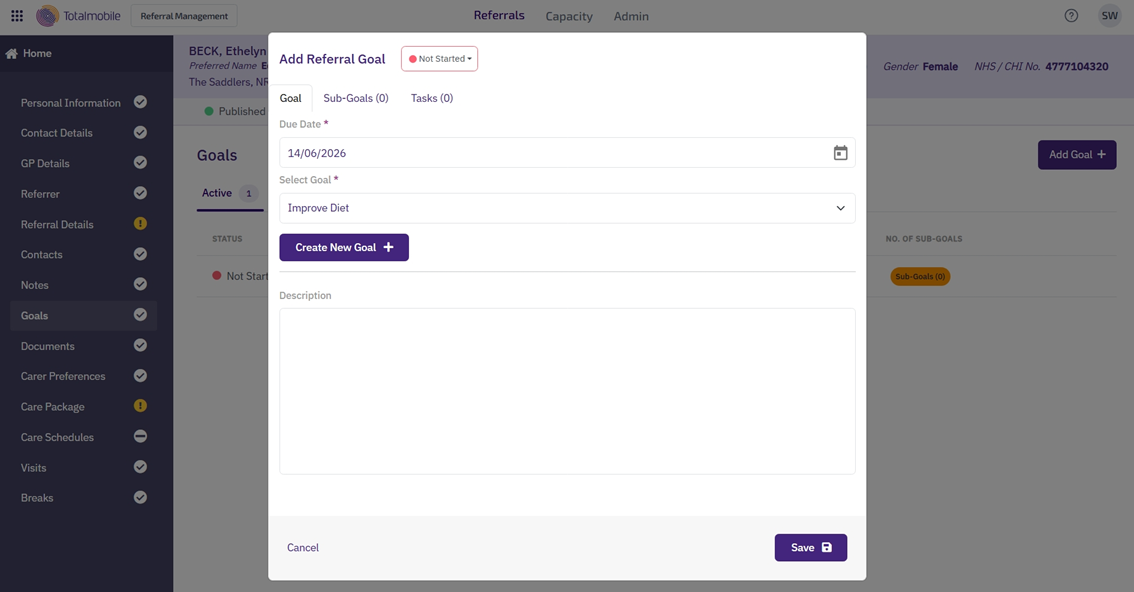
Select Add Goal.
-
Select the Due Date* field, then select the date from the calendar.
-
Do one of the following:
-
Select the Select Goal* field, then select the applicable goal type, such as Improve diet, or Get dressed independently.
-
Select Create New Goal.
In the Add New Goal dialog:
-
Select the Name* field, then enter a goal name.
-
To make the new goal available in the dropdown for other referrals, select the Save as New Goal checkbox.
-
Select Create Goal.
-
-
-
Enter additional information in the Description field.
-
Select the Sub-Goals tab.
-
Do one of the following:
-
Select the Search field, then search for an appropriate sub-goal.
-
Select Create New Sub-Goal.
In the Add New Sub-Goal dialog:
-
Select the Name* field, then enter a sub-goal name.
-
To make the new sub-goal available in the dropdown for other referrals, select the Save as New Sub-Goal checkbox.
-
Select Create Sub-Goal.
-
-
-
Select the Tasks tab.
-
Select one or more tasks to associate with the goal or its sub-goals. The available tasks and categories are configured on the Admin > Task Management page.
-
Select Save.
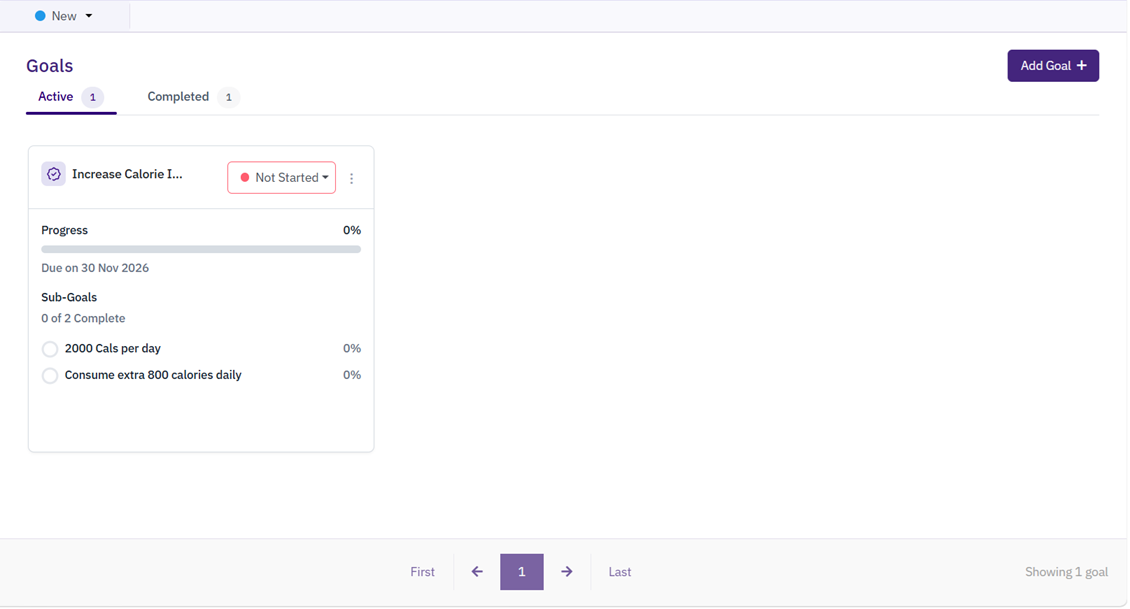
The new goal appears on the Active tab with the status Not Started.
* Required field.