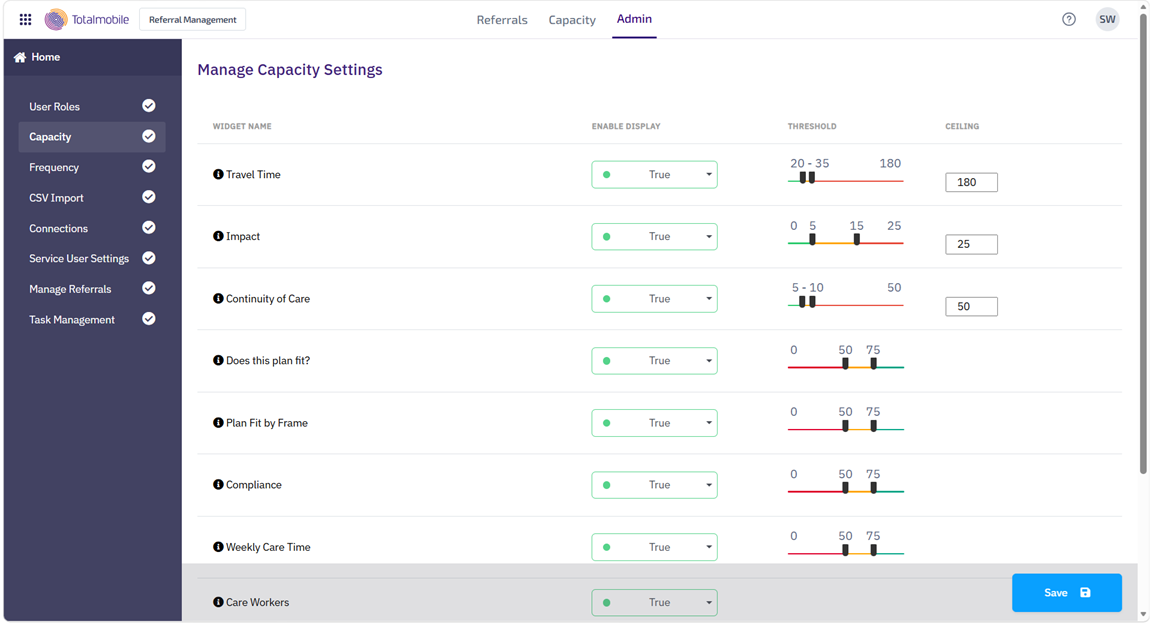
Manage Capacity Settings
Use the Admin > Capacity page to define the widgets displayed as part of capacity check results and the capacity indicator thresholds in those widgets.
Threshold indicators are defined using RAG reporting. Red is an alert, Amber signals caution, and Green means everything is on track.
-
Select the Admin tab.
-
From the navigation menu, select Capacity.
The Manage Capacity Settings page appears.
-
For each widget:
-
Under Enable Display, select True or False from the dropdown.
-
Under Threshold, if available for the widget, adjust the sliders to define the capacity indicator thresholds.
For example, the Does this plan fit? widget displays the number of visits that can be scheduled per week in the capacity check results. You can set the line between Green and Amber to 75, and the line between Amber and Red to 50.

When you run a capacity check:
-
if the number of visits that can be scheduled is less than 50, the widget displays as Red.
-
if the number of visits that can be scheduled is between 50 and 75, the widget displays as Amber.
-
if the number of visits that can be scheduled is more than 75, the widget displays as Green.
-
-
Under Ceiling, if available for the widget, enter the maximum number to be used in the capacity indicator threshold.
For example, the Travel Time widget displays the average travel time to get to each scheduled visit. You can set a maximum number of minutes for this average, and any travel times that exceed this number are not included in the capacity check.
-
-
Select Save.