Update Contact Details
A referral's Contact Details page includes the following information:
-
Addresses / Connections - you can add multiple addresses for a service user. These can include temporary addresses which are valid within a set timeframe. If a temporary address is added, the jobs in Dynamic Scheduling (Optimise) in that timeframe will be directed to the temporary address. The address currently in use for the service user as marked as Active on the Contact Details page.
You can also add connections to addresses. When service users' addresses are linked together, this provides more meaningful data to Dynamic Scheduling to help with continuity of care.
-
Contact Telephone Details
-
Contact Email Details
Add a New Address
To add a new service user address:
-
On the Referrals tab, select a referral for the required service user.
-
In the Referral Summary panel, select Edit.
-
On the referral's navigation menu, select Contact Details.
-
Select Add Address.
-
On the Address tab, enter details in the following fields as required:
-
Address Line 1*
-
Address Line 2, Address Line 3, Address Line 4, Address Line 5
-
Postcode*
-
Once you have entered the postcode, the Latitude and Longitude fields are populated and the map updates with the address location.
-
-
Enter the following additional information as required:
-
Address Type - select from the dropdown.
-
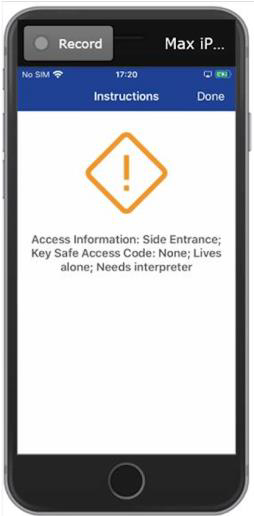
Access Information, Key Safe Access Code, In Prison - this information appears as part of the special instructions in Mobile Working (Mobilise).
-
-
To define the address as temporary:
-
Select the Temporary Start Date* field, then select the date from the calendar.
-
Select the Temporary Start Time* field, then select a time from the list.
-
Optionally, select the Temporary End Date field, then select the date from the calendar.
-
-
Select Save.
* Required field.
Add a Connection to an Address
To add a connection to a service user address:
-
On the Referrals tab, select a referral for the required service user.
-
In the Referral Summary panel, select Edit.
-
On the referral's navigation menu, select Contact Details.
-
Select Add Address and follow the steps in Add a New Address, or select the address to edit.
-
Select the Connections tab.
-
Select the Connection Name field, and do one of the following:
-
Enter a new connection name.
-
If available, select an existing connection from the dropdown. The dropdown lists any connections configured on the Admin > Connections page that apply to the address's postcode.
-
-
For a new connection, select the Connection Type field and select a connection type from the dropdown.
-
Select Save.
To remove a connection from an address, select Remove Group on the Connections tab. You cannot delete connections on this tab, only on the Admin > Connections page. For further details, refer to Manage Connections.
Update Telephone and Email Details
To update a service user's telephone or email details:
-
On the Referrals tab, select a referral for the required service user.
-
In the Referral Summary panel, select Edit.
-
On the referral's navigation menu, select Contact Details.
-
Enter or update the following:
-
Phone number
-
Work number
-
Mobile number
-
Email Address
-
-
Select Save.