Distance Settings
You need the Distance Settings permission to access this feature. For more details refer to Permissions.
You can define the type of estimate Dynamic Scheduling uses when it requests travel time from Google or Azure. For example, you can set the traffic model to Pessimistic for Google, which means Dynamic Scheduling estimates travel times that are generally longer than the real-life travel times. This would take into account the possibility of unexpected circumstances which could affect your resources meeting service level agreements. You can also set the hour of day that you want the traffic calculation to be based on for both Google and Azure.
You can also define whether Mendel uses distance cache evaluation and distance modifiers as part of its planning. When Mendel allocates time slots to jobs across resource diaries, this involves being able to determine how far away jobs are from resources, and from other jobs. These distances, and the time it takes to traverse them, are estimates at first. Distance cache evaluation takes these estimates, retrieves more accurate real-world values from the configured provider, and caches them so that next time around Mendel has the real value rather than an estimate. You can then enable the use of distance modifiers so that any improved data is factored into the standard calculation values.
By default, Google Maps is selected as the mapping provider. The default Google Maps Settings Traffic Model is None and Traffic Hour is 08 (8 am). The default Azure Maps Settings Api Version is 1.0, Route Type is None and Route Type Hour is 08 (8 am).
The distance settings you define apply only to the selected World and its associated instance of Mendel.
-
In WebAdmin select Optimise Admin.
The Optimise Admin page appears.
-
Select a World.
The World Settings and Permissions page appears.
-
Select Distance Settings.
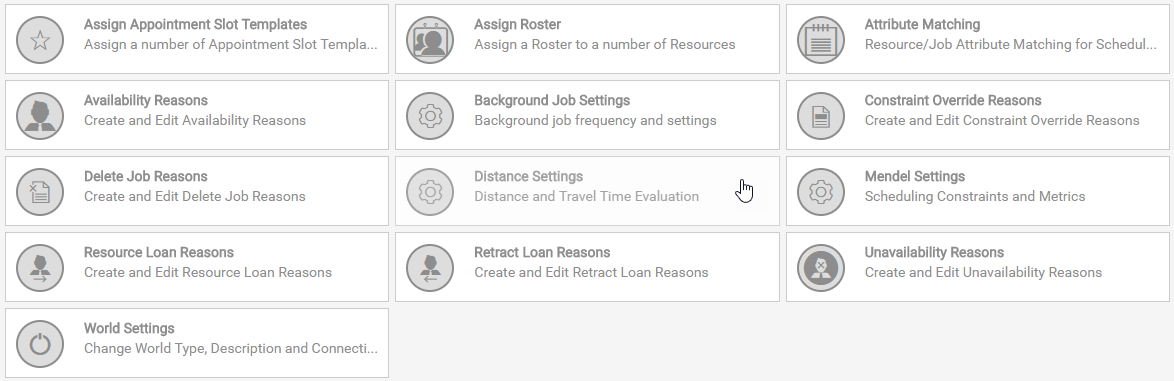
The Distance Settings dialog appears.
-
Select Edit Settings
 .
. -
Under Distance Cache, edit the following settings as required:
-
Use Distance Cache - toggle to enable or disable the use of the distance cache during planning. This is the mechanism by which Mendel looks up travel distances and times between jobs and resources. If set to No, the options in this section are unavailable and Mendel falls back to estimations with no caching or evaluation.
-
Transfer Page Size - defines the number of records per page read from the main distance cache when building the local distance cache file for an Enterprise World.
-
Transfer Interval - defines the time in minutes that Mendel spends per run updating the local distance cache file. After fully updating or reaching the end of this time, the process moves on to planning.
-
Purge Interval - defines the time in days that improved distance data is kept in both the main and local file caches. The default and maximum is 30 days.
-
-
Under Distance Modifiers, toggle the setting to define whether Mendel applies distance modifiers, derived from the comparison of standard calculations and improved values, as part of its calculations.
-
Under Improvement Providers, select either Google Maps or Azure Maps to use for looking up distances and travel times.
-
If using Google Maps, edit the following under Google Maps Settings as required:
-
Enter an API Key. The API key is assigned as part of the Google Maps license.
Do not enter any content in the Client ID or Crypto Key fields. From the end of May 2026, Google are dropping support for the Client ID in favour of the API key in Google Maps Platform services. For details on generating an API key, refer to Generate a Google Maps API Key.
-
Select a Traffic Model.
-
None - travel time is solely based on speed limits and route taken.
-
Best Guess - travel time is an estimate based on historical and live traffic input.
-
Optimistic - travel time estimate is generally shorter than the actual real-life travel time. However, good real-life travel conditions correspond with the Optimistic estimate.
-
Pessimistic - travel time estimate is generally longer than the actual real-life travel time. However, poor real-life travel conditions correspond with the Pessimistic estimate.
-
-
Enter a Traffic Model Hour , for example 8 for 8 am or 17 for 5 pm. The Traffic Model Hour is the hour of the day the estimate is based on.
-
-
If using Azure Maps, edit the following under Azure Maps Settings as required:
-
Enter the Subscription Key.
The Subscription Key is assigned as part of the Azure Maps license.
-
Enter the API Version. The default version is 1.0.
-
Select a Route Type.
-
None - equivalent to Eco mode but takes an average across historical data.
-
Eco - based on a balanced mix of economy and speed.
-
Fastest - provides the fastest route.
-
-
Enter a Route Type Hour , for example 8 for 8 am or 17 for 5 pm. The Route Type Hour is the hour of the day that the time in traffic is calculated for.
-
-
Select Save.