Manually Scheduling Jobs
You can schedule jobs manually in Optimise Schedule, instead of using Mendel, by dragging a job from the Job List to a slot in a resource's calendar.
Note the following when manually scheduling jobs in an Optimise Essential World:
-
Use rosters and availability as a guide when scheduling, but you can still schedule jobs outside of a resource's availability.
-
You can place multiple jobs in the same time slot side by side.
-
You cannot pin jobs as this is Mendel-based functionality.
-
Optimise Dashboard travel times will not be calculated, as this is a feature of using Dynamic Scheduling with Mendel.
To schedule a job manually:
-
In WebAdmin select Optimise Schedule.
The Worlds page appears.
-
Select a World.
The Optimise Schedule page appears.
-
In the Job List, click and drag a job from the pile to a resource's Diary.
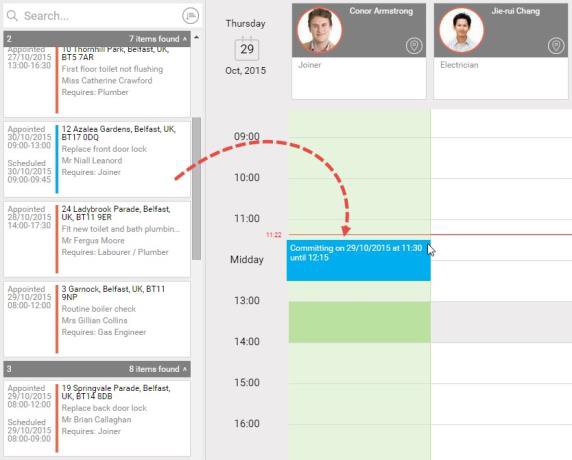
If you have enabled Travel Time When Manually Scheduling in Optimise Schedule Settings, the calculated travel time is displayed when dragging the job to a resource.

If enabled, the travel time calculation is based on route-based distances from the Unity Location Service. Otherwise the travel time is based on straight line distances and calculated from the adjacent jobs on the schedule if possible; otherwise it is calculated from the resource's start and end locations. In all cases, a warning is displayed if there is not enough time to travel between jobs.
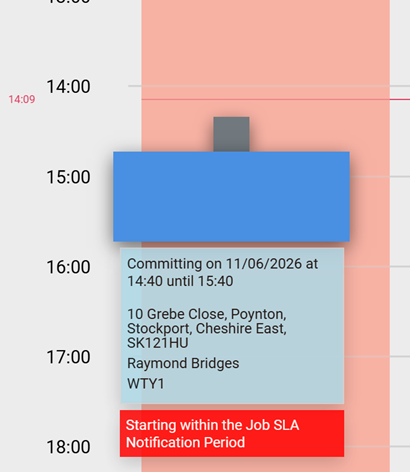
A warning appears if you are scheduling a job that matches the contract and work type references in a customer Service Level Agreement and you are trying to assign the job inside the defined notification window.
-
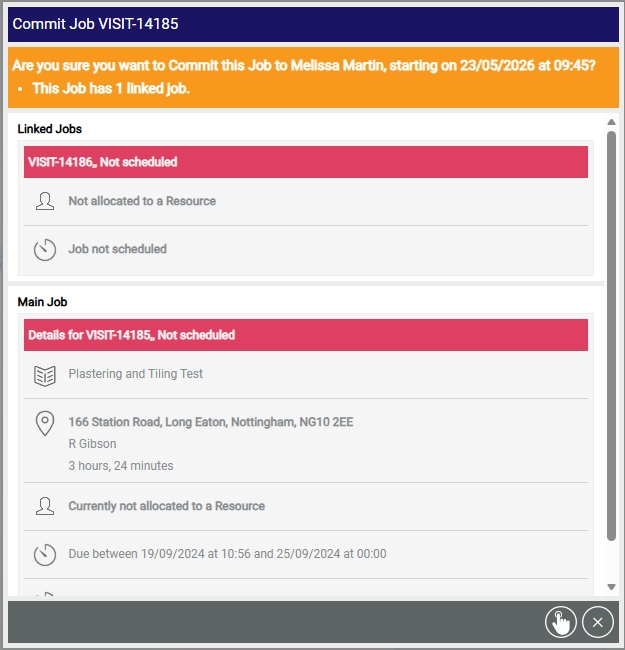
If the scheduled job requires further confirmation, a dialog appears. This dialog contains:
-
Scheduled time.
-
Any constraints requiring review.
-
Linked job information. If the job being scheduled has linked jobs, the dialog also displays:
-
Details of those linked jobs.
-
Their assigned resources (if applicable).
-
-
-
If required, review any constraints and select a reason code for overriding them.

-
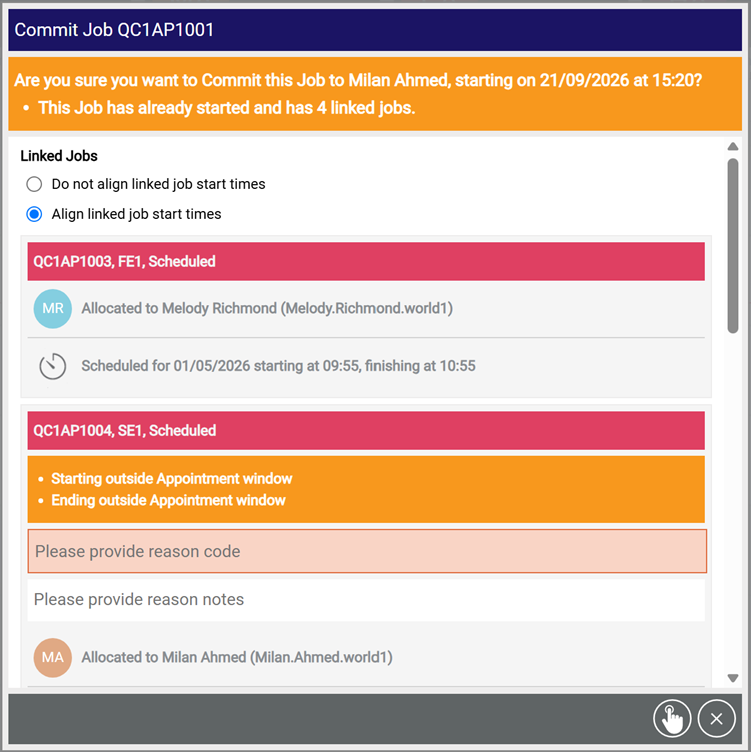
If you also want to update the start time of any linked jobs:
-
Select Align linked job start times.
Each linked job performs the required validation and updates in the dialog.
-
If a linked job requires an override reason, select the reason code and enter any reason notes.
-
If a linked job cannot be validated, you cannot schedule the job in its current state.
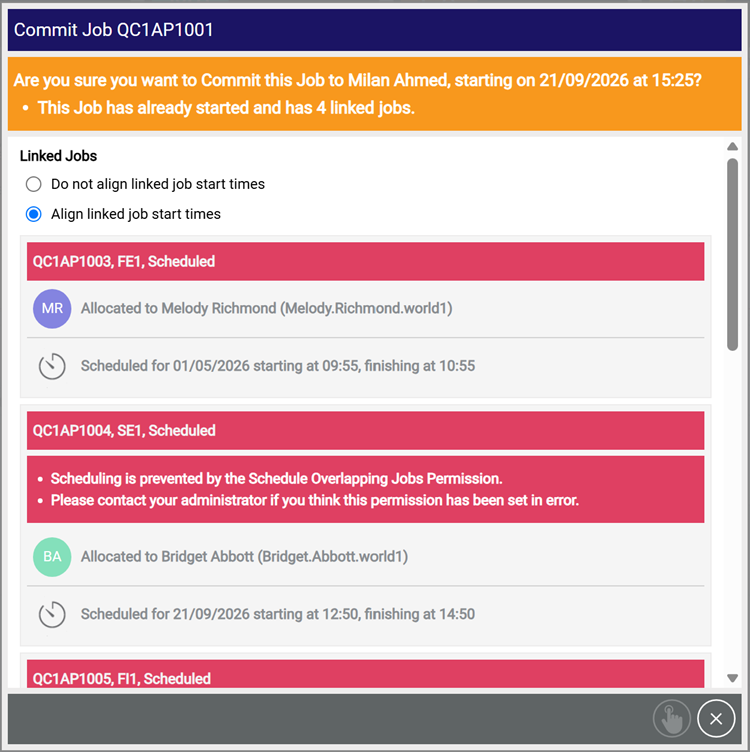
If you still want to schedule the original job without updating the linked jobs, select Do not align linked job start times.
-
-
Select Schedule Job
 .