Record Availability
Use the record availability option to add irregular availability when resources are available outside of their roster scheduling. For example, a resource might want to do overtime in the evening after their usual shifts. When the resource informs the administrator, the administrator records the periods of availability with an availability reason code.
You can also update the reason, description and start and end dates and times for availability in Optimise Schedule. For example, a resource calls an Optimise Schedule administrator and advises they will be available for less time than initially planned. The administrator updates the availability with the appropriate information and the Optimise Schedule Diary updates.
Add Availability
-
In WebAdmin, select Optimise Schedule.
The Worlds page appears.
-
Select a World.

The Optimise Schedule page appears.
-
Select Record Availability
 .
. The Record Availability dialog appears.
-
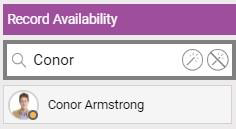
Select one or more resources from the list.
Use the Search field to filter the list of resources.
-
To select all resources, select Select All
 .
. -
To clear the currently-selected resources, select Deselect All
 .
. The selected resources are highlighted in green.
-
-
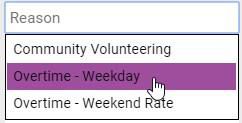
Select the Reason field, then select an Availability Reason from the dropdown.
-
Select the Description field and enter a description as required.
-
Select the Start Date field, and select a start date from the calendar.
-
Select the Start Time field, and select a start time from the dropdown options.
-
Select the End Date field, and select an end date from the calendar.
-
Select the End Time field, and select an end time from the dropdown options.
-
Select Save Availability
 .
.
Update Availability
-
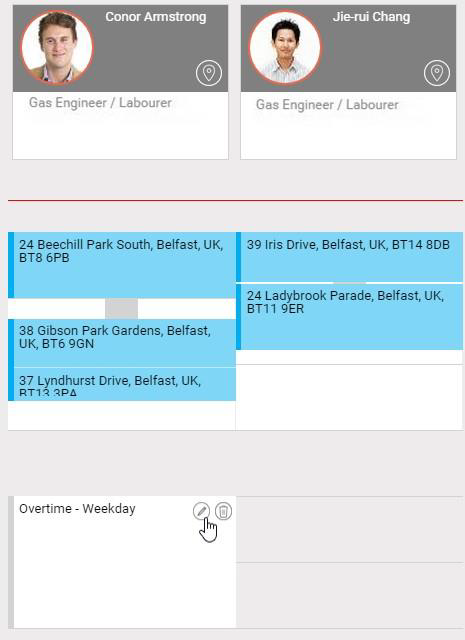
On the Optimise Schedule page, hover your cursor over an Availability period, then select the Edit icon.
-
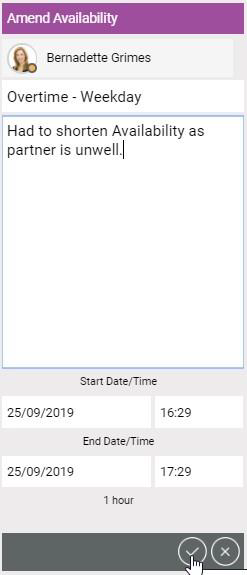
In the Update Availability dialog:
-
Select the Reason field, delete the current reason, and select a new reason from the dropdown if required.
-
Enter or amend text in the Description field as required.
-
Select to amend the Start Date, Start Time, End Date, and End Time as required.
-
Select Save Availability.
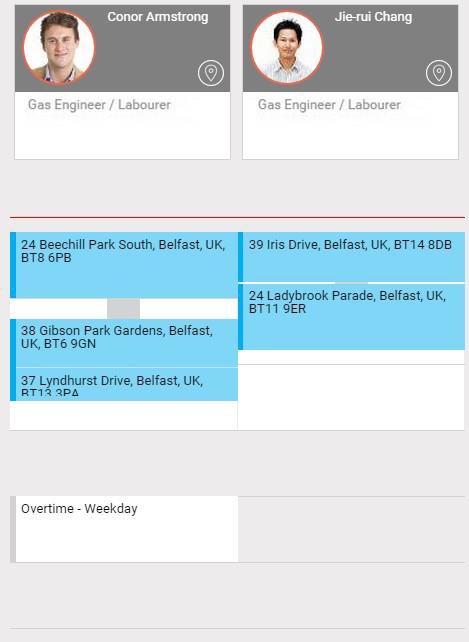
The Diary updates:
-
Delete Availability
-
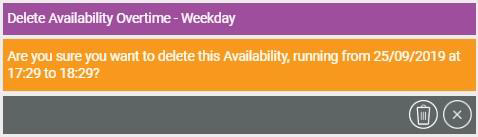
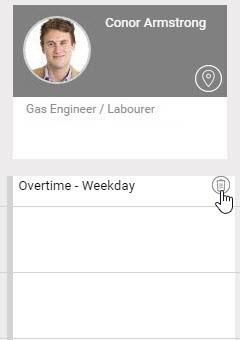
On the Optimise Schedule page, hover your cursor an Availability period, then select the Delete icon.
-
In the Please Confirm dialog, select Delete.