Activation
To use the Totalmobile app on your device, you have to activate before being able to sign in. This means you send a verification request to the WebAdmin administrator who assigns you to solutions, assigns you permissions, and then activates you.
This section covers the following:
The steps below assume that the auto-activation setting is not enabled.
Prerequisites
You need the Activation permission to authorise activation in WebAdmin. For more details refer to Permissions.
Starting the Activation Process from the Device
Obtain your configuration details from your Totalmobile administrator. Your administrator will also either provide you with your user profile login details, or advise you to set up your own user profile when you activate.
 On Android
-
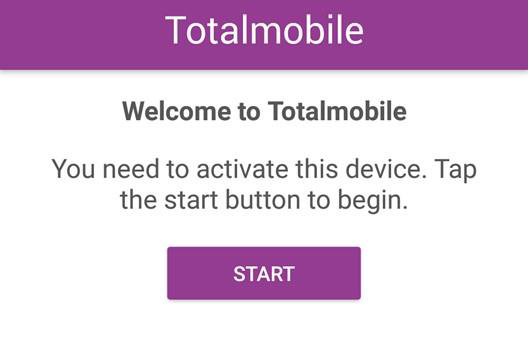
Select Start.
-
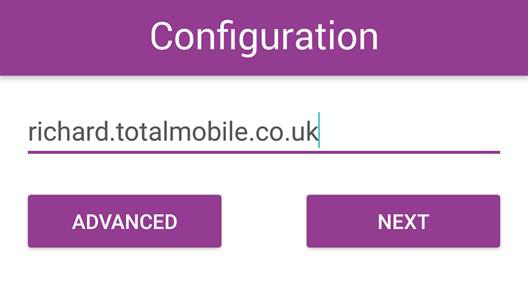
In the Configuration dialog:
-
Enter the Server address.
-
Select Advanced.
-
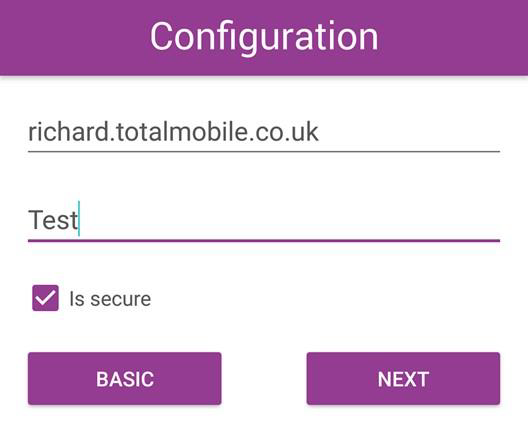
In the expanded dialog, enter the Instance.
-
Toggle the Secure option to On if your site uses a secure address, and Off if not.
-
Select Next.
-
-
In the Activation dialog:
-
Enter your Username.
-
Enter your Device ID. The Device ID must be unique.
-
Enter your Password.
-
Select Next.
-
-
If you are a new user, the Activation dialog expands.
-
Confirm your Password.
-
Enter your Forename, Surname, Job Title, Email and Phone Number.
-
Select Activate.
-
-
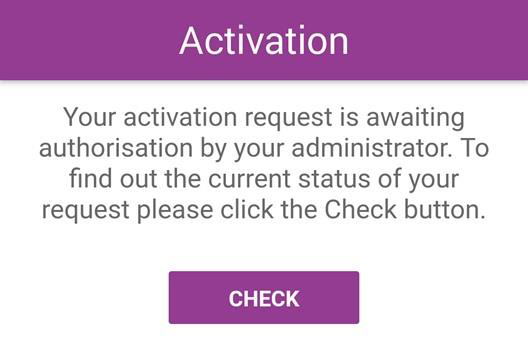
Your activation request is now awaiting authorisation in WebAdmin. Contact your Totalmobile administrator to request the activation is verified.
-
Select Check to see if the activation is complete.
On iOS
-
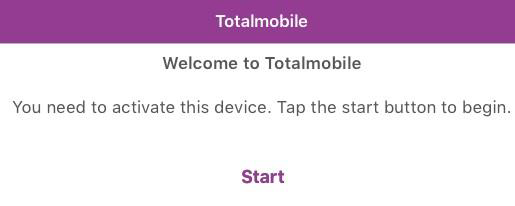
Select Start.
-
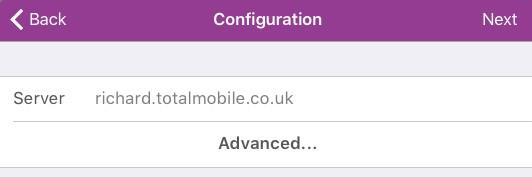
In the Configuration dialog:
-
Enter the Server address.
-
Select Advanced.
-
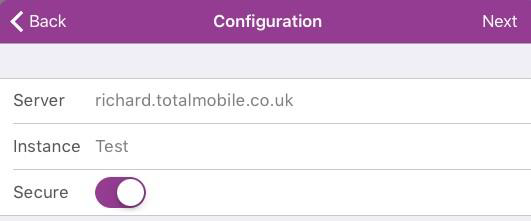
In the expanded dialog, enter the Instance.
-
Toggle the Secure option to On if your site uses a secure address, and Off if not.
-
Select Next.
-
-
In the Activation dialog:
-
Enter your Username.
-
Enter your Password.
-
Select Next.
-
-
If you are a new user, the Activation dialog expands.
-
Confirm your Password.
-
Enter your Forename, Surname, Job Title, Email and Phone Number.
-
Select Activate.
-
-
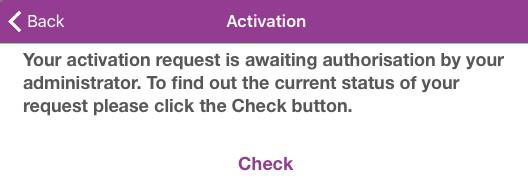
Your activation request is now awaiting authorisation in WebAdmin. Contact your Totalmobile administrator to request the activation is verified.
-
Select Check to see if the activation is complete.
On Windows
-
Select Start.

-
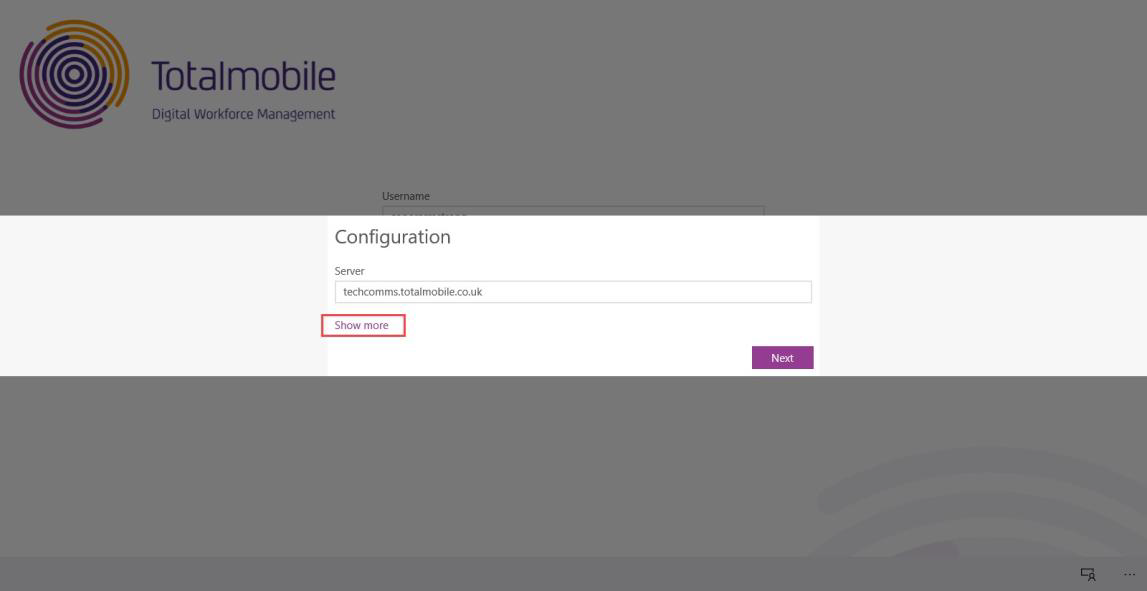
In the Configuration dialog:
-
Enter the Server address.
-
Select Show more.
-
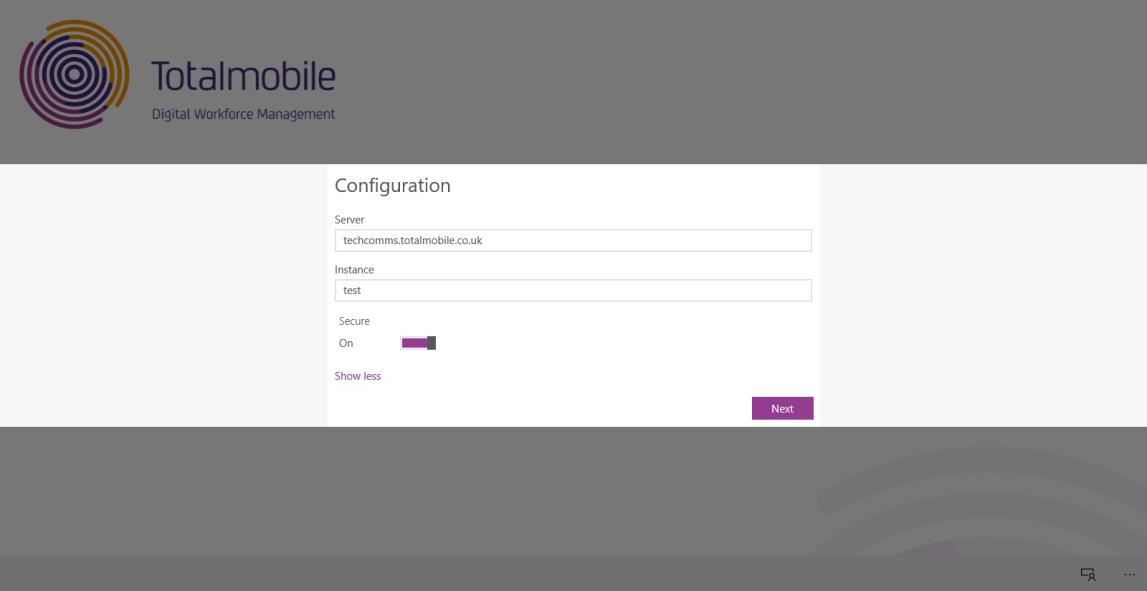
In the expanded Configuration dialog, enter the Instance.
-
Toggle Secure to On or Off.
-
Select Next.
-
-
In the Activation dialog:
-
Enter your Username.
-
Enter your Password.
-
Select Next.
-
-
If you are a new User, the Activation window extends.
-
Confirm your Password.
-
Enter your Forename, Surname, Job Title, Email and Telephone.
-
Select Next.
-
-
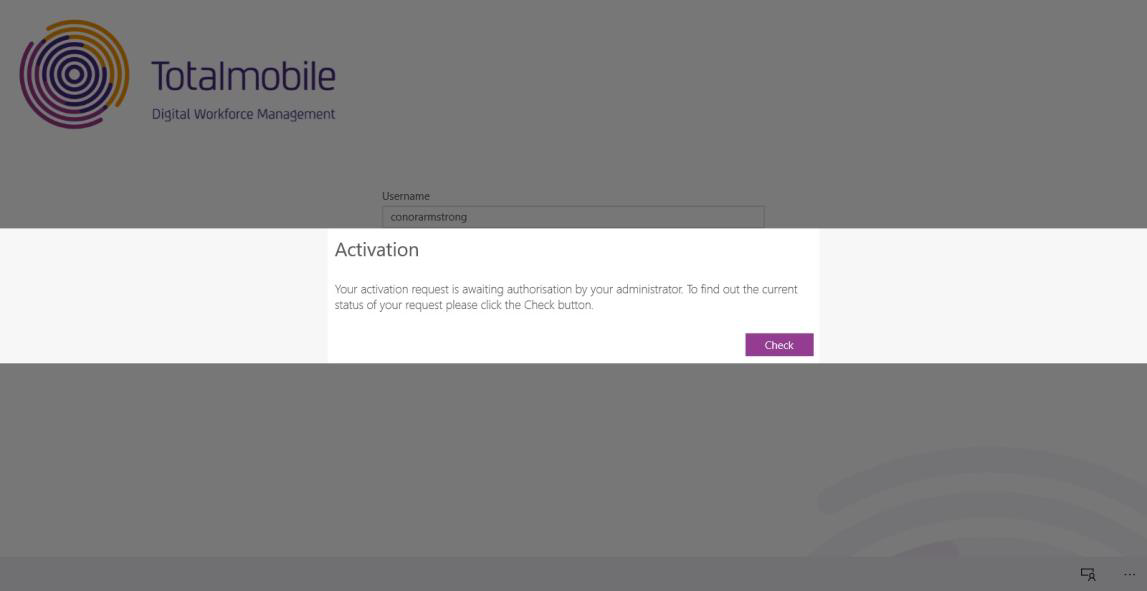
Your activation request is now awaiting authorisation in WebAdmin. Contact your Totalmobile administrator to request the activation is verified.
-
Select Check to see if the activation is complete.
-
When the Activation Complete dialog appears, select Done.
Verify the Activation Request from WebAdmin
Select Users
-
In WebAdmin select Activation
The Activation page appears, showing users that are yet to be activated or deleted.

-
Select one or more users.
Use the Search field to filter the users.
Selected users are highlighted with a blue border.

-
To select all users, select Select All
 .
. -
To clear the currently-selected users, select Clear Selection
 .
.
-
Assign Solutions to Users
-
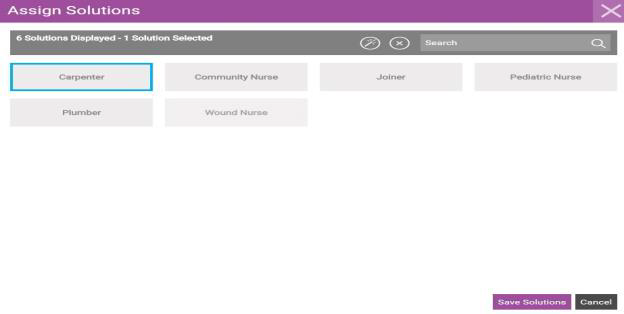
Select Assign Solutions
 .
. The Assign Solutions dialog appears.
-
Select one or more solutions.
Selected solutions are highlighted with a blue border.
-
To select all solutions, select Select All
. -
To clear the currently-selected solutions, select Clear Selection
.
-
-
Select Save Solutions.
Assign Permissions to Users
You can only assign device-based permissions to the users you activate.
-
Select Assign Permissions
 .
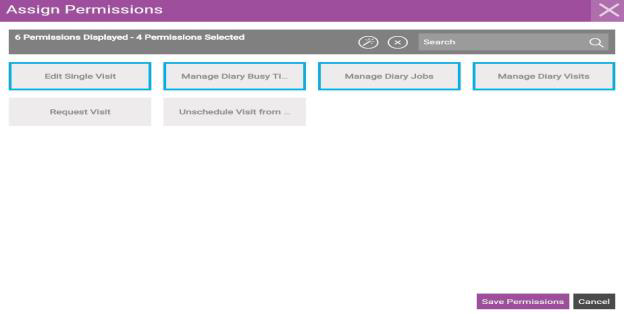
. The Assign Permissions dialog appears.
-
Select one or more permissions.
Selected permissions are highlighted with a blue border.
-
To select all permissions, select Select All
. -
To clear the currently-selected permissions, select Clear Selection
.
-
-
Select Save Permissions.
Activating Users
-
Select Activate
 .
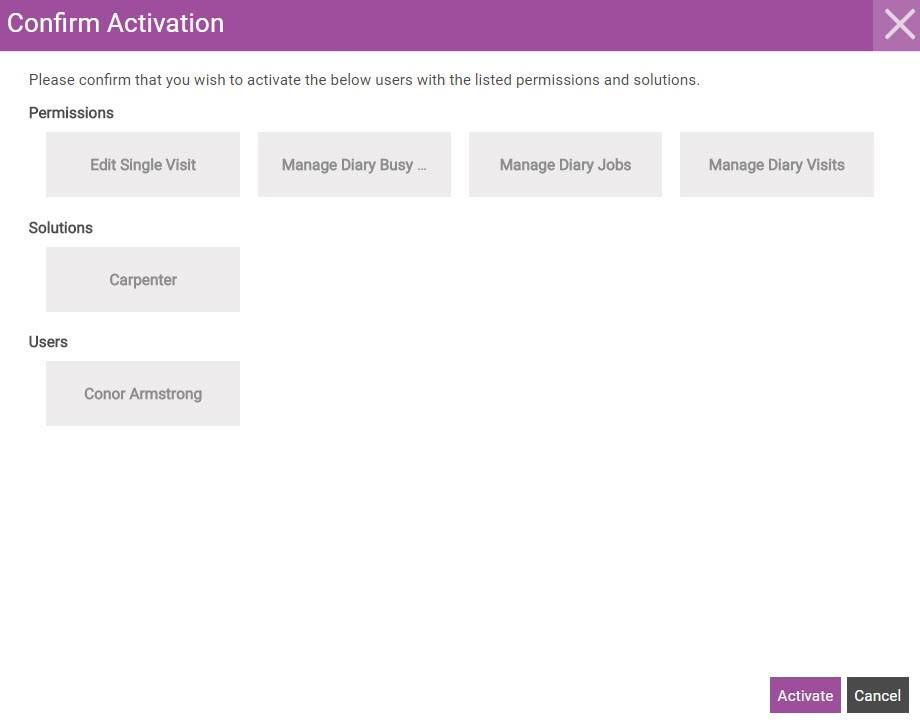
. The Confirm Activation dialog appears and displays a summary of the select permissions, solutions and users.
-
Select Activate.
Confirming the Activation on the Device
On Android, iOS and Windows:
-
Select Check.
-
When activation is complete, Sign in using your credentials.
If you want to use the Totalmobile application as a different user, select Reactivate, then select Yes to begin the activation process from the start.
Enabling Auto-activation
Auto-activation is turned off by default. If you create a user in WebAdmin and auto-activation is enabled, the user does not require WebAdmin approval. This is beneficial to users who change device regularly.
To enable auto-activation, run the enable-auto-activation.sql script against the Totalmobile database. This script is located in the Database Scripts folder of the build.