Add and Edit User Attributes
Link attributes to a user to define individual specific working categories, skill sets, and circumstances. For example, a community nurse might regularly work in the South London area, so has an Area attribute with a South London value. This attribute and associated value categorises the nurse to be scheduled only for visits in that area.
When you create a new attribute for a user, it becomes available for all users. For example, you could create the Area attribute and assign it a South London value for one user, and then assign a North London value for a different user.
Adding a New Attribute
-
In WebAdmin select Users.
-
Select a User.
Use the Search field to filter the list of users.
-
In the Attributes section, select Edit.
-
On the Edit Attributes page:
-
Select Add a new Attribute Name
 .
. -
Enter an Attribute Name, for example Area.
-
Select Save.
-
Navigate to the Attribute and select the Add icon.
-
Enter an Value, for example South London.
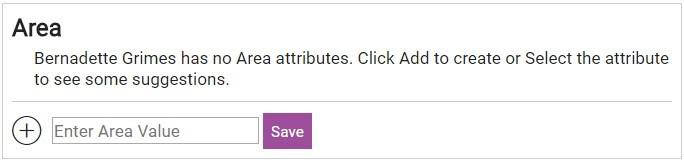
Select the attribute to view suggestions in a panel to the right, based on the values added by other users.
-
Select Save.
-
Deleting User Attributes and Values
You cannot delete attributes that are in use for other users. If you try, a warning dialog appears stating the number of other users using the attribute.
-
In WebAdmin select Users.
-
Select a User.
-
In the Attributes section, select Edit.
-
On the Edit Attributes page:
-
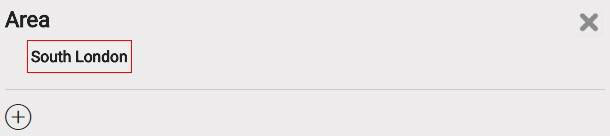
To remove a value from an attribute, click on the value.
-
To delete an attribute, hover over it and select Delete Attribute
 .
.
-
If prompted, select Confirm.