Add a Store
A store contains products associated with a particular location, such as a vehicle or a warehouse. You can create new product codes and descriptions for each store, or select existing products in the system.
You must assign users to the store to enable them to access it from a mobile device. A user can only be assigned to one store.
Once you have configured the store, you can include the relevant control in a form to enable the assigned users to select the store products. For more details refer to Catalogue User Store Control.
To add a store:
-
In WebAdmin select Materials.
The Materials page appears.
-
In the Stores section, select Add
 .
-
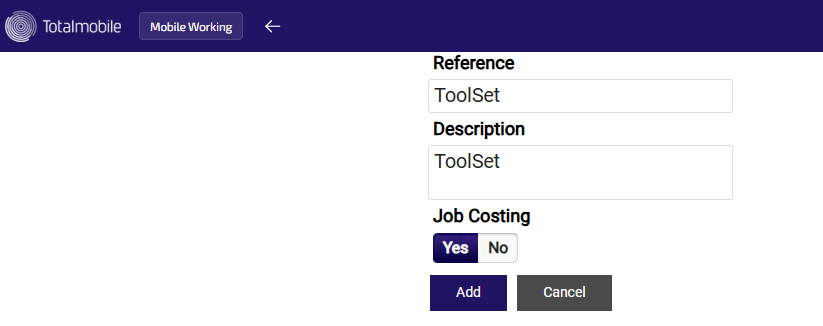
On the Add Store page:
-
Enter a store Reference*.
-
Enter a store Description.
-
Define whether job costing should be included in the store by toggling Job Costing to Yes or No as required.
-
Select Add.
-
-
On the Materials page, select the newly created store.
-
To assign users to the store:
-
In the Users section, select Edit
 .
-
Select one or more users for the store.
Use the Search field to filter the list of users.
Users in grey with an orange border are already assigned to another store. Select Details
 to see which store the user is assigned to, and optionally transfer them to this store.
-
Select Save
 .
-
Select the Back arrow to return to the store page.
-
-
In the No Products Found section, select Edit
. -
On the Products page, select Add
. -
To add a new product:
-
Select the Code* field, and enter a new product code.
-
Select the Description* field, and enter a product description.
-
Select the UOM* field, and enter the unit of measure, for example EA for Each.
-
Select the Price field, and enter the product price.
The Price can be used for scoring. For more details on scoring, refer to Score Control.
-
Select Save.
-
-
To add an existing product to the store:
-
Select either the Code or the Description field, and select an existing item from the dropdown.
-
Select another field to automatically populate the product details.
-
Select Save.
-
* Required field