Edit and Export the Integration Configuration XML
If you want to use the configuration from one integration instance for another instance, you can edit and export the Integration Configuration XML.
For example, you have a test instance of Totalmobile and want to use the same Integration Configuration XML in your live instance. Instead of manually adding all global settings, subscriber queues, publisher queues and adapters, you export the test Integration Configuration XML file and paste it into the Edit Configuration XML dialog in your live instance. Totalmobile removes sensitive setting values when you export the XML, so after you paste the XML you only have to enter setting values and amend the appropriate instances, for example changing 'Test' to 'Live'.
You must have the Edit Integration Config XML permission for this procedure. For more details refer to Permissions in the Administrator Guide.
Editing and Exporting the XML
-
In WebAdmin select Integration.
-
Under Integration Instances, select an instance.
Use the Search field to filter the list of instances.
The Integration Instance Configuration page appears.
-
Select Edit Configuration
 .
. The Edit Configuration dialog appears.
-
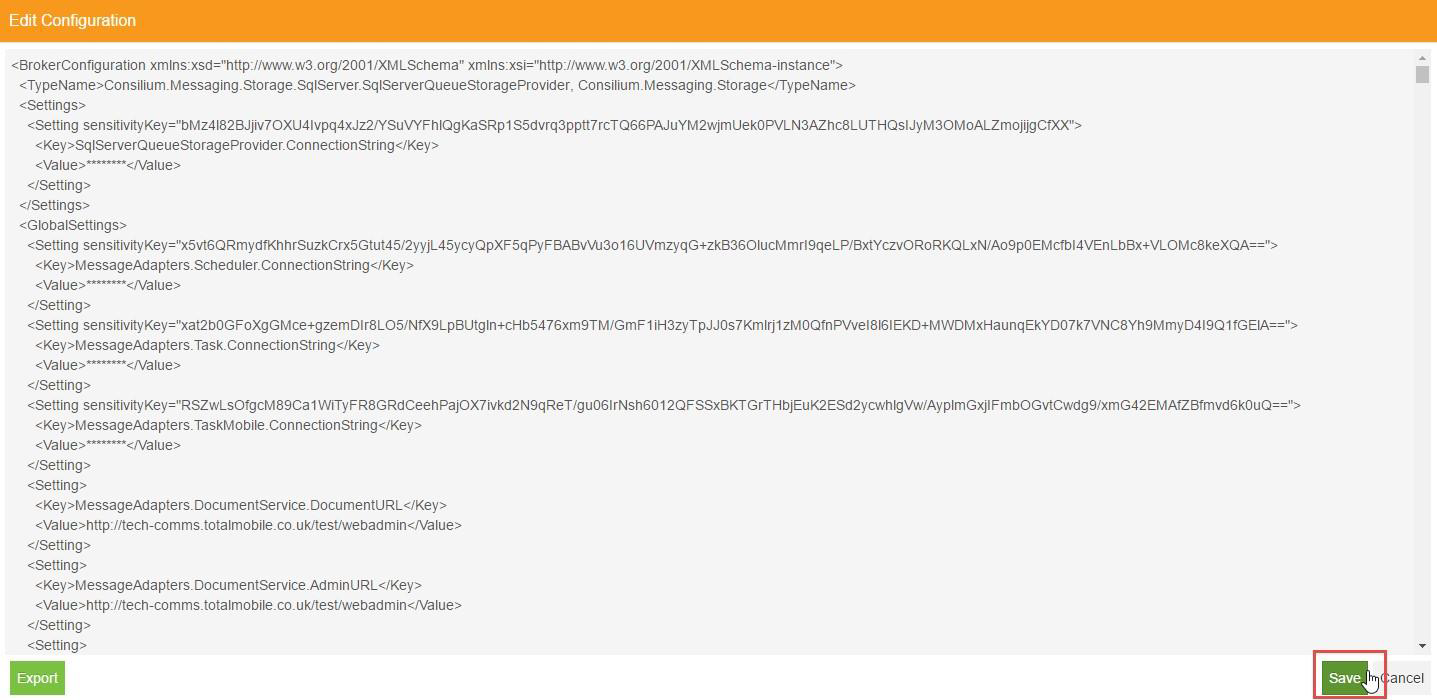
Edit the XML as required, for example to amend a setting value or to paste a new Adapter Configuration XML.
-
To download the XML file as currently displayed in the Edit Configuration dialog, select Export.
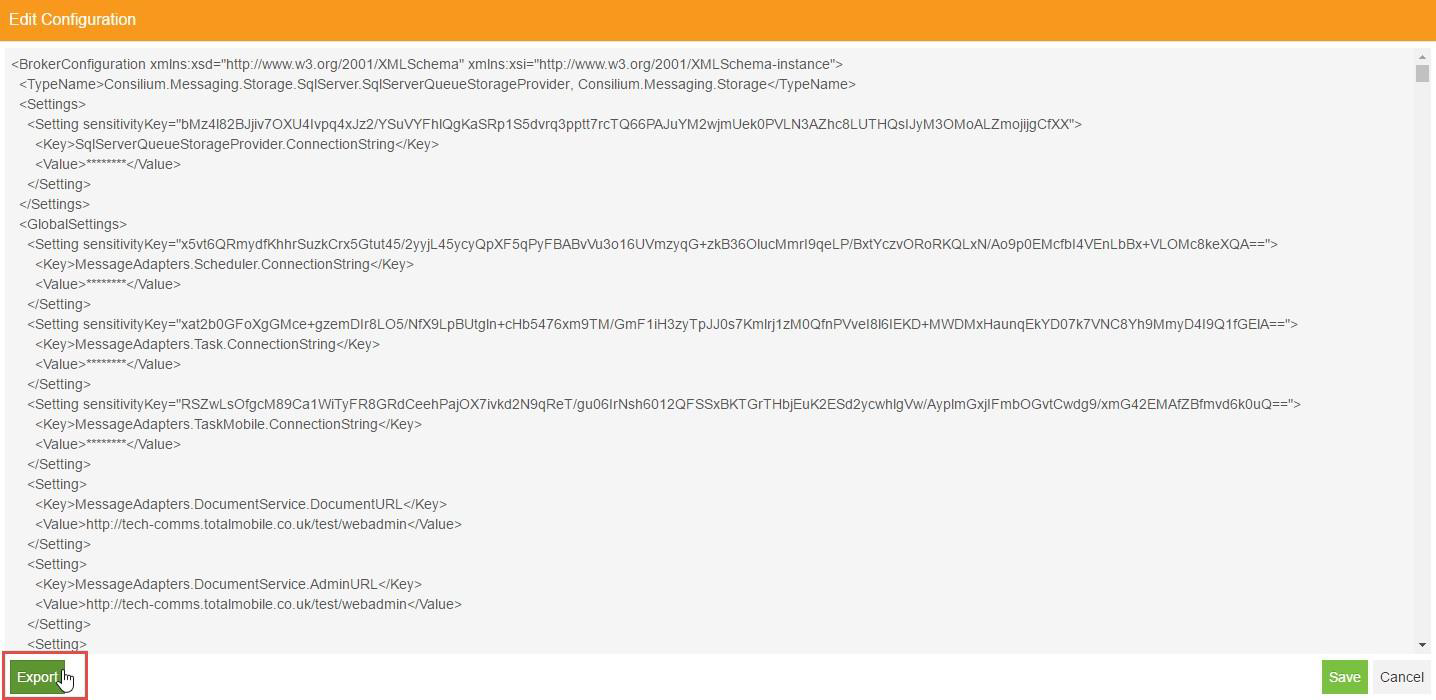
If there are any errors in the XML, for example duplicate queues or settings, the export will not work. You must correct any errors before you can export the file.
-
Select Save.