Configure a Solution for the Job Management (Connect) Form
Before you add a Job Management (Connect) form to a solution, you must ensure the solution is configured to send the form back to Job Management (Connect) for processing:
-
Edit the Job Management (Connect) integration instance to include the required adapter in a subscriber queue.
-
Edit the solution to use the subscriber queue from the integration instance.
For more details on adding a form to a solution, refer to Applications.
Add the Adapter to the Integration Instance
-
In WebAdmin select Integration.
The Integrations page appears.
-
Select the integration instance you want to use.
-
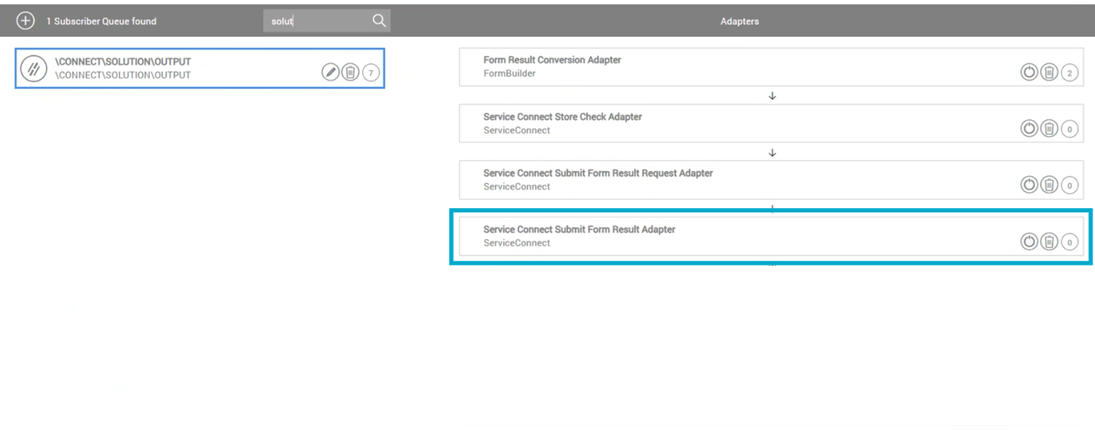
Either select an existing subscriber queue, or select Add Queue to create a new one.
-
For the selected queue, select the Show Adapters Library arrow icon
 .
-
Search for and select the Service Connect Submit Form Result Adapter.
-
Select Save changes.
For more details on adding and customising message queues, refer to Add Subscriber Queues.
Edit the Solution Message Queue
-
In WebAdmin select Solutions.
The Solutions page appears.
-
Select the solution you wish to use.
-
On the Solution Details page, select Edit Solution Details.
-
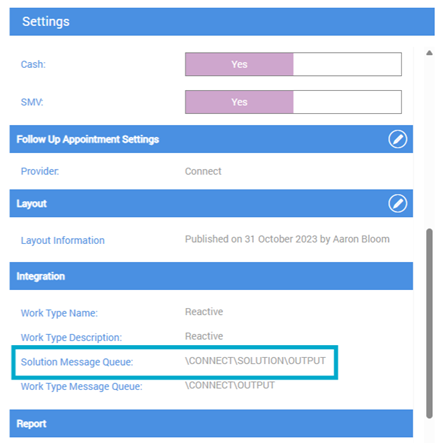
In the Settings section, under Integration, select the Solution Message Queue field and enter the name of the subscriber queue that contains the required adapter.
-
Select Save.