Standard Phrases Control
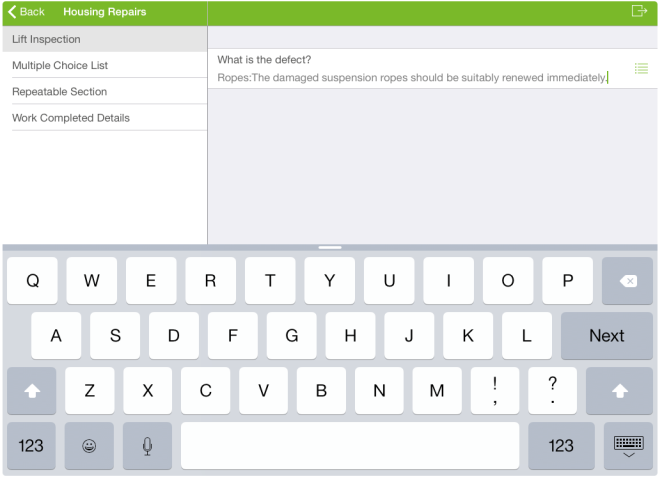
The Standard Phrases control allows common items to be sourced from a list to avoid users re-entering lengthy answers. Users can then edit the selected list item.
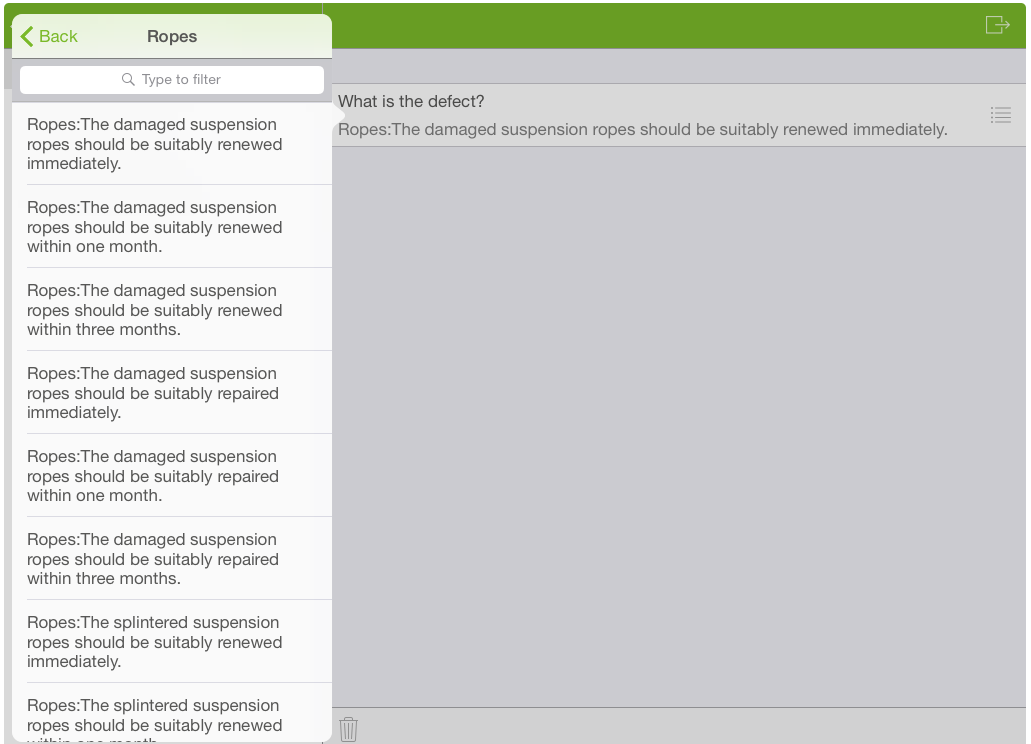
For example, a lift inspector is choosing between answers with different time frames and phrases as to when the elevator rope should be replaced due to a defect. The inspector selects a standard phrase and then adds additional text, for example ‘I have disabled lift use due to risk’.
Use the WebAdmin > Lists page to add and edit lists. For more details refer to Add a List.
Configure the Standard Phrases Control
-
In WebAdmin, select Forms.
-
Select an existing form, or select Add New Form to create a new one.
-
Navigate to an existing element within your form or select Insert a new Element
 .
-
Select Maintain Element Settings
 .
-
In the Update Element Details dialog:
-
Select the Standard Phrases control.
-
Select the Text field, and enter a description for the control.
-
Select the Length field, and enter the maximum character length allowed.
-
Toggle Multi Line to On or Off as required.
-
If required, select the Mask field, and enter a regular expression. For more details refer to Text Control.
-
If required, select the Mask Example field, and enter an example. For more details refer to Text Control.
-
Select the Source Ref field, and start typing the required list Reference. Select it when it appears.
-
Configure other control options as required. For more details refer to Form Sections and Controls.
-
Select Save.
-
-
Save
 and Publish
 the form.
-
Ensure the form is assigned to an application or visit task within a solution.
Using the Standard Phrases Control
 On Android
-
On the device, navigate to the form.
-
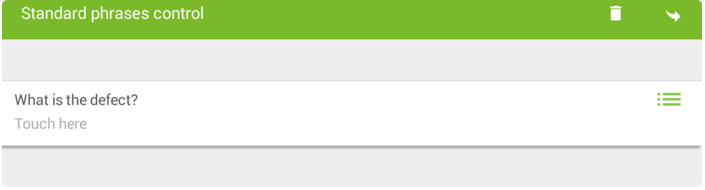
Select the Standard Phrases control within the form.
-
Select the List icon to the right of the control.
-
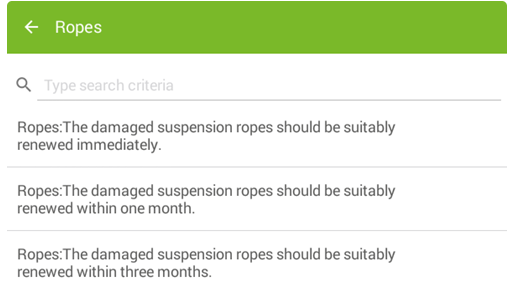
In the List, select an answer.
-
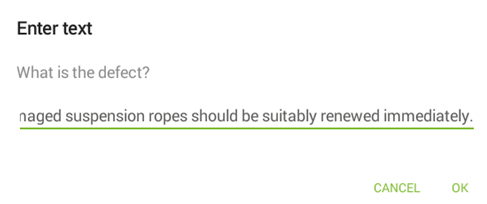
Select to amend or add to your chosen list answer as required.
-
In the Enter Text screen:
-
Enter, edit or delete text.
-
Select OK.
-
-
Submit the form.
On iOS
-
On the device, navigate to the form.
-
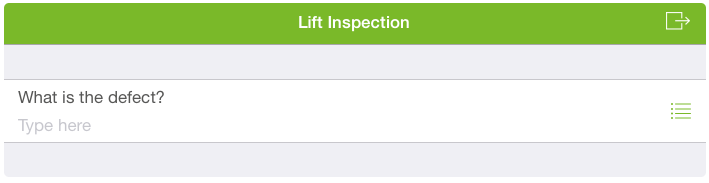
Select the Standard Phrases control within the form.
-
Select the List icon to the right of the control.
-
In the List, select an answer.
-
Select to amend or add to your chosen list answer as required.
-
Submit the form.