Demand Gap Planner
Staff Level Monitor
Analysis > Monitor > Staff Level Monitor
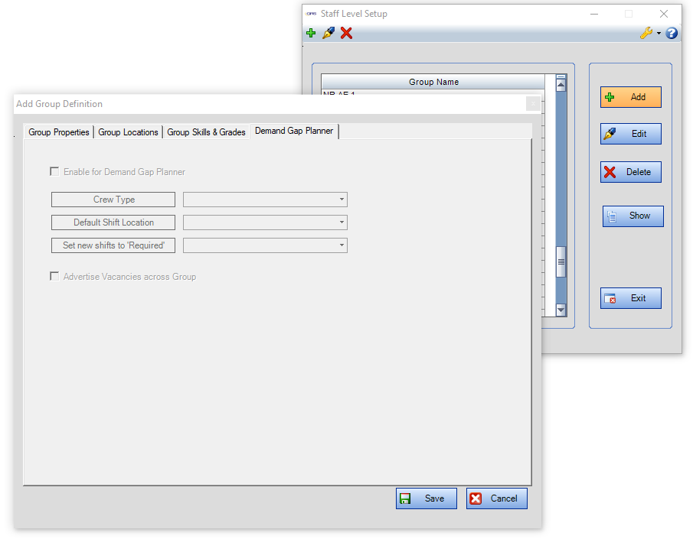
Setup Staff Monitor Groups in this screen for use in the Demand Gap Planner. Click Add or Edit to see a new tab called Demand Gap Planner.
Crew Type
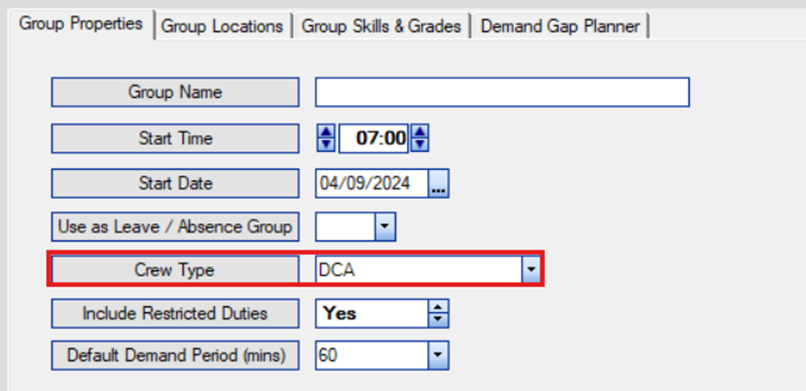
The Crew Type field on the Group Properties tab disables/enables details under Demand Gap Planner tab:
-
If crew type selected is ‘None’ then details under Demand Gap Planner tab is disabled. When adding a new group definition the crew type is defaulted to ‘None’
-
If a crew type is selected the checkbox under Demand Gap Planner tab is enabled.
Demand Gap Planner settings
-
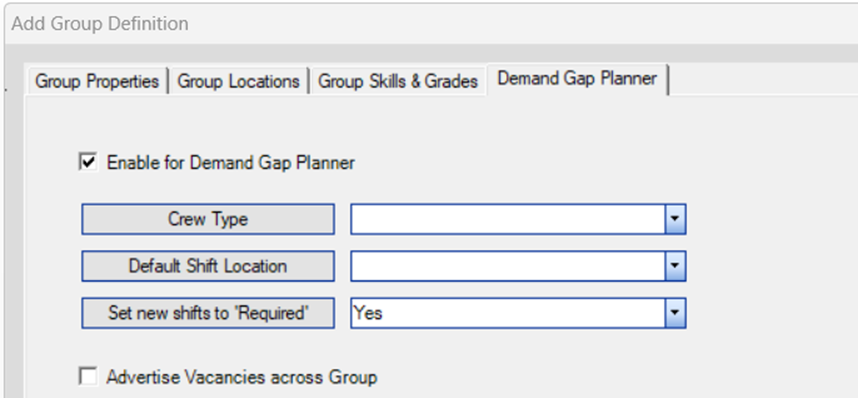
Enable Demand Gap Planner: when the selected, Crew Type and Default Shift Location options are enabled. These are mandatory when the checkbox is ticked. When unticked, Crew Type and Default Shift Location options are disabled, if they have been filled these values will be emptied.
-
Crew Type: this is filled with the same values as Group Properties tab.
-
Default Shift Location: this is connected to the locations under Group Locations tab, when location(s) are selected under this tab, all the selected locations will be displayed in this combo. When new shifts are generated in the demand gap planner, the location that will be set will be the selected default location.
-
Set new shifts to Required: this is defaulted to Yes, when new shifts are generated in the demand gap planner, they will be set as per this setting.
-
Advertise Vacancies across Group: when new shifts generated in the demand gap planner, this tick box controls whether the new shifts are advertised across the locations within the group.
Demand Gap Planner
Rosters > Roster Planners > Demand Gap Planner
When Enable for Demand Gap Planner is selected for a group definition, this group will appear in Demand Gap Planner (Group Name drop down list).
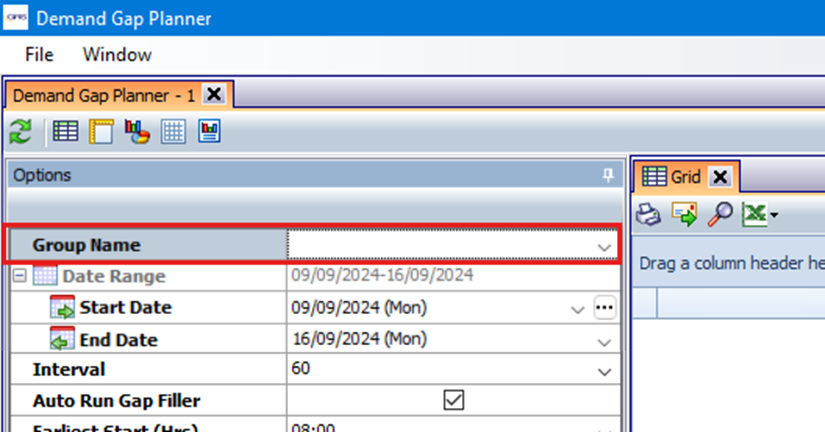
Setup required prior to running:
-
Roster Definitions > Crew Post Matching for the Default Location selected in Demand Gap Planner tab to match crew type
-
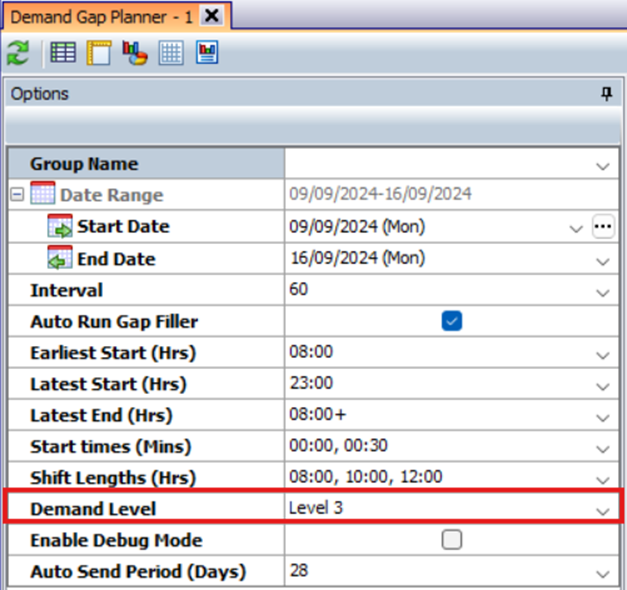
Set up Demand Level required (Analysis > Monitor > Staff Level Monitor – select group and click Show)
-
Tools > System Option to set the default demand level on the report

New Posts are created to meet demand level, created for the default location, and shifts are created ‘Required’ or ‘Not Required’ depending on the setting.
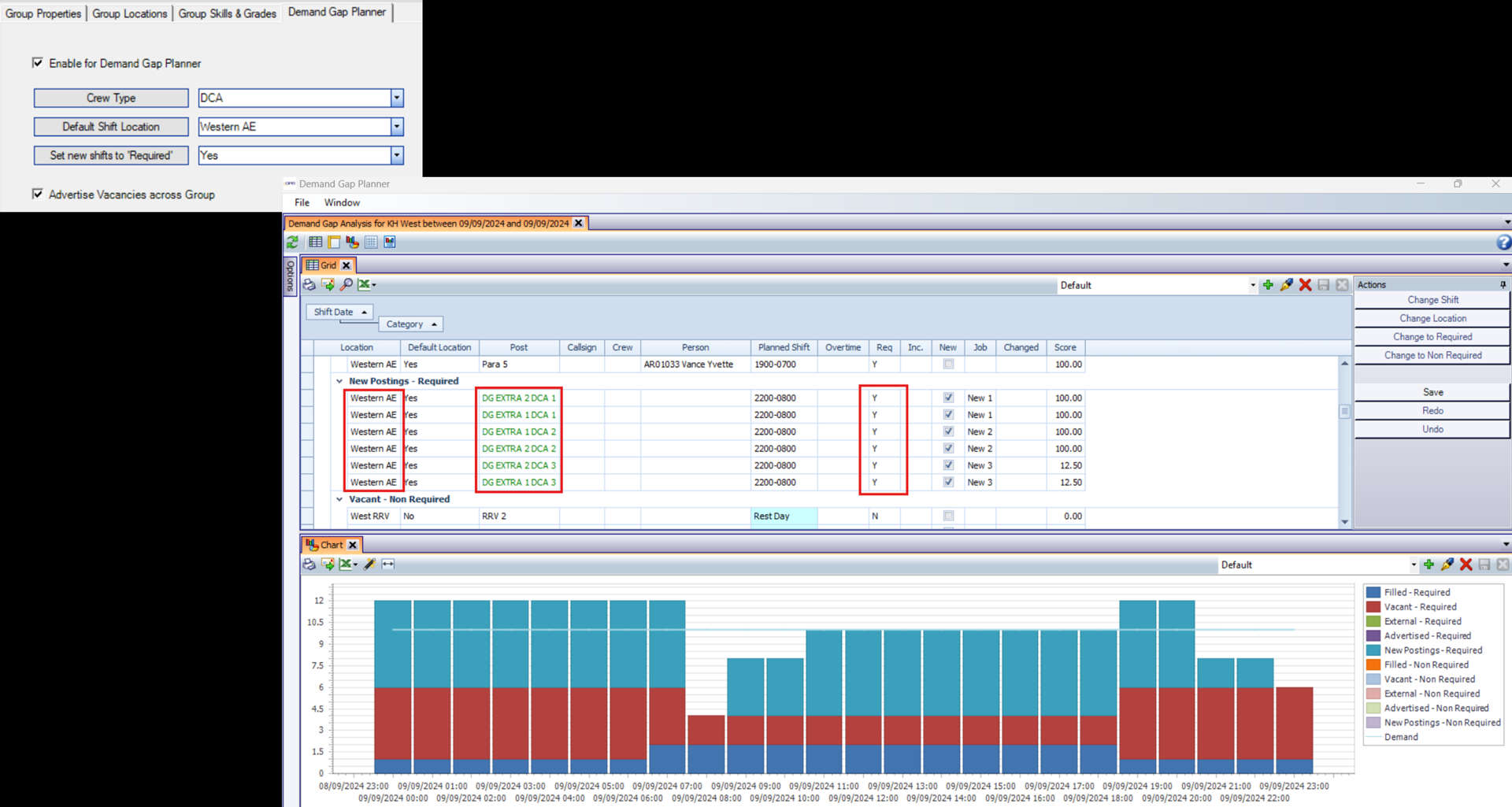
The grid, originally grouped by date, is now further grouped by Category (which reflects the Chart Categories). The grid is ordered by start time, duration and post order.
On the Chart, all categories have been broken down by 'Required' and 'Non Required'.
New Grid Columns:
-
Default Location - 'Yes' if the location matches the default location of the group, else set to 'No'.
-
New - to enable filtering on New Jobs
-
Job - indicates number of new jobs that have been created
-
Changed - when a shift has been amended, this column will have the status Changed
-
Score - Each Posting is assigned a score which is worked out by (score /shift length) * 100
This looks at each hour of the day for every shift and assigns a score of 1 if that shift is used to cover demand.
The order that shifts are looked at is determined first by the start time then the duration and finally whether the shift is required or non required.
New Report Actions
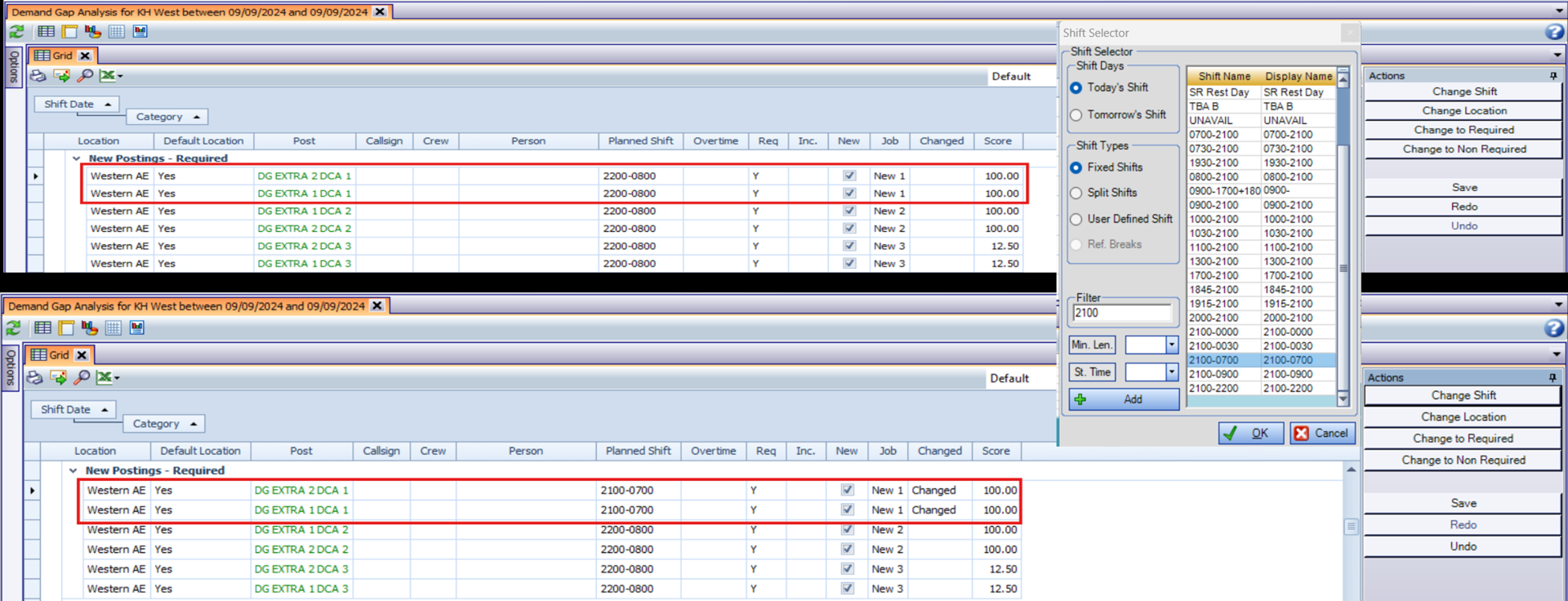
Change Shift
Enabled when single or multiple rows are selected on new postings. It is not enabled for existing postings.
Change shift allows a new shift to be selected on the shift selector. The changing of shifts affect the chart dynamically. If the new posting is part of a crew, when one is selected and changed, the other will also be updated. Row is also marked as ‘Changed’
Change Location
Enabled on selection of new postings only.
A dialog is displayed showing other locations within the group in a drop down (excluding the group's default location and Skillstream core locations). When a new location is selected, the Location Name is reflected in the grid. Row is marked as ‘Changed’ and the matching job posting will also be changed.
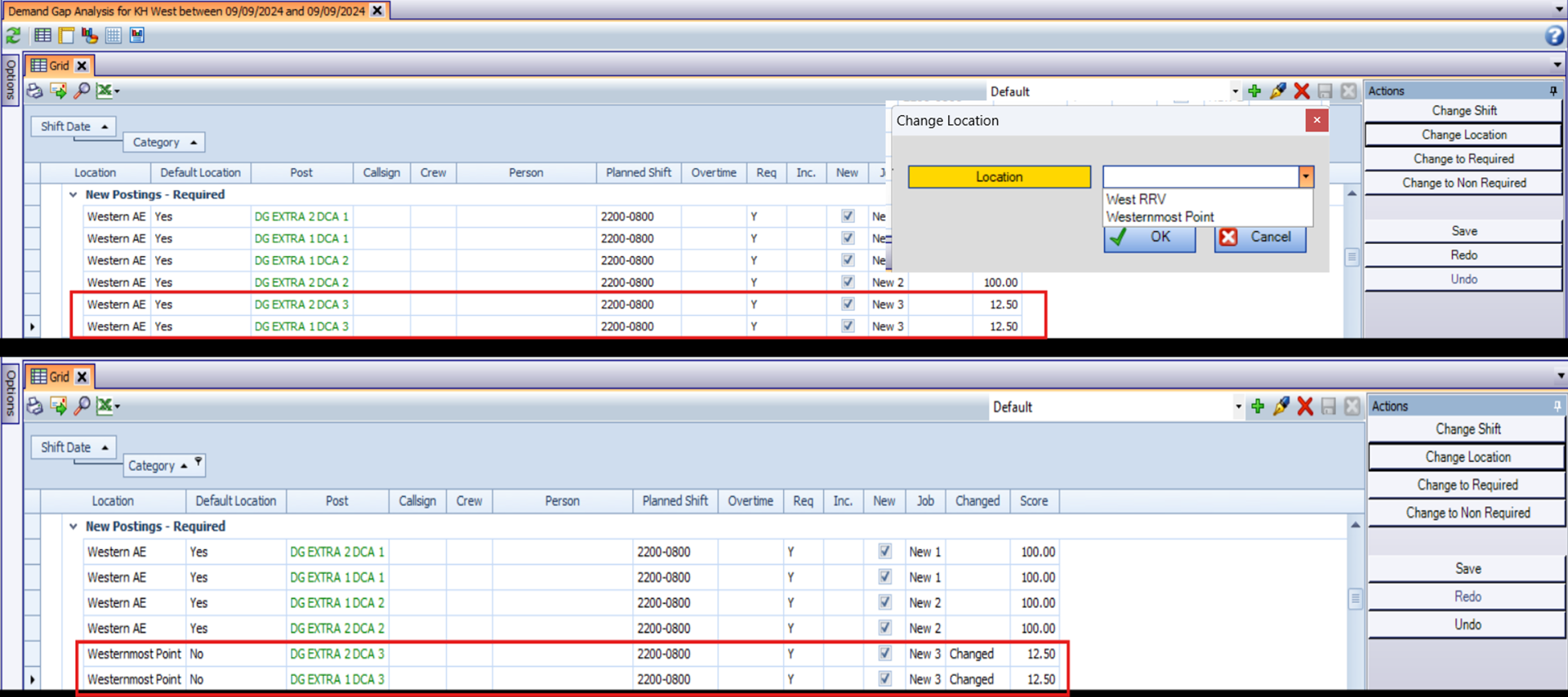
Change to Required and Change to Non Required
Enabled when single or multiple rows are selected on both existing and new postings.
Changes to chart, category and scoring dynamically when changes are made.
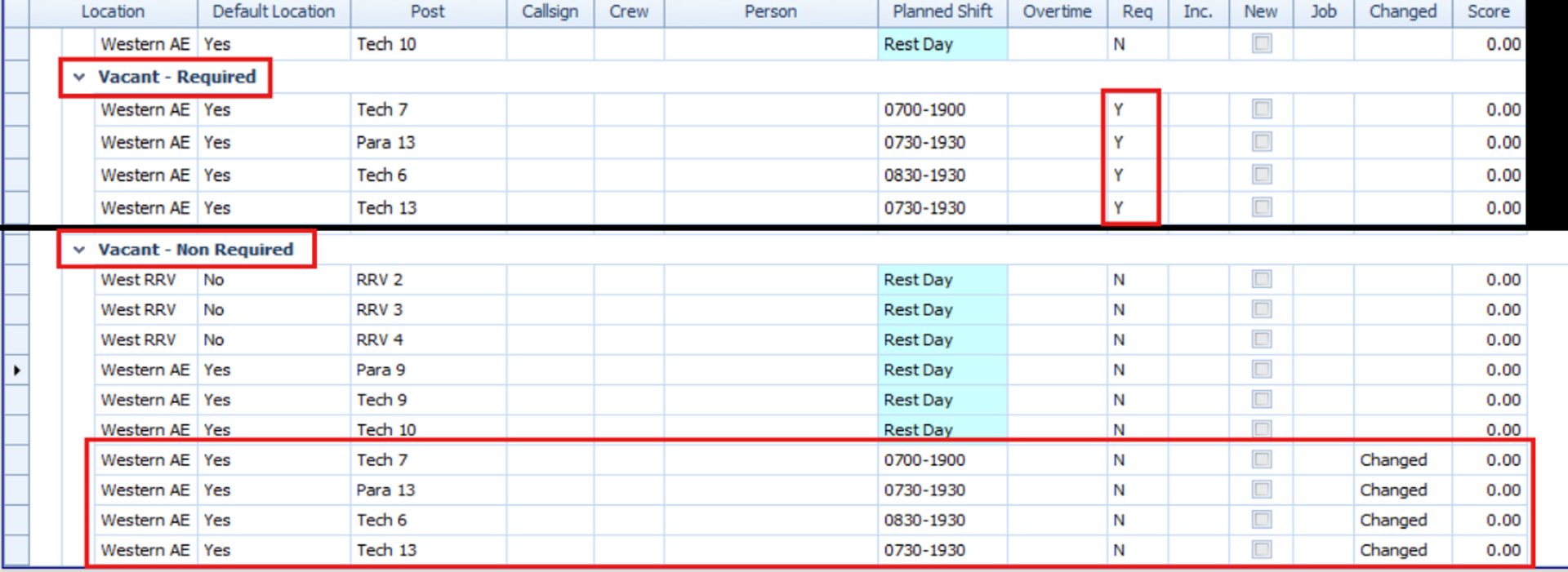
Save - When saved all changes are reflected on posting sheets.
Undo/Redo buttons - Undo/Redo can be actioned until the changes are saved at which point it is reset.
Permission Level - Report actions are available when user has edit permission to the Demand Gap Planner.
Vacancy Filler
GRS Web > My GRS > Vacancy Filler
Postings which were saved.
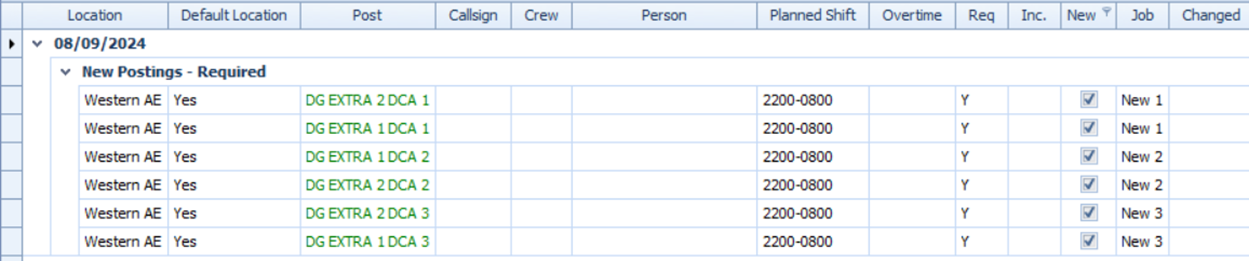
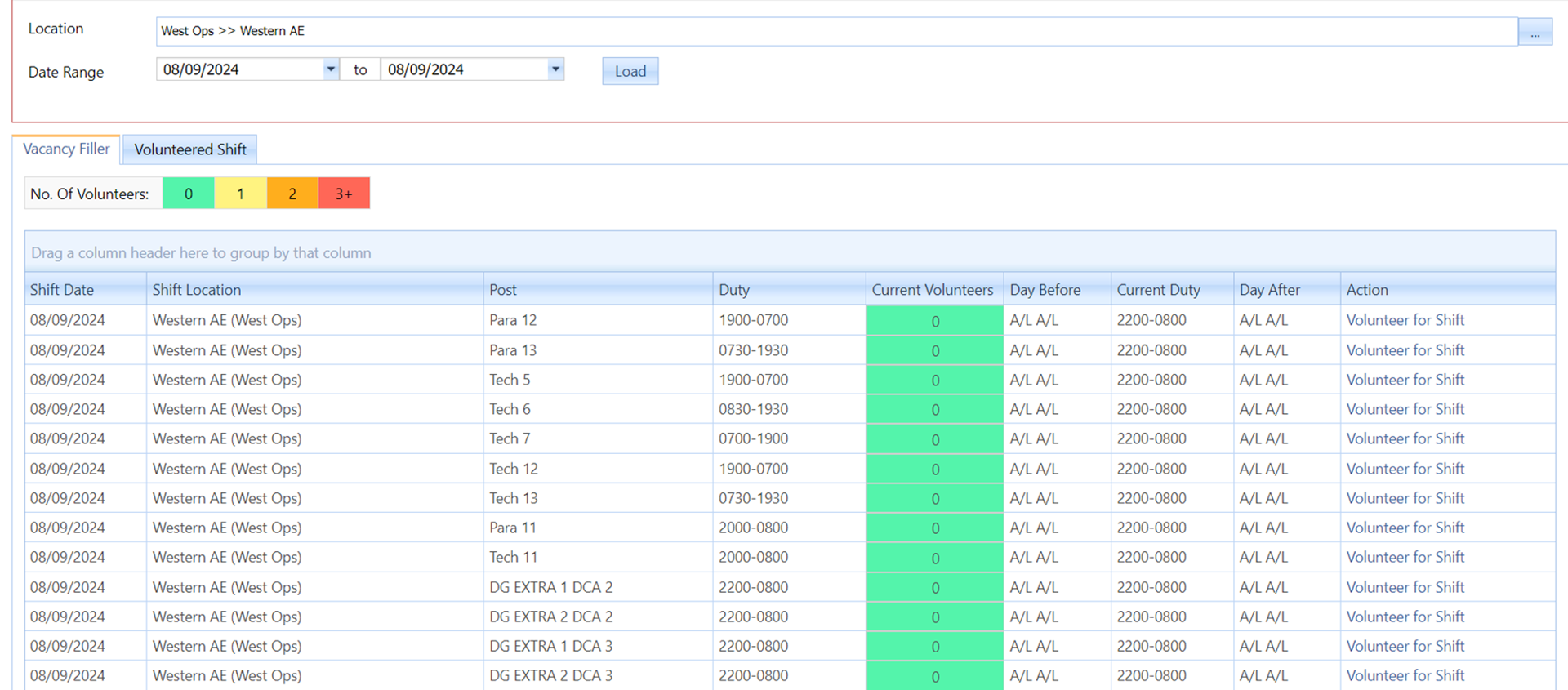
Postings now available at the default location it was saved at.
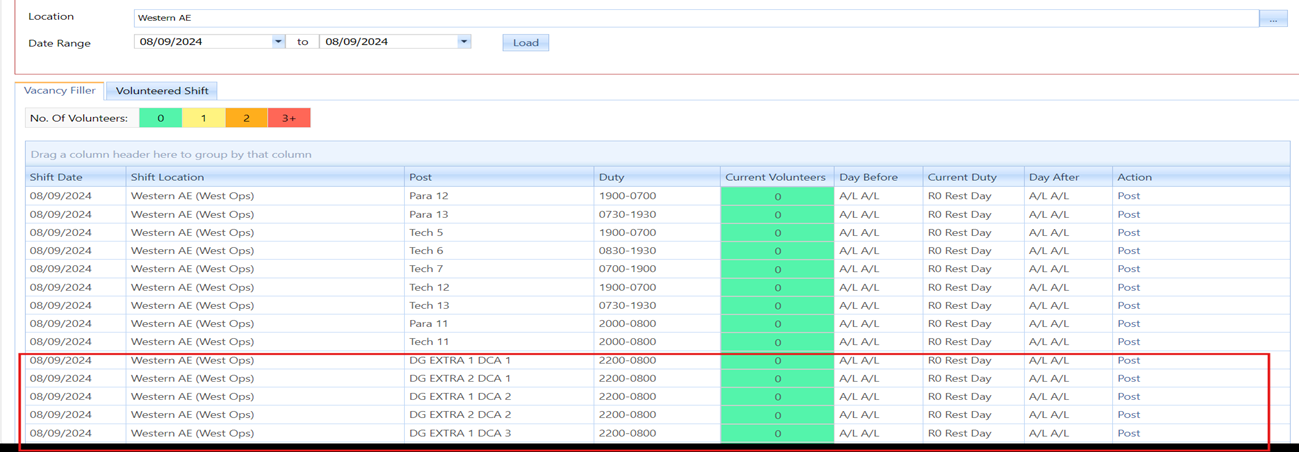
Postings are also available at other locations within the group, if the tickbox to advertise across groups is ticked. In this example the location name is appended with *** to make the virtual location easily identifiable, this is optional and the text can be configured at the customer’s request.
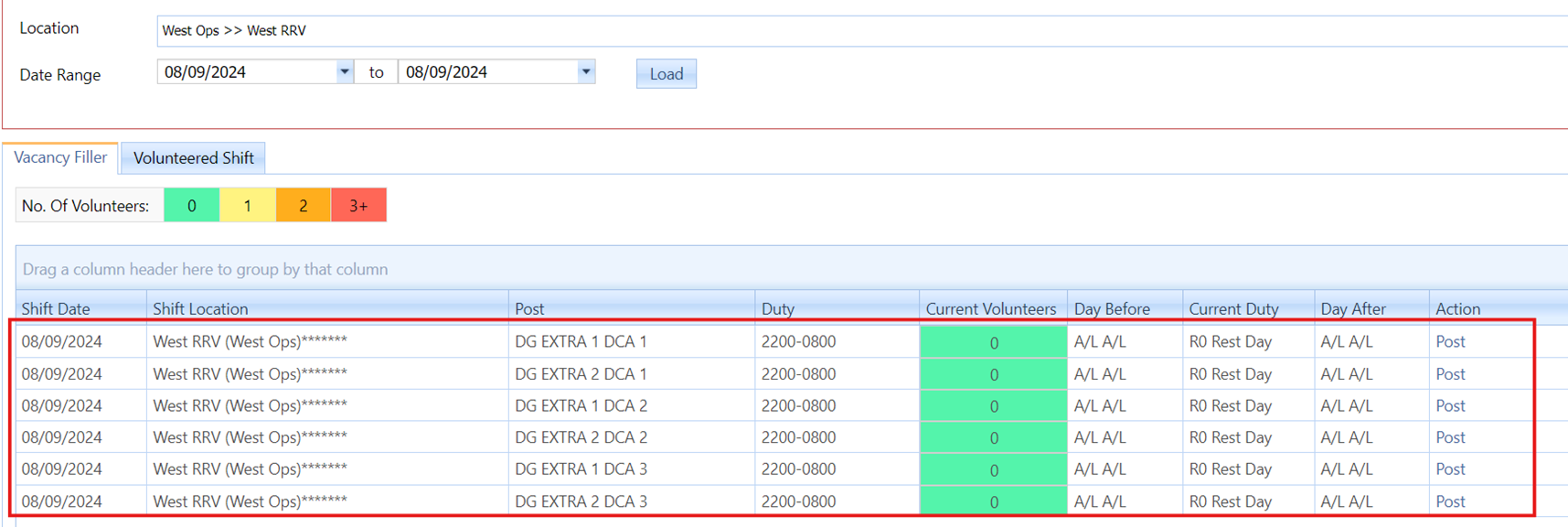
Once the person is posted, the post is removed from the vacancy filler. If the post is part of a crew, the remaining half will remain at the location the other half is being worked at.
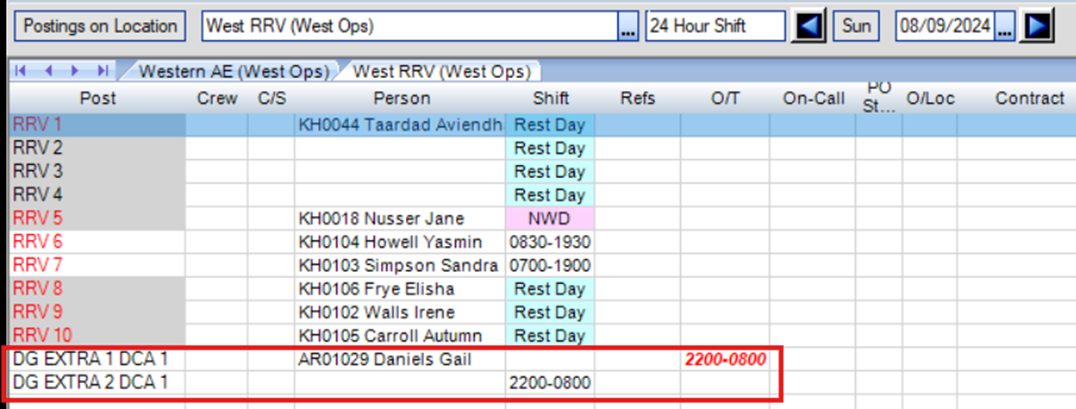
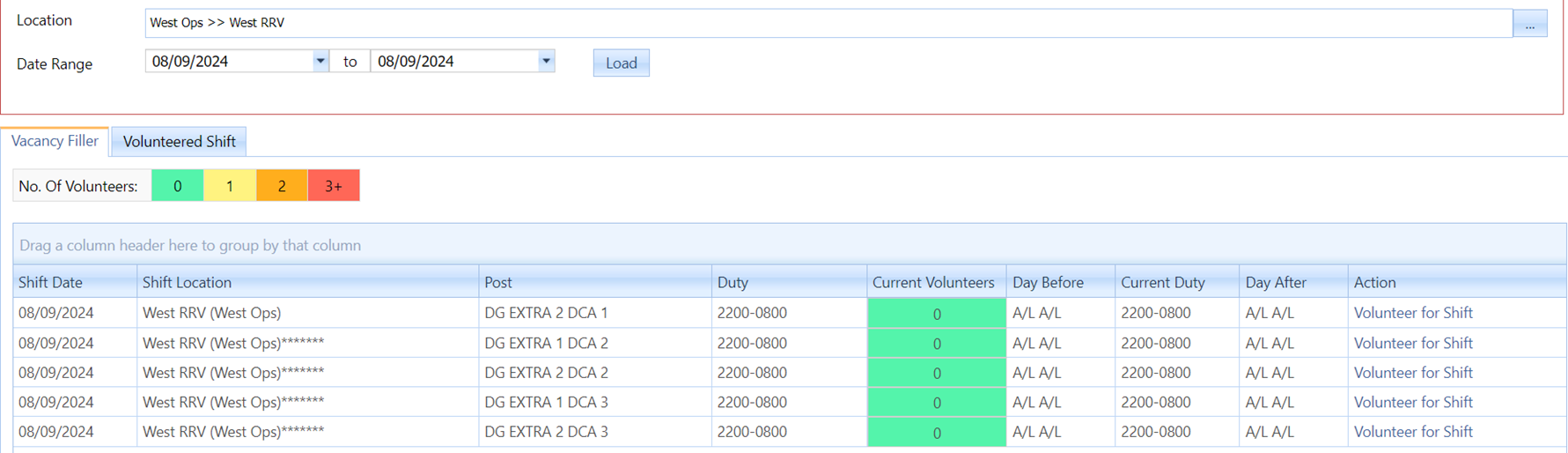
In the example below, the post DG EXTRA 1 DCA 1 has been posted at West RRV and so the remaining half of this crew is also advertised at this location and not at the default location anymore.
Posted Location
Default Location
New Postings at Default Location
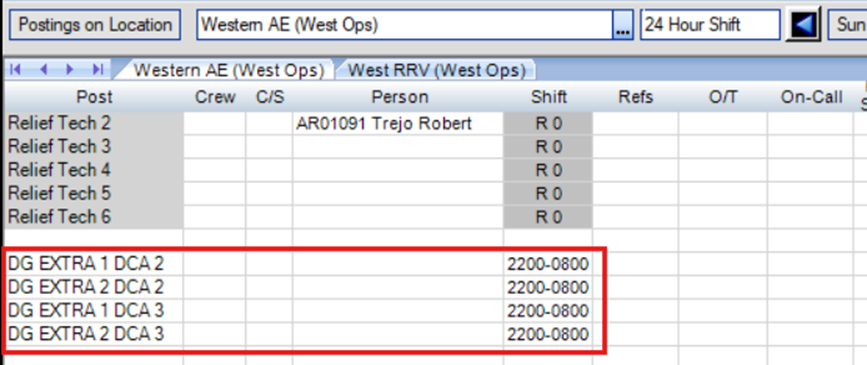
Person posted through vacancy filler with other half of crew/post remaining at this location