Overtime Authorisers Basic Rules and Special Events
Overtime > Overtime Definitions > Overtime Authorisers
This screen is used to define groups of Overtime Authorisers who can authorise overtime (or deferred rest days) for a group of people or locations. It uses the GRS report engine to provide additional features.
The screen loads existing Overtime Authoriser groups in the top half of the view and clicking on an entry will load the setup details in the lower part of the view. The help file for this screen contains further information on completing an Advanced Rule.
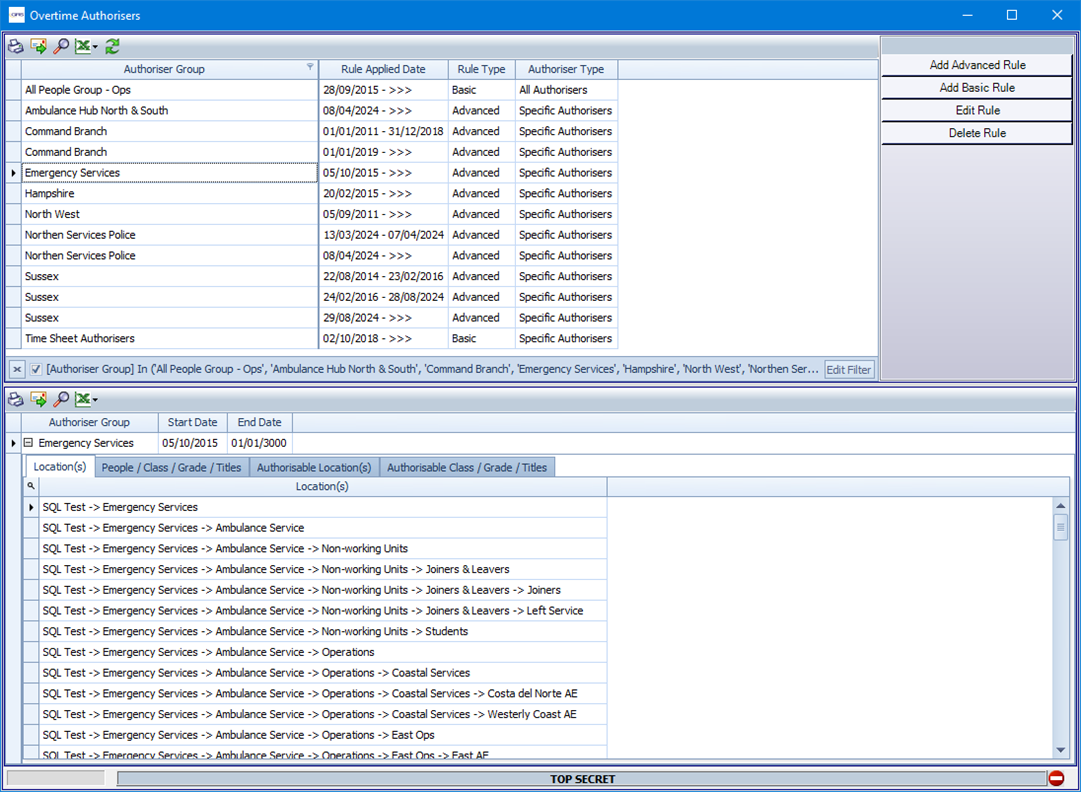
Use the Add Advanced Rule button to configure the Overtime Authorisers based on Location, Grades or specified individuals.
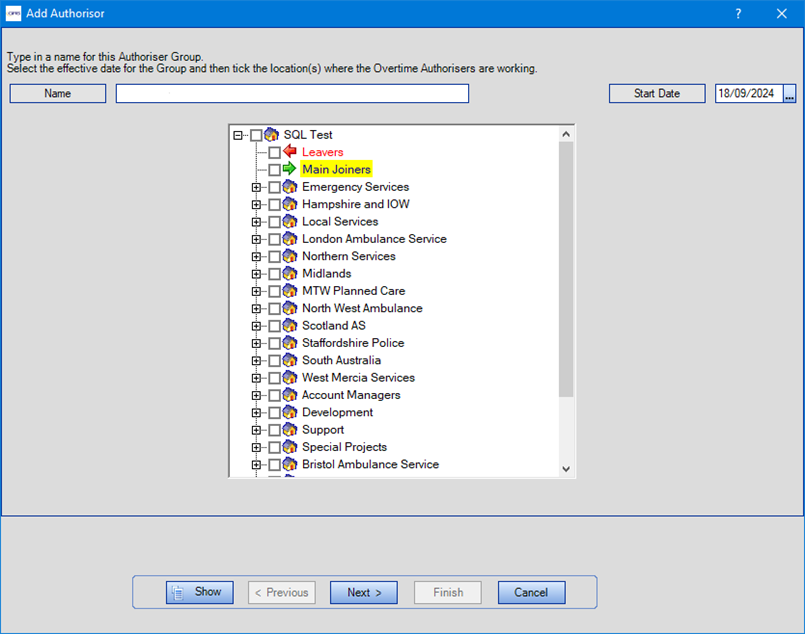
-
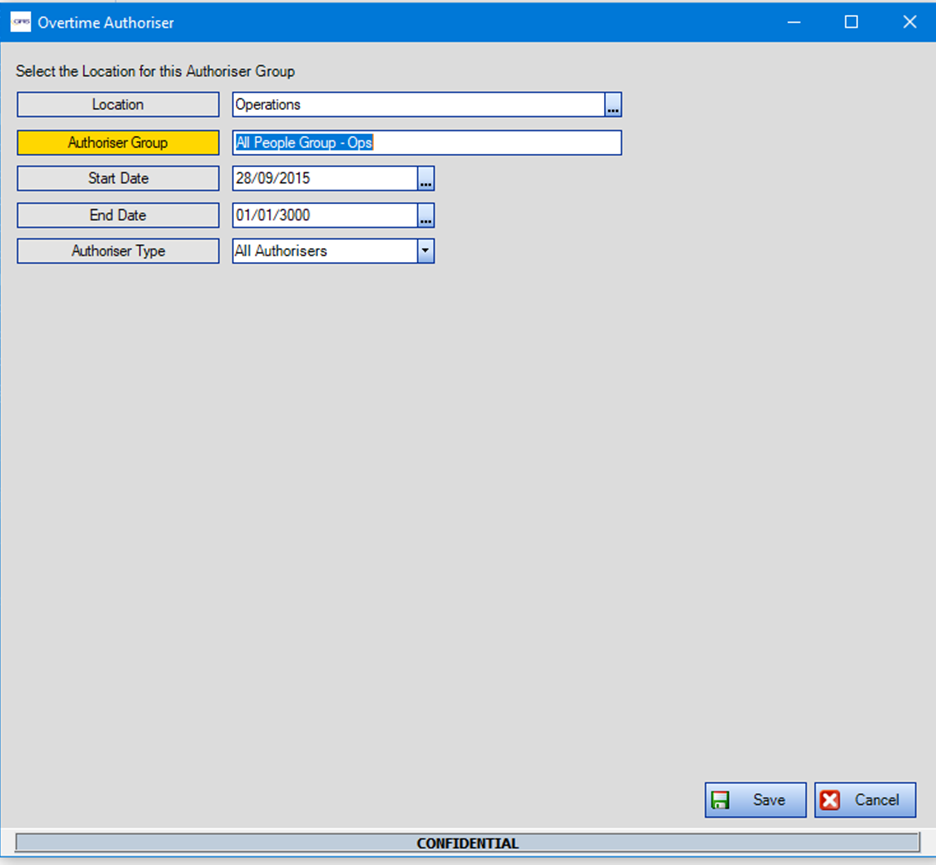
Click the Add Basic Rule action button to setup a simple 'All Authorisers' or 'Specific Authorisers' group.
-
Select a Location to be covered by this authoriser group.
-
Give the Authoriser Group a name.
-
Set the Start and End Dates for this group to be active (defaults are start of location to 'open ended'). If the location chosen is a Special Event, these fields will not be active and will default to the start and end dates of the Special Event location.
-
Use the Authoriser Type drop-down to change the group type:
-
All Authorisers means that all personnel in the system show in the authorisers list.
-
Selecting Specific Authorisers will cause the screen to change, so that a user can nominate specific people as Authorisers.
-
The lower part of the screen will change when Specific Authorisers is chosen as the Authoriser Type.
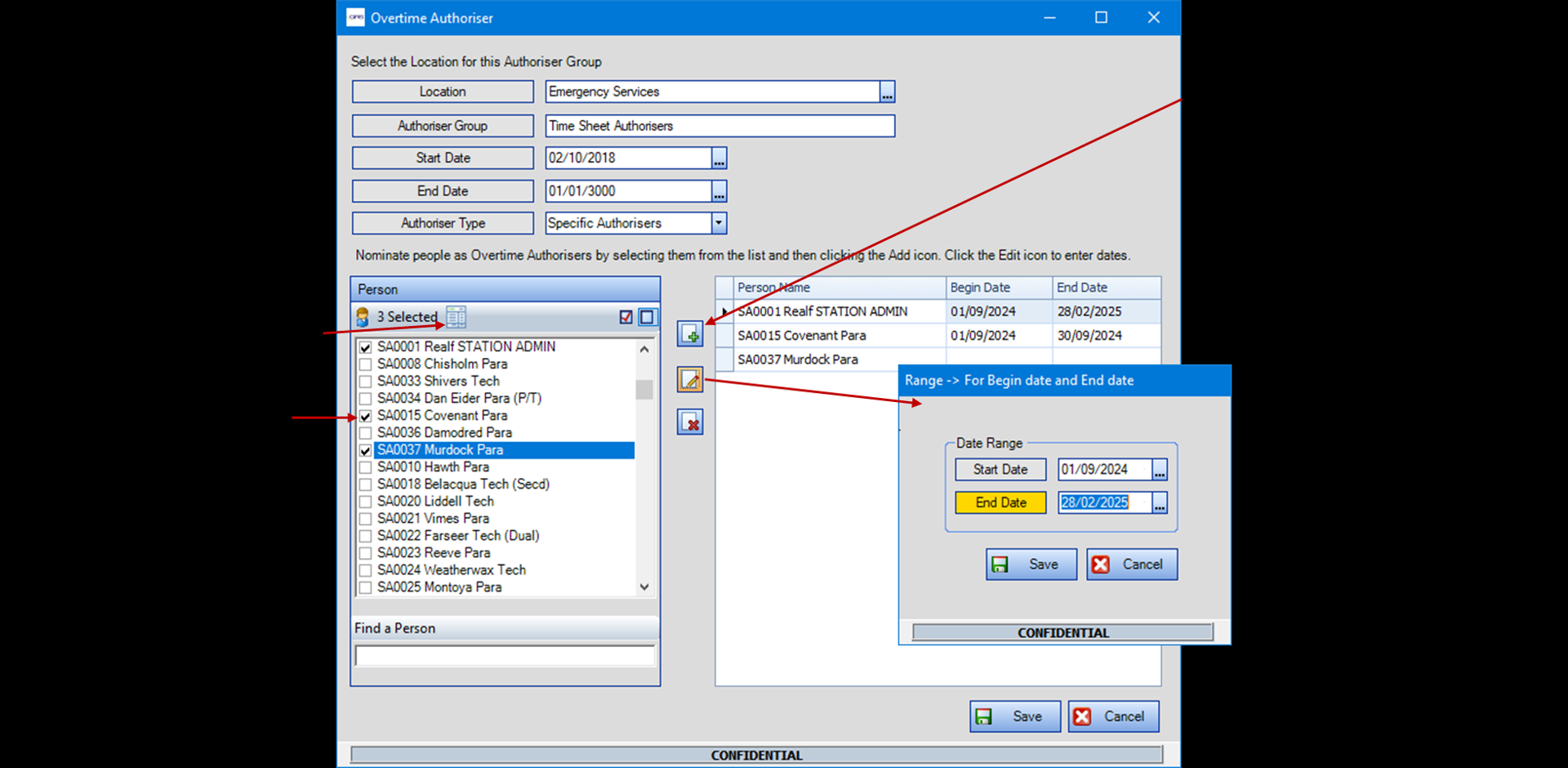
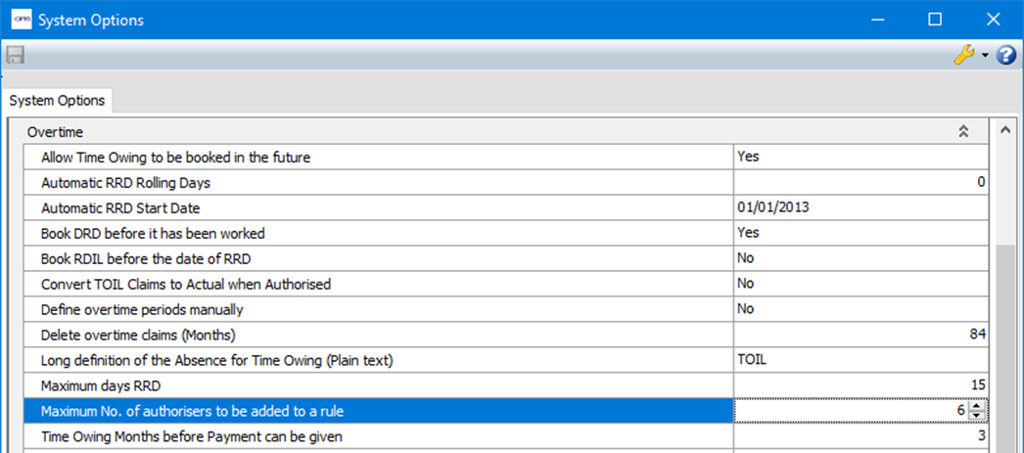
The number of people that can be specified as authorisers is controlled by a System Option called Maximum No. of authorisers to be added to a rule.
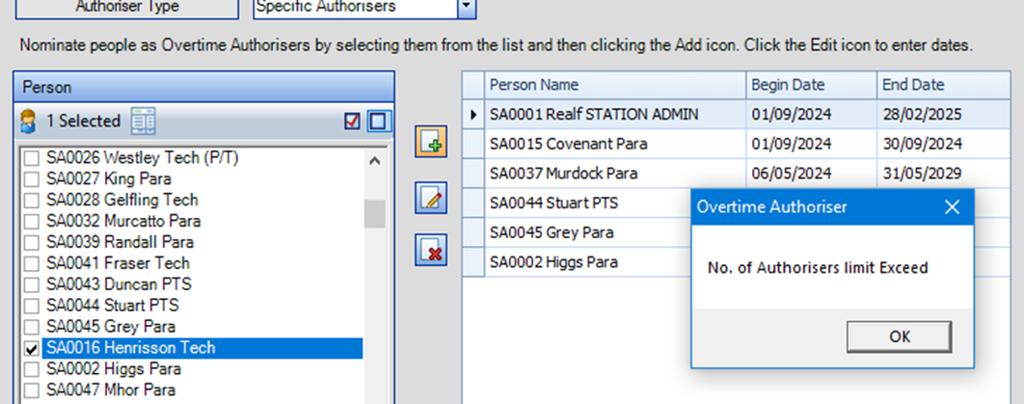
Users will be prevented from adding more than this number of people in the Overtime Authorisers 'Basic Rule' screen.
Rosters > Set Up Rosters > Set Up Special Events
The screen has been converted to use the definition engine, providing additional display, filter and sort features.
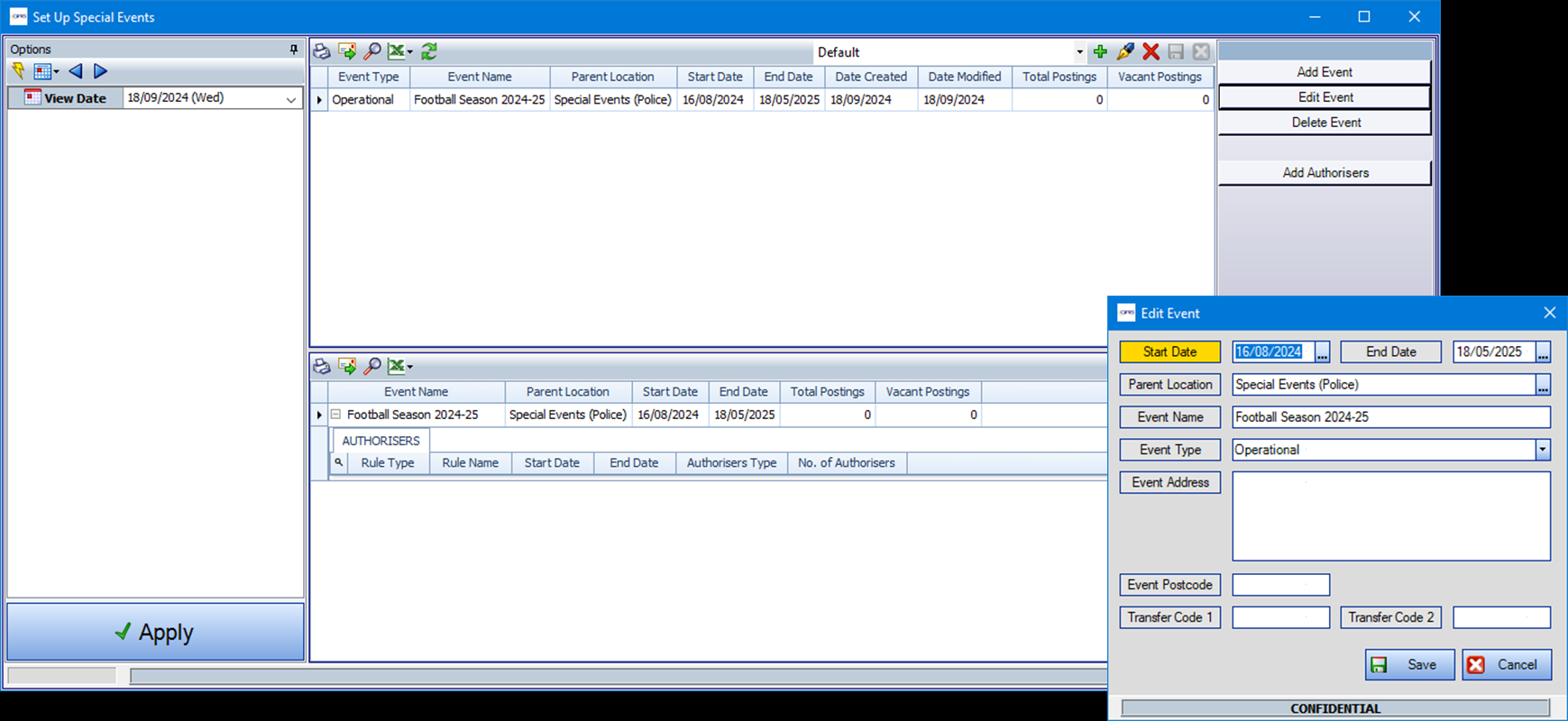
The ability to add Basic overtime authoriser groups is directly accessible from this screen using the Add Authorisers button. This is the same screen as is accessible via the Overtime Authorisers screen.
The Location and Dates are already populated for the selected Special Event and cannot be changed.
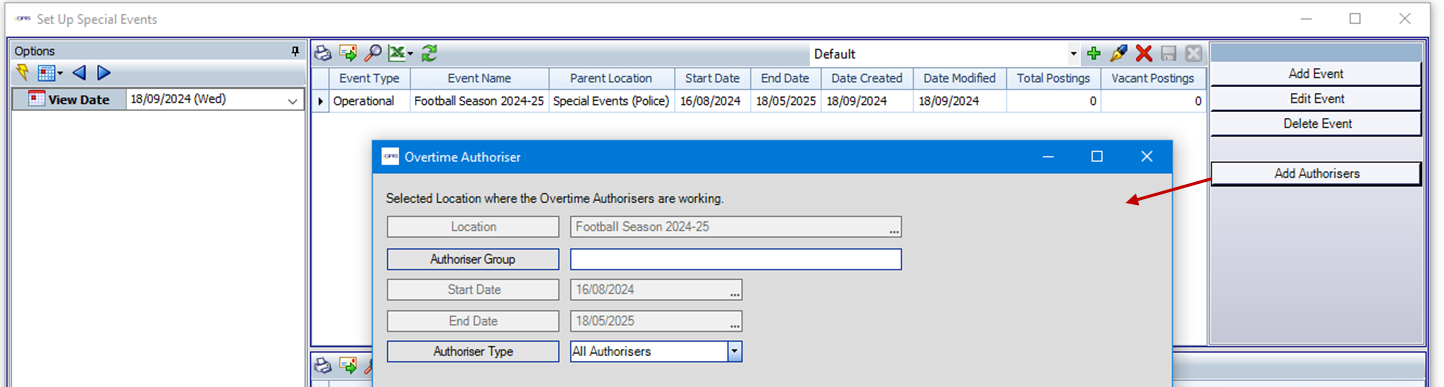
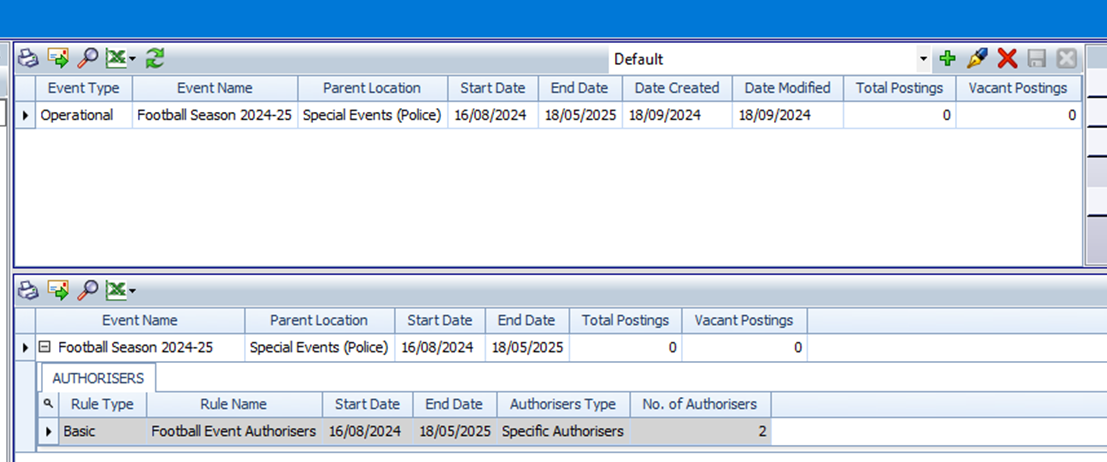
Once this form is completed and saved, the Authoriser details will show for the selected event in the lower part of the definition screen.
The grey background for the entry in this example highlights that this is a Specific Authorisers rule. 'All Authoriser' groups will have a white background on the row.
Only Basic Rules that apply to Special Events show in this grid. Advanced Rules can still be applied to Special Event locations from the Overtime Authorisers screen but will not be listed here.
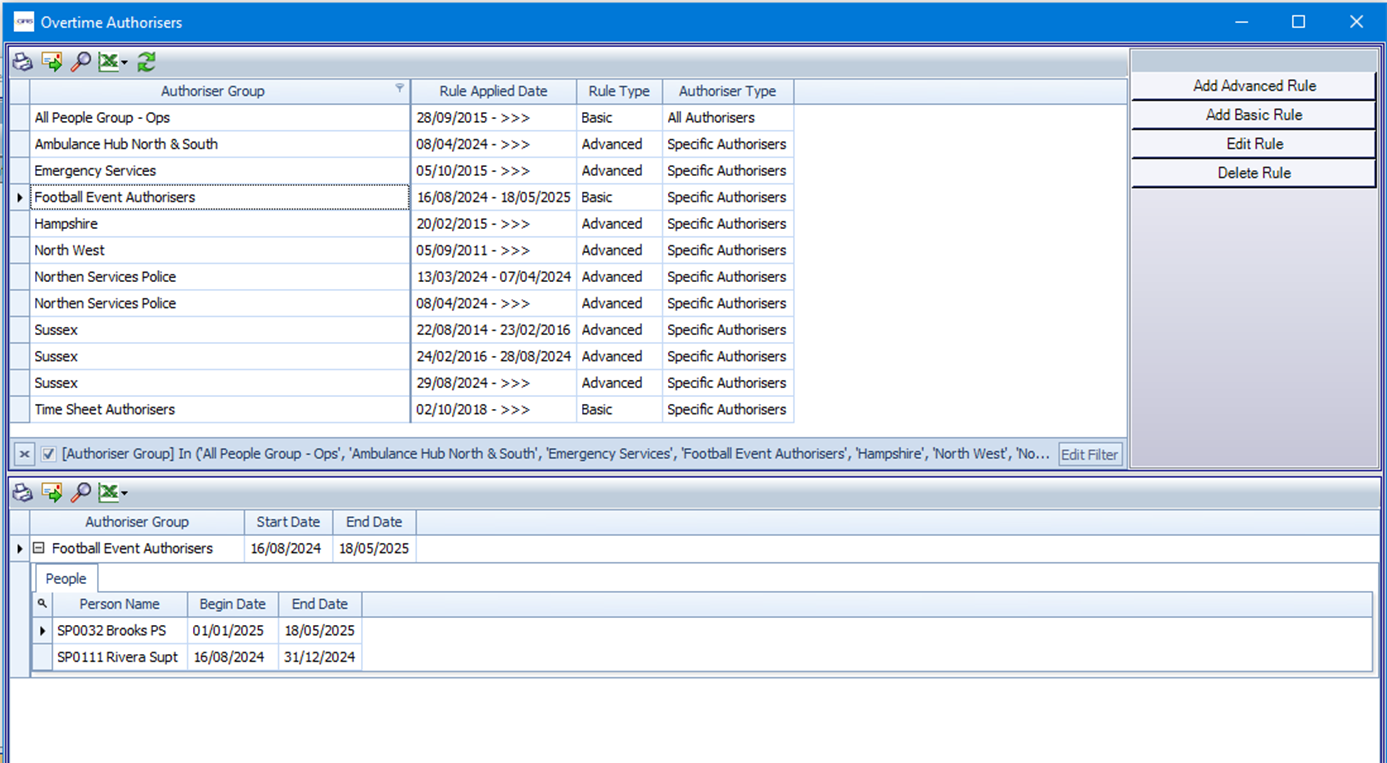
Basic authoriser groups that are created in the Set Up Special Events screen will show in the Overtime Authorisers screen, where they can be edited or deleted.
Rosters > Set Up Rosters > Set Up Special Events
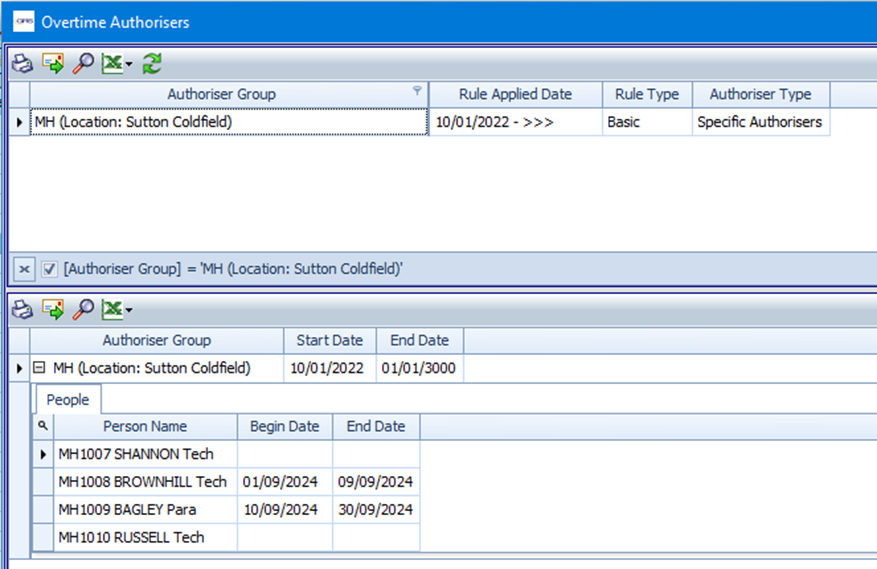
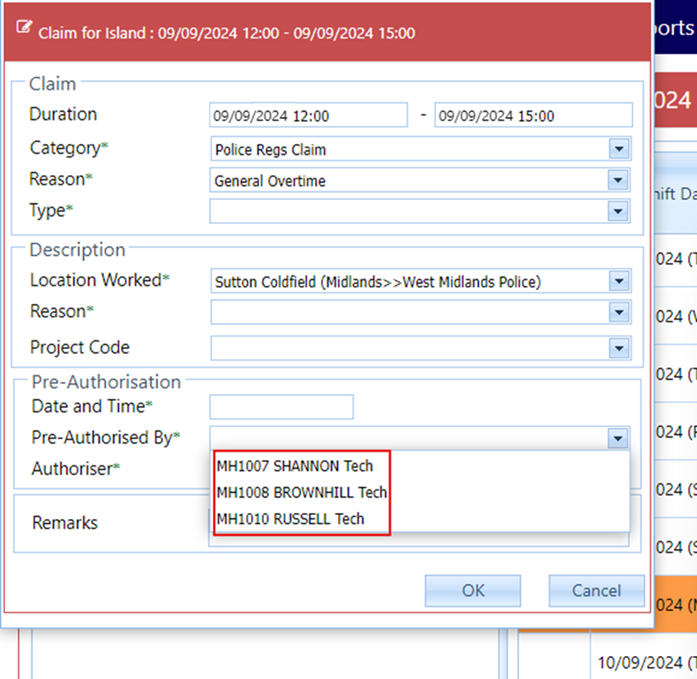
'All Authorisers' or 'Specific Authorisers' people that are nominated on a location's Basic Rule will show in the Pre-Authorised By and Authoriser fields on the ‘Islands of Duty with Overtime’ style Time Sheets.
Once the Location Worked is selected for the claim, the relevant list of authorisers will be shown. The shift date of the claim must be within the date range of the individual authorisers for a Specific Authorisers group, for that person to show in the list. If an authoriser has no dates specified, then they are considered an authoriser for the whole date range of the rule. If there are no relevant authoriser groups, then the list will show all people in the organisation.
Main client: Set Up Special Events view of authorisers
GRS Web: claim on Time Sheets
Organisation
A new database table was added to enable new Overtime Authoriser reports to be developed to requirements. The table is populated by an overnight process and creates a single record for each location and branch in the organisation structure, helping to tie together what could be multiple changes and records for a location over time (e.g. changes to name, details, tree position).
The overnight process also records the date that new branches and locations are first added to GRS and the date they were last modified. For existing Organisation records, this information is not available and so the system will show the earliest start date of a record as the created date, and the latest change start date as the modified date. Users of the reports should be aware that updates to this type of data will not be available to the reports immediately but must wait for the overnight process to run.
Overtime > Overtime Reports > Overtime Authorisers Report
This Grid report enables users to view the details of Overtime Authorisers for any Location within a selectable Date Range. Running the report by Location will display the relevant Overtime Authorisers for the location(s) selected. Running the report by Person will display all Locations at which the person is an Overtime Authoriser. Transfer Code 1 and Transfer Code 2 columns can be changed in the Language Set to suit the individual Organisation's preferences.

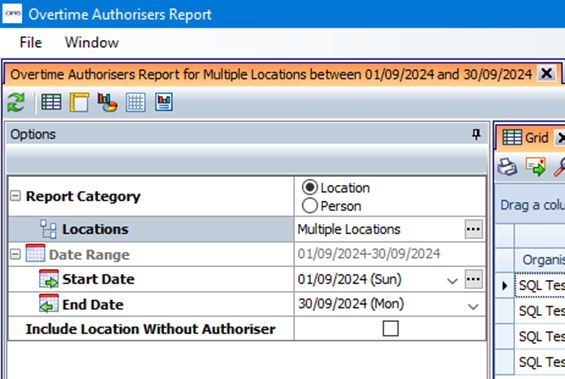
The checkbox report option 'Include Locations Without Authorisers' is only applicable when running the report by Location. The report will include rows for Locations that do not have any Authorisers within the loaded date range if this box is ticked. The Authoriser columns for these Locations will be empty. Unticking the box means that Locations that do not have any Authorisers within the date range will be excluded.
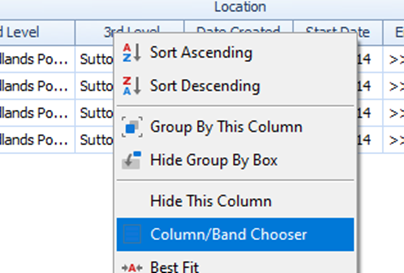
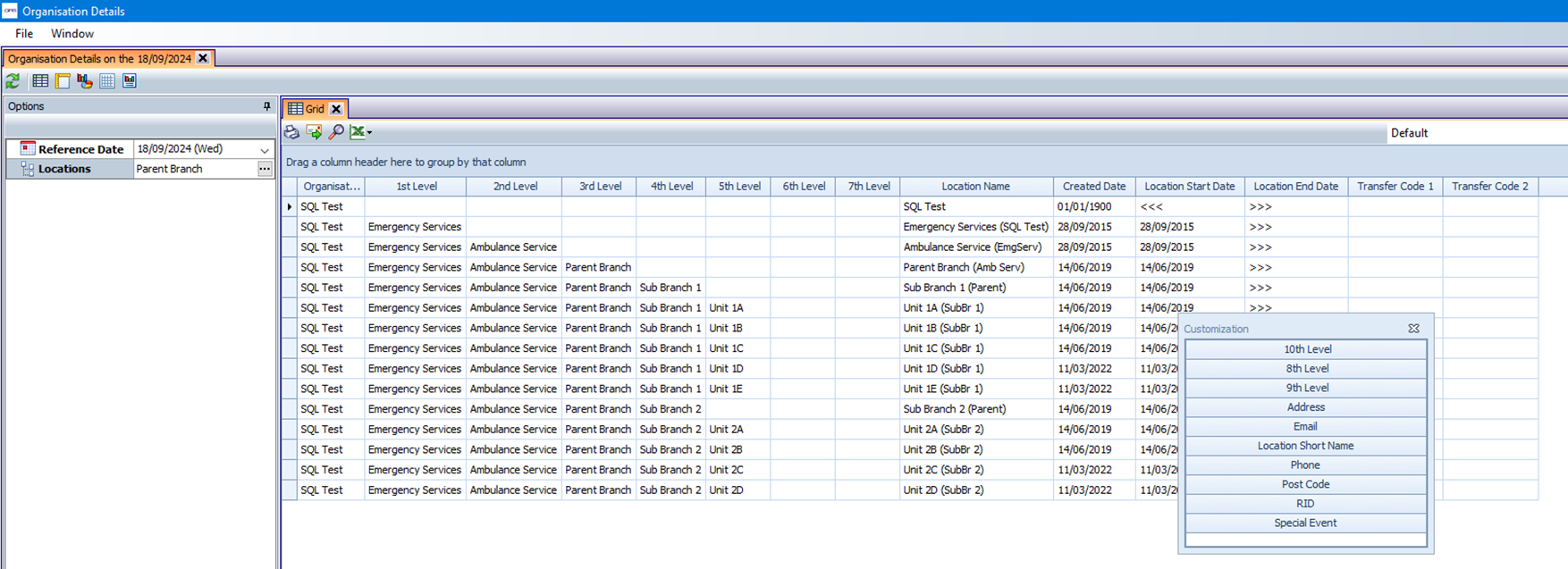
Additional Organisation Structure levels are available on the Column Chooser (right click on header row).
Organisation > Organisation Details
This Grid report allows users to view the details of branches and work units within the Organisation structure.
The Reference Date field in the options controls the view of data in the report and changes the view of the tree in the Locations option. The locations field is not mandatory; if left blank, details for the whole organisation will be returned.