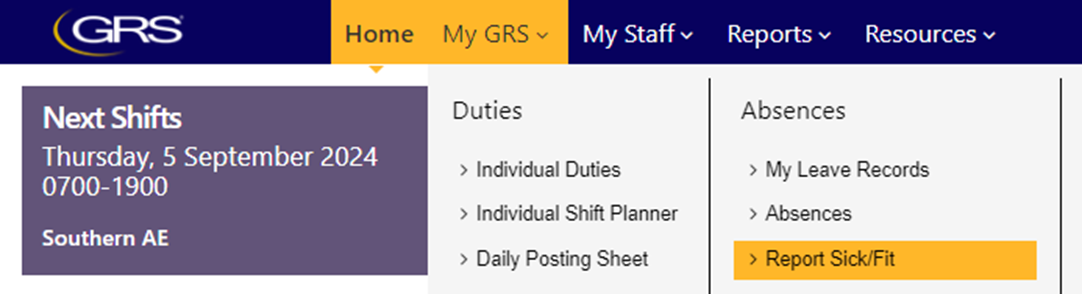
Report Sick/Fit Workflow
GRS Web - Report Sick/Fit Screen
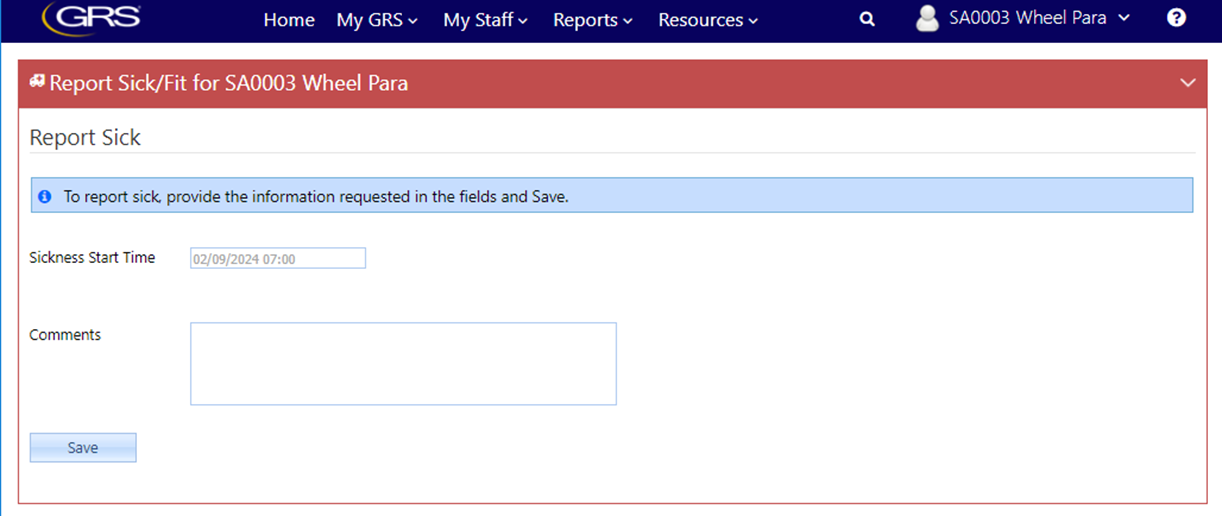
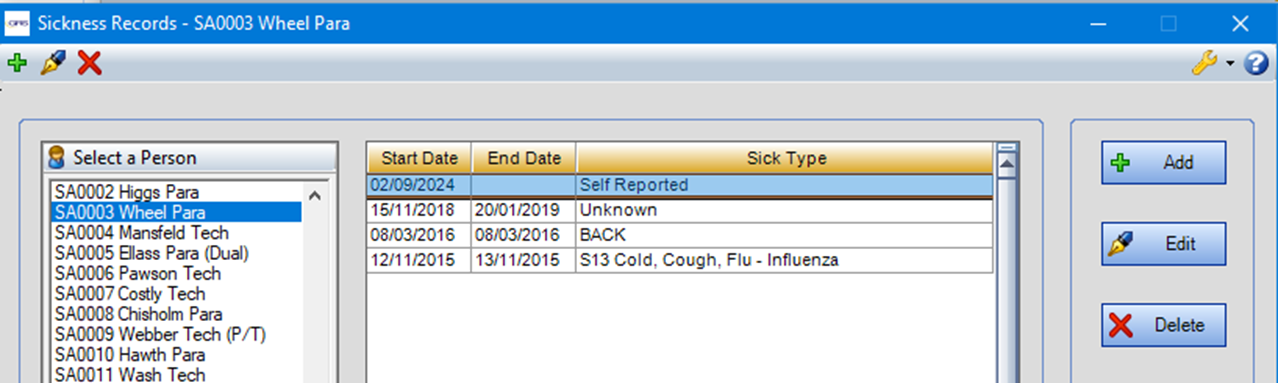
Report Sick: available with or without Sickness Reasons; if no reasons are available, the system will add the sickness as 'Self Reported' reason and category - controlled by System Option 'GRS Web - Report Sick/Fit - Display the Reason/Cause for self reported sickness'.

Two System Options to control whether a person can book sick during a shift and the message that they will be shown if they cannot.

Click Save to report sick.
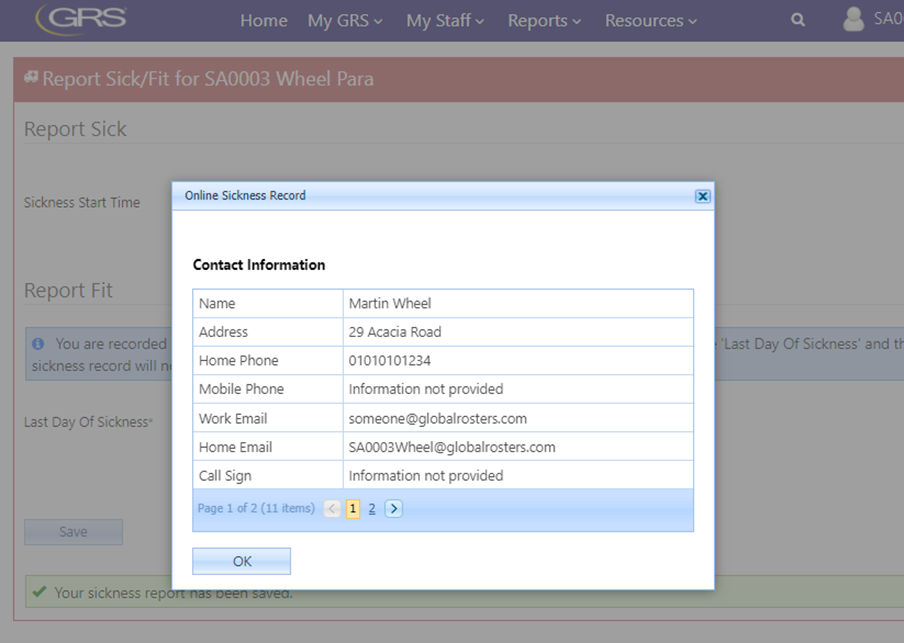
Two System Options to control whether contact information is shown to the user (and the message provided alongside it), so that they can check the system has the information needed to contact them.

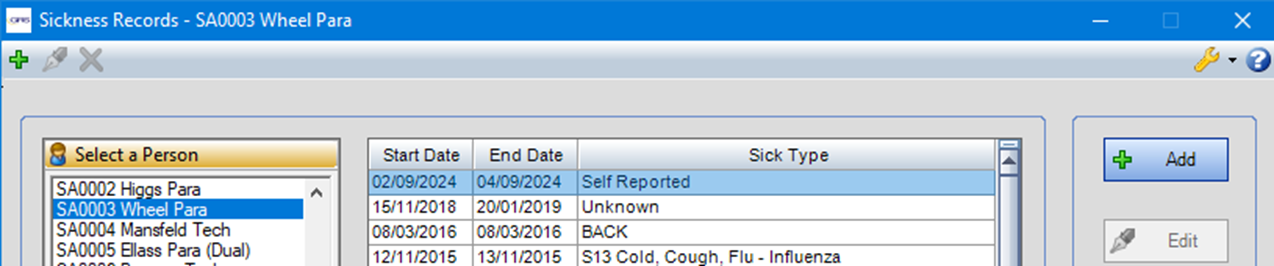
The sickness shows in the main client as soon as Save is clicked.
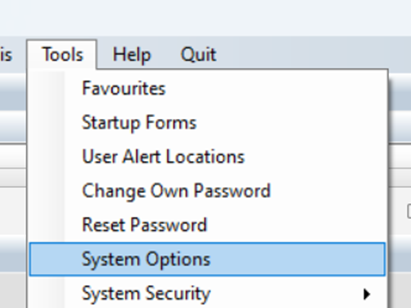
Tools > System Options – ‘Sickness’- ‘Workflow – Report Sick/Fit’
A System Option is available to select a workflow for reporting sick via GRS Web > My Duties > Absences > Report Sick/Fit.
-
if not set ('None' or empty) then the person's request to Report Fit will be processed with previously existing business logic
-
if set, then the selected workflow will be used to process the Report Fit action
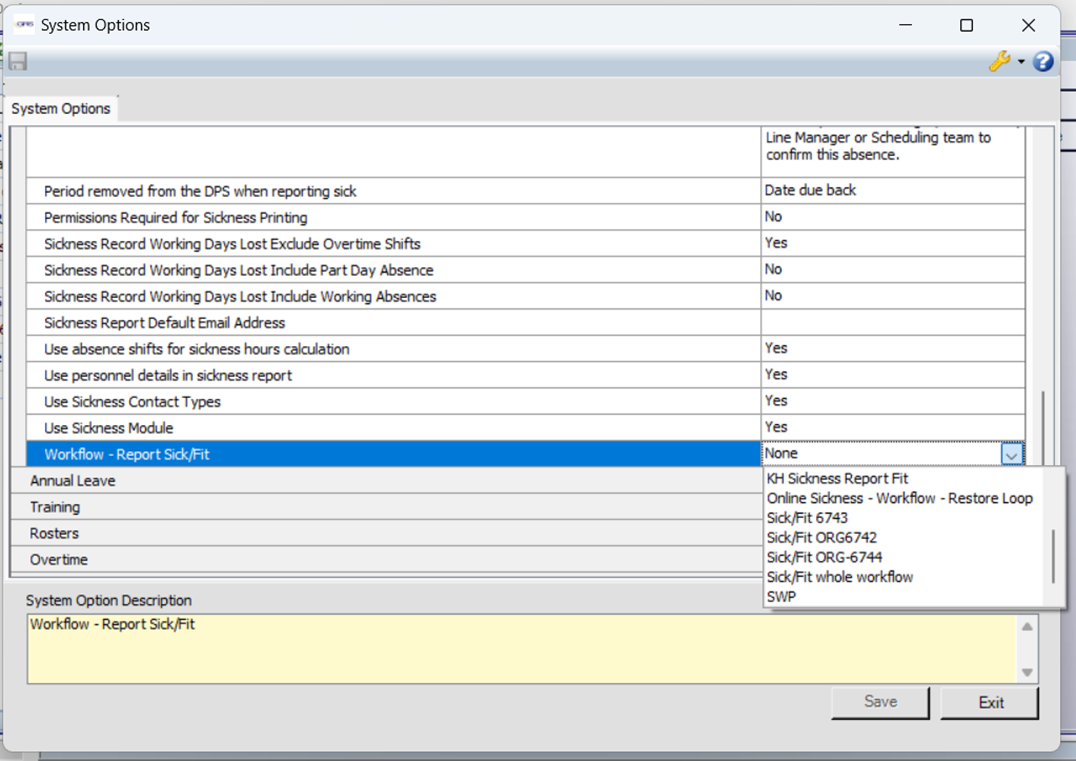
Tools > System Options – ‘Sickness’- ‘Workflow – Report Sick/Fit’
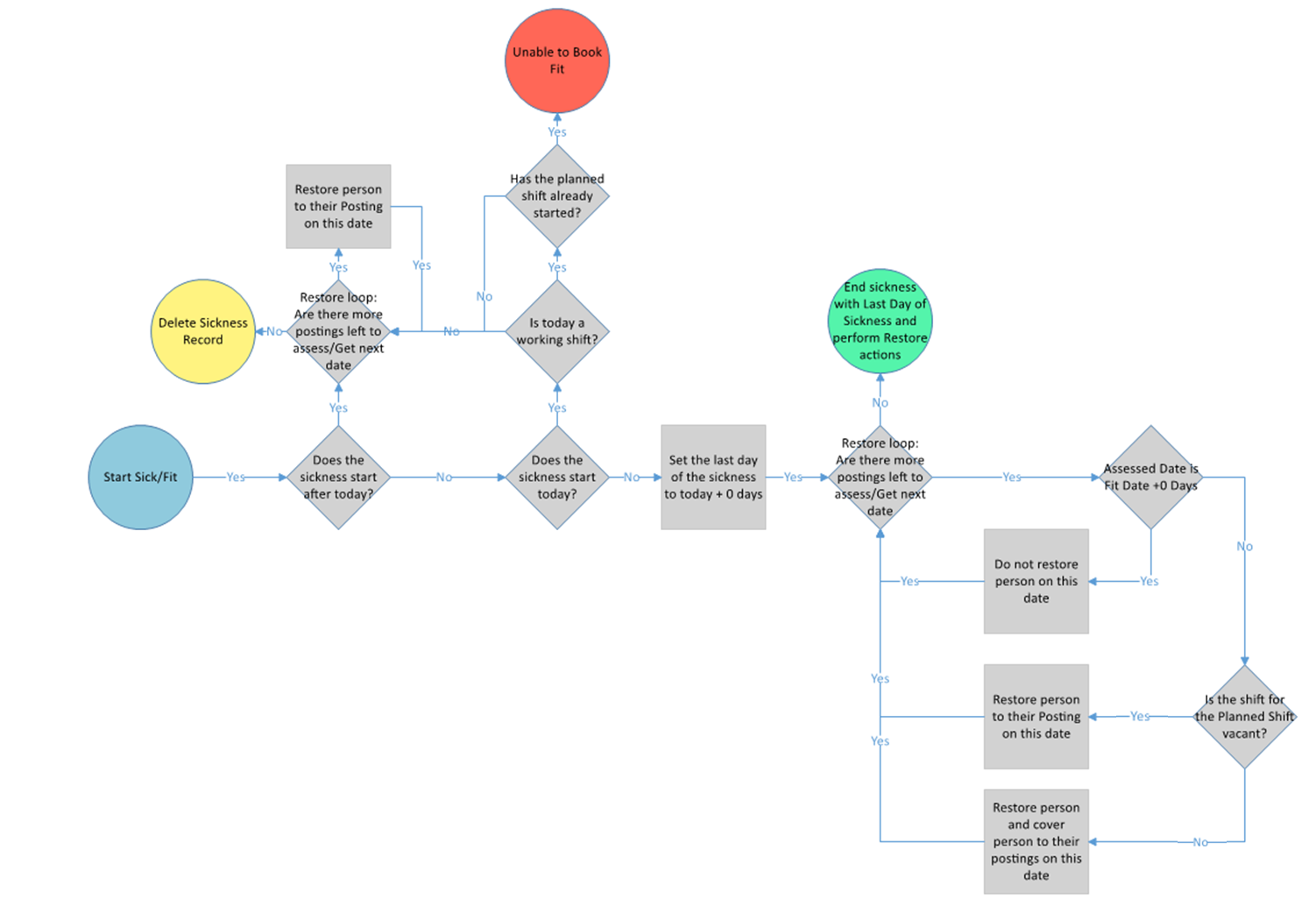
Design a workflow using the shapes specifically developed for the Report Fit feature.
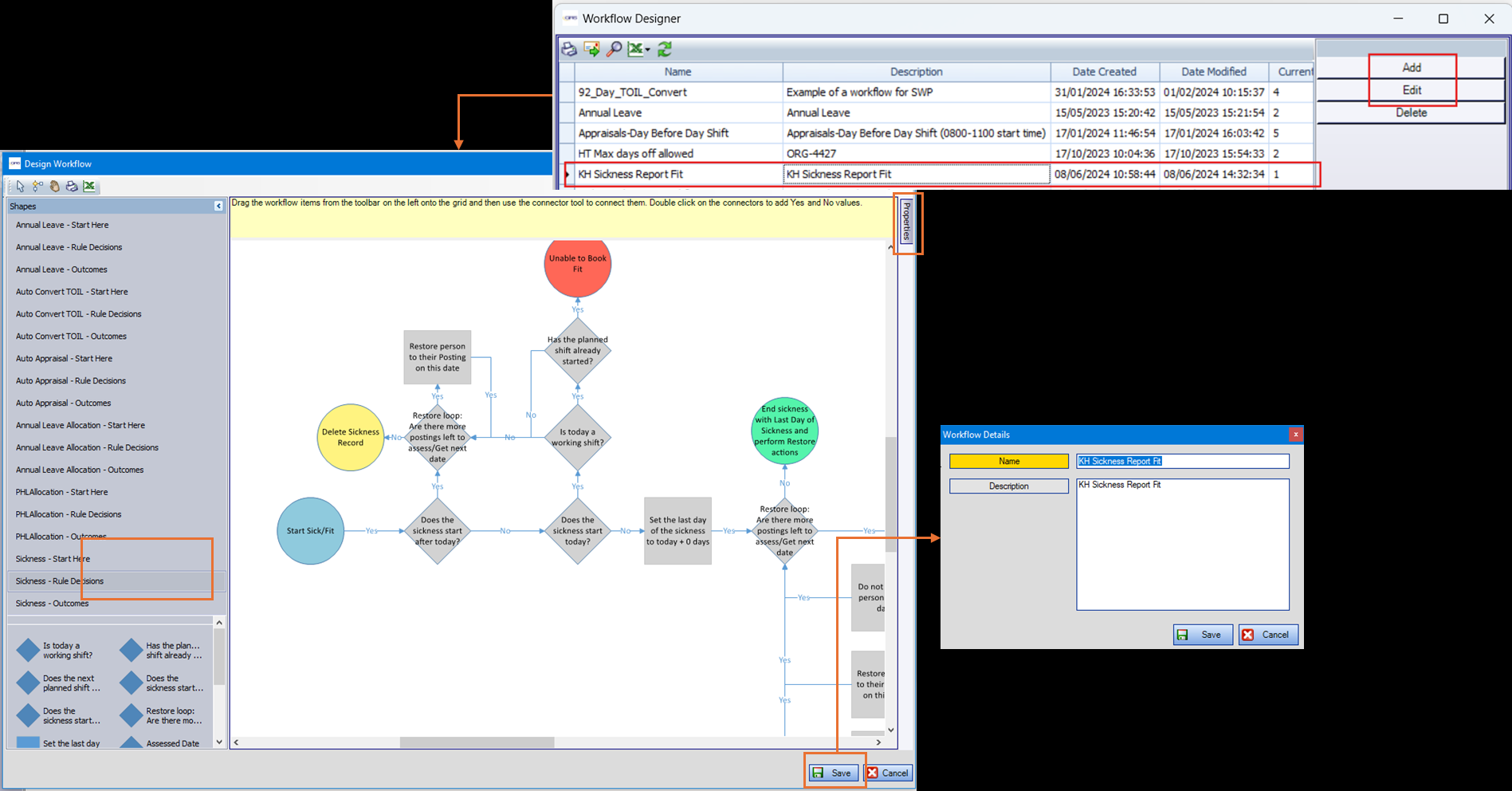
Tools > Workflow Designer – Example Basic Workflow
Tools > Workflow Designer – Sickness Outcomes (end shapes)
These shapes perform the final action on the sickness record and should only be used at the end point of a workflow.
Each of these shapes provides a property so that the message that the user receives on the web can be revised (select a shape and then click the tab on the right-hand side of the screen labelled 'Properties').
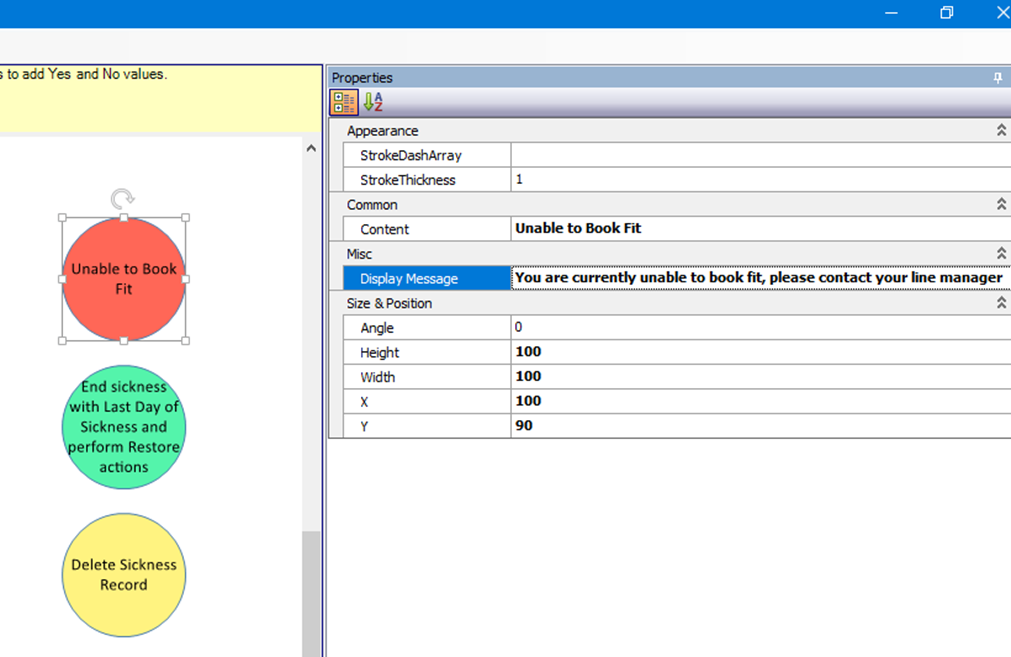
-
Unable to book fit - this prevents the booking fit form being processed any further and no changes are made to the person's sickness. No restore to shifts will take place.
-
End sickness with Last Day of Sickness and perform Restore actions - used close an open instructions from the restore loop to put the person back on shifts. If no restore loop is used, then no restore to shifts will take place.
-
Delete the Sickness Record and perform Restore actions - used remove an open sickness record by deleting it entirely. This shape applies the instructions from the restore loop to put the person back on shifts. If no restore loop is used, then no restore to shifts will take place. Given a suitably constructed workflow, this shape could be used to prevent sickness records from being made by mistake - undoing them before they start.
Tools > Workflow Designer – Decision Shapes used outside a Restore Loop
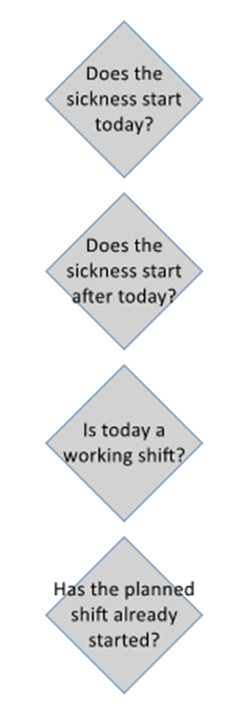
These shapes look at the nature of the sickness and the person's underlying planned shifts, so that the workflow can progress to a decision about what the last date of sickness should be.
-
Does the sickness start today? - So that the workflow can make decisions based on when the sickness starts, it uses the base date of the first shift included in the Sickness Record compared to today's date.
-
Does the sickness start after today? - So that the workflow can make decisions based on the sickness start in the future, it uses the base date of the first shift included in the Sickness Record compared to today's date.
-
Is today a working shift? - looks at the planned shift that the person was due to work today, before they were booked sick. 'Working' is determined by the shift definition.
-
Has the planned shift already started? - looks at the planned shift that the person was due to work today, before they were booked sick. It compares the time when the Report Fit button is clicked to the start time of the planned shift.
-
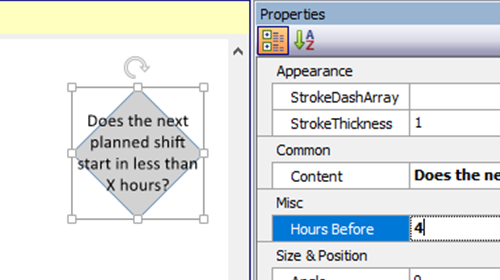
Does the next planned shift start in less than X hours? - looks at the planned shift that the person was due to work next, before they were booked sick. It compares the time when the Report Fit button is clicked to the start time of the next planned working shift (i.e. the shift that starts after this time). This applies to assessing working shifts only. A numeric Hours property needs to be set for this shape to work.
-
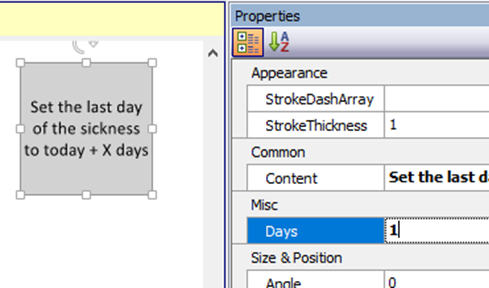
Set Last day of sickness to today + X days - This tells the End Sickness shape that the sickness record should have an end date of Today, Yesterday or Tomorrow depending upon the X value. The numeric property ‘Days’ controls which date relative to today, that the sickness will end on:
-
0 = today
-
1 = tomorrow
-
-1 = yesterday
-
Tools > Workflow Designer – Decision Shapes used inside a Restore Loop
Put together as a loop (example below), these shapes look at each day that the person was previously booked sick but will now be 'fit' and available to work because of setting the end date in previous stages of the workflow. The shapes look at the person's underlying planned shifts for cover status and there are four types of restore actions available. These Restore options are independent of the System Options that control Restore to Posts in other parts of the system.
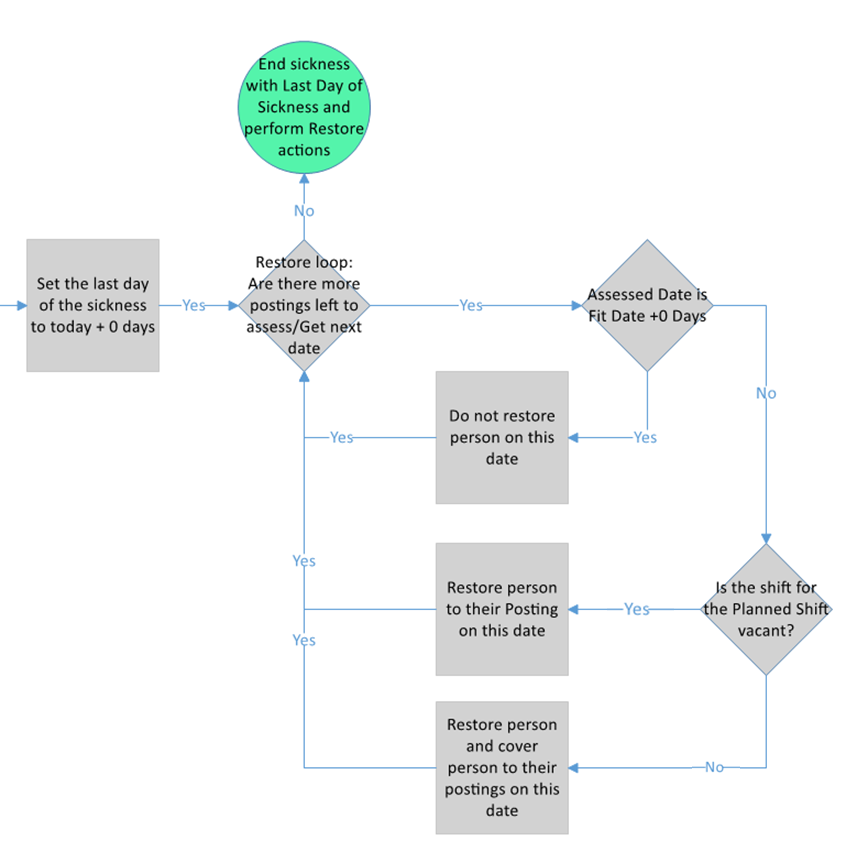
Restore loop decision shapes:
-
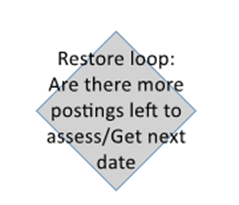
Are there more postings left to assess/Get next date - to handle restore action on each 'un-absent' date where the person is returned from sickness. This shape finds the next date each time the workflow passes through it. When there are no dates left to assess, the workflow will progress out of the shape to the End Shape. Selected restore types will not work without this shape in place to check each day and the default restore is to do nothing, leaving the person without a posting on all days.
-
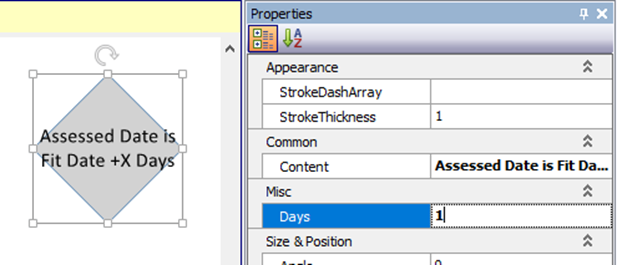
Assessed Date is Fit Date +X - this tells the system when the possible restore date is in relation to the last date of sickness. The aim is to allow different restore actions depending on the number of days' time from the sickness end e.g. 0, 1, 2 days. The number of days should be set in the Workflow Shape properties. Optional shape.
-
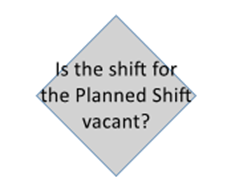
Is the shift for the Planned Shift vacant? - allows a decision to be made on the basis of the person's previously planned shift being covered/uncovered. Optional shape.
-
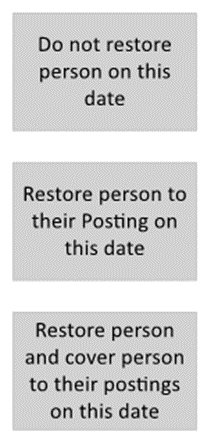
Restore loop Restore to Post shapes: Used to decide what kind of restore to do on each day of the period where the person is no longer sick. The workflow will never restore to any previously planned overtime; if the posting had just an overtime shift, then the person is not put back on a posting with this shift and if the posting had a planned shift and overtime on the same date, then restore will only consider the planned shift element.
-
Do not restore person on this date - using this shape will mean that the person is NOT restored to their post, and any cover person that is on the post will remain in place.
-
Restore person to their Posting on this date - using this shape will mean that the person is restored to their post, and any cover person that was on the post will NOT be restored to their post. The cover person will show in the person's available section of the Daily Posting Sheet. If there was no cover person, the person returned from sickness will still be restored to their own post.
-
Restore person and cover person to their postings on this date - using this shape will mean that the person is restored to their post, and any cover person that was on the post will also be restored to their post if it is vacant. If there was no cover person, the person returned from sickness will still be restored to their own post.
-
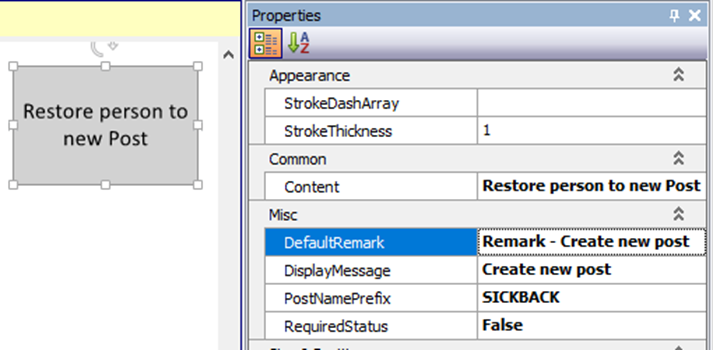
Restore person to new Post - this shape will tell the system to create a new posting for the person on the location of their previously planned shift. The shift times of the previously planned shift will be used on this new post. This does not change the Posting Sheet Layout for the location. The shape uses the settings provided in the Properties for the shape to define the new posting:
-
Default Remark - the Public Posting Remark that will show against the new post on the Daily Posting Sheet (DPS).
-
Display Message - the confirmation message shown to the user on GRS Web for each restored date.
-
Post Name Prefix - set up a number of posts under Rosters > Roster Definitions > Posts e.g. SICKBACK 1, SICKBACK 2, etc. then add the prefix of the post (i.e. without the number) to this field. The workflow will add a post to the DPS using the next available post number. So that the same post cannot be used more than once on the same location. When there are no more post definitions available, no restore will be done and the user will be advised of this on the web.
-
Required Status - set the required status of the post that will be added to the DPS (False = not required, True = required).
-
Given that the workflow is set up and selected in the System Options, when the off-sick person clicks the Report Fit button, the workflow will be used to process the return attempt.
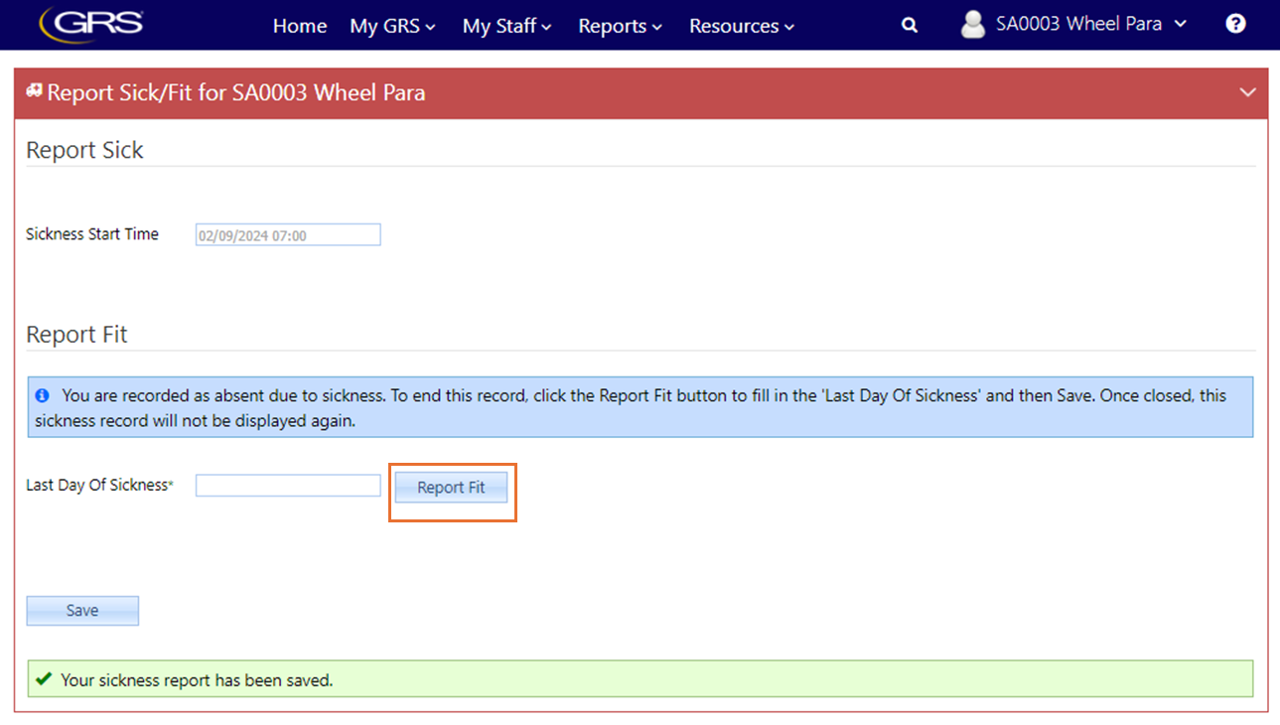
Click Report Fit - the system will start processing using the workflow chosen in the System Options.
(if no workflow is nominated in the System Options screen, then the original processing logic will be used)
The Last Day of Sickness will be calculated, and the user will be shown information about what will happen if they go on to click Save after they have clicked OK. At this point it is possible to abandon the report fit process by not continuing to click Save and coming back to the screen later.
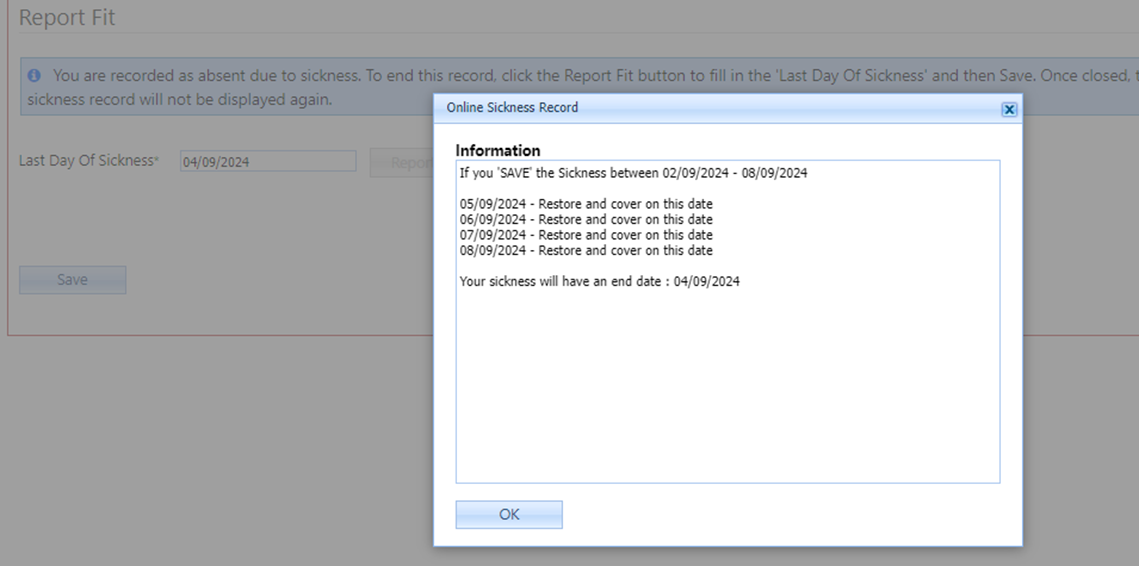
When the Report Fit area's save button is clicked, the actions stored up from the workflow process will be applied, and the screen will be refreshed. The example below shows the record is closed with an end date.