Student/Mentor Module
Mentor Assignment, Mentor Shift Change, Mentor Removal
Development to allow the system to use the configuration settings and ability for the system to move a student to the mentor’s location.
In order to move the student, the system requires a nominated Post Type in the Student/Mentor Configuration screen (on upgrade a post type ‘STUDENT’ will be added for customers that do not already have this type).
Under this setting, the system will only move students when there is a post of this nominated type available on the Mentor’s location. The Student / Mentor Assignment screen provides messaging when the system is used this way, which tell the user if there are no such postings available and the assignment could not be saved.
Once associated with a Mentor, the system will make automatic adjustments to the Student post when their Mentor’s posting is affected by posting sheet changes/absences depending on the notice period set up.
Part day absences are treated as Shift changes, and where the system is configured to match the mentor’s shift, the Student will be given the remaining shift-part times.
As per previous behaviour; changing the Student’s shift/posting or adding an absence when assigned to a Mentor removes the pairing. The Roster Alert ‘Student Shift Change Prevention’ can be used to prevent the ability to make such changes (this does not relate to any notice period). Also as per previous behaviour; on assignment, the Student will not be given the shift as overtime if that is what the mentor is working; the student gains the shift as a normal/planned shift.
The Event email ‘Mentor shift changed within 2 weeks’ has been renamed to ‘Mentor removed from student assignment’ and the email subject adjusted, to reflect the ability to change the notice period and triggering on removal of assignment (but note the email subject/design will not have been changed on existing instances of this event).
System Options: Yes
Security Ranges Roles & Behaviours: No
Special Permissions: No
Student Planning - New options to control posting management
Addition of a definition screen on Rosters > Roster Definitions called Student Mentor Configuration. This screen allows user configuration of the main options governing the Student Mentor Assignment process.
The screen is only usable/populated with options and settings when there is a record in the database for a ‘Variable Periods’ rule (having the code 'VMP').
To change the setting for an option, selected the row and then click Edit. The available settings for that option will be in a dropdown. Click Save to confirm the change to the setting or cancel to abandon the change.
This work also provides a deploy script to add a Post Type of 'STUDENT' where there is not already one in the database.
System Options: No
Security Ranges Roles & Behaviours: No
Special Permissions: No
Student Mentor Assignment Screen - Change to Unallocated report option
Enhancement to the Unallocated Students option on Roster Planners > Student/Mentor Assignment screen. The tick box for the option has been replaced by a drop-down list with four settings, and it uses the data collection to determine if a Student has previously had a mentor (i.e. there is an dissociation record in the database for previous mentor removal).
-
Allocated and Unallocated - shows all students, regardless of whether they currently have a mentor allocated.
-
All Unallocated - shows students who currently have no allocated mentor.
-
Unallocated with no prev. allocation - shows students who currently have no allocated mentor and have not previously been recorded as having had a mentor.
-
Unallocated with prev. allocation - shows students who currently have no allocated mentor but have been recorded as previously having had a mentor.
When changing this setting, click Apply to reload the data with the chosen setting.
The option does not support filtering for students whose mentor associations were removed prior to the upgrade that introduced the data collection feature, as dissociation records from that earlier period will not have been captured.
Mentor Assignment, Dynamic Postings Check
Changes have been made to the Student/Mentor Assignment screen which now allows users to view the number of vacant postings at a Mentors location, on a day by day basis. This only applies when the Student Mentor Config is set to a nominated Post Type (via Rosters > Roster Definitions > Student Mentor Configuration).
When the Student Mentor Config is set to a nominated Post Type, the Student/Mentor Assignment screen will display a new Cell Display Option in the Report Options on the left hand side called Show Student Vacancy (selected by default).
Upon loading the report with this option ticked, the Mentor grid at the top of the report will display a Student Vacancies: label below each shift, for days where a Student has not been allocated to a Mentor. This will show a count of vacant postings at the Mentors location for the day, which have the same Post Type as nominated on the Student Mentor Config.
The Student Vacancies count will update dynamically to reflect any assignments that are being added or removed within the screen. If the Student Vacancies count reduces to zero (i.e. all vacant posts are filled), any further attempts to enter an assignment will be prevented (mouse cursor will change to 'drop prohibited' icon). If a Student is already on a nominated Post Type at the Mentors Location, and all other postings are filled, the screen will allow for the Student to be dropped onto the Mentor (this is because the Student will remain on the Posting after the assignment).
Unticking Show Student Vacancy will hide the ‘Student Vacancies’ label below the Mentors shifts but users are still limited to the number of assignments that can be entered at a Mentors location.
When the Student Mentor Config is set to Do not move student, the Show Student Vacancy option will be hidden on the left hand side of the report. Loading the report will also not show the 'Student Vacancies' label below a Mentors shift. There is also no limit on the number of assignments that can be made, due to Students remaining on their own postings when assignment has been made, and not being moved to the Mentors Location.
Include Students in CRS remarks column - Settings
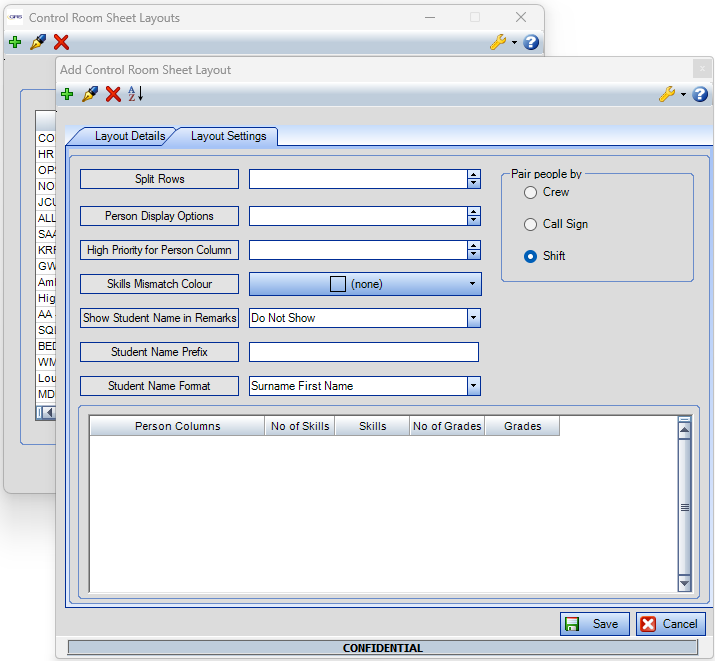
Addition of three fields on Time Sheets > Control Room Sheets > Control Room Sheets Layouts (click Add/Edit then view Layout Settings tab). These options control the display of the Control Room Record remark which shows for Students:
-
Show Student Name in Remarks: 'Do not show', ‘Web’, ‘Client’, ‘Web and Client’.
-
Student Name Prefix: free text entry, extra end spaces will be trimmed.
-
Student Name Format: 'Surname First Name' and ‘Surname First Name ID Number’.
System Options: No
Security Ranges Roles & Behaviours: No
Special Permissions: No
Include Students in CRS remarks column - CRS Display
Changes made to the Remarks column on the Control Room Sheet to display the Student names for days where there is a Student/Mentor assignment.
Where a Student/Mentor assignment has been created via the Student/Mentor Assignment screen, the Students name will show in the Remarks column on the Control Room Sheet, against the row the associated Mentor has been allocated to. If there are multiple Mentors on the same row, that have an assignment, the Student name for each Mentor should display in the Remarks column on the same row (one below the other).
The visibility and formatting of Student names are configurable via the Control Room Sheet Layouts screen (Layout Settings tab).
A field called Show Student Name in Remarks can configure the Student name to either:
-
Not show
-
Show in the main client only
-
Show on the web only
-
Show in the main client and web
A field called Student Name Prefix will allow for any custom text to show before the Student names (e.g. Student: John SMITH).
A field called Student Name Format allows for the Student name to show in one of the following formats:
-
Surname First Name
-
Surname First Name ID Number
System Options: No
Security Ranges Roles & Behaviours: No
Special Permissions: No
Report for where student left without a mentor due to mentor abstraction
A new Report called Student / Mentor Assignment Analysis has been created under Roster Reports menu to identify where student has been left without a mentor.