WTD Monitoring
System Options
A new System Option has been added under the Rosters category called Working Time Regs: Rolling Period in Days. This can be set to any number between 0 and 99. This option controls the new WTR calculation method .

The date selection in System Option Working Time Regs: Period initial Start Date can now be removed using a Clear button in the drop-down calendar.
An obsolete System Option has been removed called Overwrite WTR Breaches.
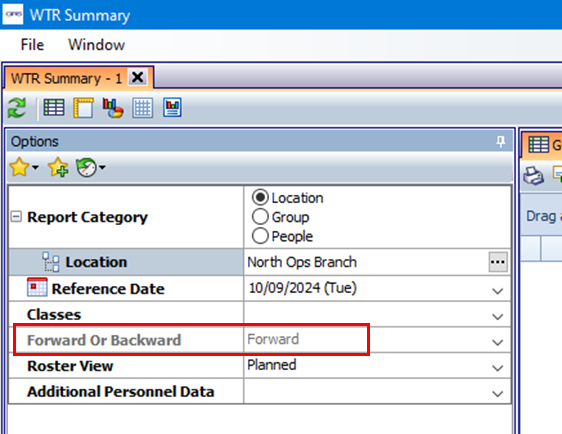
The Individual WTR Report and WTR Summary Report Forward or Backward report options now react to the combination of values for existing System Option WTR Summary - Number of Weeks Back and new option Working Time Regs: Rolling Period In Days.
-
Number of Weeks Back is zero and Rolling Period in Days is zero: report option is enabled, defaulted to ‘Forwards’.
-
Number of Weeks Back is zero and Rolling Period in Days is greater than zero: option is locked and set to ‘Forwards’.
-
Number of Weeks Back is greater than zero and Rolling Period in Days is zero: option is locked and set to ‘Forwards’.
-
Number of Weeks Back is greater than zero and Rolling Period in Days is greater than zero: option is locked and set to ‘Forwards'.
New WTD Calculation
Use the new setting under Tools > System Options - Rosters section - called Working Time Regs: Rolling Period in Days.
Use this option to set the number of days forward from 'today's' date (inclusive of today); any shift changes within this rolling period will be checked for their effect on a person's average WTE.
The option is enabled by having a value greater than zero. It tells the system to calculate the worktime regulations in blocks, with the number of blocks dependent on the current date versus the date of the shift change within the rolling period. This works alongside the existing setting 'Working Time Regs: Period Used to Monitor the WTR (Weeks)'. Example:
-
the new option of Rolling Period in Days is set to 28 days.
-
the existing option 'Period Used to Monitor…' is set to 26 weeks.
-
the existing option for 'Calendar start day' is set to 'Monday' (under Organisation section).
The system will only check the average WTE when a shift change is made within the 28-day period. It will then extend that rolling period to find the date at the end of the last full calendar week and calculate the average WTE over 26 weeks up to that end date. There will be a maximum of five calculations if the value is set to 28 (5 weeks).
Example 1: If the shift change date is within the last week of the 28-day rolling period, only one calculation will be provided.
Example 2: If the shift change date is within the first week of the 28-day period then five calculations will be provided. Only four calculation weeks will be used if the current date is a Monday.

When using the Rolling Period calculation with the WTR Summary/Individual reports, the 'current date' will be treated as the date selected for 'Reference Date' in the report options. These reports show a calculation row for every possible block resulting from 28 days forward from this date (so, 4 or 5 rows for each person depending on day of week the Reference Date falls on and the calendar start day chosen in the system option).
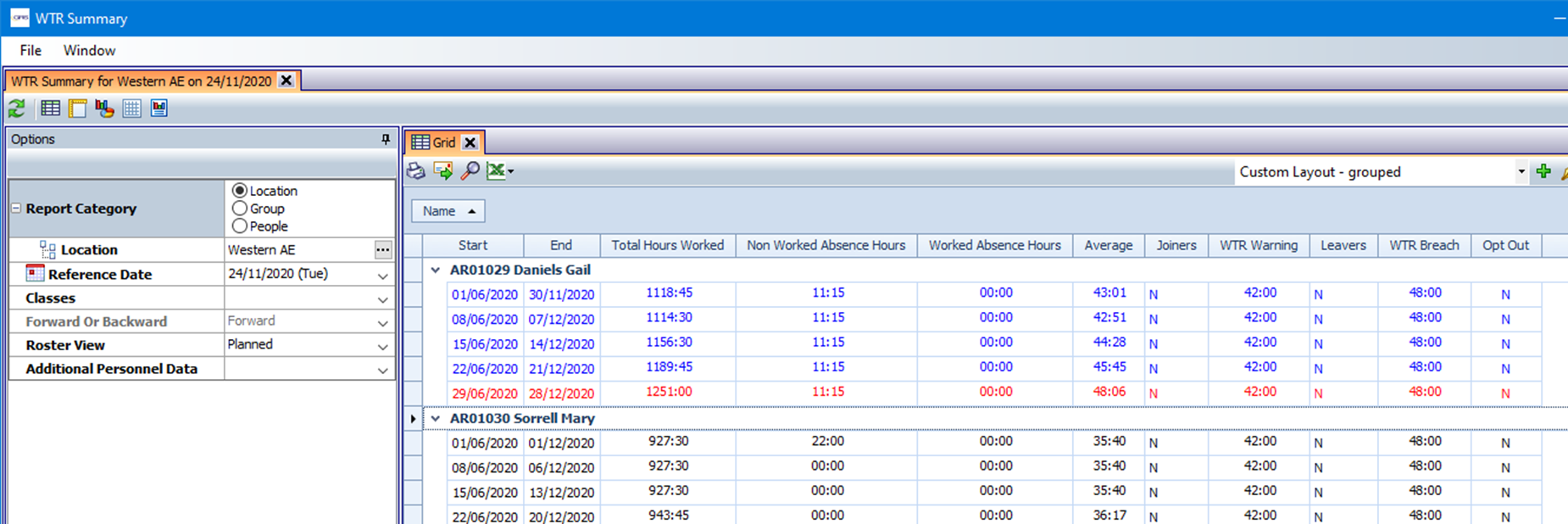
WTR Summary view. The report in this image has been changed from the default by the operator to use a custom layout that groups the data by person. End users with the screen permission can also do this as part of standard GRS report functionality.
The system will automatically extend the 26-week period forward for absences (as per previous functionality, by the day).
Absences do not affect the way the system works out the number of blocks (shift change dates outside the 28 days are not assessed).
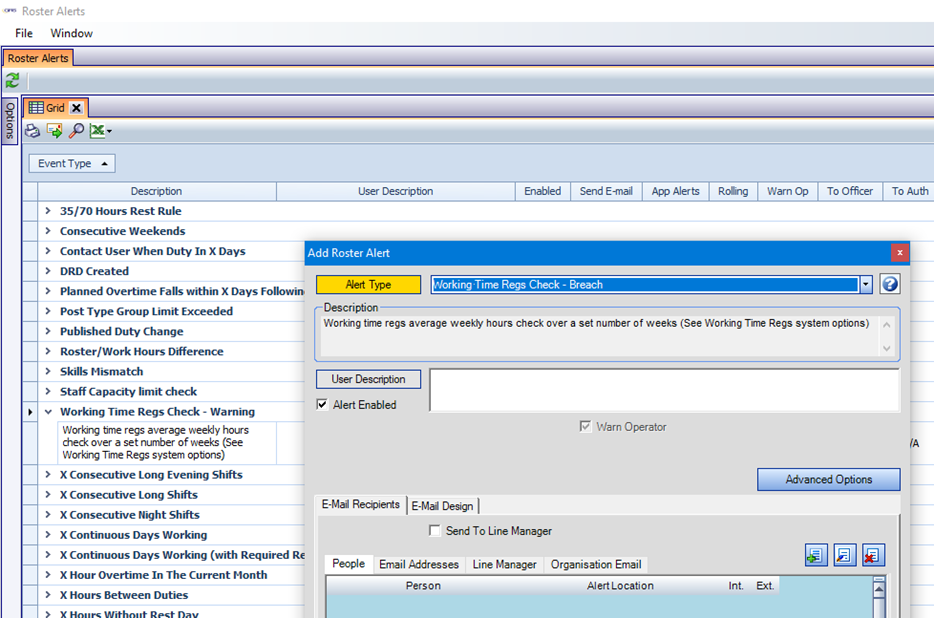
The WTR Roster Alerts Working Time Regs Warning and Working Time Regs Breach need to be configured to perform the check for the Rolling Period when postings are altered.
Alerts only show for shift changes on dates within the Rolling Period (e.g., 28 days); this means no alerts show for shift changes on past dates. The WTR Individual and Summary reports can be used to see information on past periods.
Roster Alert - Warning / Breach Result and Permission
The single previously existing Roster Alert ‘Working Time Regs Check’ has been replaced by two alerts:
-
Working Time Regs Check - Warning
-
Working Time Regs Check - Breach
Each alert performs the WTR average weekly hours check over a set number of weeks and compared against a set of system options:

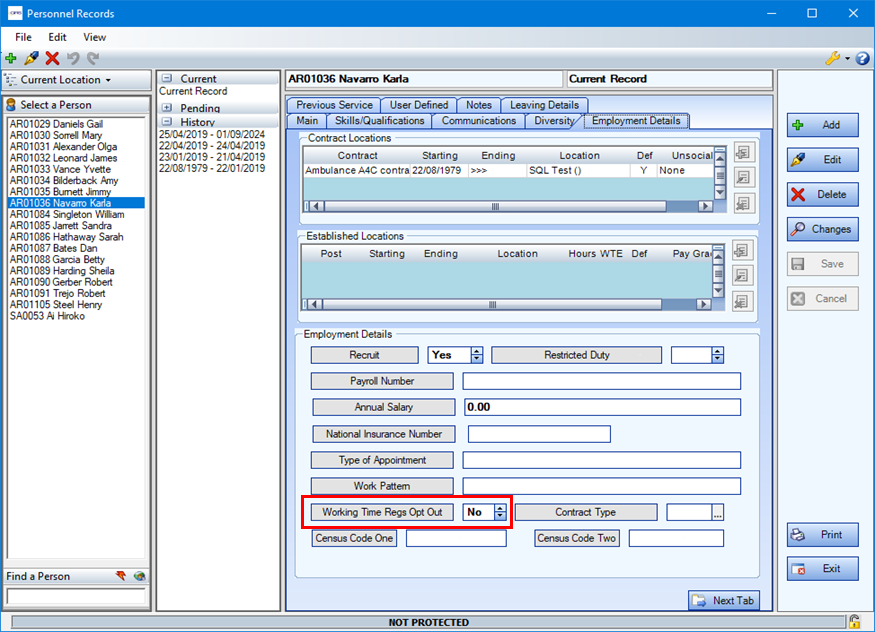
The WTD Opt In (no) or Opt Out (yes) status of the person is taken off the Personnel Record.
When an operator makes a change to a posting sheet that causes the ‘Opt In’ or ‘Opt Out’ person's hours to exceed the related System Option hours, the alert will be triggered, and the warning or breach messages for all exceeded periods will be shown to the operator.
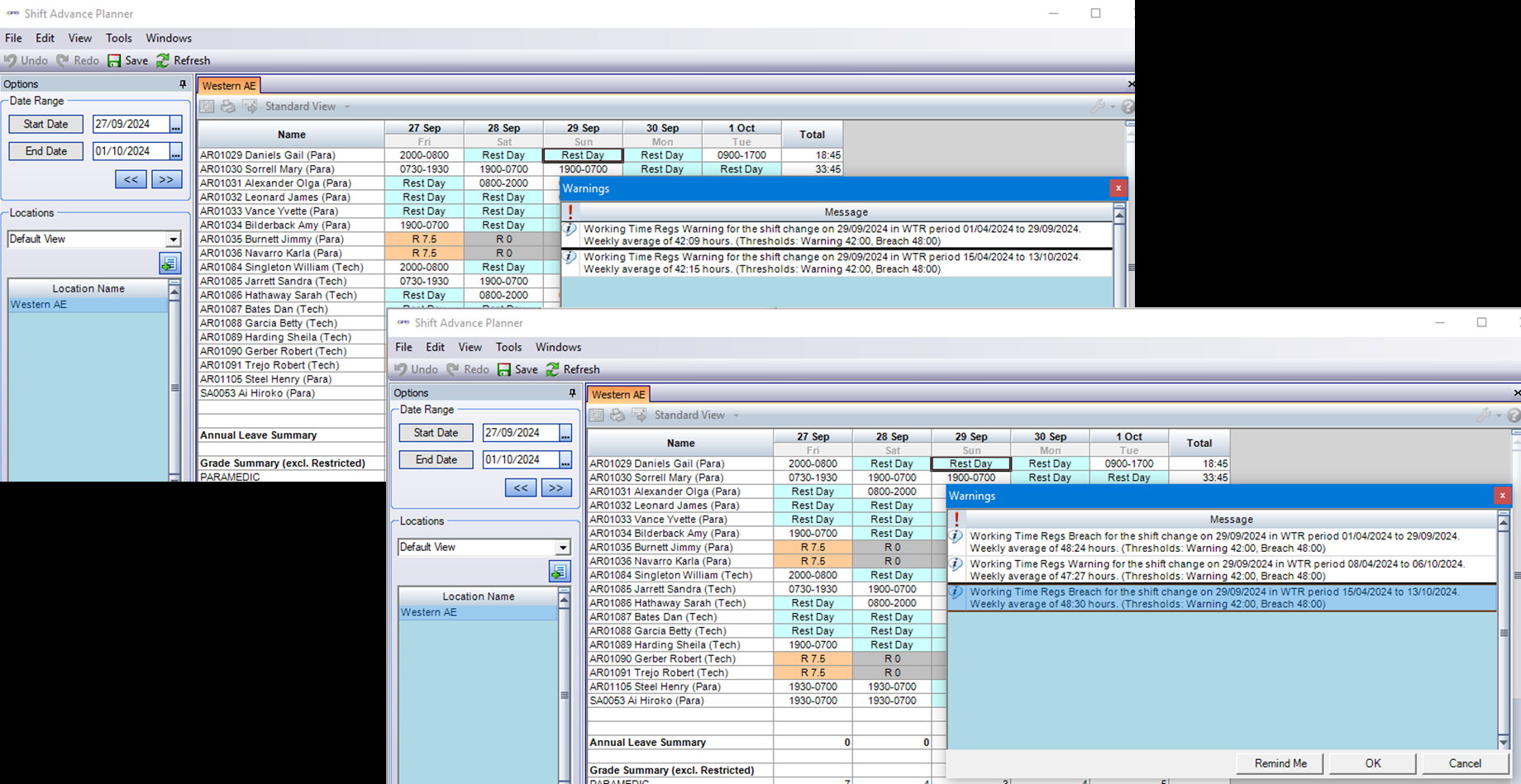
If both alerts are enabled, and a shift change causes both warning and breach values to be exceeded for the same time period, only the Breach alert will be shown.
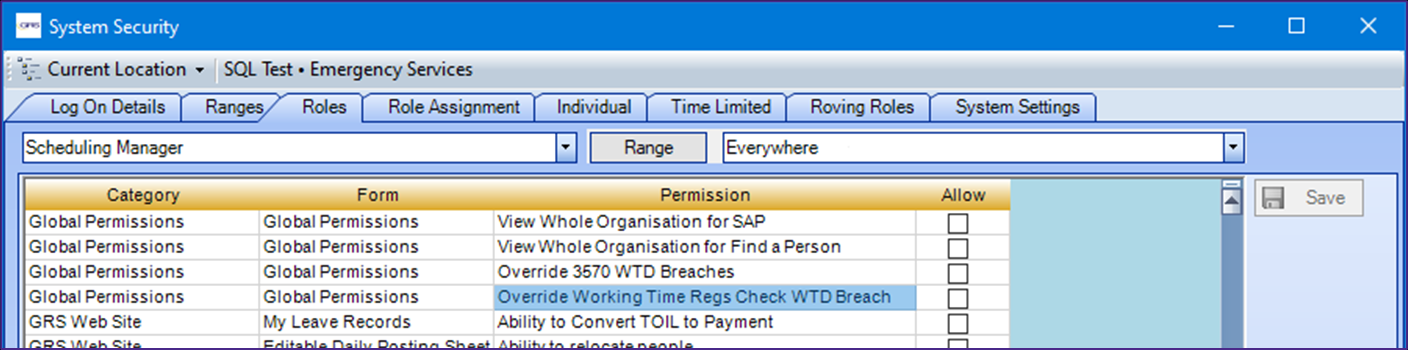
A new Special Permission is available (in Tools > System Security - Roles tab) which works with this Roster Alert: Override Working Time Regs Check WTD Breach. Users who have this special permission will have ability to override the Breach roster alert with the OK button. For users without the special permission, the OK button will be disabled to prevent the user from overriding the breach.
WT Breach Report - Extra Columns
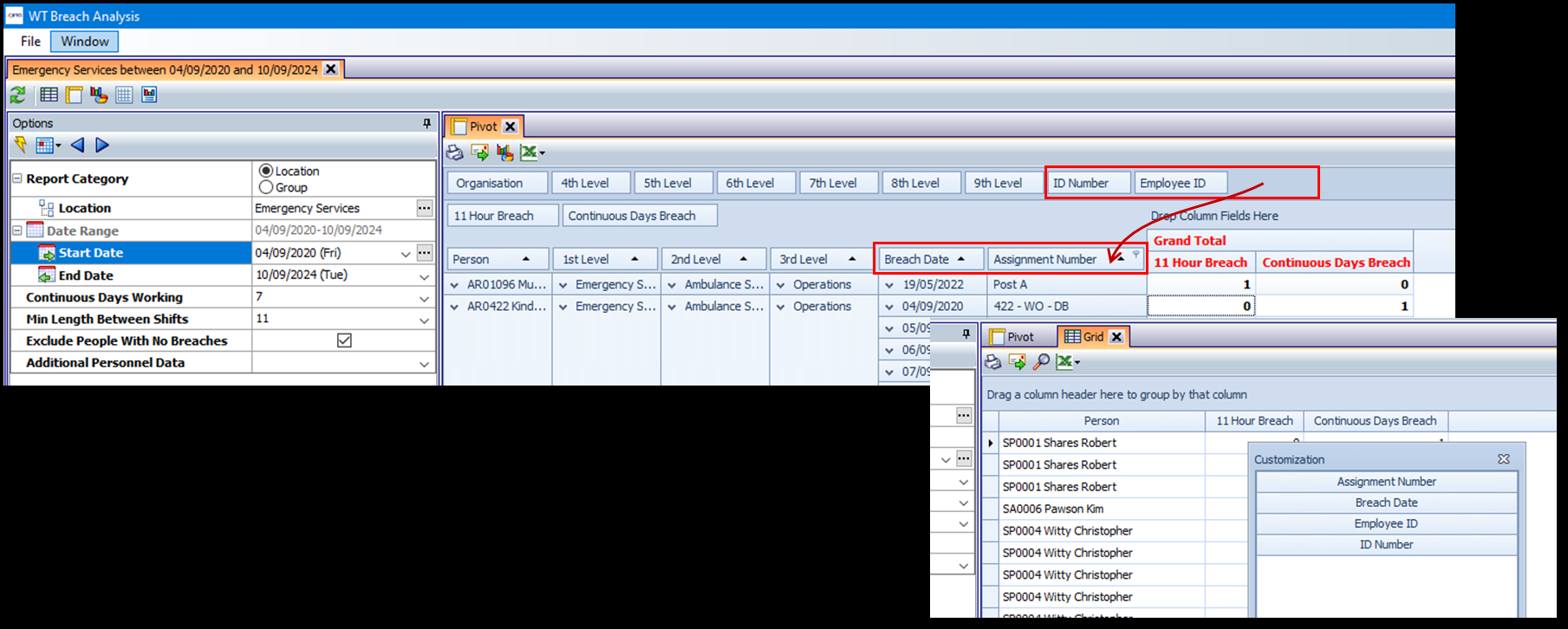
New columns have been added to the WT Breach Analysis. The columns are available to add to the report from the unused columns area on the Pivot View (top of the screen) and in the column chooser on the Grid View (right click on header).
-
ID Number
-
Employee ID
-
Breach Date
-
Assignment Number