% WTE Annual Leave Rules
Annual Leave > Annual Leave Definitions > Annual Leave Rule Time Periods
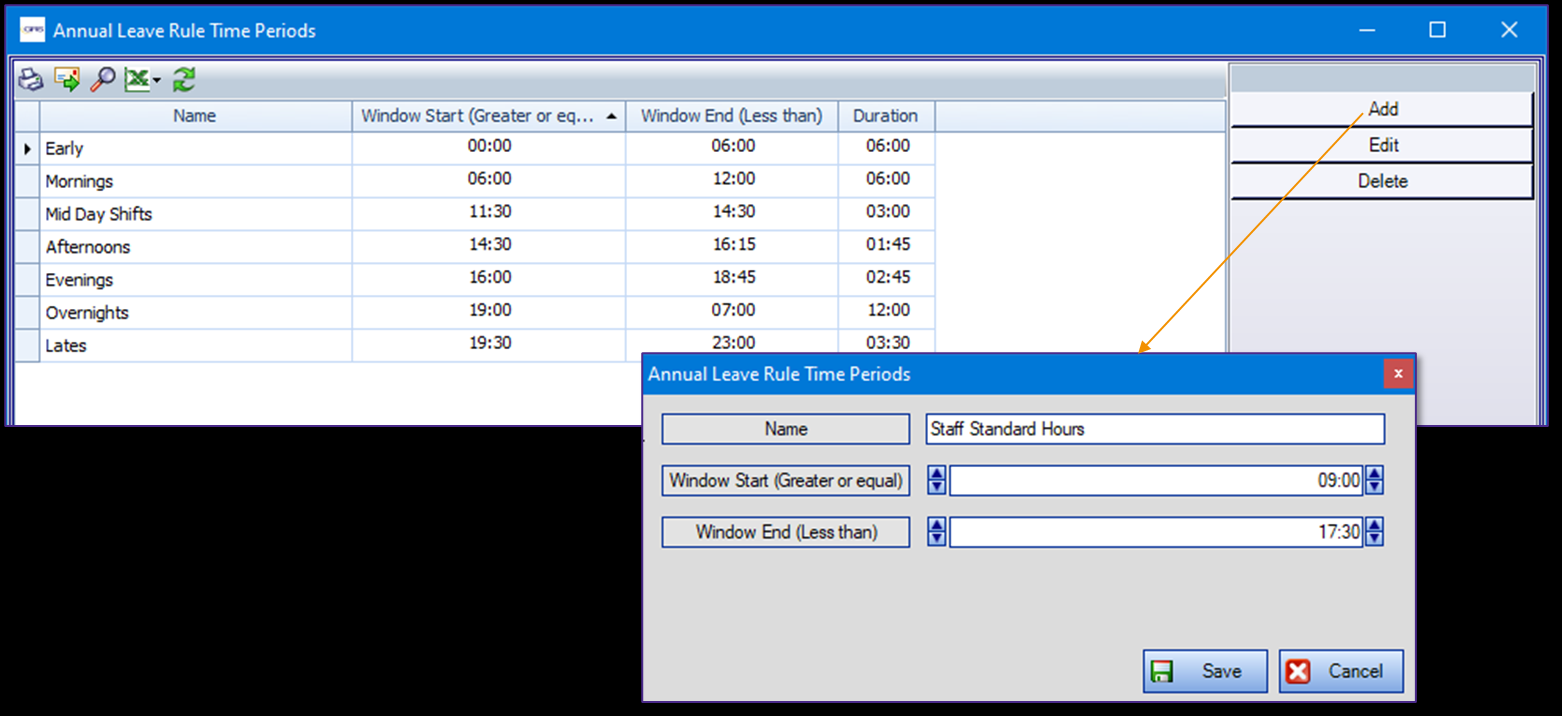
New definition screen used to add 'time of day' periods, which can be used in Annual Leave Rules (for %WTE rules only).
A default 'All Day' rule exists within the system, so one does not necessarily need to be defined here.
Rules are ordered by window start time by default, but the headers at the top have the usual sort, filter and right click options available.
Annual Leave > Annual Leave Definitions > Annual Leave Rules - Screen Changes
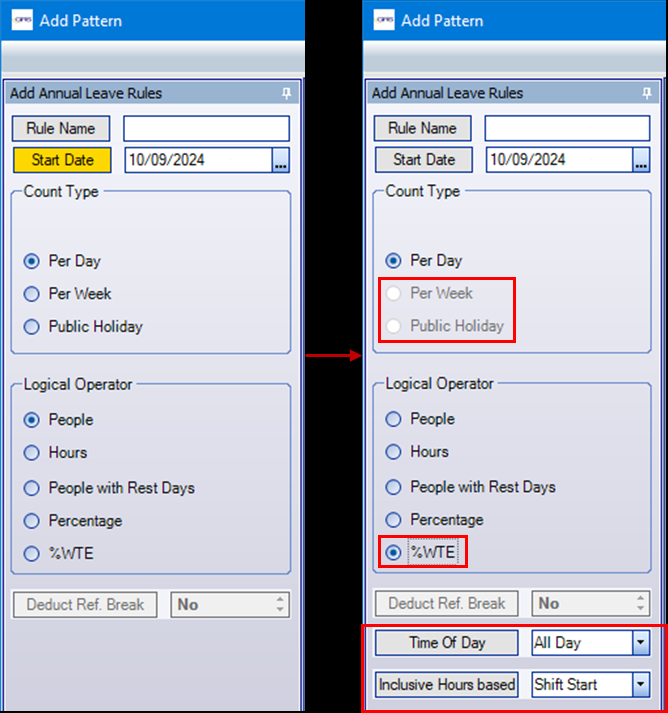
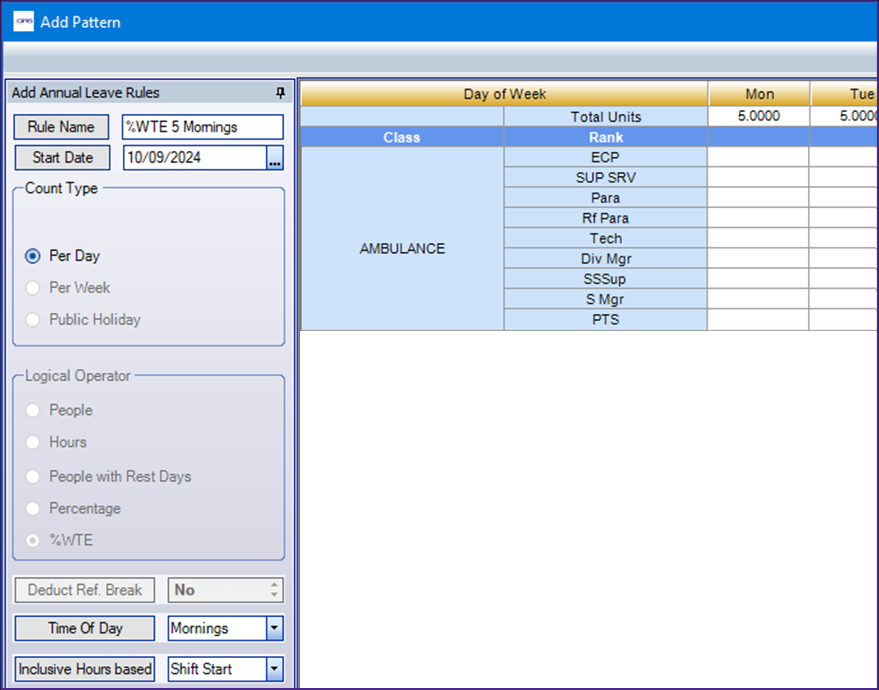
A new Logical Operator is available on the Add Pattern screen '%WTE'; when this is selected, options that are not relevant become deactivated and the Time of Day and Inclusive Hours based on fields will show.
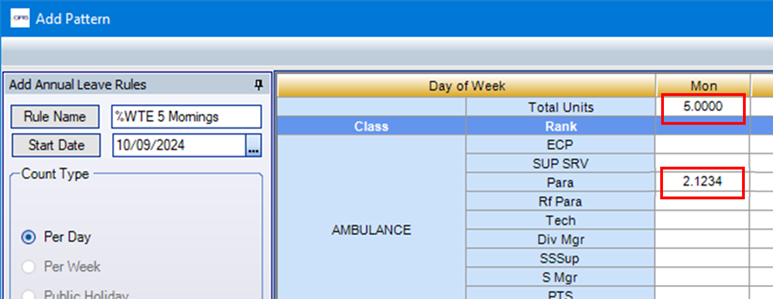
Values can be added to the total and rank rows for WTE percentage, to 4 decimal places.
Time Of Day - dropdown containing 'All Day' (system default) and then the active definitions from Annual Leave Rule Time Periods
Inclusive Hours - dropdown containing:
-
Shift Start: the rule will include leave booked when the shift start time is within the 'Time of Day' period, regardless of absence start time
-
Absence Start: the rule will include leave booked when the absence start time is within the 'Time of Day' period, regardless of shift start time
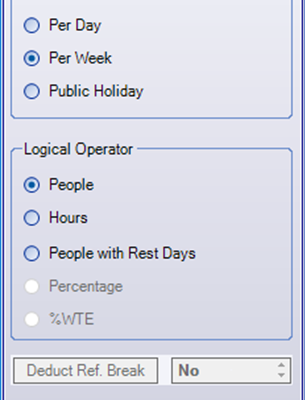
The Add screen's reaction to radio button selection has been updated so that the pre-existing Percentage operator and new %WTE operator are not available when the rule is set to Per Week or Public Holiday.
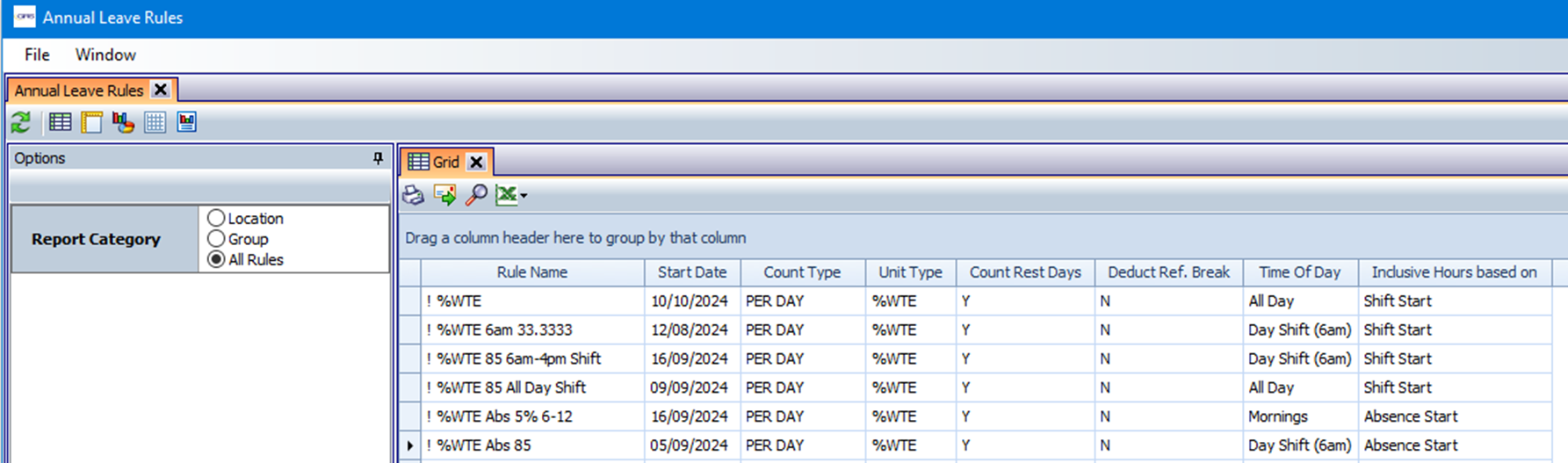
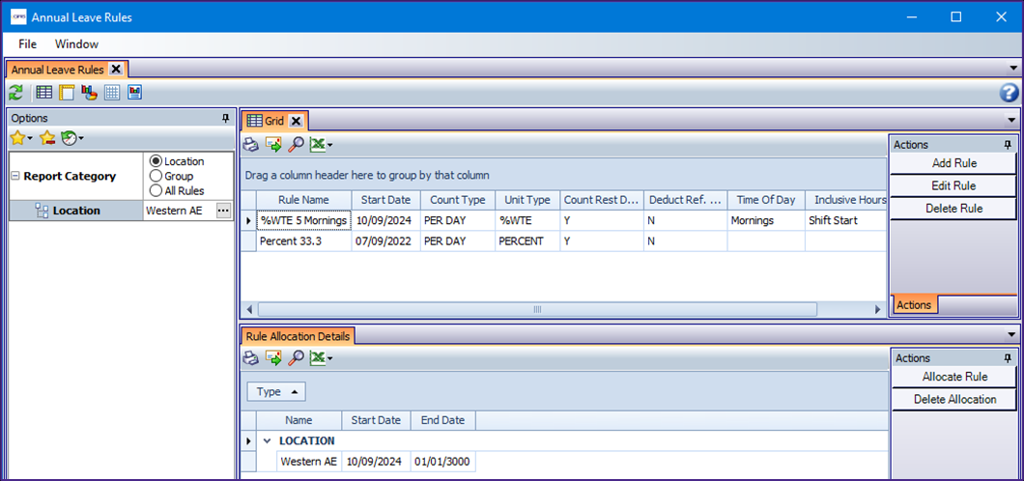
The Annual Leave Rules grid has been updated to include columns for the new %WTE rule type: 'Time of Day' and 'Inclusive Hours based on'.
Annual Leave > Annual Leave Definitions > Annual Leave Rules - %WTE Calculations
Addition of calculations for the new rule type '%WTE'. Values entered on this rule represent a percentage e.g. 17.5000 would mean 17.5%.
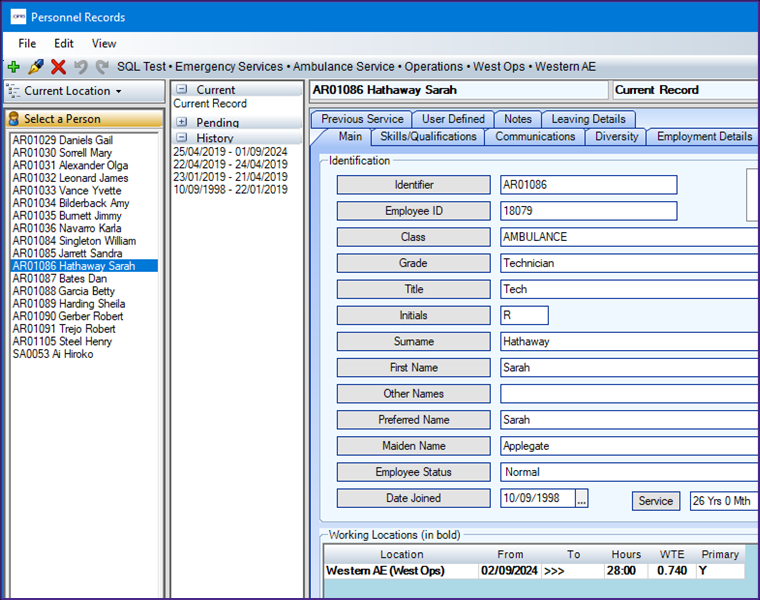
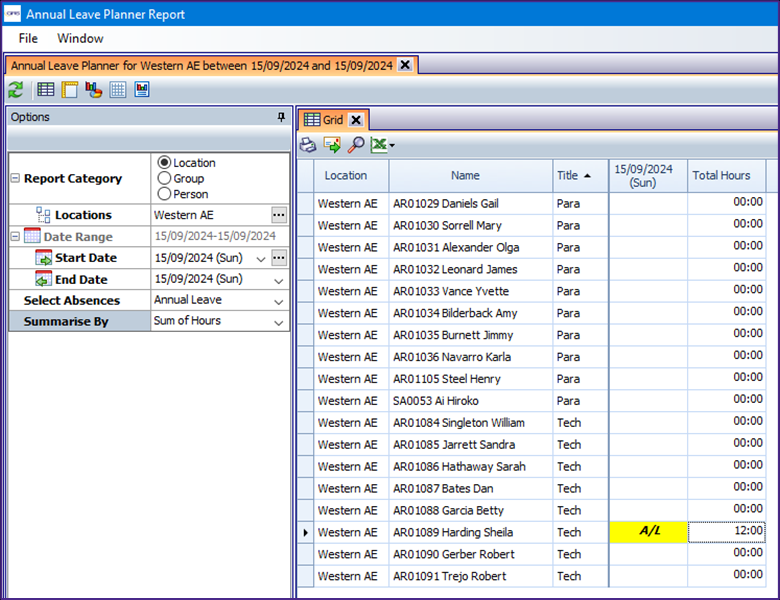
This rule checks the number of hours being booked + already booked against the total number of Personnel Record 'Working Location' hours for people who have the shift's location as a working location. Refreshment breaks are not deducted from any of these booked hours.
Source of the Working Location hours (Personnel Records) and view of booked hours (Annual Leave Planner):
Worked example - Location Rule
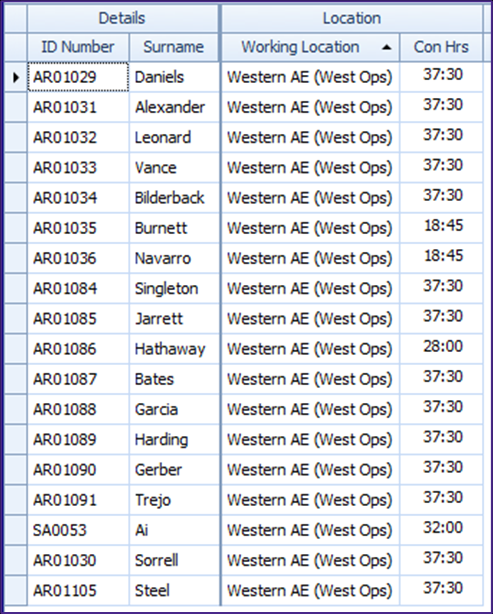
A Location has 18 people on two locations, and they have different full and part-time hours on their Personnel Records. Total working location hours for this group is 622:30.
The Rule is set to 5 % for a specific time of day ("Mornings", as defined in the Time Periods screen) and is based on checking the Shift start time of the affected shift.
The Rule is allocated to the Location.
The Rule limit in this example is 5% of 622.5 Location Hours. This means a total of 31.125 leave hours (31:07) is allowed to be booked on shifts (where the start time of the affected shift is within the Time Period selected).
There are 24 hours of leave already booked for shifts that start within that Time Period on a day.
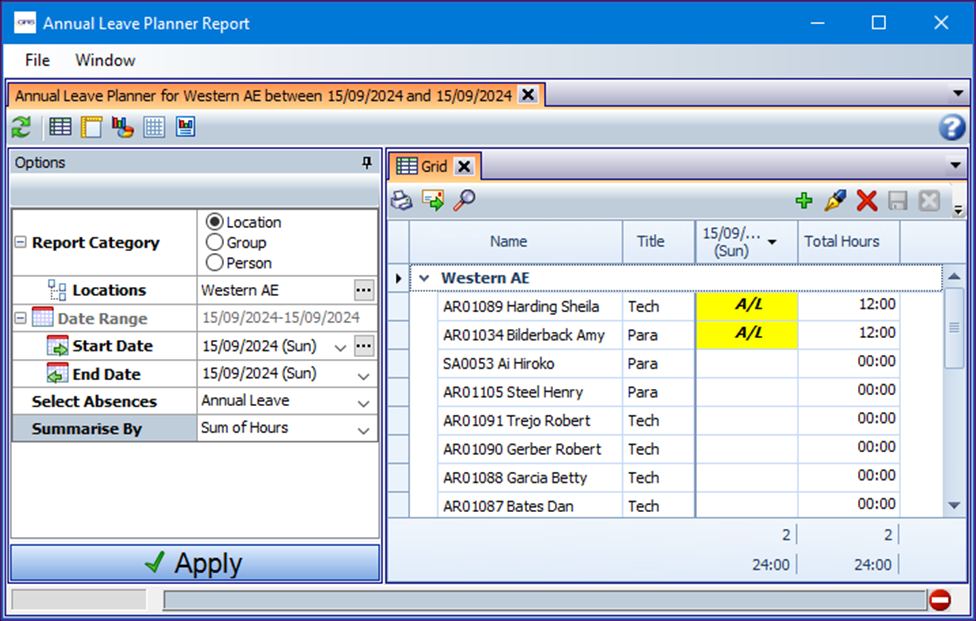
Another person asks for 11 hours in that same start time window, so the rule is triggered.
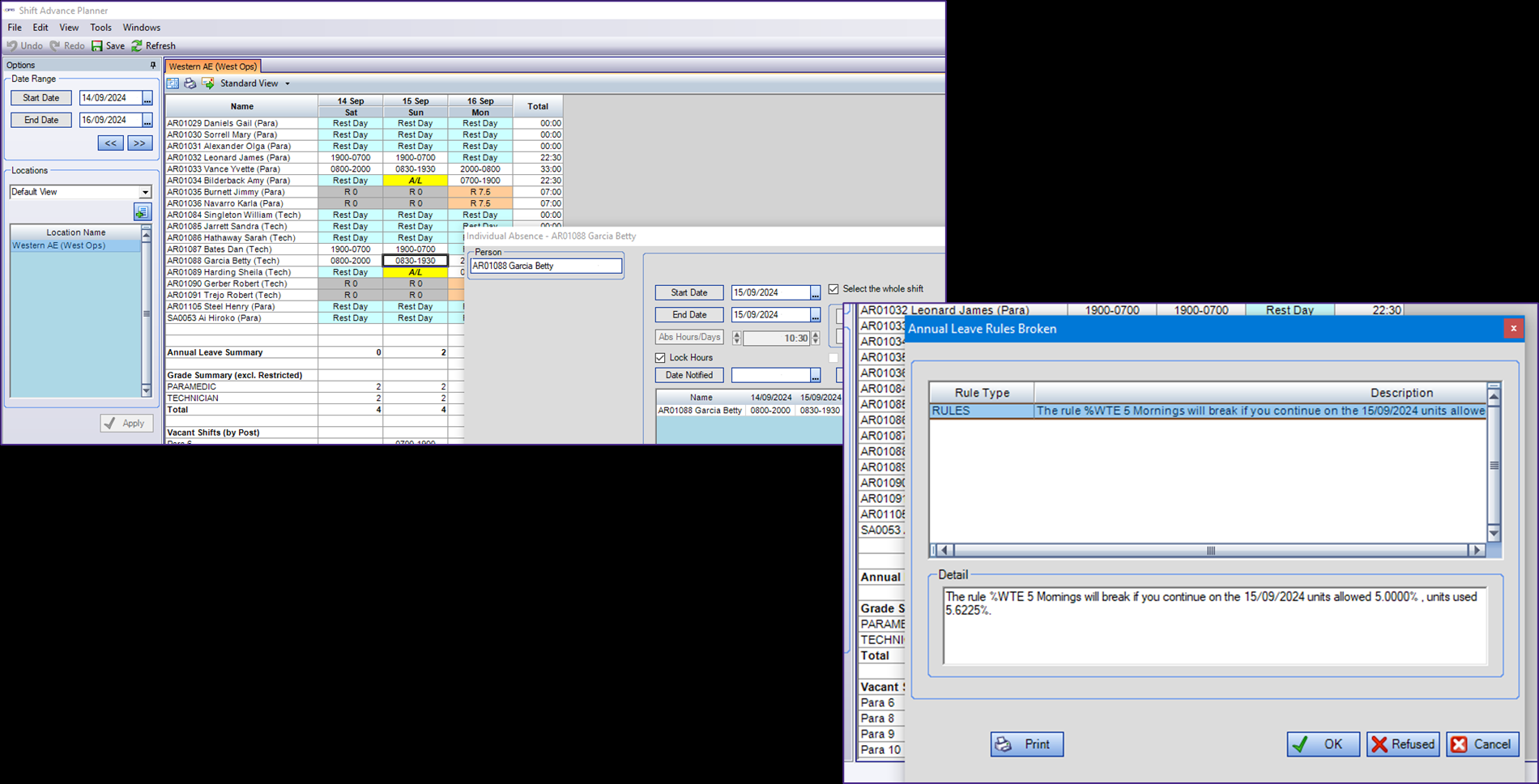
The SCAS rules are coded differently, so in this example the alert would not have fired because 'para' and 'tech' would count as clinical grades. Rules applied to Groups with grades selected are suggested for SCAS's use with this new rule.
Worked example - Group Rule
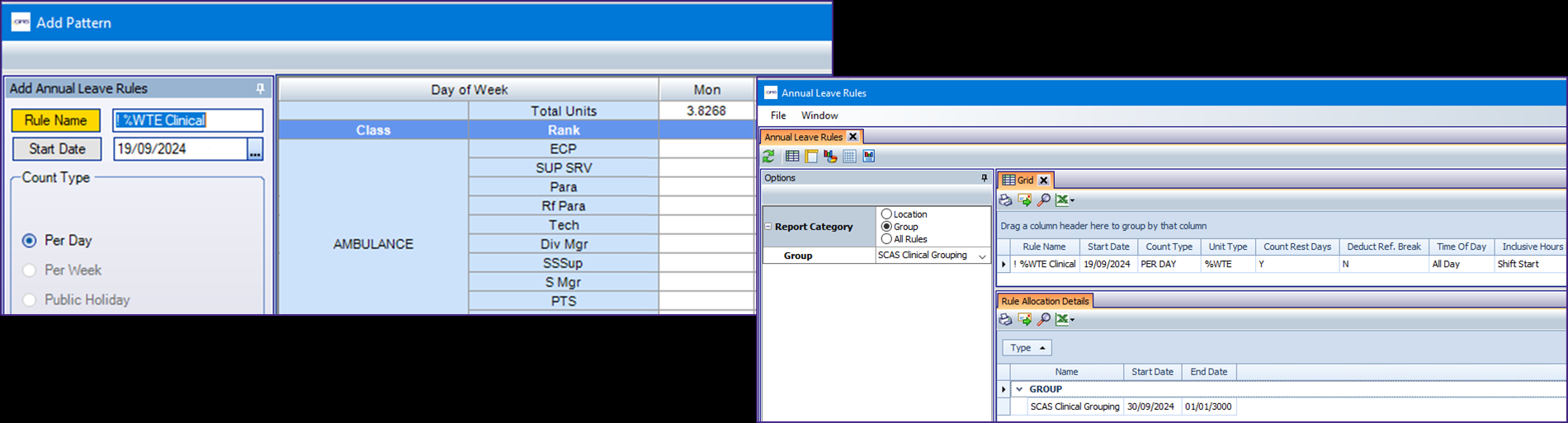
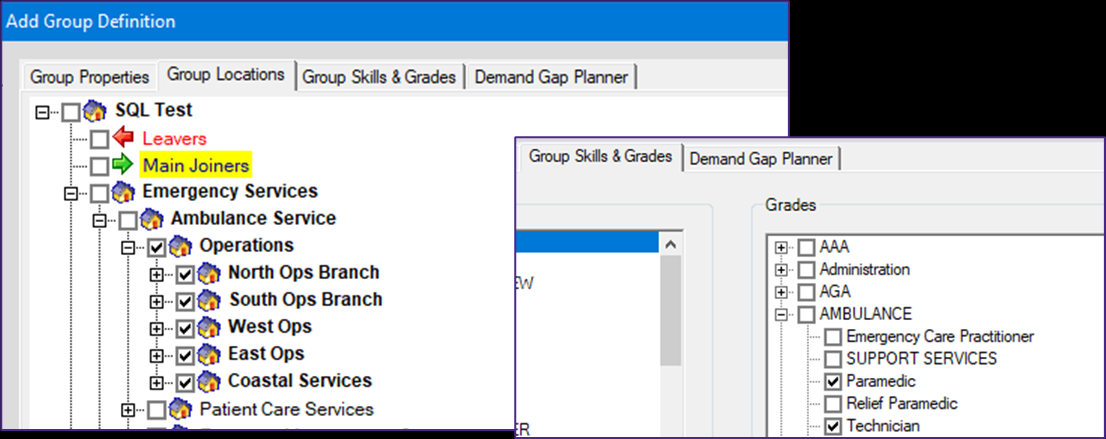
The rule is set up to have a Total value set up, and the rule is applied to a Group. The group has some clinical type grades ticked on it, meaning only people of these grades will be included under the %WTE rule.
Group as set up in Analysis > Monitor > Staff Level Set Up
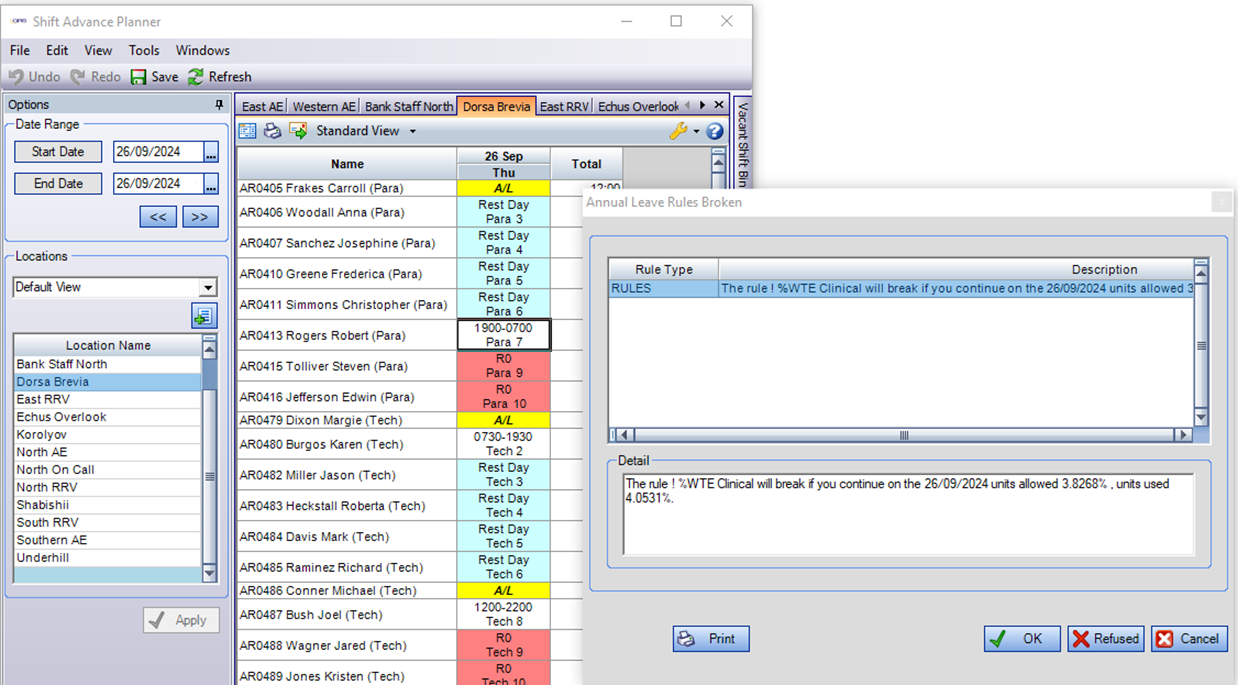
People who have Grades matching the ones selected on the Group (Para/Tech) have total weekly Location hours of 4860.30.
The number of allowed hours, based on the rule set to 3.8268%, would be 186 hours.
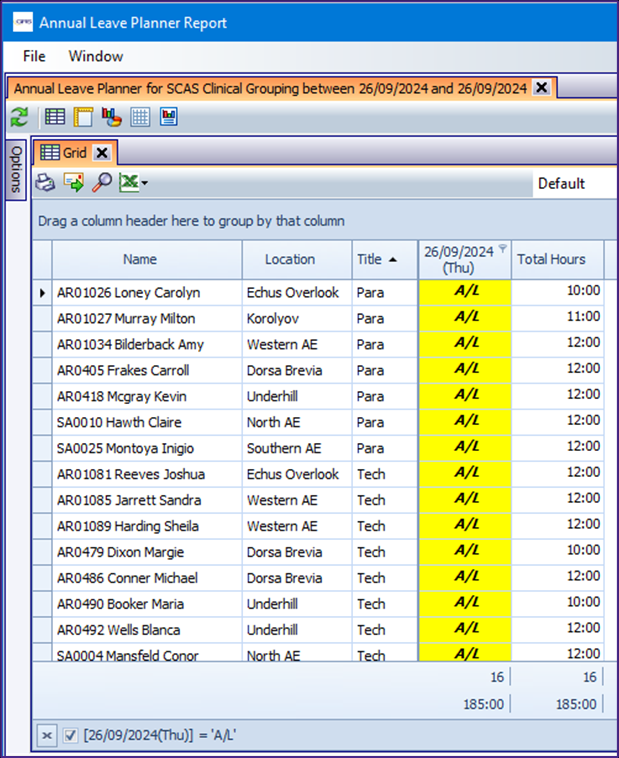
There are 185 hours of leave already booked for people with grades selected on the Group, as shown in the Annual Leave Planner Report.
When one more person (who falls within the group due to their working location and grade) is booked off, the system warns of the breach for 197 hours as 4.0531%.
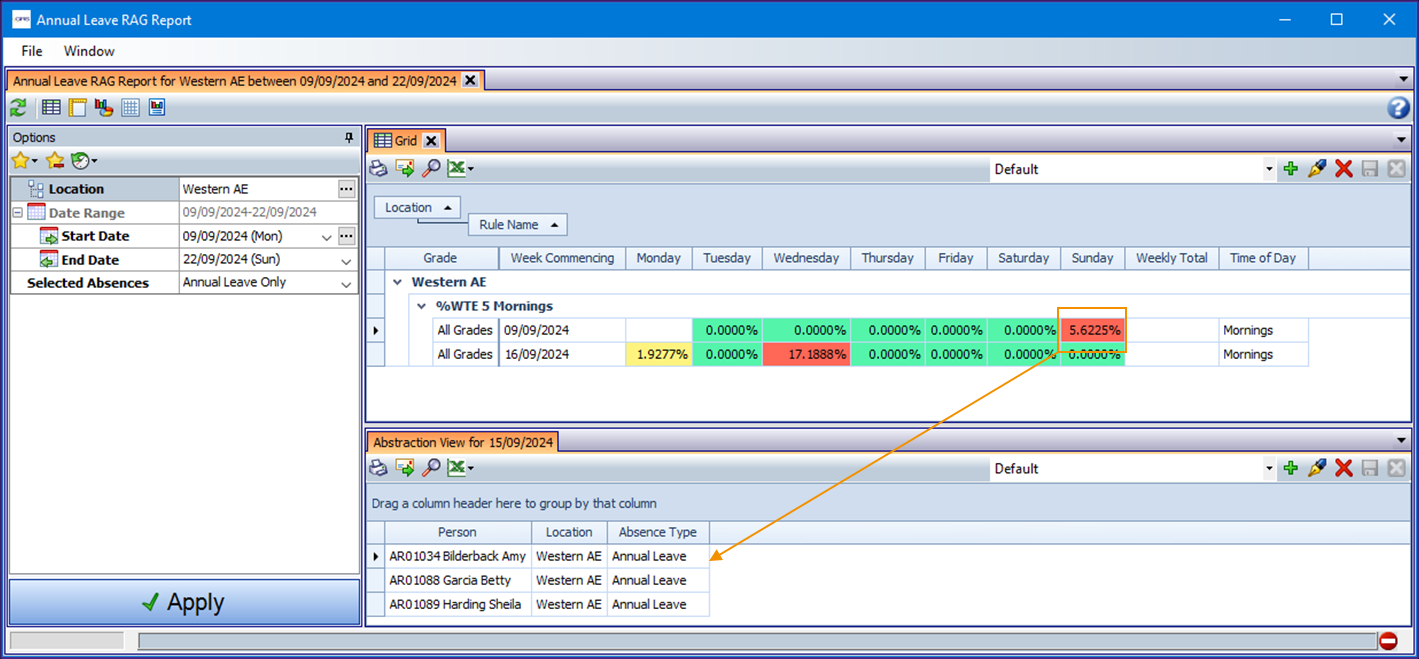
Annual Leave > Annual Leave Reports > Annual Leave RAG Report - %WTE data
This report (and its web counterpart) can be used to see the status of booked leave against rule values for %WTE rules that are allocated to Locations or Branches (Group rule data does not show in this report). System Administrators have a different view in this report to other users. Sys Admins can see all location data, whereas other users only see data based on their Working Location.
The '0.0000%' used will show in the day cell, for dates that the rule is allocated. Colour coding is the same as for other rule types: red where the rule value has been reached or exceeded, yellow where there are absences but the limit is not breached, and green where there are no absences that count towards the rule.
Click on a day cell to see people with leave booked on that day.
A 'Time of Day' column has been added to show the Time Period associated with the rule (note that where the default period of ‘All Day’ is applied, the cells will be blank). The 'Inclusive Hours' setting for a rule can also be seen by adding it from the column chooser (right-click on the grid header).