Create a new shift
Use the Plan tab to create a new shift in a calendar.
-
Open the Plan tab.
-
Click
 and select the work area that you want to work with: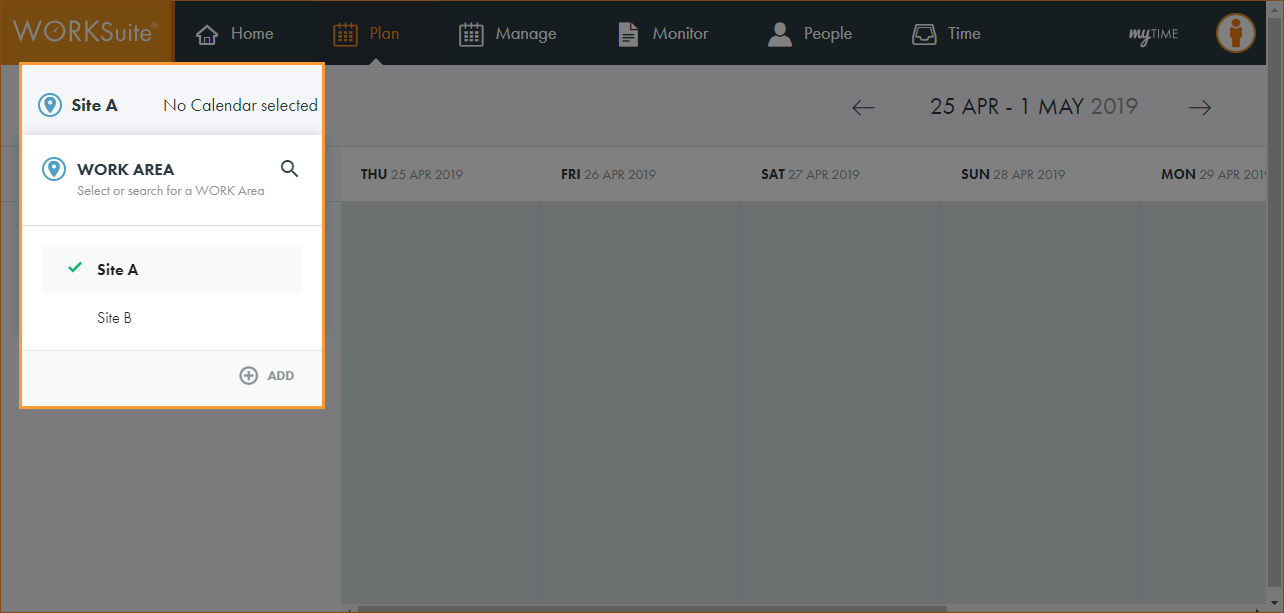
By default, your previously selected work area is preselected.
-
Click No Calendar selected and select the calendar that you want to work with:
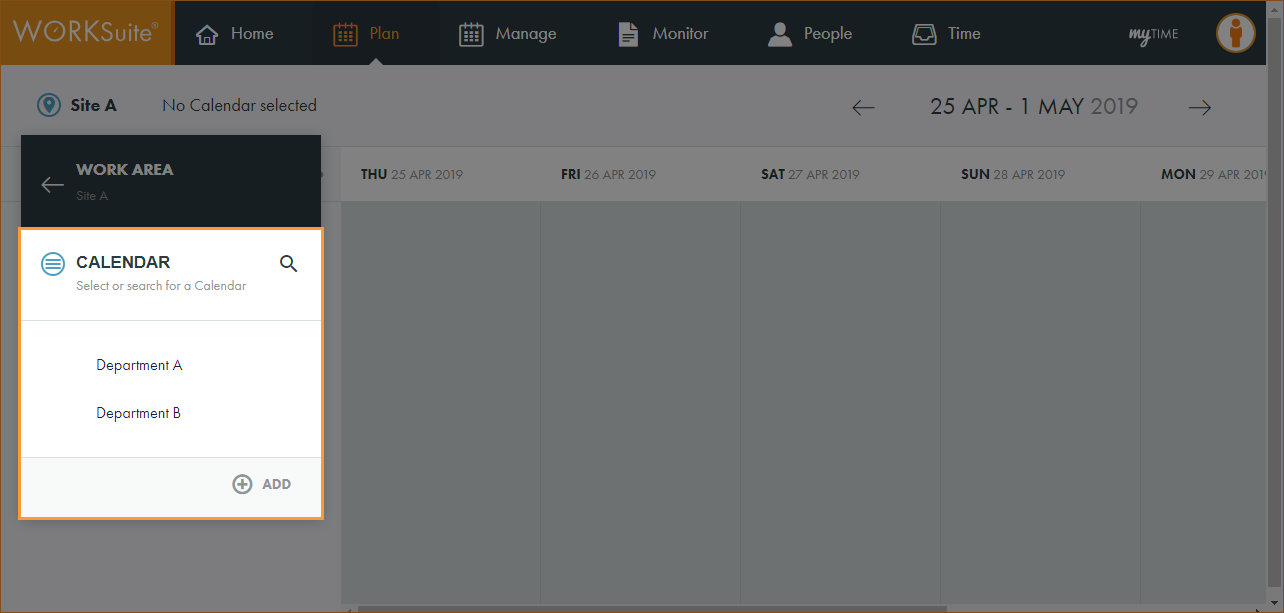
By default, your previously selected calendar is preselected.
-
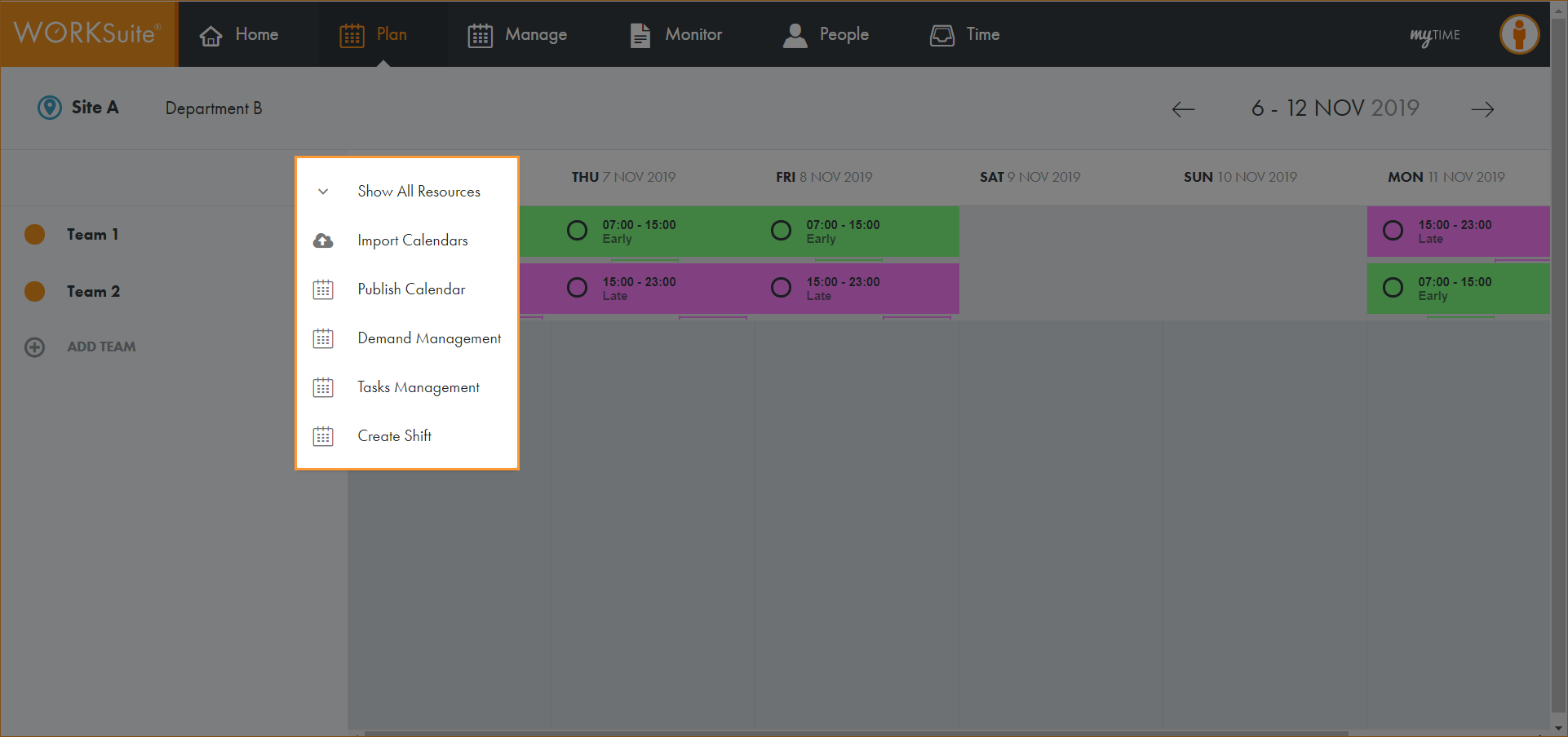
Click … in the calendar header:
-
Select Create Shift.
-
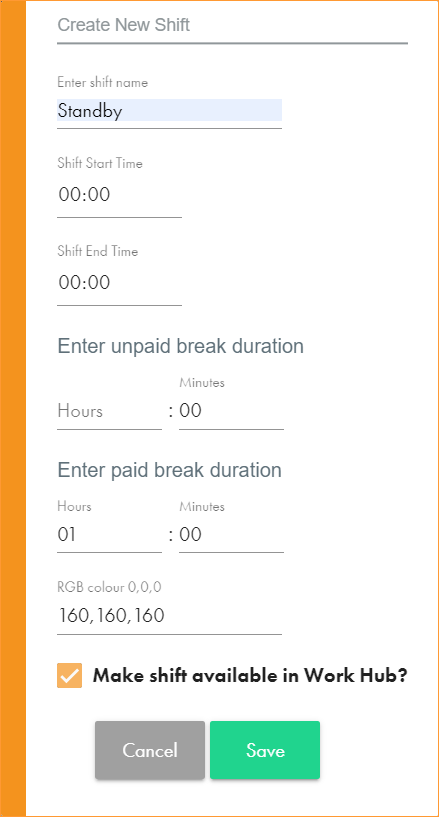
A pop-up window is displayed:
-
Enter a clear and concise name for the shift.
-
Set the Shift Start and End Time.
-
Set the unpaid and paid break duration where applicable.
-
Enter an RGB colour to identify the new shift on the calendar.
-
Select the checkbox to make the shift available in the Manage tab without the need to republish the calendar.
-
Click Save.
-
The shift can now be selected when adding a shift to the calendar.