Submitting a new request
Use the New Request tab to submit a new request.
If you are logged in, but are inactive for 30 minutes, you will be logged out automatically.
-
Select the New Request tab to display the request categories:
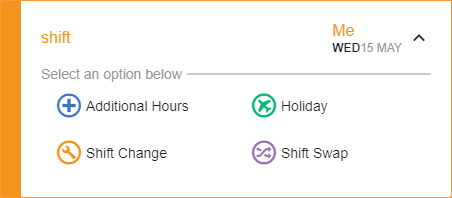
Today's date is selected by default.
-
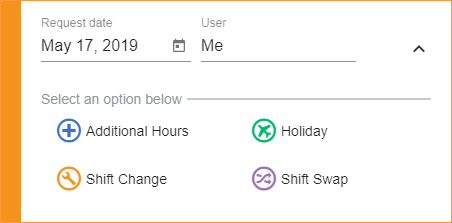
Click the arrow in the top right of the window to select another date:
-
Click
 to display the dropdown calendar and select a date.
 -
Select a request category.
-
Depending on how your system is configured, more detailed request reasons are listed. For example, ‘Flex Up’ and 'Overtime' are listed under ‘Additional Hours’.
-
Each request category can have a single reason or multiple reasons listed.
-
-
Select a request reason, if the window is displayed:
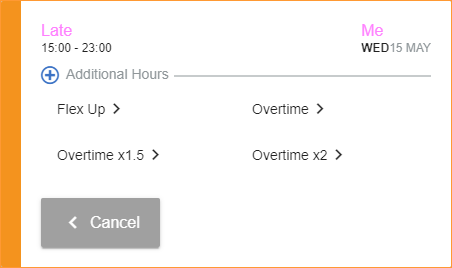
Where there is only a single request reason for a category this window is not displayed. You are taken straight to the request information screen.
-
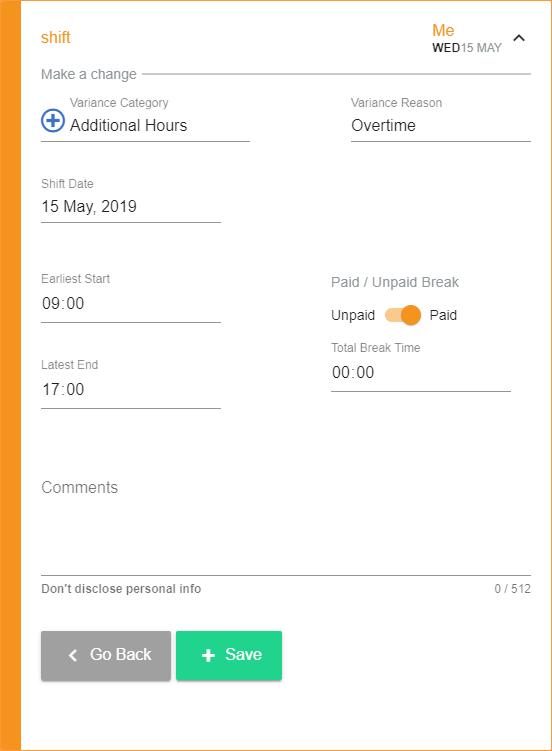
Complete the request information screen, this differs depending on the type of request you are making:
-

 Additional Hours
-
Select whether the additional hours are to be worked Before or After the Main Shift and enter the number of additional hours/minutes to be worked:
-
Select whether you want an Unpaid or Paid Break and enter the total hours/minutes for the break.
-
Enter any relevant comments.
-
Click Save.
-
-
 Holiday
-
Your account will be reviewed for remaining holiday hours available. myTIME does not allow you to make a holiday request if you do not have enough remaining holiday entitlement in the current year. Managers can over-ride this account remaining validation at their discretion.
-
Holiday requests can be limited by long term sickness and maternity where additional cover has not been provided. This feature is optional in myTIME.
-
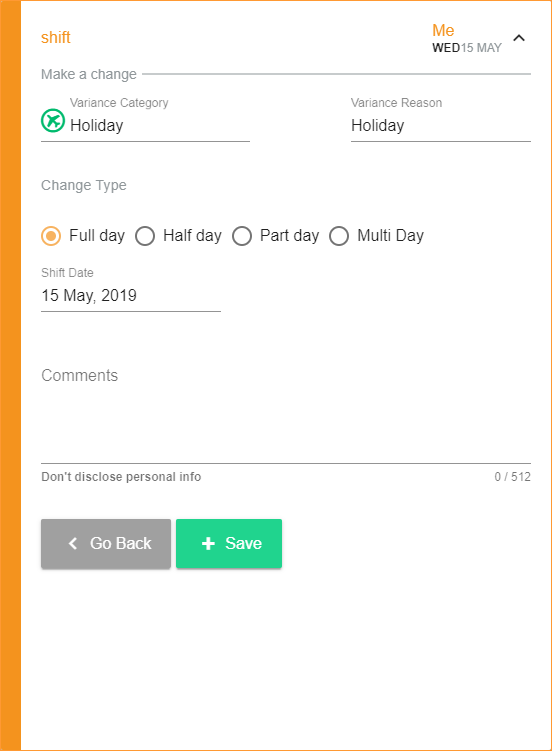
Mark the request as a Full day, Half day, Part day or Multi day and adjust the times and dates accordingly:
-
If Half day has been selected, choose whether the 1st half or 2nd half of the day is holiday.
-
Enter any relevant comments.
-
Click Save.
-
A warning is displayed if the effect of the employee being unavailable to work means that the critical demand manning levels cannot be achieved. This feature is optional in myTIME and users can choose to over-ride the warning.
-
-
 Shift Change
-
In the Until Shift Date field, click
and select the end date for the shift change: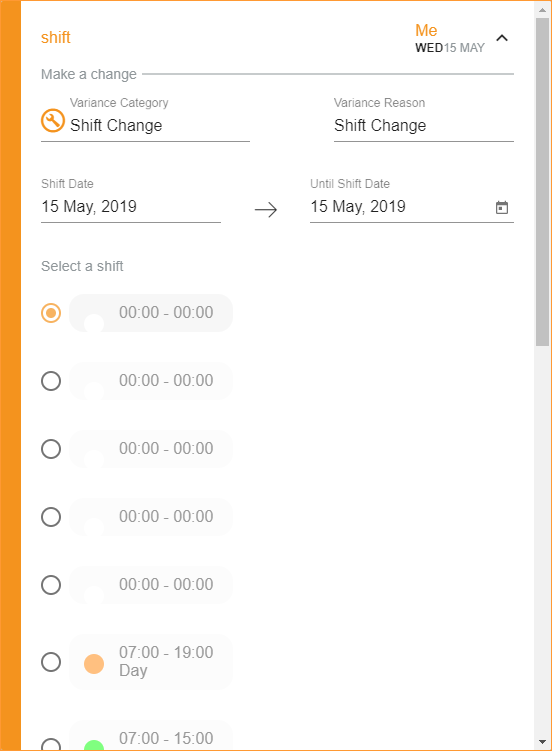
-
Select the shift that you want to change to. Only the shifts used in your calendar are listed.
-
Enter any relevant comments.
-
Click Save at the bottom of the window.
-
-
 Shift Swap
-
Select the Shift Swap Type:
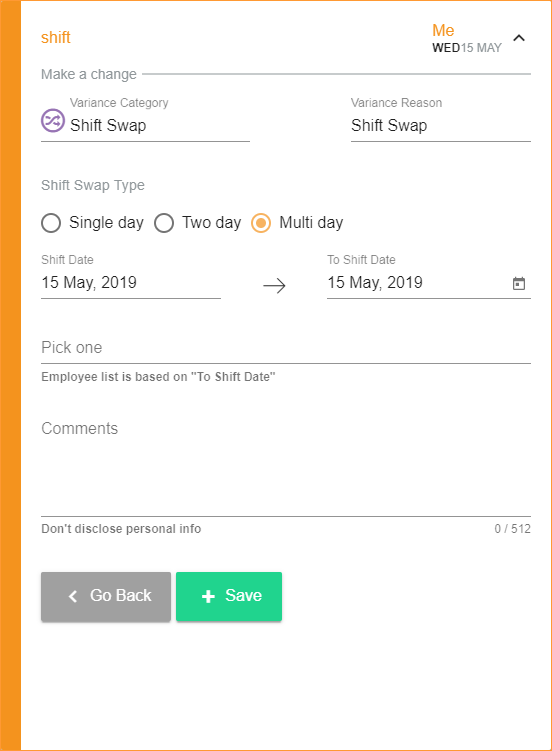
Two day and Multi day requests are viewed as a single item in the Requests tab. Managers and other employees can select the swap with a single click.
-
In the To Shift Date field, click
and select an end date for the shift swap. By choosing a date in the future you are selecting multiple shifts to swap that fall on consecutive days, between the Shift Date and the To Shift Date. -
Click Pick one and start typing the name of the employee who you want to swap the shift with. You can also choose to swap with 'Anyone', the shift swap will be available to anyone who shares the same job title and location as you.
-
Select an employee from the list displayed, if required.
-
Enter any relevant comments.
-
Click Save.
-
An email is sent to the employee that you have selected to swap with, if applicable.
-
Your shift swap request is listed under Swap Requests in the Requests tab. Where you have selected to swap with a specific employee, the shift swap request is listed under their own My Requests tab within the Requests tab.
-
-
-
The request is displayed in grey on your shift, awaiting approval.
-
Your request is listed under My Requests in the Requests tab.
-
An email is sent to your authoriser to ask for approval of your request.
-
You will receive an email detailing the request you have made.
-
You will receive an email update once your request is approved or declined.