View and update employee record details
Use the People tab to view and update employee record details, such as the skills log and holiday account.
-
Open the People tab.
-
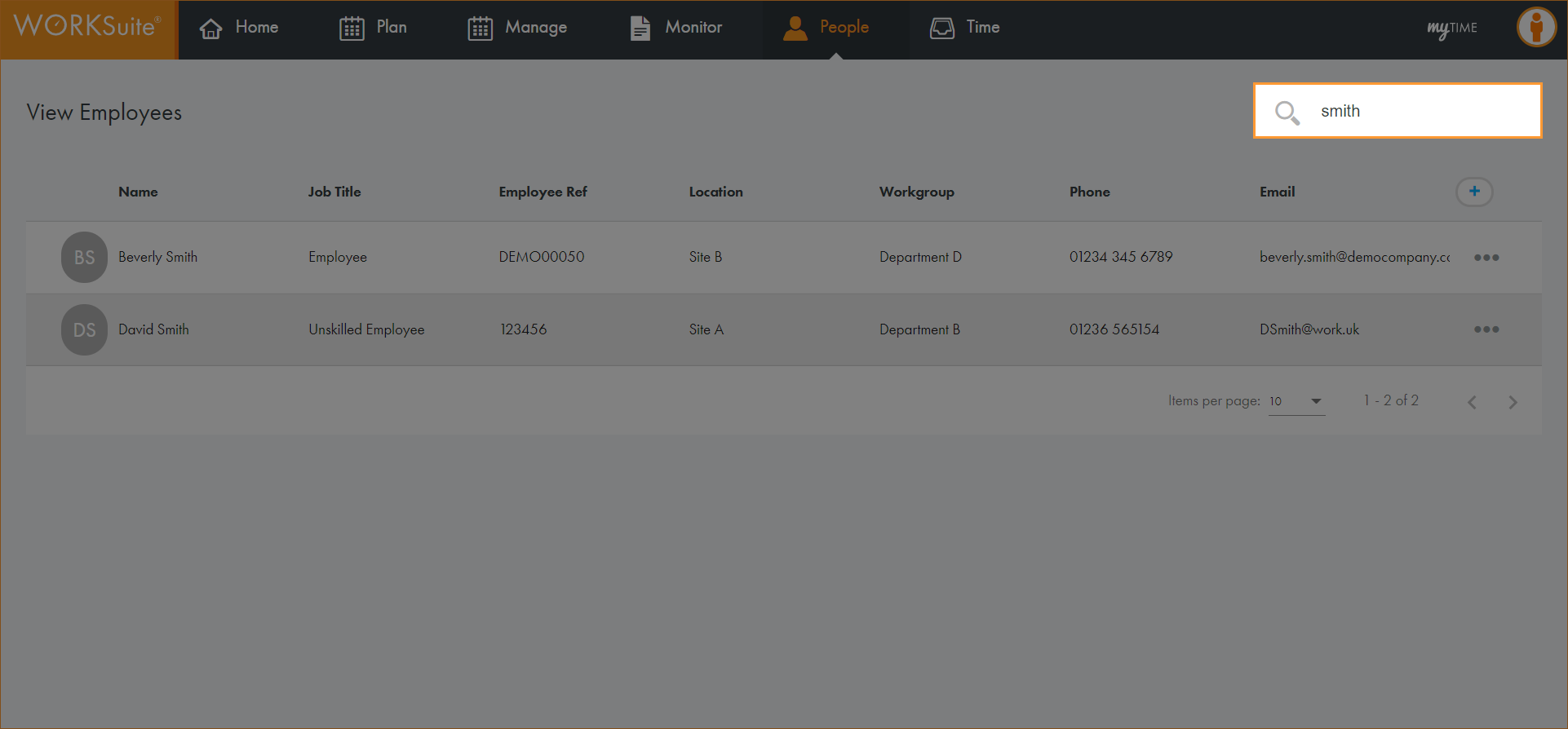
Use the Search field to locate the record that you want to work with. Enter any term shown under the column headers:
-
The records filter automatically.
-
Click in any of the column headers to sort the records as required.
-
Click … in the record that you want to work with and select View Employee.
-
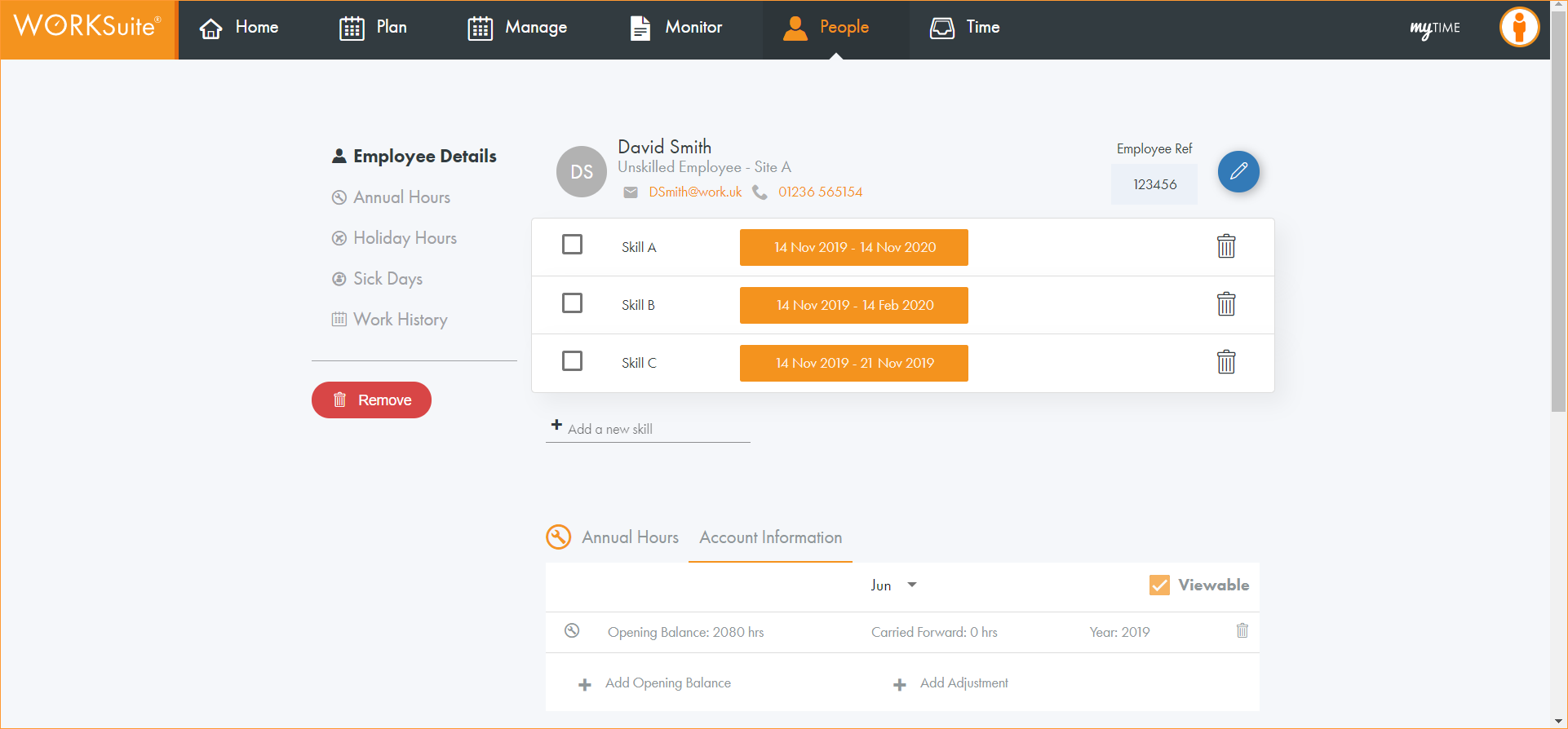
The Employee Details screen is displayed:
-
Click Add a new skill under the employee's name to add a record of a skill, such as a Health and Safety Certificate. The list of skills is preconfigured for you. Your selections determine the tasks that this employee can be assigned to. This field is optional.
-
Select a skill from the list displayed.
-
The skill is listed.
-
Click in
 to define start and end dates for the skill. Click
  to select dates in the pop-up window displayed. This is useful for logging where a skill or certification requires renewal or expires after a set amount of time. The Training widget on the Dashboard displays any employees having a skill that is set to expire in the next 4 weeks from the current date.
 -
Click away from the pop-up and refresh the page.
-
Use the checkbox next to one skill listed to mark it as the employee's Key Skill. This can be identified in reporting and filtering.
-
-
Click
 next to a selected skill to remove it from the list.
 -
Update the Account Information sections as required:
The Account Information sections can be configured to suit you. The example shown uses Annual Hours, Holiday Hours and Sick Days. Click here for more help understanding employee accounts.
-
Use the month dropdown to select the start month for this account for this employee.
-
Uncheck the Viewable box to remove this information from reports. This is useful for removing discrepancies from reports, such as employees who have unusual working hours.
-
Click Add Opening Balance and enter a Balance of hours/days.
Opening balances only need to be defined once for each employee. The balance rolls forward into each new year as time progresses.
Enter an opening balance if either:
-
The employee opening balance changes. For example, if the employee has an increase in their 'Holiday Hours' from 264 hours to 300 hours then they would require a new opening balance of 300 for their Holiday Hours.
or
-
The employee has any hours or days to carry forward at the end of the year. For example, an employee has 264 hours of holiday in a year but 14 hours are unused. Enter a new opening balance of 264 hours and a carried forward hours of 14 hours. The carried forward hours only apply to the specified year.
-
-
Enter the current year in the Year field.
-
Click
 .
.
-
-
Click
next to a selected account record to remove it. This is useful for keeping account information up to date. -
Click Add Adjustment in your selection Account Information section if you need to adjust hours. For example, if an employee has purchased extra holiday hours:
-
Enter the number of hours for the adjustment.
-
Enter the date that the adjustment is added.
-
Enter the Year that the adjustment applies to.
-
Click
.
-
-
The Work History section displays all published and republished calendars for the selected employee.