Asset Custom Data Tabs
The System Data > Asset Custom Data tab > Asset Custom Data Tabs sub-tab lists all of the existing asset custom data tabs. These are groups of fields which can be displayed on Asset Details, they allow you to organise fields into sections and apply them to Asset Subcategories.
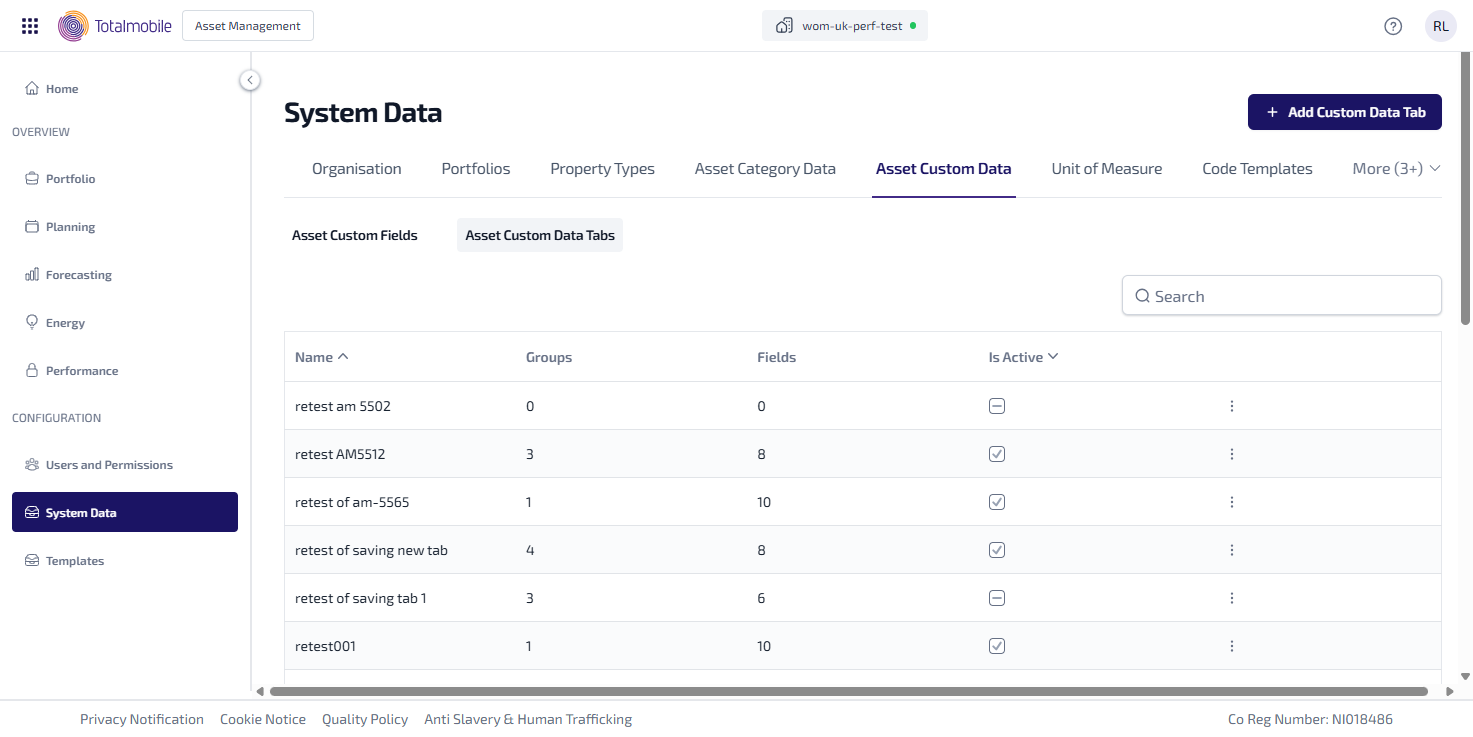
The following information is shown:
-
Name - the unique name of the asset custom data tab.
-
Groups - the number of groups configured within the asset custom data tab.
-
Fields - the number of asset custom fields used across all groups within the asset custom data tab.
-
Is Active – indicates whether the asset custom data tab is available to be used for asset subcategory configuration.
-
 - the asset custom data tab is available to be to be used for asset subcategory configuration.
 -
 - the asset custom data field is not available, and hidden from asset subcategories.
-
-
 More options - select for the following options:
-
Edit - select to edit the asset custom data tab.
-
Copy - select to copy an existing asset custom data tab. The copy is prefixed with Copy - and inactive by default. Find the copy, select More options, select Edit and make any necessary changes.
-
Delete - select to delete the asset custom data tab.
Asset custom data tabs can only be deleted if they are not assigned to an asset subcategory or used for an asset. If the asset custom data tab is in use, delete will be disabled.
-
You can also do the following in Asset Custom Data Tabs:
- Add Custom Data Tab - add a new asset custom data tab.
-
Edit Custom Data Tab - edit an existing asset custom data tab.
-
Search - enter a full, or partial, Name into the Search field and press Enter on the keyboard to display all matching results in Asset Custom Data Tabs.
The Search field is a ‘begins with’ search, therefore ensure the criteria entered is always the beginning of what you are searching for.
Once an asset custom data tab is configured and marked as active it needs to be made available for use with assets. This is done by assigning the asset custom data tab to one or more asset subcategories. For more details refer to Asset Subcategories.
Assets created with the asset subcategory assigned will automatically display the Custom Data Tab in the Asset Details , which allows users to see and complete the relevant asset custom fields.
Once assigned:
-
The Custom Data tab appears in Asset Details for all assets using the Asset Subcategory.
-
The structure of the groups and fields follows the Custom Data Tab configuration. For more details refer to Add Custom Data Tab.
-
Changes to the Asset Custom Data Tab structure are immediately reflected in Asset Details.
Add Custom Data Tab
To add a new asset custom data tab:
-
In the Navigation menu, in the Configuration section, select System Data.
-
Select the Asset Custom Data tab, then select the Asset Custom Data Tabs sub-tab.
-
Select Add Custom Data Tab.
-
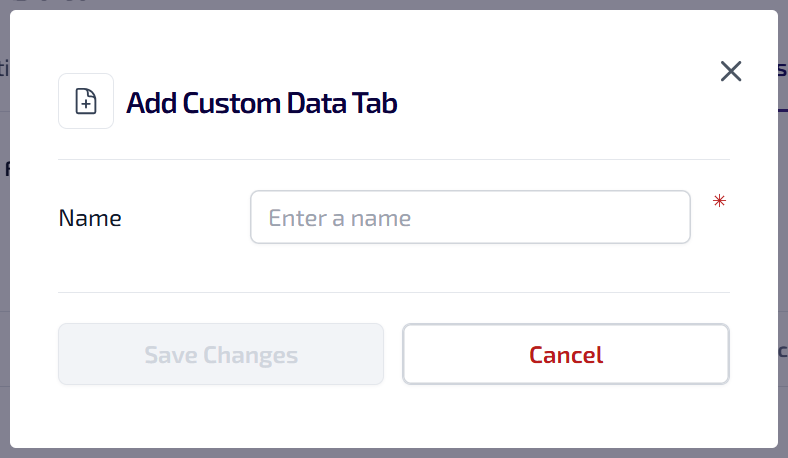
The Add Custom Data Tab dialog appears.
-
Enter a Name. This is a required field and name entered must be unique, can be alphanumeric, contain symbols and have a maximum 64 character limit.
-
Select Save Changes.
-
The asset custom data tab configuration page appears.
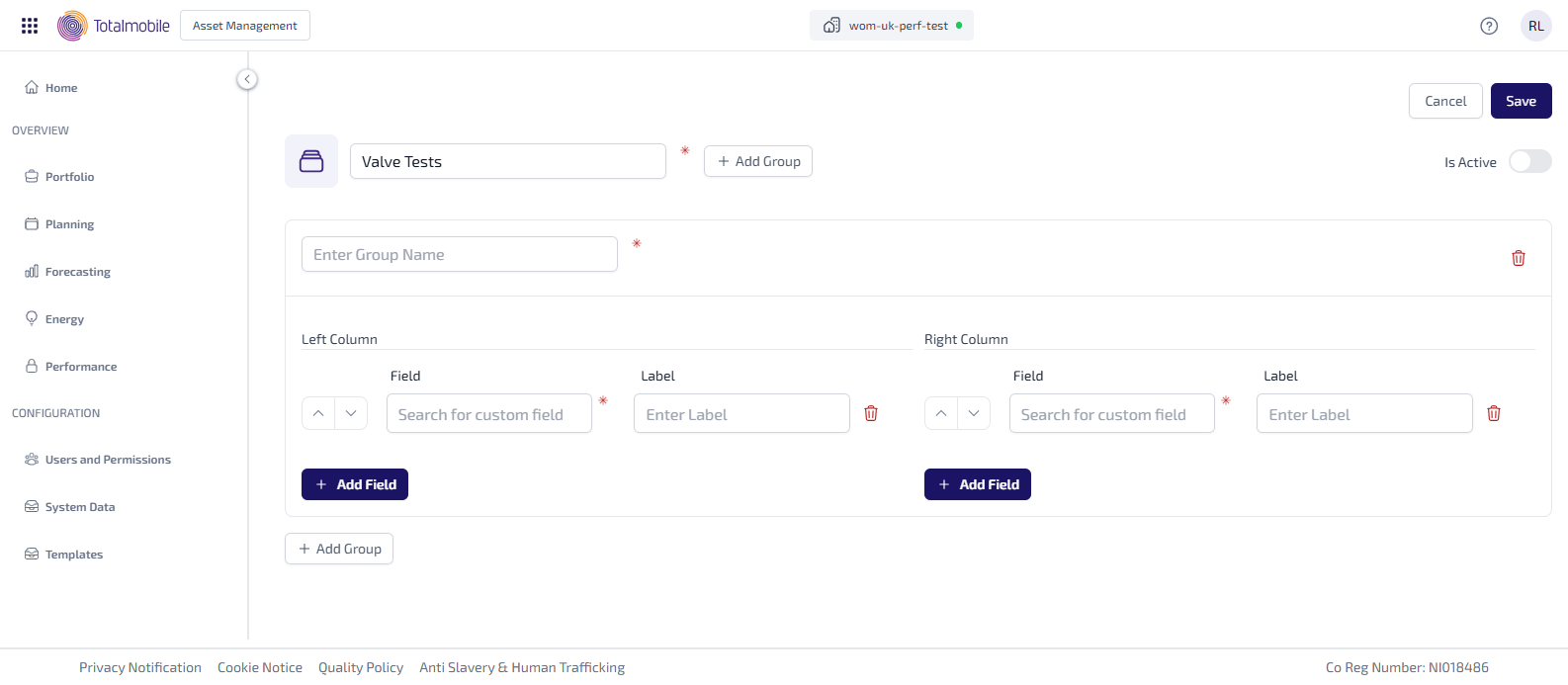
When creating a new asset custom data tab an empty Group, with a Field row for the Left Column and the Right Column, is shown by default.
-
Enter the following information:
-
Group Name* - the name entered must be unique, can be alphanumeric, contain symbols and have a maximum 64 character limit.
-
Left Column / Right Column
-
Field* - start typing the Asset Custom Field name into the field, then select from matching results listed. Each Asset Custom Field can only be used once on the Asset Custom Data Tab.
-
Label - optionally enter a label name, if left blank this defaults to the Asset Custom Field name.
-
Add Field - select to add another Field row, and enter the details accordingly.
-
 Delete - select to delete the field row from the Left Column or the Right Column.
 -
Arrow Up / Arrow Down - select the arrow up or arrow down to move the Field rows up or down to reorder them, in either the Left Column or the Right Column.
-
-
Add Group - select to add a new Group, enter the Group Name, enter the Field, Label if required, and add any additional fields as needed.
-
 Move Down - select to move the group down.
 -
 Move Up - select to move the group up.
 -
Delete - select to delete the group.
-
Select the toggle to indicate whether the asset custom data tab Is Active.
*These are required fields.
-
-
Select Save.
Edit Custom Data Tab
To edit an existing asset custom data tab:
-
In the Navigation menu, in the Configuration section, select System Data.
-
Select the Asset Custom Data tab, then select the Asset Custom Data Tabssub-tab.
-
Select Add Custom Data Tab.
-
The Add Custom Data Tab dialog appears.
-
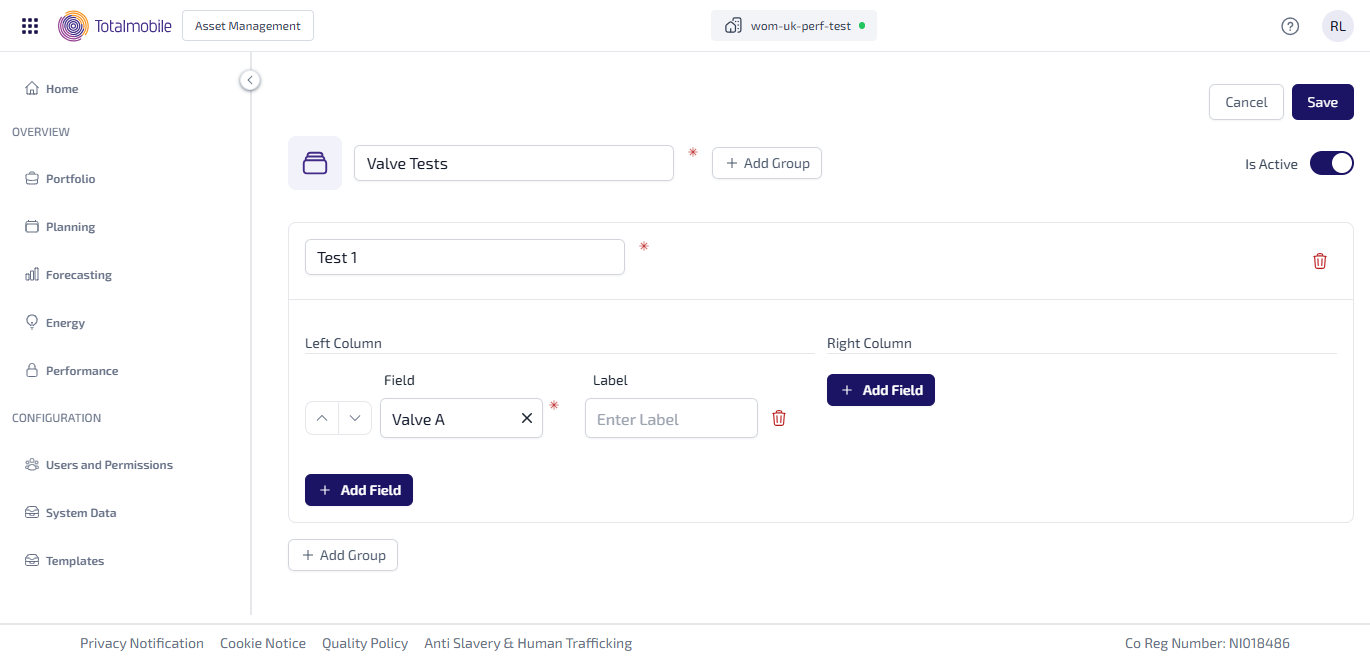
Update the following details as required:
-
Tab Name
-
Group Name
-
Field
-
Label
-
Is Active - indicating whether the asset custom data tab is available to be used for asset subcategory configuration.
-
-
Add, delete or reorder the groups and fields as required.
-
Select Save.