Asset Subcategories
The System Data > Asset Category Data tab > Asset Subcategories sub-tab lists all of the existing asset subcategories.
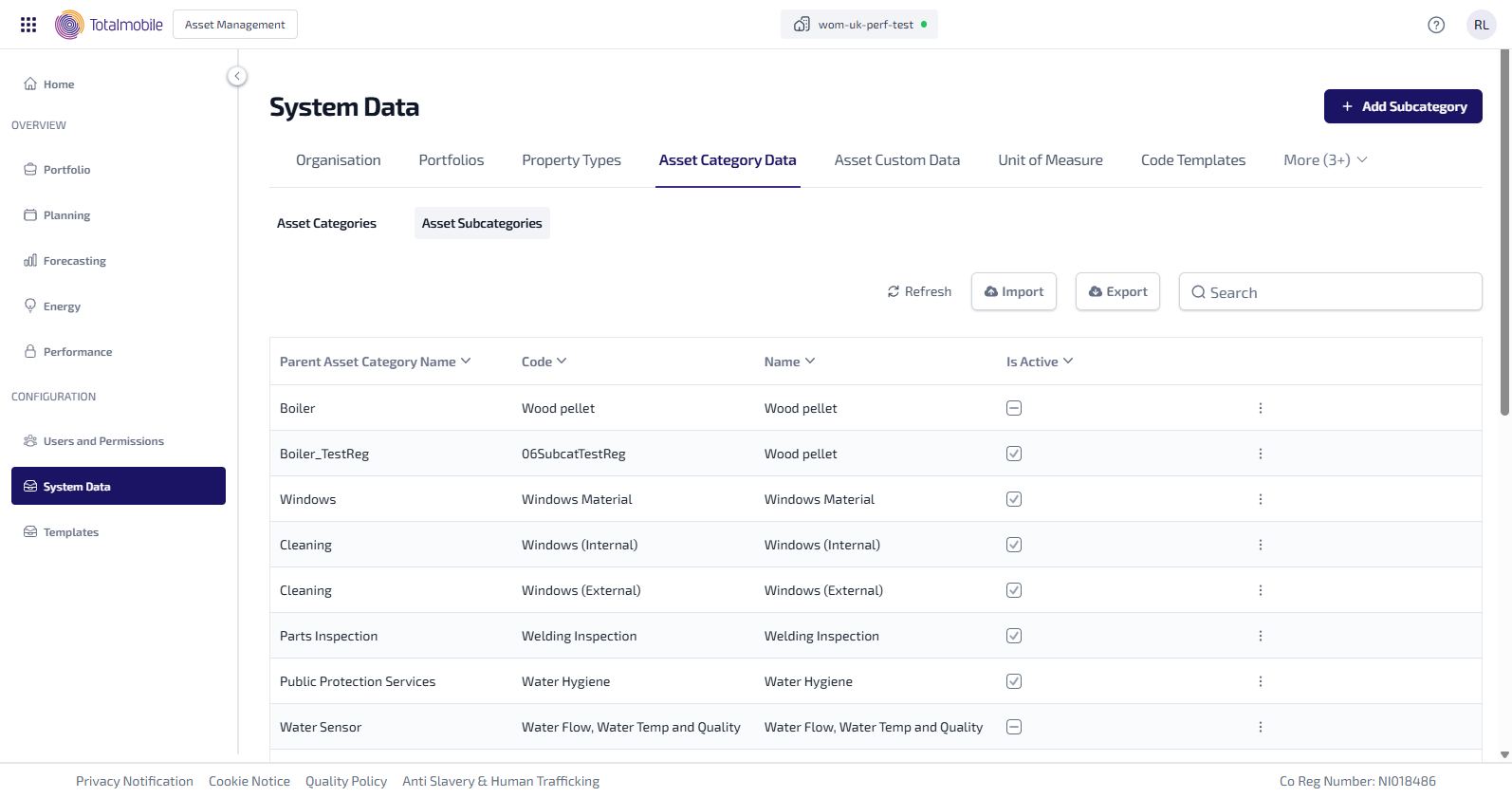
The following information is shown:
-
Parent Asset Category Name - the name of the parent asset category.
Code – the unique code for the asset subcategory.
-
Name – the name of the asset subcategory.
-
Is Active – indicates whether the asset subcategory is currently available to be assigned to assets.
-
 - the asset subcategory is available to be assigned to an asset.
 -
 - the asset subcategory is not available, and hidden from assets.
-
-
 More options - select for the following options:
-
Edit - select to edit the asset subcategory.
-
Delete - select to delete the asset subcategory.
Asset subcategories can only be deleted if they are not linked to an asset. If the asset subcategory is in use, delete will be disabled.
You can also do the following in Asset Subcategories:
-
Add Subcategory - add a new asset subcategory.
-
Edit Subcategory - edit an existing asset subcategory.
-
Refresh - select to refresh the information shown on the page.
-
Import - select to import multiple asset subcategories from a .csv file.
-
Export - select to export the asset subcategories as a .csv file.
-
Search - enter a full, or partial, Code or Name into the Search and press Enter on the keyboard to display all matching results in Asset Subcategories.
The Search is a ‘begins with’ search, therefore ensure the criteria entered is always the beginning of what you are searching for.
-
Add Subcategory
To add a new asset subcategory:
-
In the Navigation menu, in the Configuration section, select System Data.
-
Select the Asset Category Data tab, then select the Asset Subcategories sub-tab.
-
Select Add Subcategory.
-
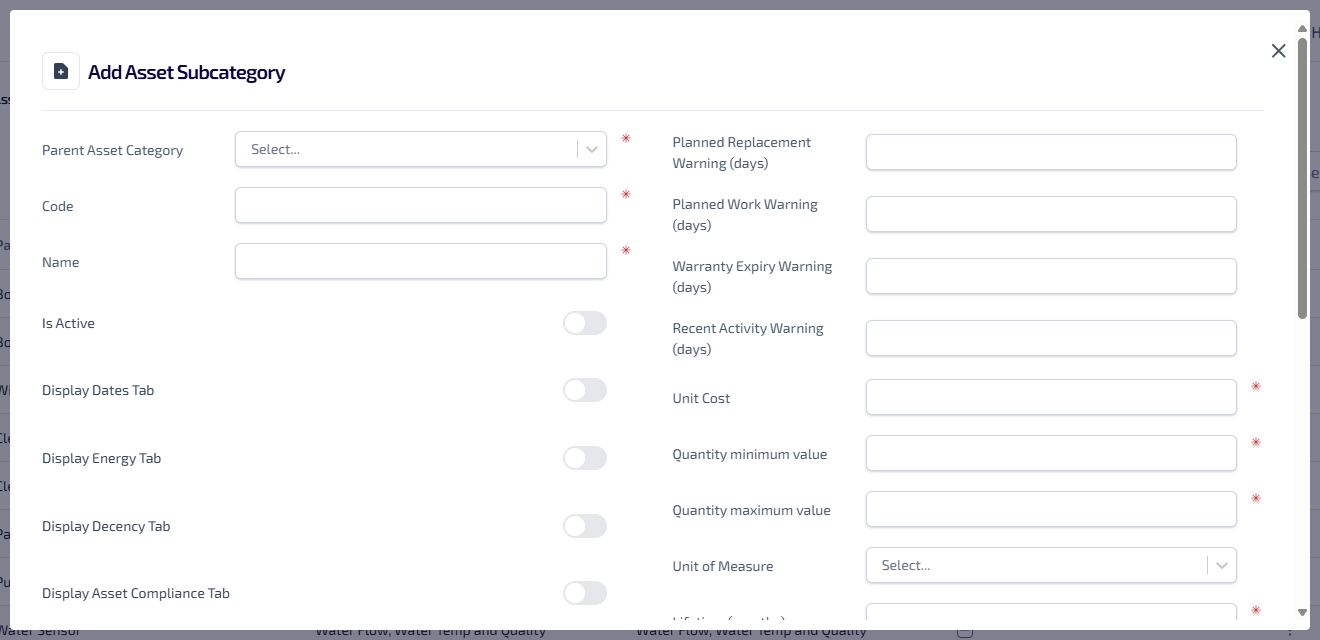
The Add Asset Subcategory dialog appears.
-
Enter the following information:
- Parent Asset Category* - only active asset categories are shown.
- Code* - the code entered must be unique, can be alphanumeric, contain symbols and have a maximum 64 character limit.
- Name*
- Select the toggle to indicate whether the asset subcategory Is Active.
- Select the toggle to indicate whether the following are to be displayed on the Asset Details for the asset subcategory:
- Display Dates Tab
- Display Energy Tab
- Display Decency Tab
- Display Asset Compliance Tab
- Display Spatial Hierarchy Tab
- Display Classification Tab
- Display Warranty Tab
- Display Asset Condition Section
The Spatial Hierarchy and Classification tabs only appear for assets originating from portfolios assigned to the ALM TM 1.0 data model.
- Select the toggle to indicate whether the asset subcategory Is Property?. When selected the following toggle options become available:
- Enforce UPRN
- Include In Forecasting
- Include Asbestos
- Include HHSRS
- Select the toggle to indicate whether asset subcategory is:
- Included In Financial Modelling
- Include In Depreciation
-
Planned Replacement Warning (days)
-
Planned Work Warning (days)
-
Warranty Expiry Warning (days)
-
Recent Activity Warning (days)
-
Unit Cost*
-
Quantity Minimum Value*
-
Quantity Maximum Value*
-
Select the Unit of Measure dropdown, then select the unit of measure to be used.
-
Lifetime (months)*
-
Planned Date (months)
-
Select the Custom Data Tab dropdown, then select from the active custom data tabs to be used.
-
Select the dropdowns and the default templates for the following:
-
Default Repair Template
-
Default Replacement Template
-
Default Condition Template
-
Missing Asset Data Template
*These are required fields.
-
-
Select Save Changes.
Edit Subcategory
To edit an existing asset subcategory:
-
In the Navigation menu, in the Configuration section, select System Data.
-
Select the Asset Category Data tab, then select the Asset Subcategories sub-tab.
-
For the asset subcategory you want to edit, select More options
. -
From More options select Edit.
-
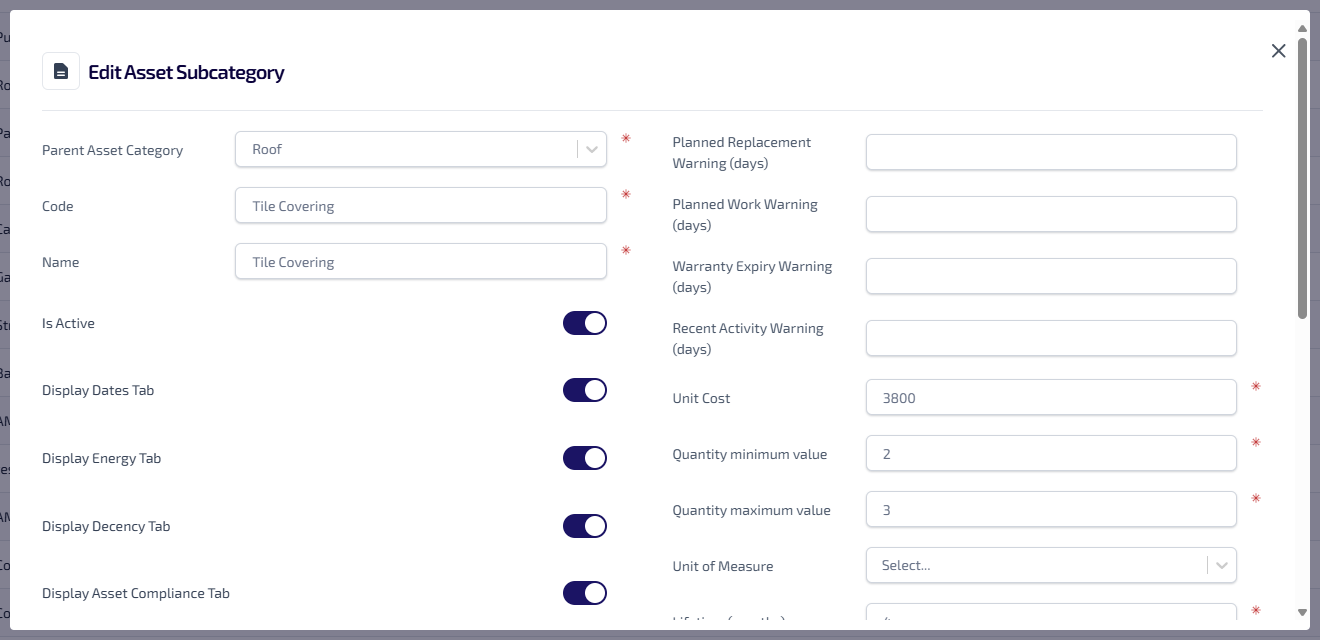
The Edit Asset Subcategory dialog appears.
-
Update the following details as required:
- Parent Asset Category
- Code
- Name
- Is Active - indicates whether the asset subcategory is available for assets.
- Display Dates Tab
- Display Energy Tab
- Display Decency Tab
- Display Asset Compliance Tab
- Display Spatial Hierarchy Tab
- Display Classification Tab
- Display Warranty Tab
- Display Asset Condition Section
- Is Property? - indicates whether the asset subcategory can be a property. When selected the following toggles can be updated:
- Enforce UPRN
- Include In Forecasting
- Include Asbestos
- Include HHSRS
- Included In Financial Modelling
- Include In Depreciation
- Planned Replacement Warning (days)
- Planned Work Warning (days)
- Warranty Expiry Warning (days)
- Recent Activity Warning (days)
- Unit Cost
- Quantity Minimum Value
- Quantity Maximum Value
- Unit of Measure
- Lifetime (months)
- Planned Date (months)
- Custom Data Tab
- Default Repair Template
- Default Replacement Template
- Default Condition Template
- Missing Asset Data Template
-
Select Save Changes.
Import
The Import lets you add multiple asset subcategories by importing them as a .csv file.
The .csv file must contain the following columns:
|
Column Name |
Description |
Validation Rules |
|---|---|---|
|
ParentCategoryCode |
The code of the existing asset category to which the asset subcategory belongs. |
Mandatory. This must match an existing active asset category. |
|
Code |
The unique code for the asset subcategory. |
Mandatory. This must be unique among all active asset subcategories. |
|
Name |
The name of the asset subcategory. |
Mandatory. This field cannot be empty. |
|
IsActive |
Indicates whether the asset subcategory is available for assets. |
Optional. Accepted values are True or False. This defaults to False if not provided. |
|
DisplayDatesTab |
Controls whether the Dates tab appears on the asset details. |
Optional. Accepted values are True or False. This defaults to False if not provided. |
|
DisplayEnergyTab |
Controls whether the Energy tab appears on the asset details. |
Optional. Accepted values are True or False. This defaults to False if not provided. |
|
DisplayDecencyTab |
Controls whether the Decency tab appears on the asset details (only for non-property assets). |
Optional. Accepted values are True or False. This defaults to False if not provided. |
|
DisplayAssetComplianceTab |
Controls whether the Asset Compliance tab appears on the asset details. |
Optional. Accepted values are True or False. This defaults to False if not provided. |
|
DisplaySpatialHierarchyTab |
Controls whether the Spatial Hierarchy* tab appears on the asset details. |
Optional. Accepted values are True or False. This defaults to False if not provided. |
|
DisplayClassificationsTab |
Controls whether the Classifications tab appears on the asset details. |
Optional. Accepted values are True or False. This defaults to False if not provided. |
|
DisplayWarrantyTab |
Controls whether the Warranty tab appears on the asset details. |
Optional. Accepted values are True or False. This defaults to False if not provided. |
|
DisplayAssetConditionSection |
Controls whether the Asset Condition section is visible in asset Details tab. |
Optional. Accepted values are True or False. This defaults to False if not provided. |
|
PlannedReplacementWarning |
Number of days for planned replacement warnings. |
Optional. This must be a numeric value and greater than or equal to 0. |
|
PlannedWorkWarning |
Number of days for planned work warnings. |
Optional. This must be a numeric value and greater than or equal to 0. |
|
WarrantyExpiryWarning |
Number of days for warranty expiry warnings. |
Optional. This must be a numeric value and greater than or equal to 0. |
|
RecentActivityWarning |
Number of days for recent activity warnings. |
Optional. This must be a numeric value and greater than or equal to 0. |
|
ReplacementCost |
Default replacement cost for the asset subcategory. |
Mandatory. This must be a numeric value and up to 2 decimal places. |
|
Lifetime |
Asset subcategory lifetime in months. This is used in date calculations. |
Mandatory. Must be a numeric value and greater than or equal to 0. |
|
PlannedDate |
Planned date |
Optional. This must be a numeric value and greater than or equal to 0. |
|
CustomDataTabName |
Links the asset subcategory to an existing Custom Data tab. |
Optional. This must match an existing active Custom Data tab name. |
|
DefaultRepairTemplateCode |
Default repair template assigned to the asset subcategory. |
Optional. This must match an existing active Code Template code. |
|
DefaultReplacementTemplateCode |
Default replacement template assigned to the asset subcategory. |
Optional. This must match an existing active Code Template code. |
|
DefaultConditionTemplateCode |
Default condition template assigned to the asset subcategory. |
Optional. This must match an existing active Code Template code. |
|
DefaultMissingAssetDataTemplateCode |
Default missing asset data template assigned to the asset subcategory. |
Optional. This must match an existing active Code Template code. |
*The Spatial Hierarchy and Classification tabs only appear for assets originating from portfolios assigned to the ALM TM 1.0 data model.
To import an asset subcategories file:
-
In the Navigation menu, in the Configuration section, select System Data.
-
Select the Asset Category Data tab, then select the Asset Subcategories sub-tab.
-
Select Import.
-
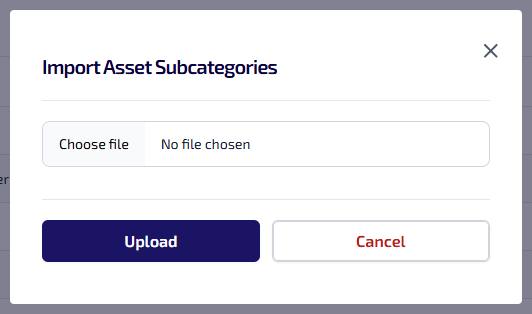
The Import Asset Subcategoriesdialog appears.
-
Select Choose file, browse and select the required file to import, select Open.
-
Select Upload.
If any asset subcategories in the .csv file fail the validation check, due to a missing name or duplicate code etc., they will be skipped, and all valid asset subcategories will be imported successfully.
Export
The Export lets you export the asset subcategories as a .csv file. the following options are available:
-
All Asset Subcategories - exports all asset subcategories.
-
Only Active Asset Subcategories - exports all the asset subcategories on the current page with Is Active selected.
-
Your Exports - shows all your in progress and completed exports.
To export an asset subcategories file:
-
In the Navigation menu, in the Configuration section, select System Data.
-
Select the Asset Category Data tab, then select the Asset Subcategories sub-tab.
-
In the Asset Subcategories sub-tab select Export, and select either All Asset Subcategories or Only Active Asset Subcategories from the context menu.
-
The export is started and progresses in the background. Select Export, and select Your Exports from the context menu.
-
The Your Exports dialog appears.
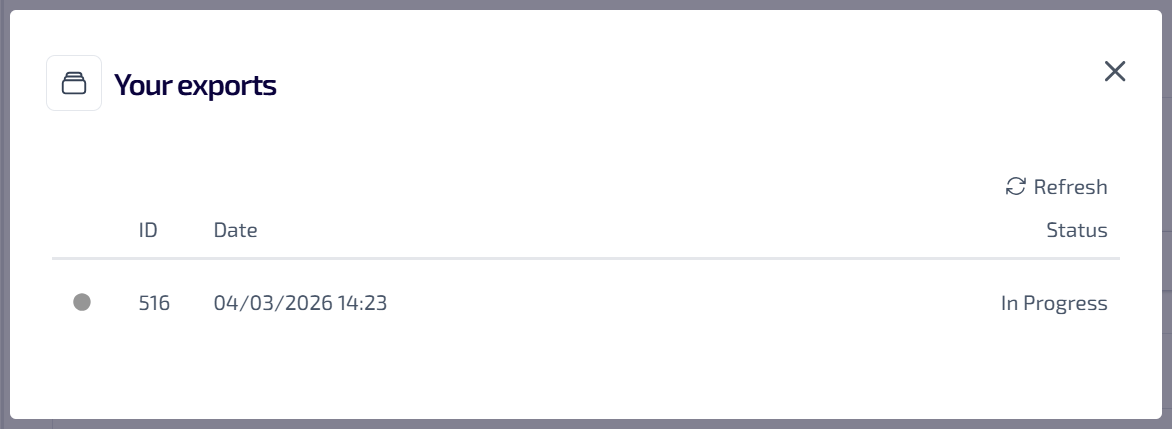
This lists all of your exports which are in progress or completed. the following information is shown:
-
ID - the system generated identification number.
-
Date - the date and time the export started.
-
Status - the status of the export, which could be one of the following:
-
In Progress
-
Completed
-
-
-
Once the export is complete expand
 the section to view the URL.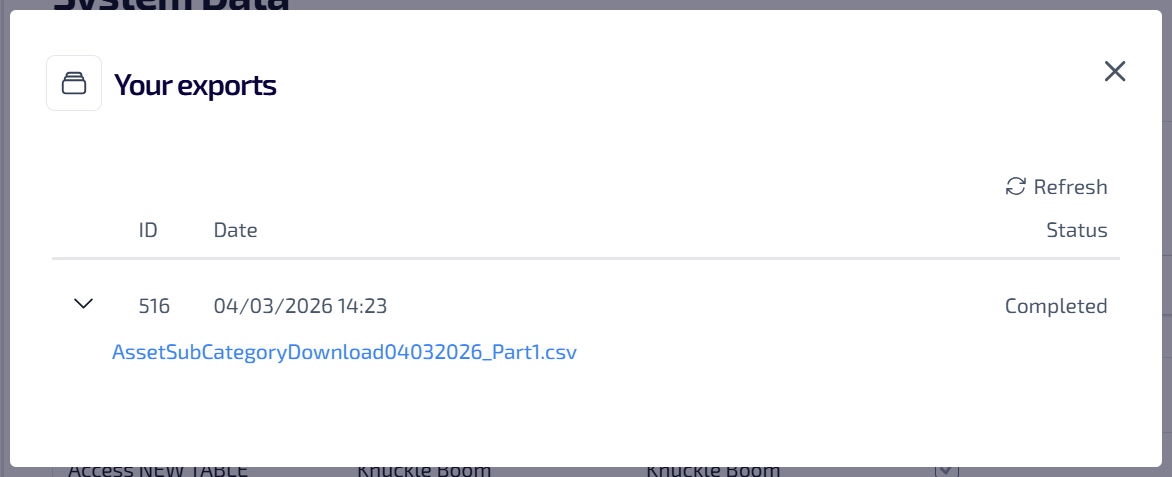
-
Select the URL to download the asset categories file to your browser download folder.
Once the export is downloaded to your browsers download folder, it is removed from the Your Exports dialog.
Please note the following:
-
You can only view your own exports.
-
If the file is not downloaded within 7 days it will be deleted automatically.
-
Each file contains up to 10,000 rows.
-
If your export contains more than 10,000 rows it will be split into multiple files.