Asset Register - Export
Use the Asset Register Export feature to export a list of assets in .csv format. The following options are available:
-
All Filtered Assets - exports a list of all the assets, or filtered assets if a filter has been applied, for more information on filters see Asset Register - Filtering.
-
Selected Assets - exports a list of the selected assets only.
-
Your Exports - shows all your in progress and completed exports.
Export assets
-
Select the Asset Register tab from the Portfolio page.
-
If required:
-
Apply filters to find the assets to export.
-
Select the checkbox for all the assets you want to export.
-
-
Select Export, and from the context menu select either:
-
All Filtered Assets - to export a list all the assets, or filtered assets if a filter has been applied.
-
Selected Assets - to export a list of the selected assets only.
-
-
The Export Data dialog appears.
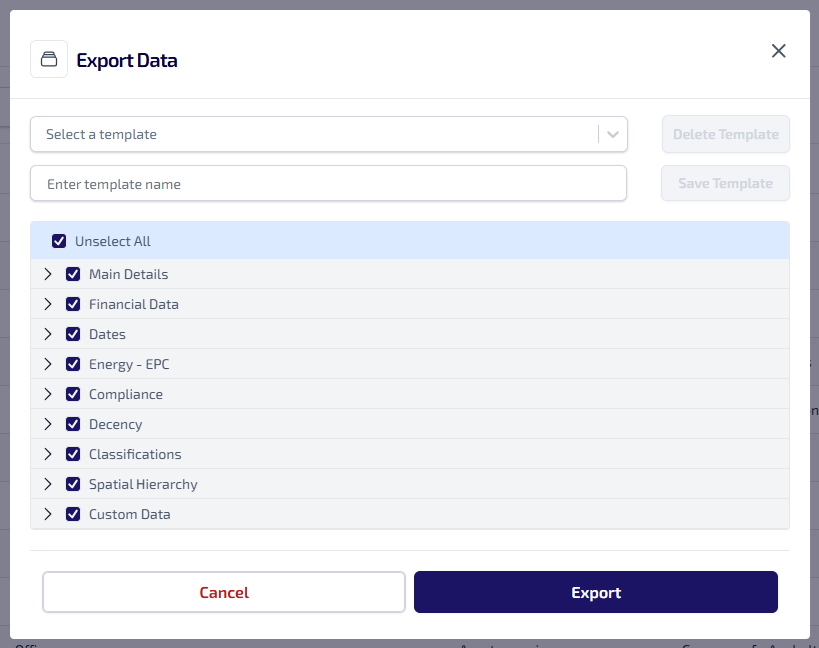
This shows all the available data columns for the assets, by default all are selected. To update the selected data columns you can:
-
Select an export template from the Select A Template dropdown, or
-
Select the checkbox for the data columns to be excluded from the export.
-
-
Select Export.
-
The export is started and progresses in the background. Select Export, and select Your Exports from the context menu.
-
The Your Exports dialog appears.
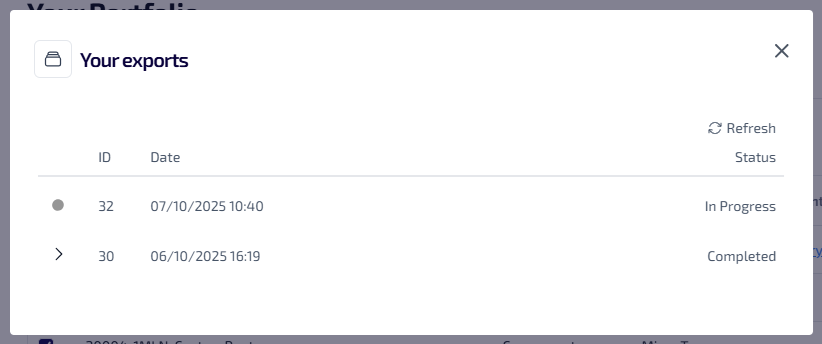
This lists all of your exports which are in progress or completed. The following information is shown:
-
ID - the system generated identification number.
-
Date - the date and time the export started.
-
Status - the status of the export, which could be one of the following:
-
In Progress
-
Completed
-
-
-
Once the export is complete select the
 , the export URL is shown.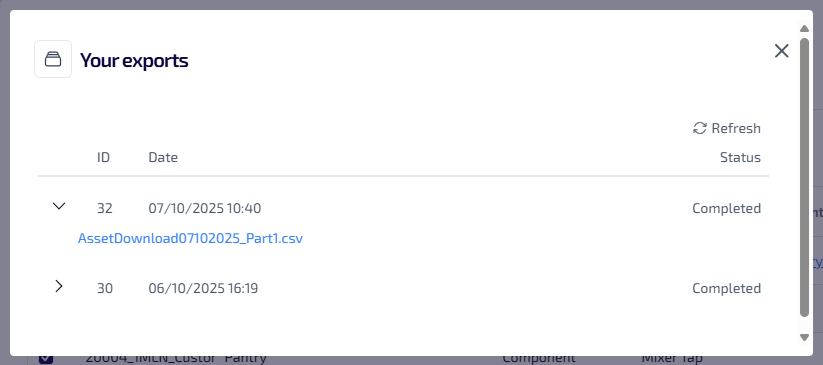
-
Select the URL to download the code template to your browser download folder.
Once the export is downloaded to your browsers download folder, it is removed from the Your Exports dialog.
Create Export Template
To create an export template:
-
Select the Asset Register tab from the Portfolio page.
-
If required:
-
Apply filters to find the assets to export.
-
Select the checkbox for all the assets you want to export.
-
-
Select Export, and from the context menu select either:
-
All Filtered Assets - to export all the assets, or filtered assets if a filter has been applied.
-
Selected Assets - to export all the selected assets.
-
-
The Export Data dialog appears.
-
Enter a name for the template in the Enter Template Name field.
-
Select the checkbox for the data columns to be excluded from the export template.
-
Select Save Template.
-
To continue on and export the asset data, select Export.
You only have access to export template which you have created.
Delete Export Template
To delete an export template:
-
Select the Asset Register tab from the Portfolio page.
-
Select Export, and from the context menu select either:
-
All Filtered Assets
-
Selected Assets
-
-
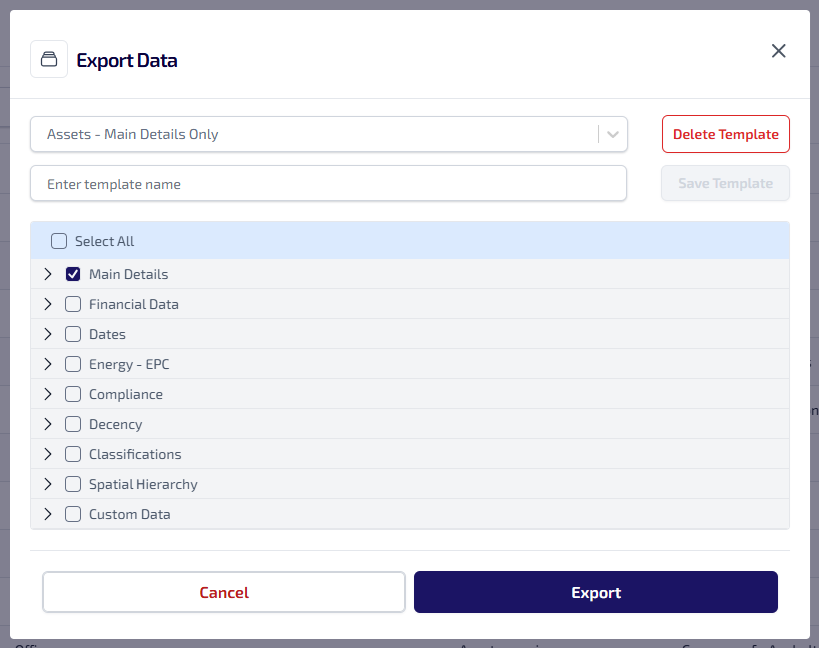
The Export Data dialog appears.
-
Select the export template from the Select A Template dropdown.
-
Select Delete Template.