Import Dashboard
Select the Portfolio > Import tab to display the Import Dashboard. The Import Dashboard enables you to monitor and manage all asset import activities. All imports are listed with their current status and detailed information, such as the number of asset records imported and any errors or warnings.
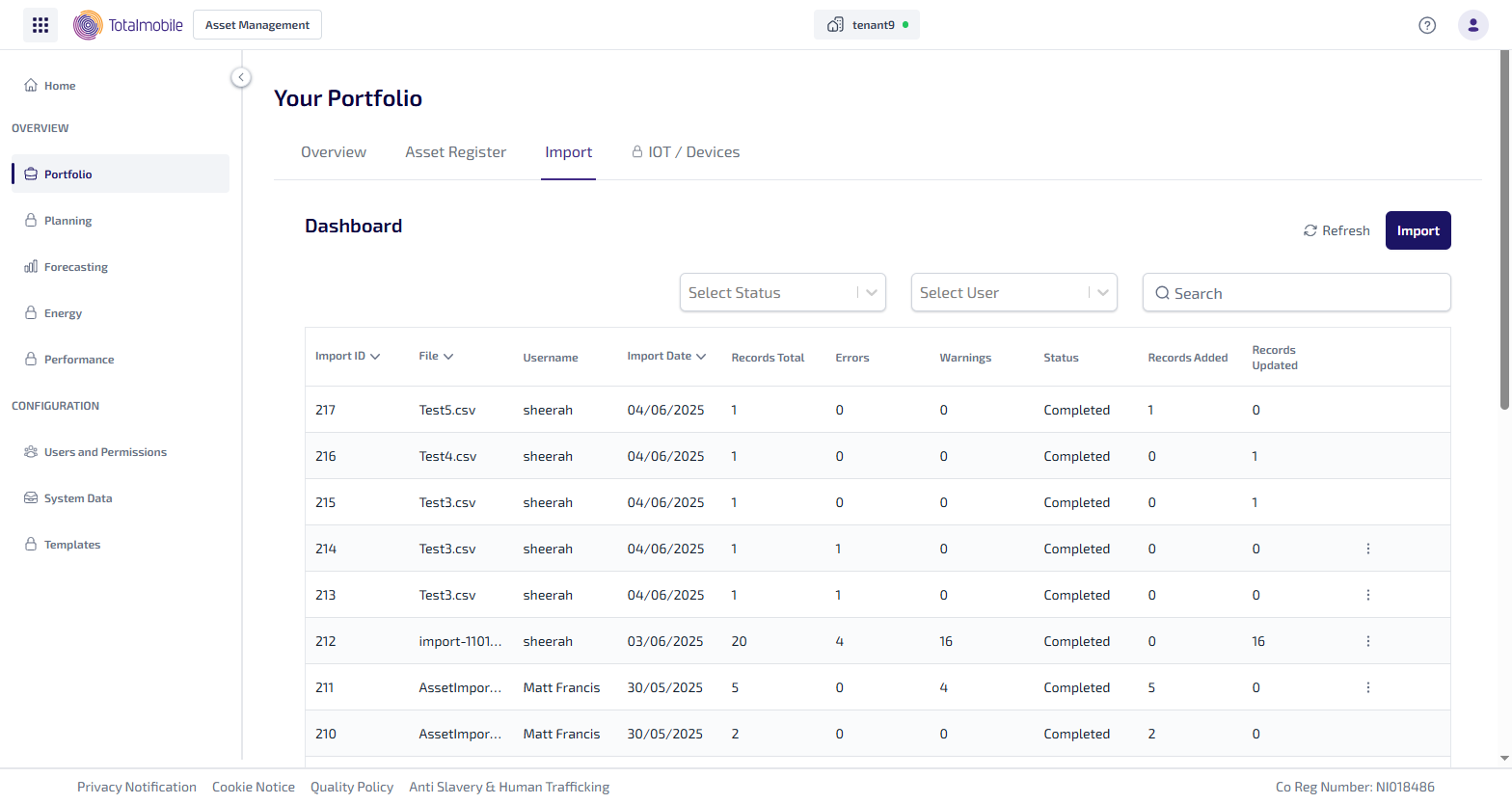
The Import Dashboard shows the following for each import:
-
Import ID* - this identification is generated when the file is imported.
-
File* - the name of the file imported.
-
Username - the username of the person who imported the file.
-
Import Date* - the date the file was imported.
-
Records Total - the total number of records in the file.
-
Errors - the number of errors in the file. Assets with errors are not imported.
-
Warnings - the number of warnings in the file. Assets with warnings are imported, but may require manual updates.
-
Status - the current status of the import. The import statuses are:
-
Ready - the import has been created and added to the queue. It is waiting for available system resource to start. Once there is free capacity, the import automatically moves to In Progress.
-
In Progress - the import has started. The system is validating the file, uploading data into the database, and preparing the import. Final results are not yet available.
-
Finalizing - the import is complete, and the system is now linking the assets to their parent asset. This is the final step before the import is finished.
-
Completed - the import process, including validation, data upload, and parent-child linking, has finished. No further actions are required unless warnings or errors are reported.
-
-
Records Added - the number of new assets added.
-
Records Updated - the number of existing assets updated.
-
 - this appears when the import contains Errors or Warnings. Selecting it gives you the option Download Import Issues, this downloads a report with all the errors and warnings found with the import. For more details refer to Import Dashboard - Import Issues
*These columns can be sorted in ascending or descending order by selecting the column heading. The arrow to the right of the heading shows whether the column is sorted in ascending order (arrow pointing up), or descending order (arrow pointing down).
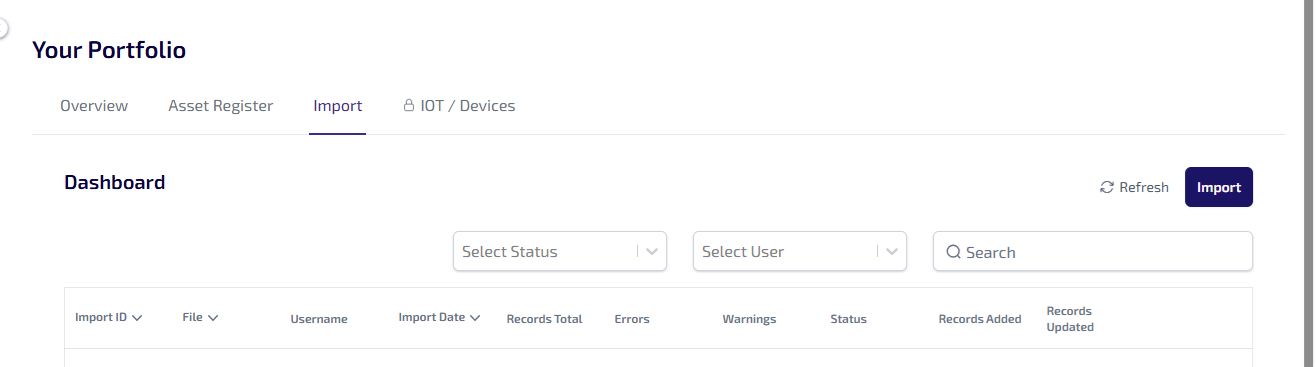
The following features are available at the top of the Import Dashboard:
-
Refresh - select this to manually refresh the Import Dashboard.
-
Import - select this to start the process of importing a file, for more information refer to Import Dashboard - Import.
-
Select Status* - select an import status from the dropdown list. The Import Dashboard updates to only display imports whose status matches the status selected.
-
Select User* - select an Asset Management user from the the dropdown list. The Import Dashboard updates to only display imports which were uploaded by the selected user.
-
Search - content entered in this field searches the Import ID, File, and Username columns. The Import Dashboard updates to only display imports which match the search terms.
*You can only select one option in each dropdown list.